This article provides information about the audience dashboard.
The audience dashboard is in Early Access and is only available to select customers. If you are interested in trying this feature, contact your Tealium Account Manager.
The audience dashboard provides prebuilt visuals for monitoring audience sizes over time, identifying top growing and declining audiences, and tracking join and leave activity.
Requirements
The audience dashboard requires the Audience Dashboard feature to be enabled on your profile. To enable this feature, contact your Tealium Account Manager.
The audience dashboard is not available in the ap-southeast-1 (Hong Kong) region.
Generate the dashboard
To generate the audience dashboard:
- Go to Analyze > Insights > Templates.
- Find the Audience dashboard template, and click View Details.
- Click Generate Dashboard.
After you generate the audience dashboard, it may take up to 2 hours for data to appear. The dashboard updates once an hour.
If you disable the Audience Dashboard feature on your profile, the dashboard and its data are deleted 30 days after you publish this change. To retain your data, re-enable the feature within this period.
Access the dashboard
To access the audience dashboard, go to Analyze > Audience Dashboard or Activate > Audiences and click the View Dashboard link.
For more information about managing dashboards, see Manage dashboards.
Dashboard filters
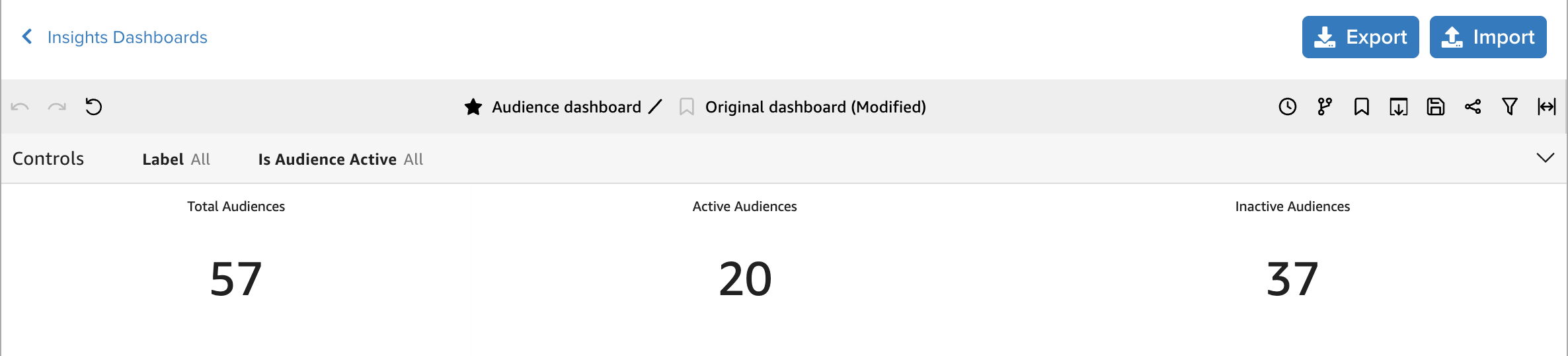
The following filters apply to all visuals on the dashboard:
- Label: Filter audiences by label. Supports multiple selections.
- Is Audience Active: Filter to active audiences, inactive audiences, or both. Supports multiple selections.
Prebuilt visuals
The audience dashboard template includes the following predefined visuals for monitoring audience data.
Audience overview
The Audience Overview tile shows KPI tiles that summarize the audiences in the profile:
- Total Audiences: Total count of all audiences defined in the profile.
- Active Audiences: Count of audiences that have at least one active connector action.
- Inactive Audiences: Count of audiences with no active connector actions.
Top audience changes
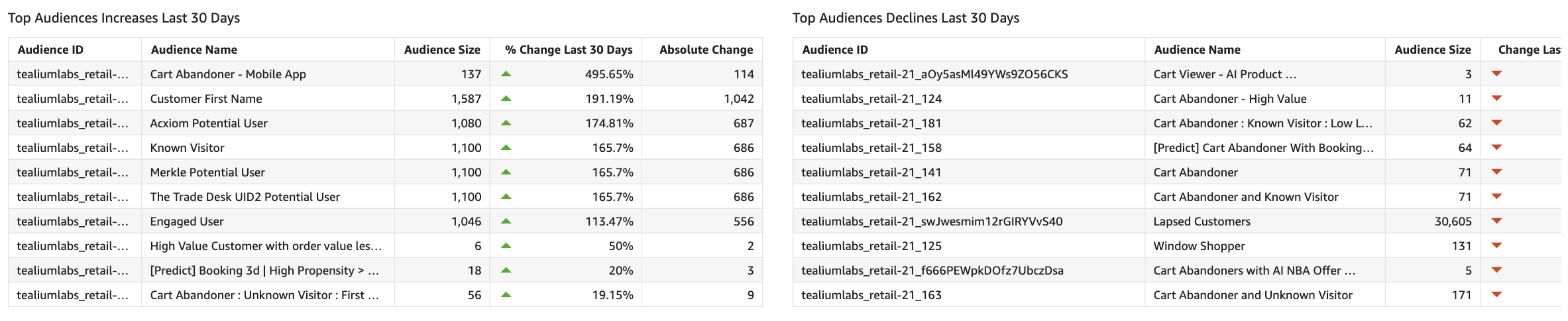
Top Audience Changes shows the top audiences by membership change over the last 30 days. Each table includes the audience ID, audience name, current audience size, percentage change, and absolute change.
- Top Audiences Increases Last 30 Days: Audiences with the highest percentage growth.
- Top Audiences Declines Last 30 Days: Audiences with the largest percentage decline.
Audiences size
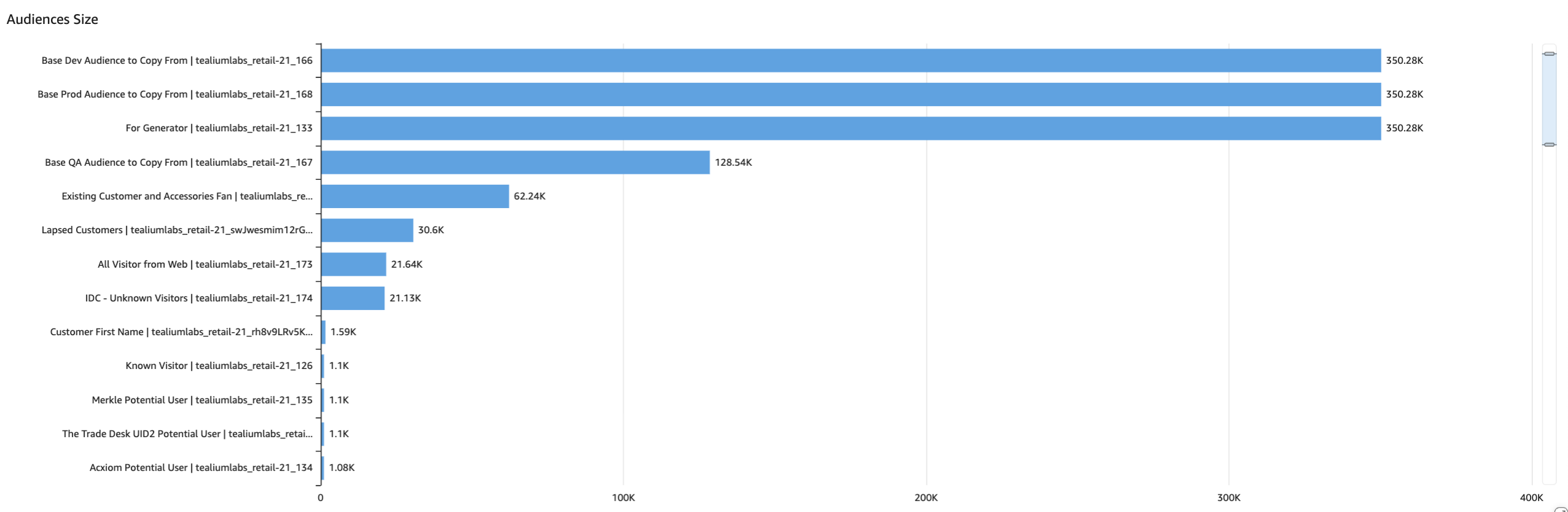
The Audiences Size tile is a horizontal bar chart showing the current size of each audience. Audience Size is a point-in-time snapshot and does not update when the date range filter changes. For the time-series view, see Audience Size in the Details section.
Details
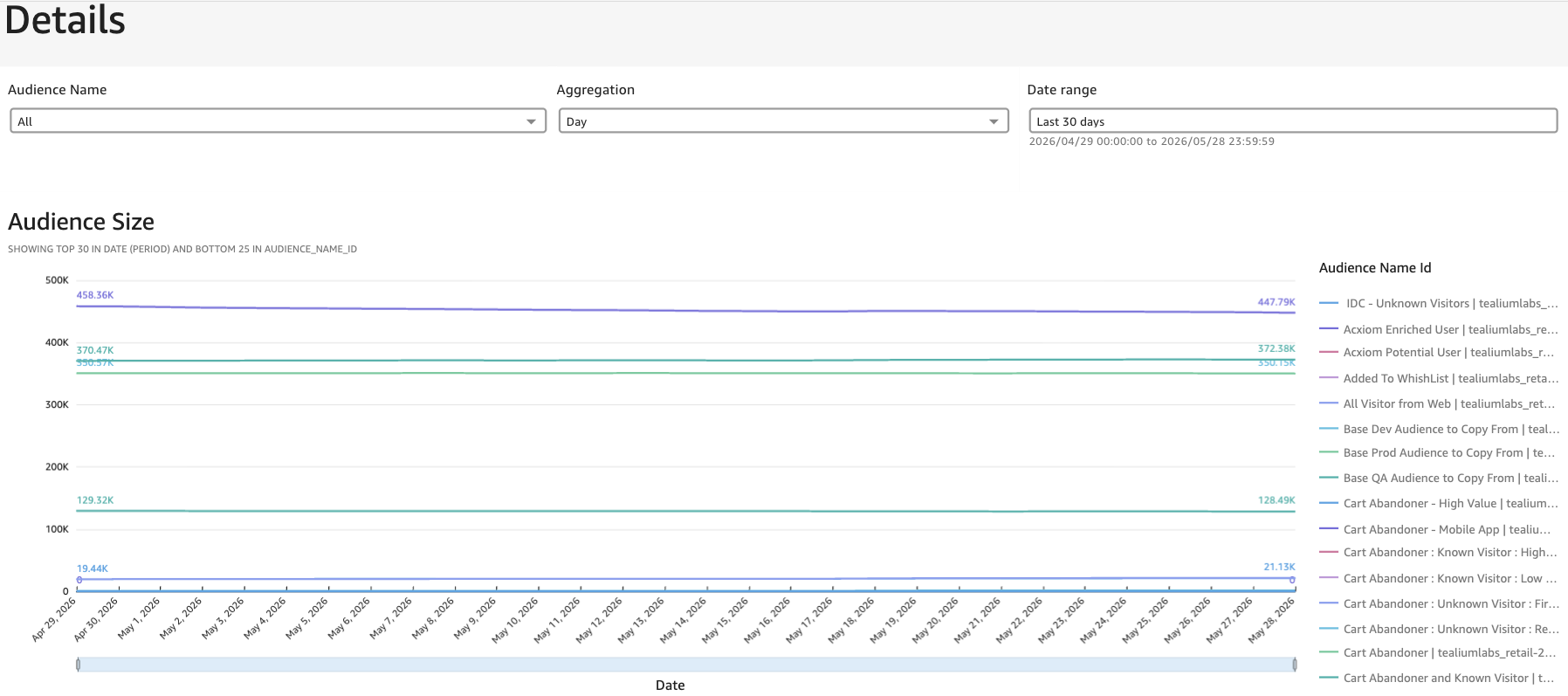
The Details section shows time-series data for individual audiences. Use these controls to filter data across the charts in this section:
- Audience Name: Select a specific audience or view all audiences.
- Aggregation: Group data by day, week, month, quarter, or year.
- Date range: Defaults to the last 30 days.
The following charts update based on the selected controls:
- Audience Size: Line chart showing audience size over the selected date range.
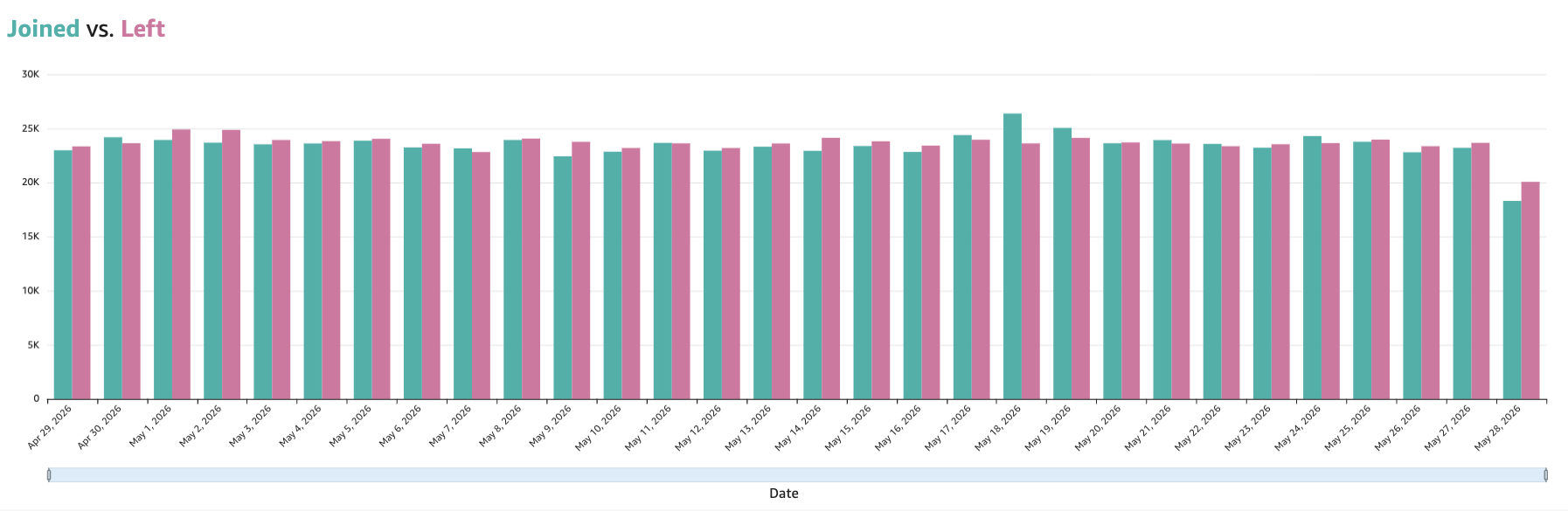
- Joined vs. Left: Bar chart showing join counts against combined leave, delete, purge, and stitch counts over the selected date range.
Audience Size
Joined vs. Left
Export
Export to CSV
Select a visual, then click the visual menu and select Export to CSV. The CSV file is automatically downloaded to your default downloads folder.
Applied filters
To filter visual data, select a visual and click Applied filters, then click View dashboard filters. In the Filters slideout, click Add filter.
This page was last updated: July 29, 2026