This article contains frequently asked questions and troubleshooting tips for Multi-Factor Authentication on your Tealium account.
Account and users
How do I find my primary account?
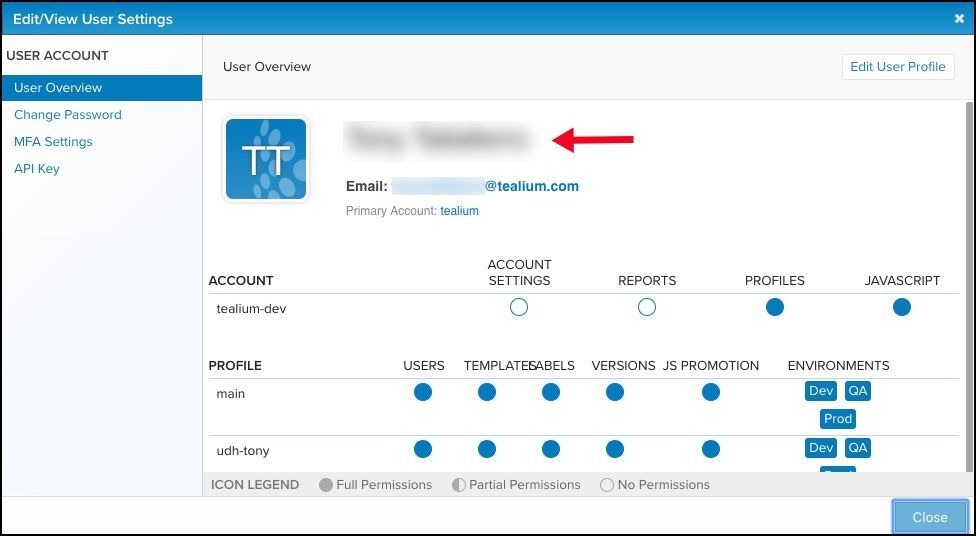
Information about your primary account can be found in the User Preferences settings.
- In Tealium iQ, click your name/email in the top right corner to display the Account Admin drop-down menu.
- Under User Preferences, click Edit/View user Settings.
- Your primary account appears in the right panel.
Who can enable/disable MFA in my account?
Only an account admin is permitted to manage the setting. However, any user can reset their own MFA.
MFA was auto-enabled in my account on Feb 16, 2016? Can I disable it?
Yes, but it is not recommended. Disabling MFA will remove the extra layer of protection that keeps your implementation safe from unauthorized users.
Besides Tealium iQ, which other Tealium products support MFA?
Tealium supports MFA for AudienceStream, EventStream, DataAccess, Web Companion, and Tealium Tools.
My account has multiple profiles. Does MFA apply to all of them?
Yes. MFA applies to all profiles within your account.
I was assigned to an MFA-enabled account that is not my primary account. Will I need a token to access it?
Yes. You are subject to MFA when signing into or switching to any MFA-enabled account — regardless if it’s not your primary account.
Authenticator App and Security Tokens
Tealium only supports tokens from Google and Windows Authenticator Applications on iOS, Android, and Windows phones.
How often do I have to enter my token?
You must enter your token every time you sign in or switch to an MFA-enabled account or anytime after clearing the cookies/cache from your browser history.
How often should I set up the app to my account?
Ideally, you should only set up the application once after enabling MFA. If at any point your token was reset or you signed in from a new device, you will have to set up the application again.
Troubleshooting tips
I am unable to scan the barcode when setting up the authenticator application
It is possible that your mobile phone does not have a built-in barcode reader app, particularly if it is an Android device. If that’s the case, then download and install a generic barcode reader app.
Ensure that the app you use is designed to scan generic barcodes only – not the mail barcodes you typically see on shipping labels.
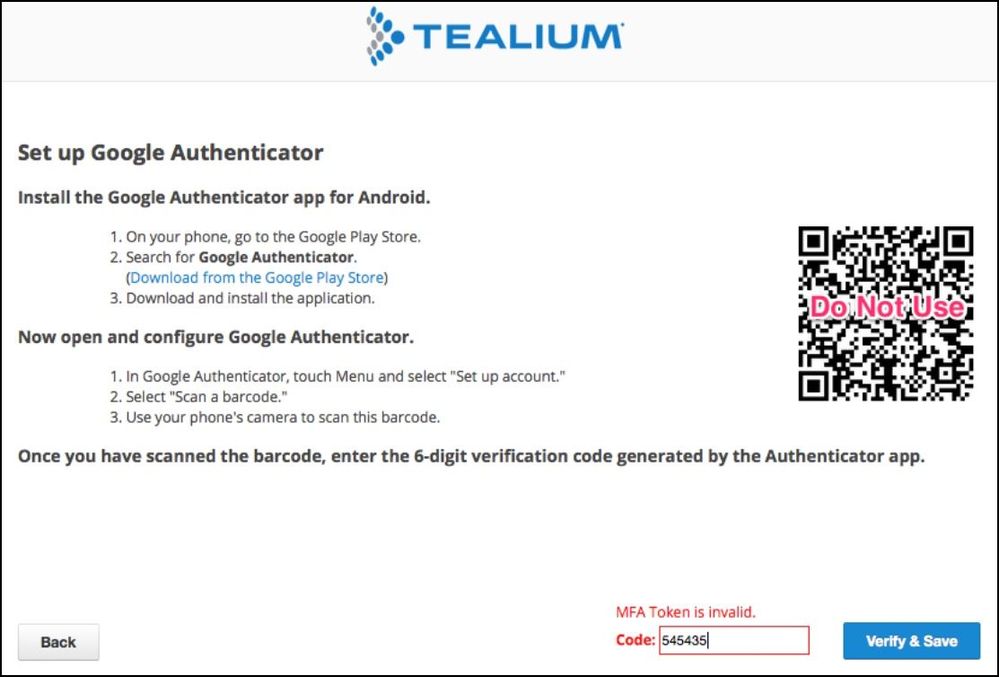
Invalid 6-digit verification code when setting up the authenticator application
If you encounter this error, the easiest thing to do is to start over. Go back to the login page, sign in with your username and password, and then proceed with the application setup steps.
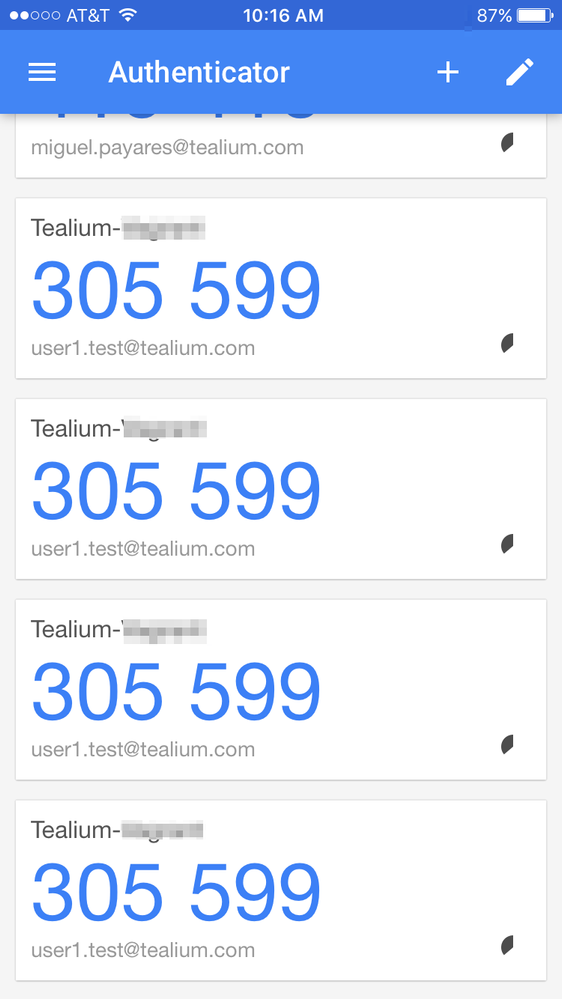
My authenticator application has multiple entries of my synced accounts
This happens when the same barcode is scanned multiple times and does not introduce any problems. To correct, simply delete the unwanted entries and proceed to re-sync the app with your account.
The token expired before I could enter it
Don’t worry if your token expired before you used it. You can use the next one since most apps generate fresh tokens every few seconds. How long each token lasts will depend on the app you are using.
I’ve tried everything and still can’t sync my authenticator app
In rare cases, there could be a timing issue on your smartphone, causing the sync to fail. Try this:
- Go to your smartphone’s time settings, turn off the automatic time settings, and exit the settings.
- Reopen the settings and set the time back to automatic.
- Follow the steps to re-sync the app with your account.
This page was last updated: June 29, 2026