How to sign in to the Tealium platform using email and password or SSO.
Sign in to Tealium at https://my.tealiumiq.com.
Sign in with email and password
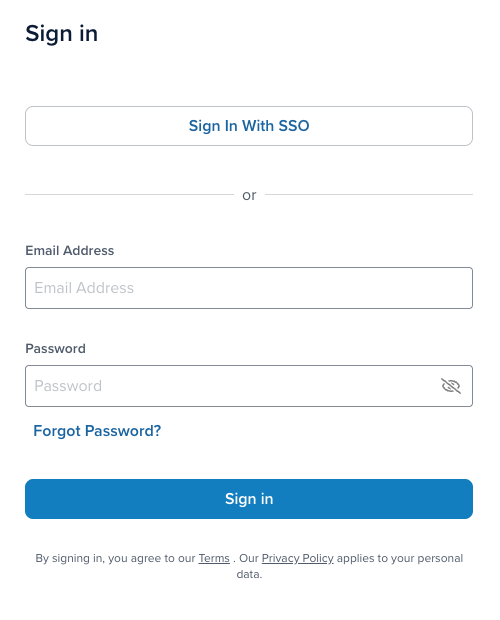
- In the Email Address field, enter your email address.
- In the Password field, enter your password.
- Click Sign in.
Multi-factor authentication
If your account requires multi-factor authentication (MFA), Tealium prompts you for a verification code after you enter your password.
For setup and troubleshooting, see Multi-factor authentication (MFA).
Reset your password
To reset a forgotten password:
- On the sign-in page, click Forgot Password?
- Enter your email address, then click Submit.
- Check your email for a message from
noreply@tealium.comand click the Reset My Password link. - Enter and confirm your new password.
SSO users cannot reset their password through this flow. Contact your identity provider to reset SSO credentials.
Sign in with SSO
Single sign-on (SSO) lets you use your organization’s identity provider to access Tealium.
To sign in with SSO:
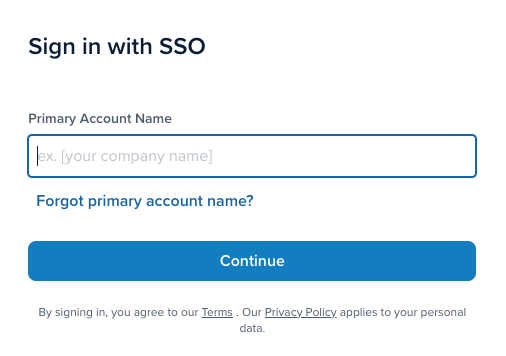
- On the sign-in page, click Sign In With SSO.
- In the Primary Account Name field, enter your primary account name.
- Click Continue.
- Authenticate through your identity provider.
If you do not know your primary account name:
- Click Forgot primary account name?
- Enter your email address and submit the form.
- Check your email for a message containing your primary account name.
For information about configuring SSO for your organization, see Single sign-on (SSO).
Select a profile
After you sign in, the profile selector appears.
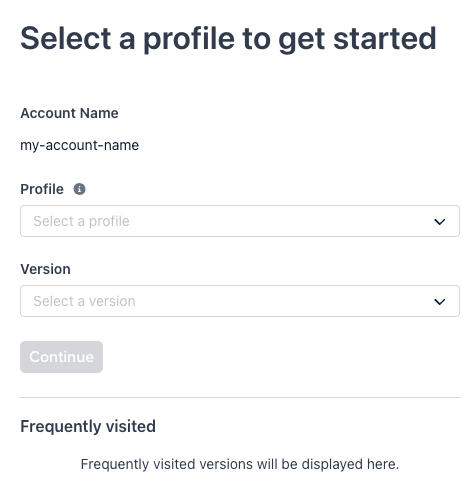
Select the profile and version to load, then click Continue.
The Frequently visited section shows your recently accessed versions for quick access.
This page was last updated: August 25, 2026