---
title: Tealium SEO (JSON-LD) Tag Setup Guide
description: This article describes how to set up the Tealium SEO (JSON-LD) tag in your Tealium iQ Tag Management account.
url: https://docs.tealium.com/client-side-tags/tealium-seo-json-ld-tag/
---
## Tag Configuration
First, go to the tag marketplace and add the Tealium SEO Tag to your profile. For more information, see [Manage Tags](https://docs.tealium.com/manage-tags/#add-a-tag).
After adding the tag, configure the below settings:
* **Homepage URL**: Enter the complete homepage URL (including the protocol).
* **Site Name**: Enter the name of your site/company.
* **Search URL**: Enter the search URL and replace the query string value with `search_term_string`.
For example, if your search URL is `http://query.example.com/search?q=smartphones`. Replace the value of `smartphones` with `search_term_string` so the final URL becomes:`http://query.example.com/search?q=search_term_string`
* **Use Path for Breadcrumb**: Choose whether or not you want to auto-generate the path breadcrumb.
* **Yes** (default): uses the pathname to build the breadcrumb.
* **No**: uses the Data Mappings to build the breadcrumb.
* **Build Product Data**: Choose whether or not to automatically add the product details.
* **Yes** (default): Use the E-Commerce extension to automatically build product data for product pages (recommended for E-Commerce sites).
* **No**: Does not add product data.
## Load Rules
[Load rules](https://docs.tealium.com/about-load-rules/) determine when and where to load an instance of this tag on your site.
Recommended load rule: **All Pages**.
## Data Mappings
Mapping is the process of sending data from a [data layer variable](https://docs.tealium.com/iq-tag-management/data-mappings/manage/) to the corresponding destination variable of the vendor tag. For instructions on how to map a variable to a tag destination, see [Data Mappings](https://docs.tealium.com/iq-tag-management/data-mappings/manage/).
The destination variables for the Tealium SEO Tag are built into its data mapping tab. Available categories are:
### Standard
| **Destination Name** | **Description** |
|:-------------------------|:---------------------------------------------------------------------------------------------------------------------------------------------------------------------------------|
| Site Name | Your company or site name |
| Homepage URL | The complete homepage URL |
| List of Breadcrumb Names | Array of breadcrumb names |
| List of Breadcrumb URLs | Array of breadcrumb URLs |
| Custom JSON-LD Data | Sets a specific value in the JSON-LD object. Add custom data by replacing `custom` with your data name. Supports dot notation nesting. For example, `json_ld.contactPoint.@type` |
### How to Create Custom JSON-LD Data Mappings
Custom JSON-LD data is created using data mappings and dot-notation naming. You will need to know what the final JSON-LD should look like in your page to determine the mappings. Let's use the example of creating a `contactPoint` object.
In the final JSON-LD, the `contactPoint` object might look like this:
```
```
In the tag, the entire object is represented by the `json_ld` name in the data mappings. From there, each item within the final object is referenced by using dot-notation. For example, to set all of the values from the example above, you would create the following data mappings:
* `json_ld.@context`
* `json_ld.@type`
* `json_ld.url`
The tag will create sub-objects within the final JSON-LD based on the dot-notation structure you specify in the mappings. To create the `contactPoint` object in the example above, create data mappings with `contactPoint` at the second level and each property at the third level:
* `json_ld.contactPoint.@type`
* `json_ld.contactPoint.telephone`
* `json_ld.contactPoint.contactType`
In this case, let's assume you have a data layer variable named `contact_phone` that contains the phone number to set within the contactPoint telephone property.
1. Create a data mapping for `contact_phone` and select the Custom JSON-LD Data destination.
2. Click the `json_ld.custom` name to edit it, then change the value to `json_ld.contactPoint.telephone`.
### E-Commerce
Since the Tealium SEO Tag is e-commerce enabled, it will automatically use the default E-Commerce Extension mappings. Manually mapping in this category is generally not needed unless:
* you want to override any Extension mappings
* an e-commerce variable you want is not offered in the extension
Use the following mappings if **Build Product Data** is set to `Yes`.
| **Destination Name** | **Description** |
|:------------------------------|:--------------------------------|
| List of Product Names | Array of product names. |
| List of Product Brands | Array of product brands. |
| List of Product SKUs | Array of product SKUs. |
| List of Prices | Array of prices. |
| List of Product Image URLs | Array of image URLs. |
| List of Product Part Numbers | Array of product part numbers. |
| List of Product Rating Values | Array of product ratings. |
| List of Product Review Counts | Array of product review counts. |
| List of Product Descriptions | Array of product descriptions. |
| Product Price Currency | Array of product currency. |
## Creating Custom JSON-LD with Data Mappings
Custom JSON-LD data is created using data mappings and dot-notation naming. You will need to know what the final JSON-LD should look like in your page to determine the mappings. Let's use the example of creating a `contactPoint` object.
In the final JSON-LD, the contactPoint object might look like this:
```
```
In the tag, the entire object is represented by the `json_ld` name in the data mappings. From there, each item within the final object is referenced by using dot-notation. For example, to set all of the values from the example above, you would create the following data mappings:
* `json_ld.@context`
* `json_ld.@type`
* `json_ld.url`
The tag will create sub-objects within the final JSON-LD based on the dot-notation structure you specify in the mappings. To create the `contactPoint` object in the example above, create data mappings with `contactPoint` at the second level and each property at the third level:
* `json_ld.contactPoint.@type`
* `json_ld.contactPoint.telephone`
* `json_ld.contactPoint.contactType`
In this case, let's assume you have a data layer variable named `contact_phone` that contains the phone number to set within the contactPoint telephone property.
1. Create a data mapping for `contact_phone` and select the **Custom JSON-LD Data** destination.
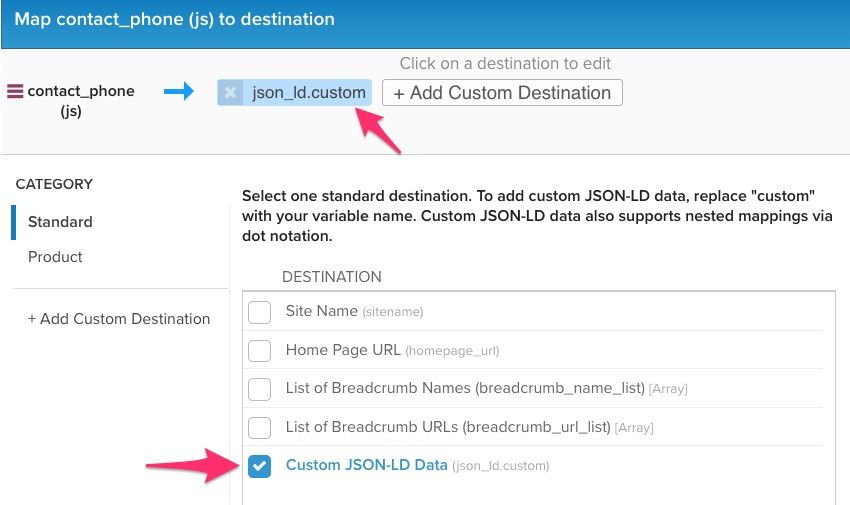
1. Click the `json_ld.custom` name to edit it, then change the value to `json_ld.contactPoint.telephone`.
### Creating Custom JSON-LD with JavaScript
You can inject custom JSON objects using the [JavaScript Code Extension](https://docs.tealium.com/advanced-javascript-code-extension/) scoped to this tag. The tag exposes a JavaScript utility function for adding custom objects called `u.injectJSONLD()`. It takes one parameter, an array of objects.
Example of adding a [ContactPoint Schema](http://schema.org/ContactPoint):
```
u.injectJSONLD([{
"@context": "http://schema.org",
"@type": "Organization",
"url": "https://www.example.com",
"contactPoint": [{
"@type": "ContactPoint",
"telephone": "+1-877-555-1212",
"contactType": "Lead",
"contactOption": "TollFree",
"areaServed": "US"
}]
}]);
```
## Vendor Documentation
* [Intro to Structured Data](https://developers.google.com/search/docs/guides/intro-structured-data)
* [schema.org - Full Hierarchy](http://schema.org/docs/full.html)
* [Site name and breadcrumb data - Google Developers](https://developers.google.com/search/docs/guides/enhance-site#add-your-sites-name-logo-and-social-links)
* [Product Data - Google Developers](https://developers.google.com/search/docs/data-types/products)