---
title: Use a two-stage validation pattern to detect PII in real-time
description: Detect and redact personally identifiable information (PII) in real-time event data using a scalable two-stage validation pattern with Tealium functions and AWS Comprehend.
url: https://docs.tealium.com/guides/two-stage-pii-detection/
---
The two-stage validation pattern provides a scalable way to detect and manage personally identifiable information (PII) in real-time event data. It uses server-side functions and AWS Comprehend to combine fast, regular expression-based filtering with advanced machine learning validation.
This guide includes:
* A practical approach for detecting PII in high-throughput data streams.
* Step-by-step instructions for integrating Tealium EventStream, functions, and AWS services.
* Example implementations for data transformation functions, processed event functions, and AWS Lambda.
## How it works
Use the two-stage validation pattern to identify and manage PII in real-time, high-volume data streams. The pattern separates lightweight, low-latency checks from slower, more precise machine learning (ML) validation to maintain performance and reduce processing cost.
This approach is ideal for detecting PII in unstructured or free-text fields, such as `message_text`, `form_input`, or `user_comment`.
The pattern has two stages:
* **Stage one (regular expression filter)**: A lightweight server-side function uses regular expressions to identify events that may contain PII. This function scans fields like `message_text`, `form_input`, or `user_comment` to identify potentially sensitive data.
* **Stage two (validation)**: A webhook sends only flagged events to AWS Comprehend for natural language processing (NLP)–based detection and optional redaction.
Only events flagged in stage one proceed to stage two, minimizing unnecessary API calls and latency.
### Understand the key components
* **Data transformation function**
A server-side function that evaluates incoming event data and applies lightweight regular expressions to identify potential PII. Optionally, this function can hash detected values before forwarding.
* **Derived attribute**
A boolean event attribute derived from the output of the data transformation function. The function sets it to `true` when it detects PII and adds a flag to the event.
* **AudienceStream event filter**
Filters incoming events based on the derived attribute so that only events without PII enrich visitor profiles.
* **Event feed**
A filtered stream of flagged events (based on the derived attribute) that you can send to connectors, storage, or other functions for further processing.
* **Processed event function**
A function that runs after enrichment and filtering. It sends flagged events to an external endpoint (such as AWS Lambda + Comprehend) for advanced validation.
## Benefits
Use the two-stage validation pattern when you need to enforce governance or redaction policies before data is enriched, stored, or shared with downstream systems.
Benefits include:
* Reduces the number of requests to AWS Comprehend by using a lightweight pattern match to filter most events.
* Keeps event processing under 300 milliseconds by routing only flagged events to stage two validation.
* Detects and redacts PII before the data is stored or analyzed.
* Adapts to other workflows where only a small subset of events require detailed validation.
* Improves data quality for AI/ML pipelines and compliance checks.
## Use case
Use this pattern when collecting unstructured input where users might accidentally include PII.
Examples include:
* Chat messages
* Support forms
* Product reviews
* Search fields
The two-stage validation pattern detects and governs sensitive data such as email addresses, phone numbers, and credit card details before it enters visitor profiles, analytics tools, or AI pipelines.
By filtering and validating data as it flows through EventStream, you can meet compliance requirements while preserving the accuracy of customer and behavioral data used across your systems.
## Requirements
To implement this pattern, you need:
* EventStream
* Functions
* An AWS account with:
* Access to AWS Comprehend
* A deployed Lambda function
* (Optional) API Gateway or EventBridge integration
* Basic knowledge of:
* JavaScript (for functions)
* Regular expressions
* HTTP APIs
## Integration steps
### Step 1: Create a data transformation function to flag potential PII
To flag and optionally hash events that may contain personally identifiable information (PII), create a data transformation function that uses regular expression pattern matching.
Follow the steps to [create a data transformation function](https://docs.tealium.com/create-function/#create-a-data-transformation-function), and apply the following configuration for this use case:
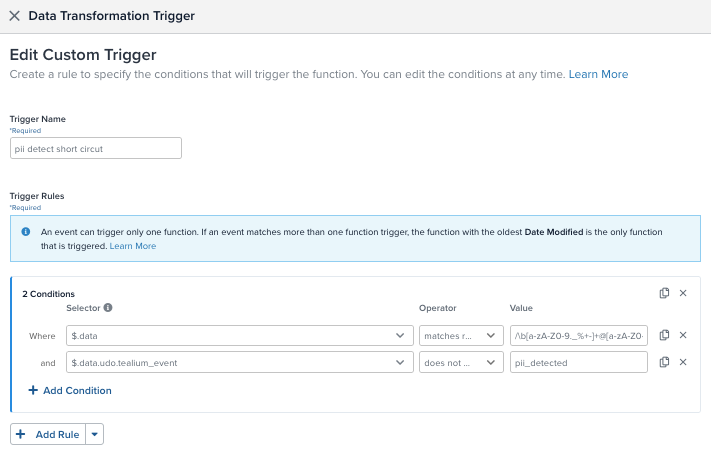
#### Configure the trigger conditions
After selecting **Data Transformation** as the function type and entering a trigger name, define the conditions that activate the function.
Add the following conditions to ensure that only unprocessed, potentially sensitive events trigger the function:
* A condition that matches the event payload against a regular expression pattern that detects common PII formats, such as email addresses.
* A condition to skip events that have already passed through stage two validation (such as those already flagged by AWS Comprehend).
For example:
[
[
{
"input": "$.data",
"operator": "matches regex",
"filter": "/\\b[a-zA-Z0-9._%+-]+@[a-zA-Z0-9.-]+\\.[a-zA-Z]{2,}\\b/im"
},
{
"input": "$.data.udo.tealium_event",
"operator": "does not equal",
"filter": "pii_detected"
}
]
]
#### Add the transformation code
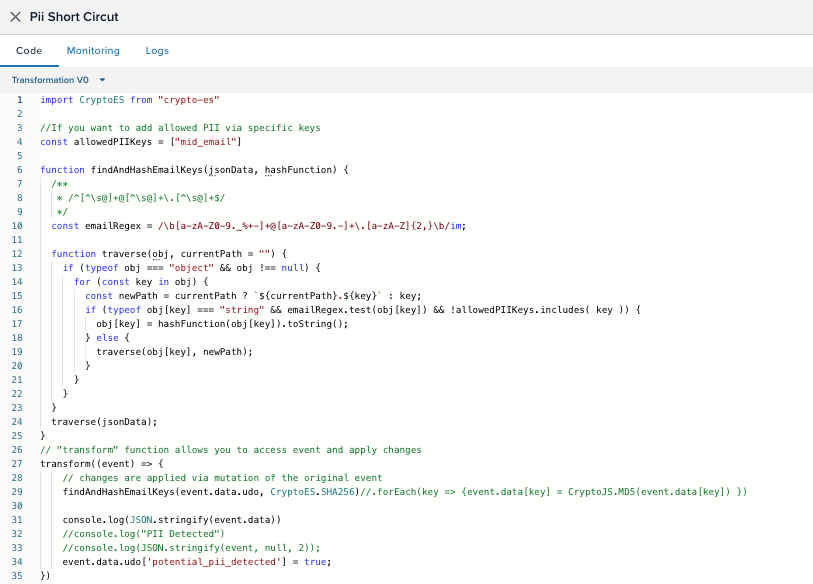
Under the **Code** tab, replace the default logic with code that adds a flag to events with suspected PII and optionally hashes sensitive fields.
```js
import CryptoES from "crypto-es";
// If you want to allow specific keys, define them here
const allowedPIIKeys = ["mid_email"];
// Email detection regex
const emailRegex = /\b[a-zA-Z0-9._%+-]+@[a-zA-Z0-9.-]+\.[a-zA-Z]{2,}\b/im;
function findAndHashEmailKeys(jsonData, hashFunction) {
function traverse(obj, currentPath = "") {
for (const key in obj) {
const newPath = `${currentPath}.${key}`;
if (typeof obj[key] === "string" && emailRegex.test(obj[key]) && !allowedPIIKeys.includes(key)) {
obj[key] = hashFunction(obj[key]).toString();
} else if (typeof obj[key] === "object" && obj[key] !== null) {
traverse(obj[key], newPath);
}
}
}
traverse(jsonData);
}
transform((event) => {
findAndHashEmailKeys(event.data, CryptoES.SHA256);
event.data.udo["potential_pii_detected"] = true;
});
```
This script does the following:
* Recursively scans the event payload for strings that match an email pattern.
* Hashes any value that matches the email pattern, except for explicitly allowed keys (like `mid_email`).
* Adds a `potential_pii_detected: true` flag to the event for use in downstream filtering and routing.
#### Save, test, and publish
1. Use the **Test** tab to validate the logic with sample payloads.
1. Go to the **Configuration** tab, set **Status** to **ON**.
1. Click **Done**, then **Save and Publish**.
### Step 2: Use a derived attribute to filter AudienceStream enrichment
After flagging events with potential PII using a data transformation function, use a derived attribute and the AudienceStream event filter to stop those events from enriching visitor profiles.
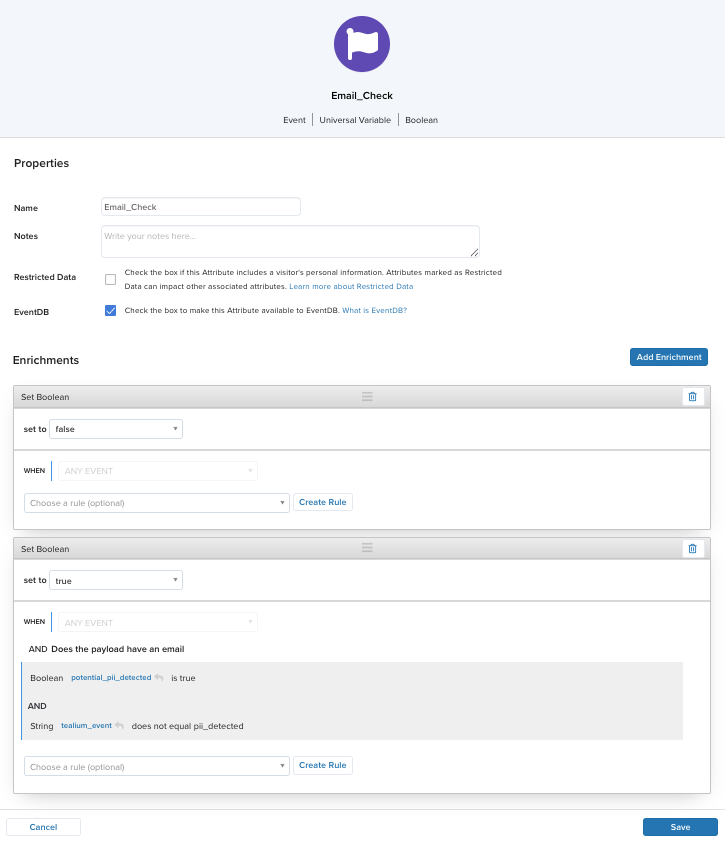
#### Create a boolean event attribute
Create a boolean event attribute that derives its value from the `potential_pii_detected` flag added in step 1.
1. Go to **Transform > Event Attributes > Add Attribute**.
1. For **attribute type**, select **Universal Variable**.
1. Click **Continue**.
1. Select **Boolean** data type.
1. Name the attribute something like `Email_Check`.
1. Under **Enrichments**, configure the following enrichments:
* Default to `false` for all events:
* Set Boolean to `false`
* **WHEN**: `ANY EVENT`
* Set to `true` for flagged PII events:
* Set Boolean to `true`
* **WHEN**: `ANY EVENT`
* **AND**:
[
[
{
"input": "potential_pii_detected",
"operator": "is true"
},
{
"input": "tealium_event",
"operator": "does not equal",
"filter": "pii_detected"
}
]
]
This ensures every event has a `true` or `false` value, and only flagged events are marked `true`.
#### Filter out flagged events using an AudienceStream event filter
Use the `Email_Check` attribute to prevent flagged events from enriching the real-time visitor profile in AudienceStream.
1. Go to **Server-Side Settings > General Settings**.
1. Under **Activate AudienceStream > Event Filter**, set the filter to:
* **Attribute name**: `Email_Check`
* **Value**: `false`
Only events where `Email_Check` is `false` are processed by AudienceStream. AudienceStream excludes events flagged as potential PII (`Email_Check: true`).

### Step 3: Create an event feed to route flagged events
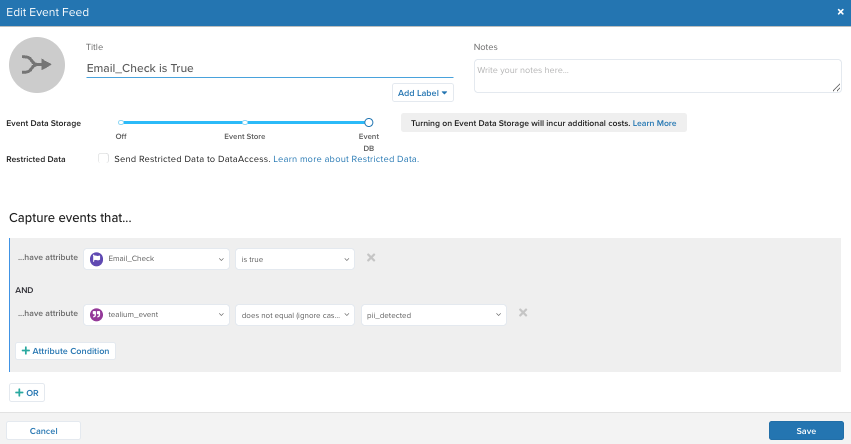
Event feeds let you group and isolate events based on attribute conditions. In this step, create a feed to collect events flagged as containing potential PII. This ensures that they can be processed separately. For example, sent to an API for secondary validation.
1. Go to **Validate > Live Events** and click **+ Add Event Feed**.
1. Set the **Title** to `Email_Check is True` or a descriptive name of your choice.
1. In the **Capture events that...** section, add the following conditions:
[
[
{
"input": "Email_Check",
"operator": "is true"
},
{
"input": "tealium_event",
"operator": "does not equal (ignore case)",
"filter": "pii_detected"
}
]
]
These conditions match only events that:
* Were flagged by the data transformation function (`potential_pii_detected`)
* Were enriched to `Email_Check = true`
* Have not yet been processed by the stage two validation
Connect this feed to a connector, webhook, or storage solution such as EventDB or EventStore for further processing.
For more information about event feeds, see [about-event-feeds](https://docs.tealium.com/about-event-feeds/).
### Step 4: Configure a processed event function to send the payload to AWS
Processed event functions run at the end of the server-side data pipeline. Use this function to send flagged events to an external service like AWS Lambda + Comprehend for further PII analysis. For more information, see [about-functions](https://docs.tealium.com/about-functions/)
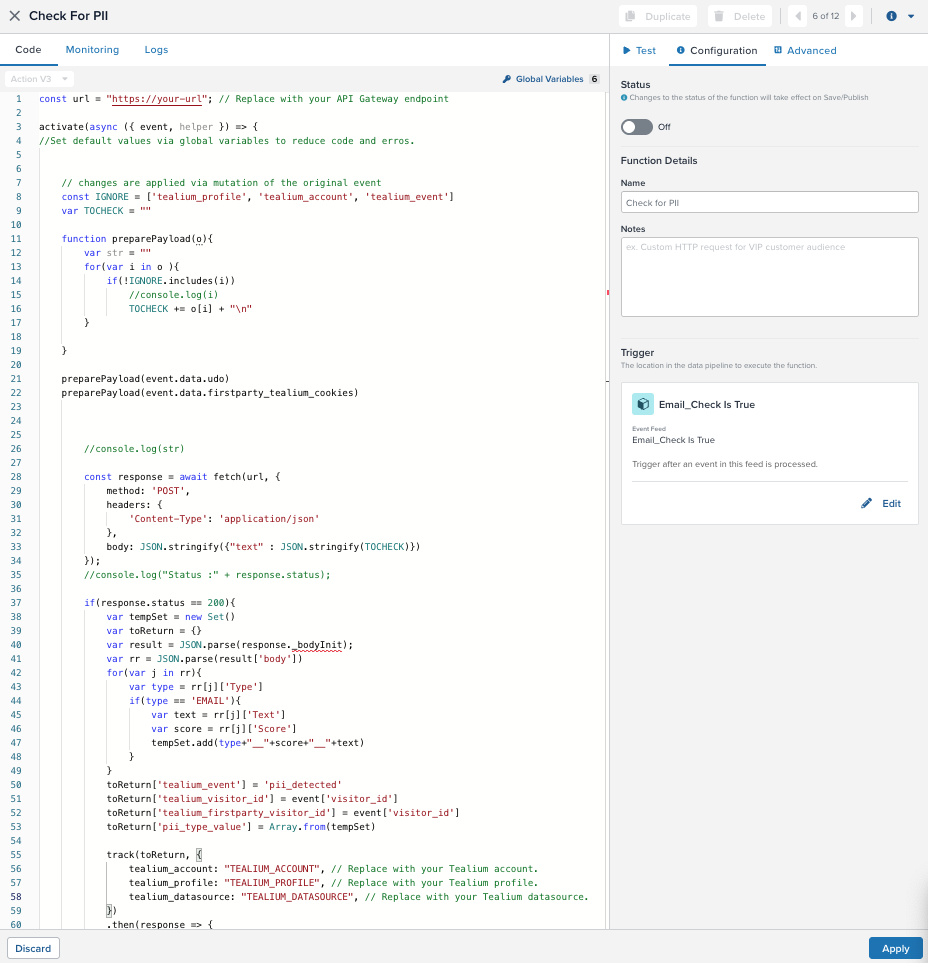
When an event matches the criteria defined in your event feed (step 3), it triggers this function. The function extracts relevant values from the incoming event, sends them to AWS Lambda through API Gateway, and then appends the results (such as PII detection) back into the event.
#### Create the processed event function
1. Go to **Transform > Functions**.
1. Click **+ Add Function**.
1. Enter a name for the function.
1. Select **Processed Event** trigger, then click **Continue**.
1. Enter a trigger name such as `Check for PII`.
1. Set the trigger to the event feed created in step three (such as `Email_Check is True`).
1. Click **Continue**.
#### Update the function code
Paste the following sample code into the code editor. This code prepares a payload by collecting attributes to inspect, excluding defaults like `tealium_profile` and `tealium_event`. It sends the payload to an AWS Lambda endpoint through API Gateway.
```js
const url = "https://your-url"; // Replace with your actual API Gateway URL.
activate(async ({ event, helper }) => {
//Set default values through global variables to reduce code and errors.
// changes are applied through mutation of the original event
const IGNORE = ['tealium_profile', 'tealium_account', 'tealium_event']
var TOCHECK = ""
function preparePayload(o){
var str = ""
for(var i in o ){
if(!IGNORE.includes(i))
//console.log(i)
TOCHECK += o[i] + "\n"
}
}
preparePayload(event.data.udo)
preparePayload(event.data.firstparty_tealium_cookies)
//console.log(str)
const response = await fetch(url, {
method: 'POST',
headers: {
'Content-Type': 'application/json'
},
body: JSON.stringify({"text" : JSON.stringify(TOCHECK)})
});
//console.log("Status :" + response.status);
if(response.status == 200){
var tempSet = new Set()
var toReturn = {}
var result = JSON.parse(response._bodyInit);
var rr = JSON.parse(result['body'])
for(var j in rr){
var type = rr[j]['Type']
if(type == 'EMAIL'){
var text = rr[j]['Text']
var score = rr[j]['Score']
tempSet.add(type+"__"+score+"__"+text)
}
}
toReturn['tealium_event'] = 'pii_detected'
toReturn['tealium_visitor_id'] = event['visitor_id']
toReturn['tealium_firstparty_visitor_id'] = event['visitor_id']
toReturn['pii_type_value'] = Array.from(tempSet)
track(toReturn, {
tealium_account: "TEALIUM_ACCOUNT", // Replace with your Tealium account.
tealium_profile: "TEALIUM_PROFILE", // Replace with your Tealium profile.
tealium_datasource: "TEALIUM_DATASOURCE", // Replace with your Tealium datasource.
})
.then(response => {
if(!response.ok){
throw new Error(`Network response was not ok. Status code: ${response.status}.`);
}
return response.text();
})
console.log("200 : ", JSON.stringify(result['body']))
}else {
console.log('FAILED : ', JSON.stringify(response))
}
});
```
#### Test your function
1. Go to the **Test** tab in the function editor.
1. Use the **Test Payload** panel to load or paste a real sample event payload.
1. Click **Run Test** to verify the function executes and sends the data correctly.
1. When you're ready, enable the function and click **Save and Publish**.
You see logs confirming the outgoing request and any response or error messages. Adjust the payload or code as needed.
For more information, see .
#### Configure authentication (optional)
If your API Gateway or Lambda endpoint requires authentication, go to the **Advanced** tab to configure authentication tokens to use in the function.
#### Result
After the function is live and published, any event that meets the criteria in your feed (such as `Email_Check = true`) triggers this function and sends the payload to your Lambda service.
### Step 5: Set up AWS Lambda and Comprehend
In this step, you set up the AWS infrastructure to analyze flagged events for personally identifiable information (PII). This includes configuring an API Gateway, creating a Lambda function, and using Amazon Comprehend to perform entity detection. Lambda returns a result that can be used to enrich and route events downstream.
#### Set up API Gateway
Create an API Gateway endpoint that receives events from Tealium functions and forwards them to your Lambda function. The endpoint should accept POST requests and be configured with a Lambda proxy integration.
For detailed instructions, see [AWS Lambda: Invoking a Lambda function using an Amazon API Gateway endpoint](https://docs.aws.amazon.com/lambda/latest/dg/services-apigateway.html).
#### Create a Lambda function for PII detection
Create a Lambda function that processes incoming event payloads, checks for PII using Amazon Comprehend, and returns a response with both the original event and the analysis results.
The Lambda should:
* Accept the full event payload from Tealium.
* Extract the relevant field for analysis (for example, `event.data`).
* Use AWS Comprehend to detect PII (especially emails).
* Return the original payload along with Comprehend results.
Here is a sample implementation outline in Node.js:
```js
const AWS = require("aws-sdk");
const comprehend = new AWS.Comprehend();
exports.handler = async (event) => {
const inputText = JSON.stringify(event.data); // Or a specific field
const languageCode = "en";
try {
const piiResponse = await comprehend.detectPiiEntities({
Text: inputText,
LanguageCode: languageCode,
}).promise();
const piiEntities = piiResponse.Entities || [];
const piiDetected = piiEntities.length > 0;
return {
...event,
pii_analysis: {
pii_detected: piiDetected,
entities: piiEntities,
},
};
} catch (err) {
console.error("PII detection failed:", err);
return {
...event,
pii_analysis: {
pii_detected: false,
error: "Comprehend error",
},
};
}
};
```
For a full example, see the [Amazon Comprehend: Use DetectPiiEntities with an AWS SDK or CLI](https://docs.aws.amazon.com/comprehend/latest/dg/example_comprehend_DetectPiiEntities_section.html).
#### Example response structure
```json
{
"data": {
"udo": {
"potential_pii_detected": true,
...
}
},
"pii_analysis": {
"pii_detected": true,
"entities": [
{
"Type": "EMAIL",
"Score": 0.98,
"BeginOffset": 13,
"EndOffset": 35
}
]
}
}
```
This enrichment can then be used in downstream logic for additional processing, alerts, or suppression.
Add logging and error handling in your Lambda to capture issues in processing. Use structured logs to track events and set alerts based on detection rates or errors.
### Step 6: Review and test
To verify:
* Send a test event with sample text containing PII.
* Confirm `potential_pii_detected` is correctly set.
* Check that redacted text is returned from AWS.
* Review logs for API performance and latency.
* Monitor invocation count to ensure stage two is called only when needed.
### Step 7: Use the response for downstream routing and decisions
After receiving the enriched event from AWS Lambda, use the `pii_analysis` object in your event payload to take further actions. This step focuses on how to interpret and route events based on whether PII was confirmed.
#### Update your systems based on the PII result
Use the returned field `pii_analysis.pii_detected` to trigger different processing paths. For example:
* If `pii_detected` is `true`:
* Send to redaction workflows.
* Suppress from personalization or analytics pipelines.
* Alert privacy teams or trigger audits.
* If `pii_detected` is `false`:
* Resume normal processing such as enrichment, segmentation, or connector delivery.
Configure these decisions using one or more of the following:
* **Tealium functions**: Use another transformation or processed event function to act on the results.
* **AudienceStream**: Create visitor or event-level attributes that reflect the detection status and use them in rules or badges.
* **Event feeds**: Create new feeds based on the PII analysis result for targeted routing to connectors or data storage (EventStore, EventDB).
## Resources
* [Functions](https://docs.tealium.com/about-functions/)
* [AWS Comprehend: Personally identifiable information (PII)](https://docs.aws.amazon.com/comprehend/latest/dg/pii.html)
* [AWS Lambda: Invoking a Lambda function using an Amazon API Gateway endpoint](https://docs.aws.amazon.com/lambda/latest/dg/services-apigateway.html)
* [What is Amazon API Gateway?](https://docs.aws.amazon.com/apigateway/latest/developerguide/welcome.html)
* [What Is Amazon EventBridge?](https://docs.aws.amazon.com/eventbridge/latest/userguide/what-is-amazon-eventbridge.html)
* [Amazon Comprehend: Use DetectPiiEntities with an AWS SDK or CLI](https://docs.aws.amazon.com/comprehend/latest/dg/example_comprehend_DetectPiiEntities_section.html)