This article describes how to configure first-party domains for Tealium iQ Tag Management client-side delivery.
Use the following steps to configure first-party domains for Tealium iQ Tag Management client-side delivery:
- In the admin menu, click First-Party Domains.
- Under Client-Side Delivery Certificate, click Configure Certificate and select one of the following:
- Tealium-managed: Tealium generates and manages the certificates.
- Self-managed: Provide your own certificate files. For information about the requirements and format for certificate files, see Self-managed certificates.
- If you selected Self-managed, upload the following files:
- Certificate (Required)
- Private Key (Required)
- Certificate Chain (Optional)
- Select one of the following methods to validate domain ownership:
- DNS Validation
- Email Validation
- In the Add Domains section, enter a subdomain name, omitting
https://and the ending slash.
For example,tags.example.com. - To add another domain, click + Add Domain.
First-party domains apply to all profiles in your account. Enter a subdomain for each site managed by this account. - Click I Agree to give Tealium permission to manage certificates for the provided subdomains and to certify you own and manage these subdomains, then click Save.
After you save your configuration:- DNS validation: The screen displays the temporary CNAME records (one for each subdomain) that are used for validation. Add these temporary CNAME records to your DNS configuration.

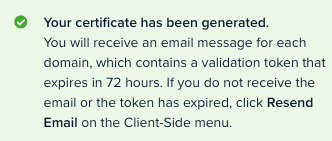
- Email validation: The following message is displayed:
- DNS validation: The screen displays the temporary CNAME records (one for each subdomain) that are used for validation. Add these temporary CNAME records to your DNS configuration.
- Complete the process for your validation method, as follows:
DNS validation: After you have added the validation CNAME records to your DNS configuration and the validation process is completed (this can take several hours), the permanent CNAME records for your subdomains are displayed. Add these permanent CNAME records to your DNS configuration.
Your DNS configuration must include the validation records and the permanent records. The validation records are used when you add subdomains to a certificate and for auto-renewal of the certificate.
Email validation: You will receive an email from Amazon Web Services (one message for each subdomain) containing a validation token that expires in 72 hours. To complete the validation process, you must respond to the email message for each subdomain. If you did not receive the email or if the token has expired, a separate Resend Email button is available in the Client-Side menu on the First-Party Domains Overview screen.

Validation confirmation
The following message is displayed while your subdomain information is being validated:
Pending validation. Add the required DNS records for each domain, then wait for DNS to propagate.
or
Pending validation. Confirm the validation email sent for each domain, or resend the email if needed.
When the domain status in the First-Party Domains Overview changes to Issued, your domains are ready to use.
Validation must occur within 72 hours. If the validation period expires, request a new certificate for the same subdomain. The DNS validation records are the same for subsequent requests of the same subdomain.
After the domain status changes to Issued, you must update your endpoint configuration to use first-party domains with Tealium iQ Tag Management. For more information, see Update endpoint configurations.
Validation failure
If validation fails, the domain status changes to Failed and a message appears with details about the failure:
We couldn’t create your certificate because your domains do not include Amazon as a certificate authority in DNS. Add Amazon in CAA records in DNS, then Retry. See affected domains in Manage Domains.
If you see this message, add Amazon in CAA records in your DNS configuration, then click Retry to validate the domain and generate the certificate again.
For more information, see About first-party domains.
This page was last updated: May 13, 2026