---
title: Configure server-side data collection
description: This article describes how to configure first-party domains for Tealium server-side data collection.
url: https://docs.tealium.com/iq-tag-management/administration/first-party-domains/configure-server-side/
---
For server-side data collection, the domain certificates are configured and stored in the Tealium endpoint in the region you select during configuration. If the selected region is different from the region for the profile, the event and visitor data is collected in the first-party domain region and forwarded to the region configured for the profile.
Use the following steps to configure first-party domains for Tealium server-side data collection:
1. In the admin menu, click **First-Party Domains**.
1. Under **Server-Side Data Collection/DLE**, click **Configure Certificate**.
1. Select the region in which most of your Collect traffic occurs.
1. Select one of the following:
* **Tealium-managed**: Tealium generates and manages the certificates.
* **Self-managed**: Provide your own certificate files. For information about the requirements and format for certificate files, see [Self-managed certificates](https://docs.tealium.com/about-first-party-domains/#self-managed-certificates).
1. If you selected **Self-managed**, upload the following files:
* Certificate (Required)
* Private Key (Required)
* Certificate Chain (Optional)
1. Select one of the following methods to validate domain ownership:
* **DNS Validation**
* **Email Validation**
1. In the **Add Domains** section, enter a subdomain name, omitting `https://` and the ending slash.
For example, `collect.example.com` or `cdp.example.com`.
1. To add another domain, click **+ Add Domain**.
First-party domains apply to all profiles in your account. Enter a subdomain for each site managed by this account.
1. Click **I Agree** to give Tealium permission to manage certificates for the provided domains and to certify you own and manage these domains, then click **Save**.
* **DNS validation**: Temporary A records (one for each domain) that are used for validation are displayed: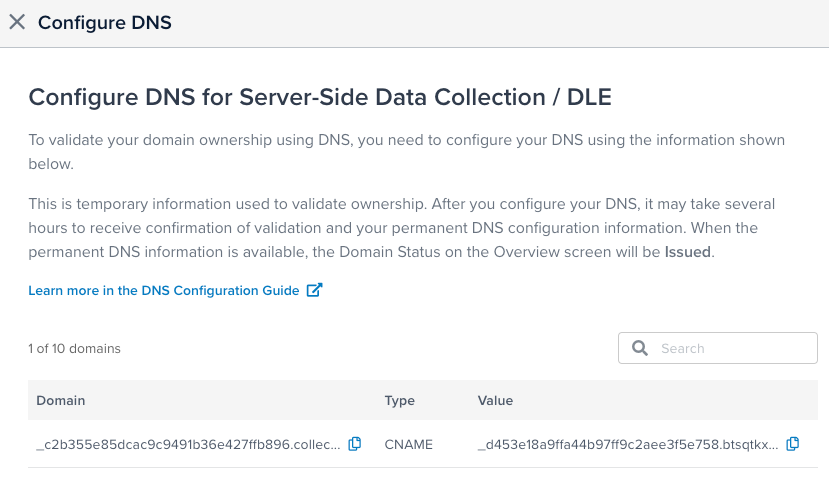 Add these temporary A records to your DNS configuration.
* **Email validation**: The following message is displayed:
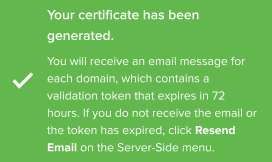
1. Complete the process for your validation method, as follows:
* **DNS validation**: After you have added the validation A records to your DNS configuration and the validation process is completed (this can take several hours), the permanent A records for your domains are displayed. Add these permanent A records to your DNS configuration.
Your DNS configuration must include the validation A records and the permanent A records. The validation records are used when you add domains to a certificate and for auto-renewal of the certificate.
* **Email validation**: You will receive an email from Amazon Web Services (one message for each domain) containing a validation token that expires in 72 hours. To complete the validation process, you must respond to the email message for each domain. If you did not receive the email or if the token has expired, a separate **Resend Email** button is available in the Server-Side menu on the **First-Party Domains Overview** screen.
## Validation confirmation
Domain validation must occur within 72 hours. If the validation period expires, request a new certificate for the same domain. The DNS validation records are the same for subsequent requests of the same domain.
The following message is displayed while your domain information is being validated:
> Pending validation. Add the required DNS records for each domain, then wait for DNS to propagate.
or
> Pending validation. Confirm the validation email sent for each domain, or resend the email if needed.
When the domain status in the **First-Party Domains Overview** updates to **Issued**, your domains are ready to use. You then need to update your endpoint configuration to use first-party domains with Tealium Collect. For more information, see [Update endpoint configurations]().
## Validation failure
If validation fails, the domain status changes to **Failed** and a message appears with details about the failure:
> We couldn’t create your certificate because your domains do not include Amazon as a certificate authority in DNS. Add Amazon in CAA records in DNS, then Retry. See affected domains in Manage Domains.
If you see this message, add Amazon in CAA records in your DNS configuration, then click **Retry** to validate the domain and generate the certificate again.
For more information, see [About first party domains](https://docs.tealium.com/about-first-party-domains/#tealium-managed-certificates).