---
title: Update endpoint configurations
description: This article describes how to update your endpoint configurations after you have configured first-party domains.
url: https://docs.tealium.com/iq-tag-management/administration/first-party-domains/update-endpoints/
---
After you have configured first-party domains and validation has been completed, you need to update your endpoint configurations to use first-party domains with Tealium iQ Tag Management and [Tealium Collect]().
The information in this article applies only to CNAME and A records that were created using first-party domains.
## Tag management
To use your first-party domain with Tealium iQ Tag Management you must also make the following changes:
* Update the Universal Tag (`utag.js`) code snippet wherever it is installed.
* Set the publishing URLs.
The Tealium environment switcher supports first-party domains. However, the environment switcher **Basic** option does not work with first-party domains. Use the **URL redirect** option on the **Advanced** tab. For more information, see [Tealium Tools: Environment Switcher](https://docs.tealium.com/iq-tag-management/tealium-tools/environment-switcher/).
### Update universal tag loading script
To update the Universal Tag code snippet, follow these steps:
1. In the admin menu, click **Code Center**.
1. Under **Choose Domain**, select your first-party domain.
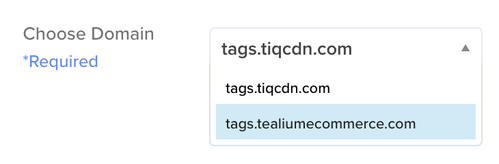
The example code snippet is updated to use your first-party domain.
For the current version of first-party domains, the URL for the Universal tag only includes the profile name and environment in the path. The account name and `utag` portions are omitted.
The URL for the Universal Tag for earlier versions of first-party domains, and for most other scenarios, includes the account name and `utag` portions. For example:
`https://tags.tiqcdn.com/utag/example-account/example-profile/prod/utag.js`
In the following code snippet example for the current version of first-party domains, the code snippet for `tags.tealiumecommerce.com/ecomm/prod` would be:
```
```
### Update publishing URLs
If you have multiple first-party domains configured for a profile, see [Update publishing URLs when a profile has multiple first-party domains](#update-publishing-urls-when-a-profile-has-multiple-first-party-domains) for information about updating the publishing URLs.
The publishing URLs determine where to load the additional `utag.#.js` files for each default environment. If the publishing URLs are not updated, then the vendor tag files loaded after `utag.js` will not originate from your domain.
To set the publishing URLs, use the following steps:
1. In the admin menu, click **Configure Publish Settings**.
1. Scroll down to **Publishing URLs**, then enter a URL for each environment that uses your first-party domain. For example, `tags.example.com` and `collect.example.com`.
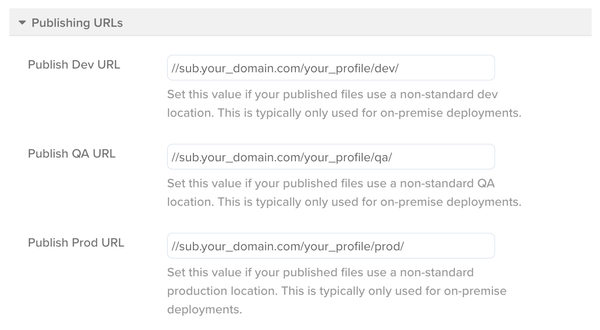
**Publish Dev URL**: `//sub.your_domain.com/your_profile/dev/`
**Publish QA URL**: `//sub.your_domain.com/your_profile/qa/`
**Publish Prod URL**: `//sub.your_domain.com/your_profile/prod/`
1. Click **Save**.
1. Save and publish.
### Update publishing URLs when a profile has multiple first-party domains
If you have multiple first-party domains configured for a profile, you will not be able to update the publishing URLs from the client-side menu.
You need to add a script similar to the following to update the publishing URLs, replacing the example path with the appropriate path for the page (it will match the `utag.js` inclusion path, which can be updated at the same time). This script must be added before the script that specifies the URL for `utag.js`.
```
```
For more information, see [Settings](https://docs.tealium.com/platforms/javascript/settings/).
## Update Tealium Collect endpoint
To use your first-party domain with Tealium EventStream API Hub or Tealium AudienceStream CDP, you need to update the data collection URL in your installation of Tealium Collect. For websites, this requires setting the **Tealium Collect Endpoint** field for the [Tealium Collect tag](). To use the visitor service, you also need to provide a Visitor Service Override.
To update the Tealium Collect tag, use the following steps:
1. Navigate to **Tags** and expand the Tealium Collect tag.
1. In the **Tealium Collect Endpoint** field, enter your first-party domain endpoint.
For example: `sub.your_domain.com/your_account/your_profile/2/i.gif`
1. In the **Visitor Service Override** field, enter the visitor service URL. Omit the protocol and path. For example: `your-visitor-service.example.com`
1. Click **Apply**.
A separate Collect tag must be used for each subdomain unless an extension is used to map the values dynamically.