---
title: Usercentrics Extension
description: The Tealium Usercentrics extension is used to enable third party CMP support. The extension simplifies the integration between tag management and consent management by allowing you to map data processing services to specific tags.
url: https://docs.tealium.com/iq-tag-management/extensions/extensions-list/usercentrics-extension/
---
## How it works
The Tealium iQ Tag Management Usercentrics extension is used to ensure that your CMP policy is enforced at the source level, thus blocking or firing tags according to the user's consent preferences.
Simple bookmarklet functionality is used to import the Data Processing Services JSON object text to a bookmark in your browser, which is then used to create a mapping table.
To use, add the extension, enter the required information, and then use the mapping table to map consent preferences to your tags. Using this method significantly reduces implementation time and provides an extra layer of protection by preventing tags from firing until they are mapped to a CMP service.
To prevent privacy risk exposure in instances where a tag is added without being mapped to a Usercentrics data processing service, only mapped tags fire once the extension is active.
## Prerequisites
* **Knowledge of your Usercentrics Implementation**
You must have knowledge of the current or planned version of your Usercentrics implementation. To obtain all of the Data Processing Services in your Consent Management Platform (CMP), follow the instructions outlined in the [Usercentrics Direct Implementation Guide](https://docs.usercentrics.com/#/direct-implementation-guide).
* **Use a Test Environment for your First Implementation**
We recommend using a testing environment for your first implementation to fully access the CMP to create the mapping table within the extension. Using a testing environment ensures that no end-user data is processed prior to applying the extension in your development environment.
Once you have completed the mapping of all data processing services to their corresponding tags, you can release it to production and Tealium iQ Tag Management will handle the enforcement of end-user privacy preferences (consent).
## Requirements
* Tealium Universal Tag (`utag.js`), Version 4.48. For more information about updating the `utag.js` template, see our knowledge base article [Best Practices for Updating to the Latest Version of utag.js](https://support.tealiumiq.com/en/support/solutions/articles/36000363470).
* The Usercentrics CMP must load before Tealium iQ Tag Management. For this reason, you must do one of the following:
* Implement the Usercentrics Script (tag) directly within the HTML code of your website.
**- OR -**
* Go to the Implement the Usercentrics Tag section below and follow the instructions to implement the tag within Tealium iQ Tag Management.
* Create a Data Processing Service for Tealium iQ Tag Management in your Usercentrics CMP setup.
To learn more, see the Usercentrics documentation, [Assign a data attribute](https://docs.usercentrics.com/#/direct-implementation-guide?id=assign-a-data-attribute). Know the name of your Data Processing Service before you begin, as it is required in the configuration steps.
## Implement the Usercentrics tag
Use the following steps to implement the Usercentrics tag within Tealium iQ Tag Management using the JavaScript Code extension:
1. Go to **Tag Management > Extensions > Add Extension** and select the **JavaScript Code** extension to add the script for Usercentrics V1 or Usercentrics V2.
1. Add the **JavaScript Code** extension.
If you have not previously used the JavaScript Code extension and need to learn how, see JavaScript Code Extension.
1. Name the extension **Usercentrics Tag**, and set the scope to **Pre Loader**.
1. Use the script from one of the following examples to create the extension:
* **Usercentrics V1 Script**: Supports Usercentrics CMP v1.
```js
(function(a, b, c, d) {
b = document;
c = 'script';
d = b.createElement(c);
d.src="XXXXXXXXXXX"; // URL for Usercentrics CMP Version 1 Script.
d.type = 'text/java' + c;
d.async = true;
d.id = 'XXXXXXXXX'; // Usercentrics Settings-ID
a = b.getElementsByTagName(c)[0];
a.parentNode.insertBefore(d, a);
}
)();
```
* **Usercentrics V2 Script**: Supports Usercentrics CMP V2 Browser SDK
```js
(function(a, b, c, d) {
b = document;
c = 'script';
d = b.createElement(c);
d.src="XXXXXXXXXXX"; // URL for Usercentrics CMP Version 2 Script.
d.type = 'text/java' + c;
d.async = true;
d.id = 'usercentrics-cmp';
d.setAttribute('data-settings-id', "XXXXXXXXXXX"); // Usercentrics Settings-ID
a = b.getElementsByTagName(c)[0];
a.parentNode.insertBefore(d, a);
}
)();
```
1. Save and publish the JavaScript Code extension to your environment.
## Create a Tealium Data Processing Service in your Usercentrics CMP
You must create a Tealium Data Processing Service in your Usercentrics account to ensure that user consent preferences are enforced and third parties can only process data if allowed to do so.
Use the following steps to create a Data Processing Service for Tealium iQ Tag Management in your Usercentrics CMP account:
1. Go to your **Usercentrics** account.
1. Select the most recent Data Processing template for **Tealium iQ Tag Management**.
1. Mark the template as **Required** to ensure that it cannot be opted out.
If you customized the Tealium iQ Tag Management service name, it will not be automatically detected by the CMP extension.
In the Configuration section of this document, you will manually add the custom service name using the Service Name input field.
## Configure the extension
The steps in this section describe how to add the extension, install the bookmarklet, copy the data processing services, import the data processing services, and map your tags to your data processing services.
### Add the Extension
Use the following steps to add the Usercentrics extension:
1. Go to **Tag Management > Extensions > Add Extension** and click the **Privacy** tab.
1. Select one of the Usercentrics extensions: **Usercentrics V1** or **Usercentrics V2**.
Select the version that corresponds with the version currently in use by your organization.
1. In the **Title** field, enter a meaningful title to be used for this extension.
Note that the **Scope** field cannot be modified.
1. Enter the **Settings-ID** (Optional)
Under **Usercentrics** **Settings ID**, in the **Settings ID** field, you can manually add your Usercentrics `Settings_ID`.
This step may not be needed as the Usercentrics Settings-ID is automatically added to the extension while importing the data processing services.
1. Under the **Tealium iQ Service Name**, in the **Service Name** field, enter the exact name that was given to the Tealium Data Processing Service within Usercentrics.
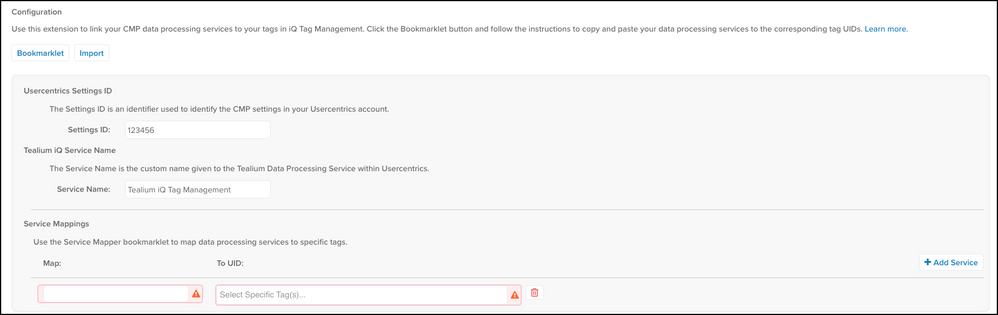
1. Continue to the next section to install and use the **Service Mapper** bookmarklet.
### Install the Service Mapper bookmarklet
Use the following steps to install the bookmarklet:
1. Click the **Bookmarklet** button.
The **Usercentrics Service Mapper Bookmarklet** dialog appears.
1. Click the **Usercentrics Service Mapper** link and drag and drop the bookmarklet onto the bookmark bar for your browser.
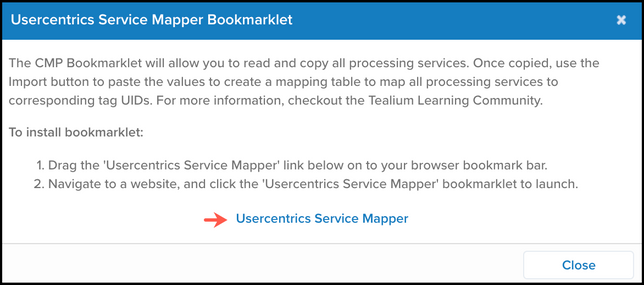
The bookmarklet now displays in your browser bar.
1. Click **Close** to dismiss the Usercentrics Service Mapper Bookmarklet window.
### Create a mapping table
Use the following steps to copy and import your data processing services to create a mapping table:
1. Open another browser tab and navigate to the Usercentrics test environment where your CMP is implemented and click the **Usercentrics Service Mapper** bookmarklet to launch.
A pop-up window displays the text for your Data Processing Services JSON object.
1. Copy the entire text from this window.
1. Navigate back to the Usercentrics configuration dialog in **iQ Tag Management** and click the **Import** button.
The **Import Services** dialog appears.
1. Paste the copied JSON text into the window, as shown in the following example.
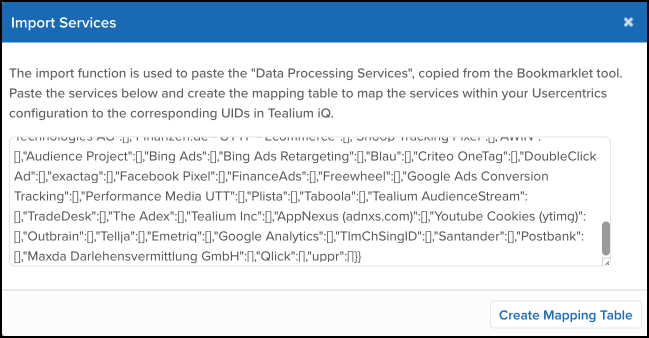
1. Click **Create Mapping Table**.
Your Usercentrics Settings ID and Tealium iQ Service Name are now automatically populated and the Service Mappings to your data processing services appear in a mapping table.
The mapping table must be updated each time a new tag is introduced or when your Data Processing Services with the Usercentrics configuration changes, as described in the Update the Mapping Table section of this document.
### Map data processing services to tags
Use the following steps to map your data processing services to tags:
1. For each item in the mapping table, click the **To UID** field and use the prepopulated list to select the appropriate tag UID.
You can map more than one tag to a data processing service.

1. The bookmarklet automatically adds a list item for **Tealium iQ Tag Management** and **Usercentrics** in the mapping table.
1. Use the trash can icon to delete the **Tealium iQ Tag Management** and **Usercentrics** services, as they are not used for consent enforcement.
1. (Optional) Click **Add Service** to manually add additional services and map them accordingly.
When complete, consent is immediately enforced without the necessity of a page reload, which guarantees that end-user privacy preferences are enforced before any data processing takes place.
1. Save and Publish your changes.
### Update the mapping table
The mapping table must be updated when a new tag is introduced or when your Data Processing Services within the Usercentrics setup changes. Use the bookmarklet functionality as described in the configuration steps and repeat the process to update.
The Import function identifies Data Processing Services that already exist, including any that have been recently added and those that were previously deleted, as follows:
* If the Data Processing Service already exists, mapping is not impacted.
* If the Data Processing Service was deleted, it also deletes the mapping entry.
* If the Data Processing Service is newly introduced, a new line item is added to the mapping table and you must map at least one corresponding tag.
## Troubleshooting
To view typical events, log messages, and error messages that may require attention, enable console logging.
Use the following steps to enable console logging:
1. Go to [JavaScript (Web) Debugging](https://docs.tealium.com/platforms/javascript/debugging/) and follow the steps to add the debugging cookie.
1. After the debugging cookie is set, use the`"/SENDING|\*\*\*\*/"` filter to display only relevant entries.
## FAQ
#### Can this extension be used in mobile installations?
No. Mobile installations, such as iOS and Android, do not support the Tealium iQ Tag Management Usercentrics extension.