---
title: Code Center
description: The Code Center is where you get the code to add the Universal Tag (utag.js) to your website.
url: https://docs.tealium.com/iq-tag-management/getting-started/install/code-center/
---
The Code Center screen has been replaced by the [Manage Environments](https://docs.tealium.com/manage-environments/) screen on accounts with [platform permissions](https://docs.tealium.com/about-platform-permissions/). Accounts that use legacy permissions still use the Code Center screen.
For more information about installing Tealium on your website, see the [Quick Start Guide for Web](https://docs.tealium.com/getting-started-web/).
## Access Code Center
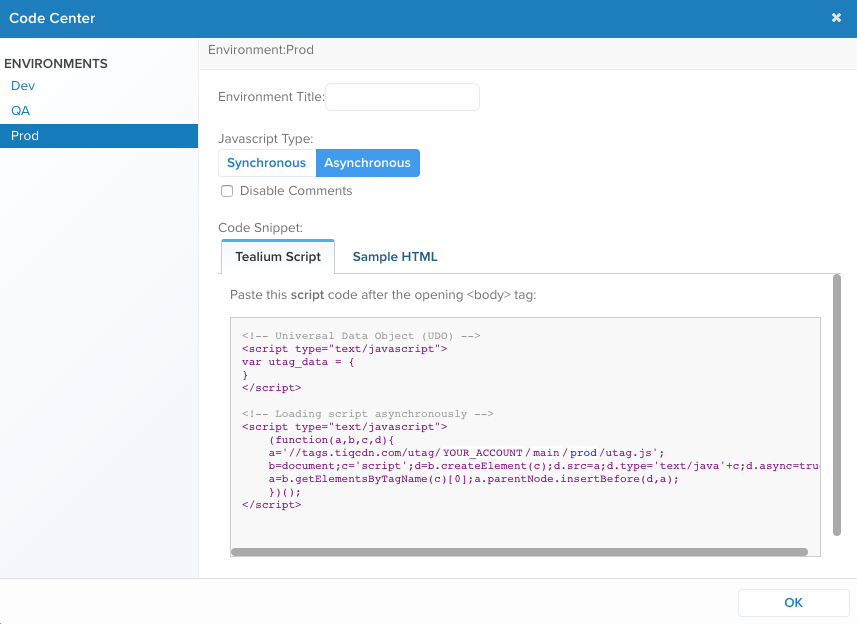
1. In the admin menu, click **Code Center**. The **Code Center** dialog appears.
1. In the side panel, select the environment you want.
1. Click **OK** to close the Code Center.
## Code Center settings
The following settings can be adjusted to customize the code snippet displayed.
* **Environment Title**: The environment is one of three default environments (Dev, QA, Prod) or any custom environments that Tealium publishes to. Select one of these environments. Notice how the environment in the `utag.js` path changes as you select different environments.
Enter a custom name for one of the default environments. This new name will appear throughout the UI.
* **JavaScript Type**: This determines whether the tags are loaded synchronously or asynchronously. By default, **Asynchronous** is selected and we recommend it as a best practice as it provides faster page loading and a better visitor experience.
* **Disable Comments**: Checking this box will remove the comments from the code snippet (Recommended).
## Use the code snippet
### Tealium script
The **Tealium Script** tab displays the code based on your selections. The code includes the Universal Data Object (a sample of `utag_data`) and the Universal Tag code (`utag.js`). The Universal Data Object displayed here is generated from the variables defined in your data layer.
The Universal Data Object seen in Code Center is only a placeholder. You must dynamically populate it with real values to send data to your tags.
Use the following steps to copy your code snippet:
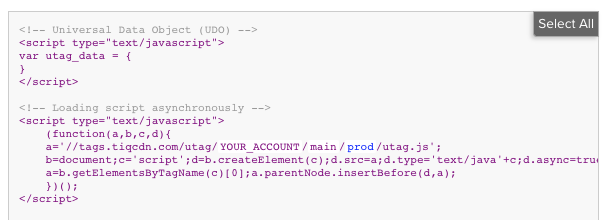
1. Select the code displayed in the text box by either method:
* Click and drag to select all the code.
* Click the **Select All** button that appears when you mouse over the code.
1. Copy the code.
1. Paste the code into your site authoring tool or back-end system.
### Sample HTML
The **Sample HTML** tab provides an example of what the code would look like when added to a web page. The sample code appears after the opening `` tag, in accordance with our best practices.
## Custom publish environments
Custom publish environments is a feature that must be enabled to use.
To learn more, see [Custom Publish Environments](https://docs.tealium.com/custom-publish-environments/).
## China CDN
Tealium offers a separate CDN domain to serve files within the China network.
To learn more, see [load the Universal Tag on the China network](https://docs.tealium.com/load-utag-china/).