---
title: Self-hosting utag.js
description: This guide shows the configuration and workflow for self-hosting the utag.js files.
url: https://docs.tealium.com/iq-tag-management/getting-started/install/self-host/
---
Before you begin, contact your Account Manager to verify the contracted terms for this feature on your account to ensure that availability and appropriate licensing is maintained.
## Overview
Tealium iQ publishes your `utag.js` files to our servers. When `utag.js` is implemented on your website, the file is sourced from `tags.tiqcdn.com`. If you have requirements that prevent you from loading external JavaScript files (or have other restrictions) we offer the ability to self-host these files on your own server. The generated `utag` files are still published to our servers, but they are also made available in a `.zip` archive which can be transferred to your system.
The main difference in self-hosting is in the code snippet used to load `utag.js` on your website. The domain and path to that file must be updated to reflect your server location that hosts the files. In the following example, the URL changes from the Tealium standard to a self-hosted location:
## Self-hosted Universal Tag
For self-hosted Universal Tags, replace `tags.tiqcdn.com` in the code snippet with the address of the server hosting the tag:
```html
```
For more information about adding the tag to your site, see [installing the Universal Tag (utag.js)](https://docs.tealium.com/platforms/javascript/install/#universal-tag-utag-js).
## Enable the .zip archive
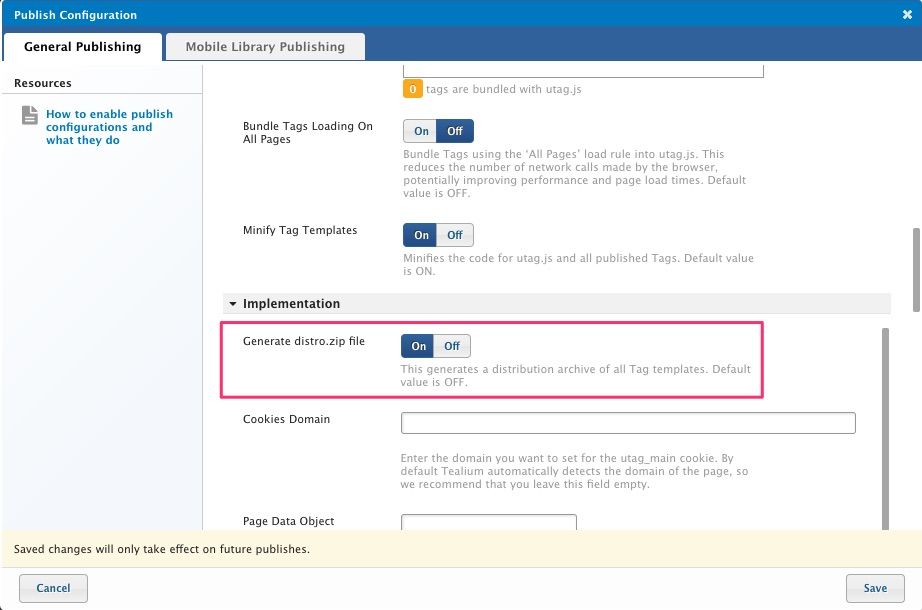
The first step is to enable generation of the zip archive so that you can retrieve the necessary files from Tealium iQ. The zip archive is named `distro.zip`, and updates every time a publish occurs. It contains all the necessary files to run your instance of `utag.js`. This file is not generated by default, so it must be enabled.
To enable the distro file:
1. In the admin menu, click **Configure Publish Settings**. The **Publish Configuration** dialog appears.
1. On the **General Publishing** tab, under the **Implementation** section, find the **Generate distro.zip file** setting and toggle it to **On**.
1. Click **Save**
### Set published file location
The published file location is a setting that tells the `utag.js` code where to load subsequent utag files (for example, `utag.4.js`). Remember, the code snippet to load `utag.js` will be adjusted to use your custom self-hosted location, but the loading of the other utag files occurs dynamically based on the logic within `utag.js` and the default location is Tealium's servers.
To change the published file location:
1. In the admin menu, click **Configure Publish Settings**. The **Publish Configuration** dialog appears.
1. On the **General Publishing** tab, under the **Publishing URLs** section, enter the domain and full path to your self-hosted files, one for each environment (omit the actual file name). For example: `//example.com/custom/path/prod/`
1. Click **Save**
Include the environment in your path to support the built-in Dev, QA, and Prod targets.
### Publish all environments
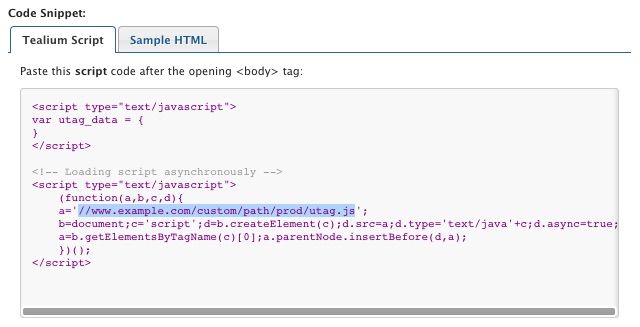
You have now enabled the downloadable `distro.zip` file. You will notice that the code snippet in the **Code Center** now displays the custom location of your hosted `utag.js` instead of Tealium.
The final step is to publish the profile to all environment targets (Dev, QA, Prod). This step ensures you have a `distro.zip` file generated for each environment.
### Publish work flow
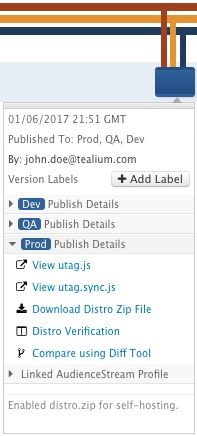You will continue to manage your tags within Tealium iQ, but each time you save and publish, you must download the new `distro.zip` file and unzip the files to your own server.
To download and verify the `distro.zip` file:
1. From the **Versions** tab, find the last published version, expand the **Publish Details** for each environment and click **Download Distro Zip File**.
1. Unzip the `distro.zip` file on your server in the location specified in the custom **Publishing URLs** setting. `distro.zip` should contain the following files:
* `utag.js`: The Universal Tag, which loads and executes code to load and run tags based on load rules and conditions.
* `utag.#.js`: The individual tag code, where `#` represents the tag's UID. For example: `utag.1.js`.
* `utag.sync.js`: The code to execute prior to page load to support A/B and multivariate testing tags.
* `utag.v.js`: The file required for session counts and billing.
* `mobile.html`: The mobile configuration file.
1. Using the code from **Code Center**, add the `utag.js` code snippet to your website.
1. Using the browser console, verify that your webpage is loading `utag.js` from your self-hosted location and not from Tealium (for example, `tags.tiqcdn.com`).
#### Use version labels
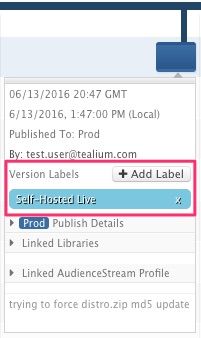
Lastly, after you make the `utag` files available on your live site, we recommend labeling the released version in Tealium iQ using **[Version Labels]()**. Version labels indicate to users of your account which versions have completed your internal software release cycle.
### SHA256 digest signatures
For added security, verify the contents of the files by clicking the **Distro Verification** link from the publish details area where you downloaded `distro.zip`. The **Distro Verification** shows the SHA-256 checksums for each file in the archive.
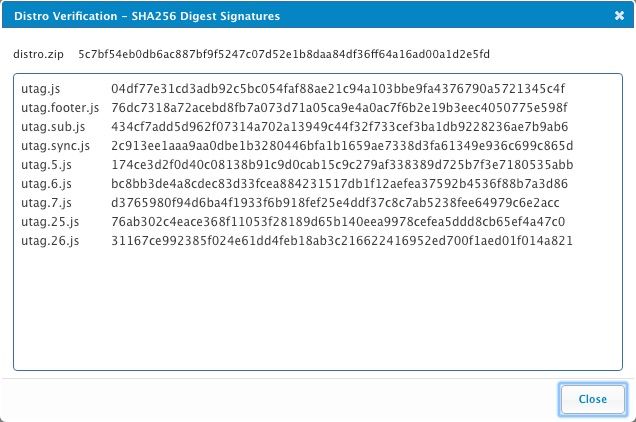
Use your favorite [checksum](https://en.wikipedia.org/wiki/Checksum) utility to verify the digest signatures of the files on your hosted location. The following diagram displays the SHA-256 checksum for `utag.js`, which matches the value seen in Tealium iQ.
