---
title: Example load rules
url: https://docs.tealium.com/iq-tag-management/load-rules/examples/
---The following examples are common load rules.
## AND Logic
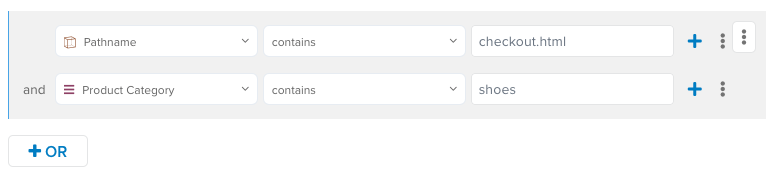
The following example shows a load rule to identify the checkout page of the site for a customer that is buying shoes. This example uses an AND condition, so the following two conditions must be met:
* `pathname contains checkout.html`
* `product_category contains (ignore case) shoes`
If both conditions are true, the load rule evaluates to `true`.
If any of the conditions in an AND statement are false, the load rule evaluates to `false`.
## OR Logic
The following example uses an OR condition. This rule loads a tag on a page if the `pathname` contains `checkout.html` OR if the `product_category` contains `shoes`. If one of the statements is true, the rule evaluates to true. If all of the statements in an OR statement are false, the load rule evaluates to false.
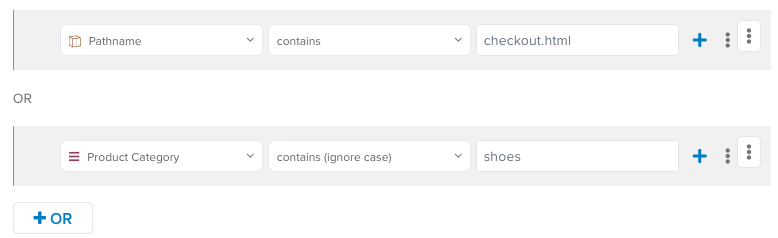
When a rule contains multiple OR condidtions, evaluation of the rule stops when a true statement is found. The remaining statements are not evalutated because one true statement means the rule is true.
## Using URL components
The components of a URL can be useful when creating load rule conditions. A URL typically consists of the following components:
* **Protocol** – The method used to process the URL. For example, HTTP or HTTPS.
* **Domain** – The domain name. For example, [www.tealium.com.](http://www.tealium.com)
* **Path** – The section and page on the site.
* **Hash** – Begins with a hash mark (`#`) and identifies a section within the page.
* **Query String** – Begins with a question mark (`?`) and specifies key-value parameters containing dynamic data passed to the page.
URL Example:
`http://www.tealium.com/app/solutions/?example=test&example2=test2#section3`
## Data layer variables
In the data layer, the components of a page URL are stored in DOM variables, as follows:
```
dom.domain : "www.tealium.com"
dom.pathname : "/app/solutions/"
dom.query_string : "example=test&example2=test2"
dom.hash : "section3"
dom.url : "http://www.tealium.com/app/solutions/?example=test&example2=test2#section3"
```
## Using domain names
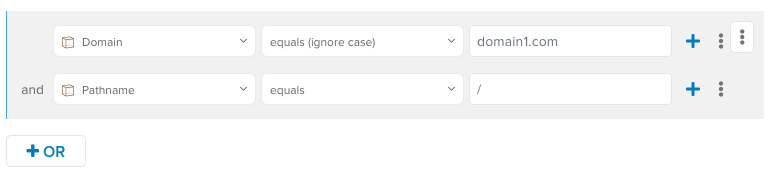
If a site consists of several domains, you may need to create a load rule to load tags for pages in a specific domain. The following example shows a load rule for pages in `domain1.com`:

## Using domain and pathname
To load tags on the homepage for `domain1.com`, use the following rule:
## Using pathname to specify a section of a domain
To load tags on pages in the `support` section of `domain1`, use the following rule:

## Using pathname and hash, or query string
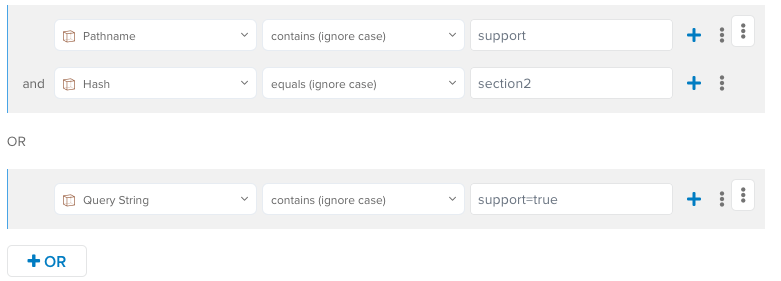
To load tags for `support` pages containing a section named `section2` or when there is a query string that contains `support=true`, use the following rule:
## Using time-based conditions
You can use time-based conditions, which specify a date and time range, in a load rule along with one or more variable conditions. The date and time range specifies a time period in which the rule is active.
The time/time zone used for the load rules is determined by the visitor's browser, not the server or the visitor's time/time zone.
Use the following steps to add a date range condition to a load rule.
1. Click **Add a date range condition**.
The date and time range dialog appears.
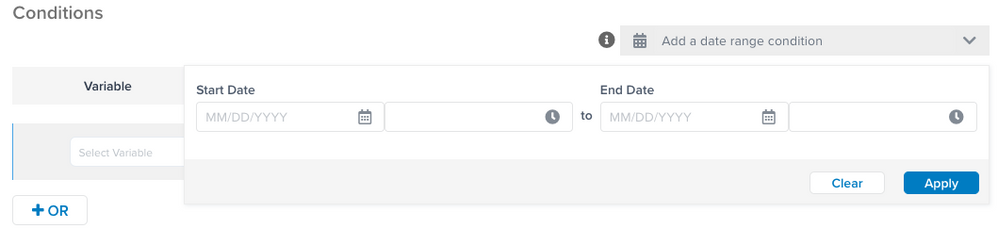
1. Click in the **Start Date** field to select a start date from the calendar.
1. Click the default time to select a different start time.
1. Click in the **End Date** field to select an end date from the calendar.
1. Click the default time to select a different end time.
1. Click **Apply**.
## Special considerations
The following special considerations may apply:
* If no time range is specified, the default values `any day` and `any time` are used.
* The date or time that is highlighted when you click on a field is the current date or time.
* You can specify only one date range condition per load rule.
To apply more than one date range to a tag, you must create another load rule with the second date range.
To use UTC time instead of the browser's local time, see [Time-based Load Rule using UTC](https://support.tealiumiq.com/en/support/solutions/articles/36000363440-time-based-load-rule-with-utc).