---
title: Manage load rules
description: This article explains how to manage load rules.
url: https://docs.tealium.com/iq-tag-management/load-rules/manage/
---
Load rules can be managed either from the **Load Rules** screen or from the expanded tag details screen.
In the list view on the **Load Rules** screen, shown below, the **Used In** column shows the number of tags that are using the load rule.
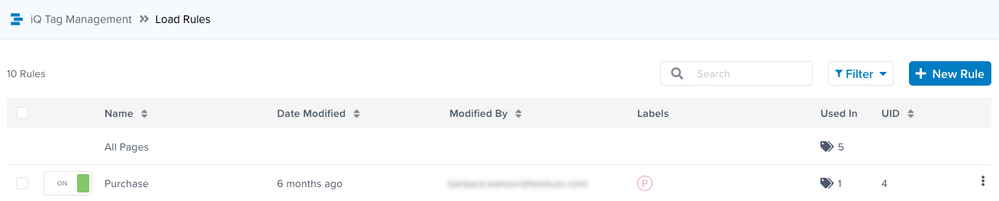
The **UID** column displays the numeric identifier for each load rule. This value can be useful when [debugging utag.js](https://docs.tealium.com/platforms/javascript/debugging/).
## Create a load rule
Use the following steps to create a load rule:
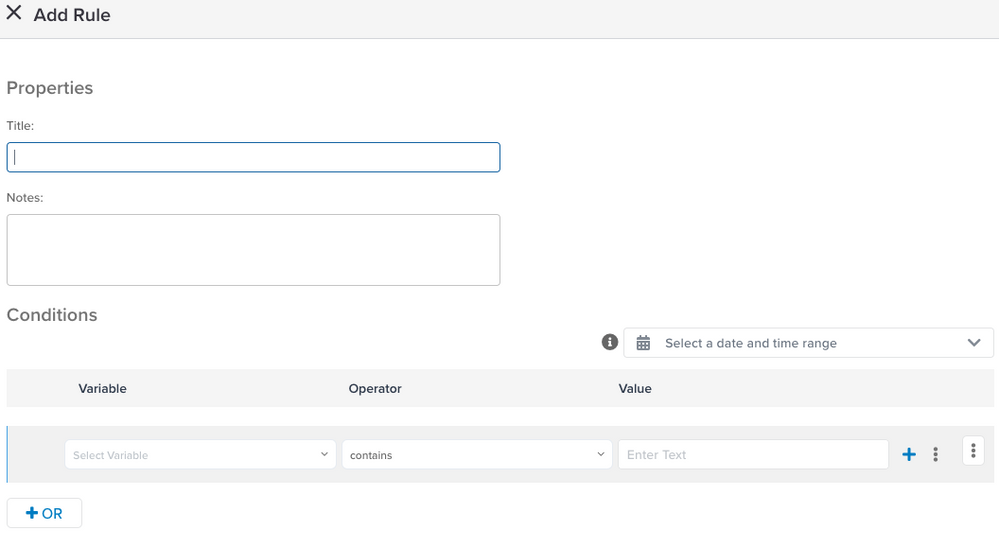
1. On the **Load Rules** screen, click **+ New Rule**.
The **Add Rule** dialog appears.
1. Add a **Title** for the load rule, and optional **Notes** if needed.
1. Use the drop-down lists to select a **Variable** and an **Operator**, then enter a **Value**.
* We recommend that you verify that a variable exists before you check the value of that variable. The following example verifies if `MyVariable` is defined before checking if its value is equal to 1000: 
If you do not verify that the variable exists and its value is `null`, the code throws an error and may cause the tag not to fire.
1. To add another condition using AND logic, do one of the following:
* Click **+** next to the default conditional statement.
* To create a copy of a conditional statement using AND logic by clicking the row menu and selecting **Duplicate Row**.
The duplicate conditional statement can be edited as needed.
1. To add another condition using OR logic, do one of the following:
* Click **+OR**.
* Create a copy of a condition using OR logic by clicking the condition menu and selecting **Duplicate**.
The duplicate condition can be edited to create a new condition.
1. To expand long values, such as a URL, do one of the following:
* Click the row menu and select **Expand Value**.
* Click the condition menu and select **Expand All Values**.
1. To remove a conditional statement from a condition, click the row menu and select **Remove Row**.
1. To finish, click **Apply**.
1. Click **Save/Publish**.
### Add to event
To assign load rules to an event:
1. In the **Events** dashboard, select an event to open the **Event Details** slideout.
1. Select the **Rules** tab and click **Edit**.
1. Drag and drop rules from the list on the right side of the dialog to the left side. This builds the logical conditions for the event.
For more information about how load rules work with events, see [Event Rules Examples](https://docs.tealium.com/event-rules/).
For more information about how load rules, events, and tags interact, see [Subscribe a tag to an event](https://docs.tealium.com/subscribe-tag-to-event/).
You can also create, edit, copy, activate, deactivate, and delete load rules from the tag details area.
### Add to tag
To assign load rules to a tag,
1. From the **Tags** dashboard, expand the tag details and click **Edit** in the **Rules and Events** area.
1. Select the **Rules** tab and click **Edit**.
1. Drag and drop rules from the list on the right side of the dialog to the left side. This builds the logical conditions for the event.
You can also create, edit, copy, activate, deactivate, and delete load rules from the tag details area.
## View load rule details
On the **Load Rules** screen, click a load rule. The load rule details appears, and it displays tabs with the following details:
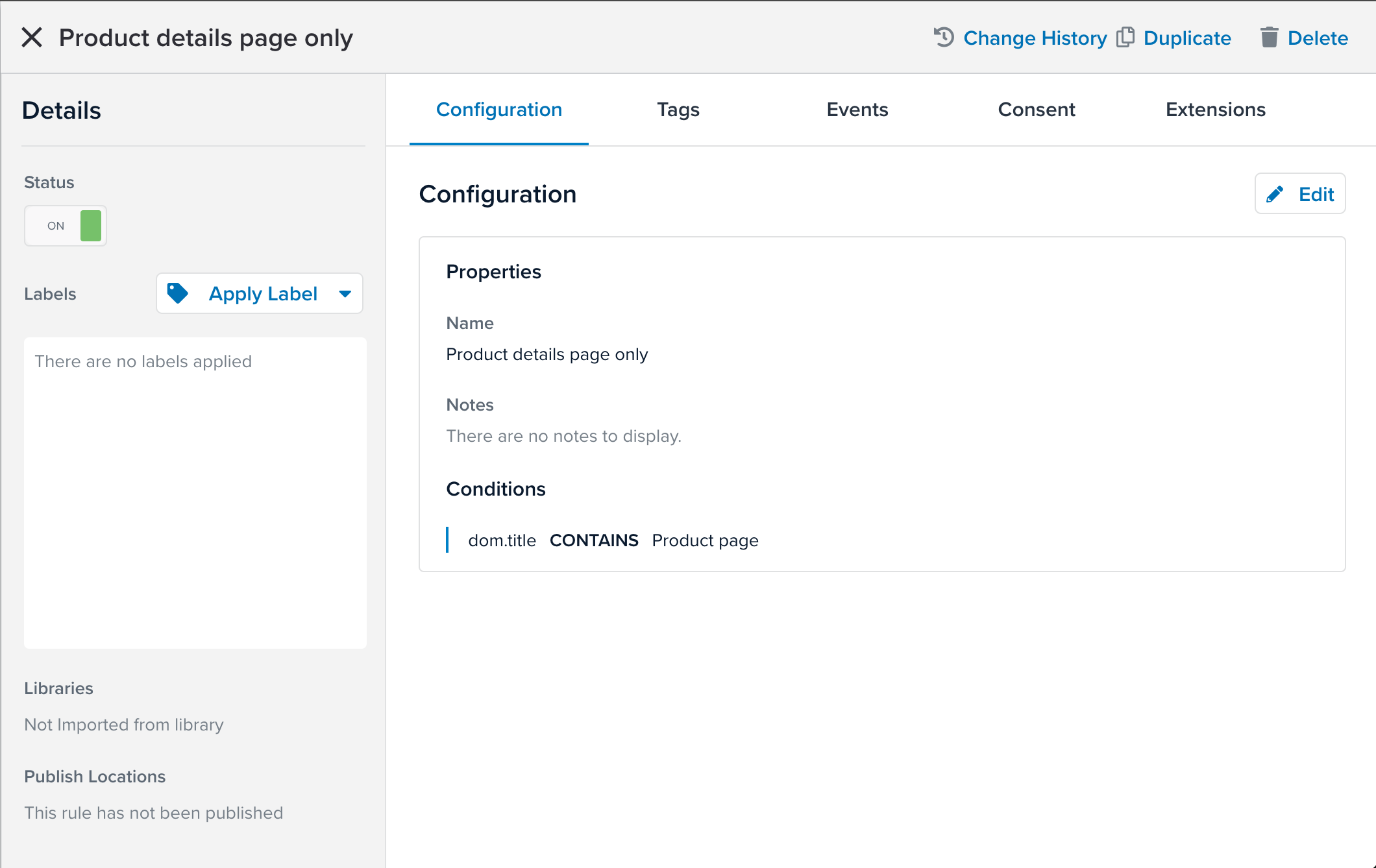
* **Configuration**: The title and logical conditions of the rule.
* **Tags**: The [tags](https://docs.tealium.com/about-tags/) scoped to the load rule. To go to a scoped tag, click the tag.
* **Events**: The [events](https://docs.tealium.com/manage-events/#view-event-details) that use the load rule.
* **Consent**: Information about [consent](https://docs.tealium.com/about-consent-management/) that is linked to this rule.
* **Extensions**: The [extensions](https://docs.tealium.com/about-extensions/) that use the load rule.
To view the change history of a load rule, click **Change History**.
## Deactivate a load rule
Deactivating a load rule turns it off, but keeps it in your profile for future use. When a load rule is deactivated, it remains in the profile and can be reactivated later.
When a deactivated rule is linked to a tag or to consent, the deactivated rule is removed from the logic. If the deactivated rule is is the only linked rule, the all pages load rule is linked to the tag or consent.
When a deactivated rule is linked to an extension, the extension is flagged with an error and the user must link an active rule.
To deactivate a load rule, go to the **Load Rules** screen, then click the **ON** toggle button of the load rule that you want to deactivate.

If the rule is in use, you need to confirm that you want to turn it off. The toggle button changes to display **OFF**.

To reactivate a load rule, click the **OFF** toggle button.
## Delete a load rule
You can delete a load rule to remove it from the profile. Deleting a load rule removes all instances of that load rule from the `utag.js` file.
Use the following steps to delete a load rule:
1. On the **Load Rules** screen, click the load rule that you want to delete.
1. In the **Details** screen for the rule, click **Delete**.
A confirmation dialog appears.
1. To confirm, click **Delete Load Rule**, otherwise, click **Cancel**.
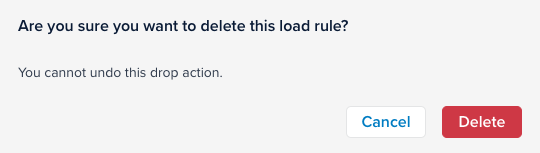
1. If the load rule you want to delete is in use, a message is displayed with the details.
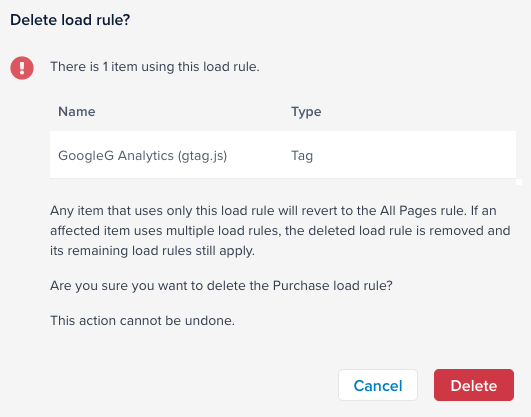
1. To continue and delete the load rule, click **Delete**.