Learn how to create a mobile profile.
Use mobile profiles to manage settings and vendor tracking for your mobile app separately from your website.
For Tealium Prism
A mobile profile is used with an installation of one of the following mobile application platforms:
Create a mobile profile for Tealium Prism
For Tealium Prism, you configure a mobile profile when you create it. No additional activation steps are required.
- In Tag Management, go to Admin Menu > Manage Profiles.
- In the side panel, under Profiles, click + Add.
- Enter a profile name.
- Select Mobile Profile.
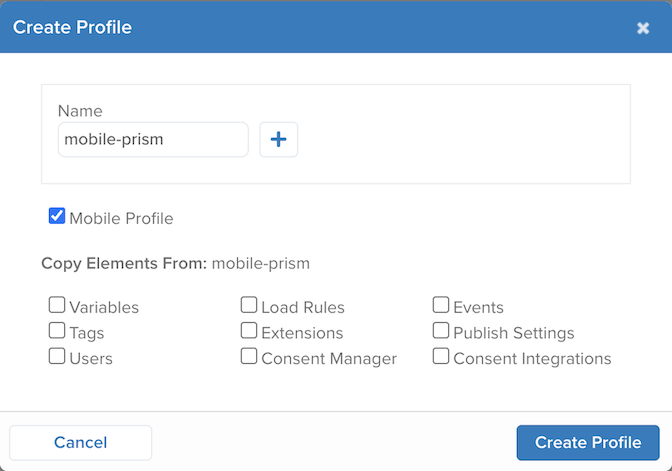
- Click Create Profile.
For more information on configuring a Tealium Prism mobile profile, see:
For Tealium for iOS (Swift) 2.x and Tealium for Kotlin
These section is for installations of the following libraries:
For these SDK versions, first you create a profile, then you convert it to a mobile profile. We recommend that you create a separate profile for each mobile application that you intend to install Tealium on. For example, the most common profile names for mobile apps are: mobile-ios and mobile-android.
Create and activate a mobile profile for iOS and Android
For new mobile installations, we recommend using Tealium Prism.
To create and activate a profile for use with the Tealium for iOS or Android SDK:
Log in to Tealium Tag Management.
Go to Admin Menu > Manage Profiles.
Enter a profile name and click Create Profile.
Do not select Mobile Profile unless you are using the Tealium Prism SDK. For Swift 2.x and Kotlin SDKs leave this checkbox unselected.
In the profile switcher, select the profile you just created.
In the admin menu, click Configure Publish Settings. The Publish Configuration dialog appears.
Click the Mobile Library Publishing tab.
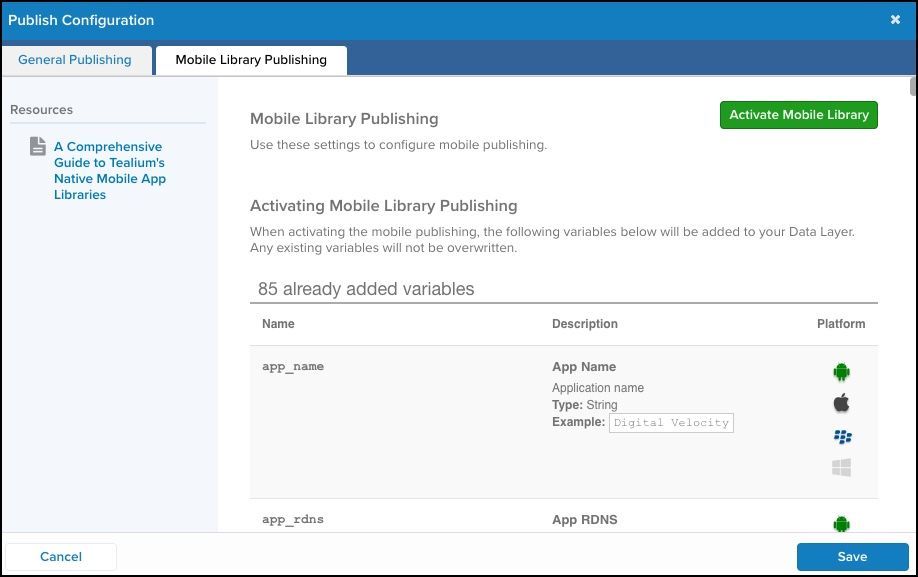
Click Activate Mobile Library and then click Activate to confirm.
Click Save.
Save and publish your settings.
Standard mobile variables are added to the profile and available to the data layer settings for use with tags and extensions.
This profile can now be referenced in your mobile application by referencing the account name, profile name, and publish environment. For setup instructions, see:
Configure mobile settings
Use the following steps to adjust your mobile configuration settings:
- Log on to Tealium Tag Management and select the account and profile for mobile application.
- In the admin menu, click Configure Publish Settings. The Publish Configuration dialog appears.
- Click the Mobile Library Publishing tab.
Mobile publish settings are enabled by default. You can optionally scroll through the mobile publishing settings, as described in the following table, and adjust as needed.
| Configuration | Description |
|---|---|
| Tag Management |
|
| Tealium Collect |
|
| Tealium S2S Legacy |
|
Batching
| Configuration | Description |
|---|---|
| Send Batch Data after every (#) event |
|
| WiFi Only Sending |
|
| Battery Saver |
|
Data Retention
| Configuration | Description |
|---|---|
| Dispatch Expiration in (#) days |
|
| Minutes Between Synchronization |
|
| Queue Capacity |
|
Debugging
| Configuration | Description |
|---|---|
| Set Debugging Log Level |
|
When you are ready, click Save, and save and publish your settings.
The next time your mobile application is loaded, the new configuration is detected and applied.
This page was last updated: October 16, 2026