---
title: Subresource Integrity publishing workflow
description: This article explains how to implement Subresource integrity to ensure that your visitors receive valid utag.js files through the Tealium CDN.
url: https://docs.tealium.com/iq-tag-management/save-publish/subresource-integrity/
---
## How it works
When SRI (Subresource Integrity) is enabled on a Tealium profile, the user can generate a hash code and the browser validates it against the `utag.js` file that the Tealium CDN delivers.
The following example demonstrates the new `integrity` parameter:
```
```
When a visitor loads the `utag.js` file through their browser, the hash is used to validate the file. If the hash matches the file's contents, then the `utag.js` file is valid and loaded on the page. If the hash does not match, this indicates that the file was modified from the source and, as a precaution, the browser blocks the `utag.js` file from loading.
For more information about SRI, see [Mozilla’s developer documentation on Subresource Integrity](https://developer.mozilla.org/en-US/docs/Web/Security/Subresource_Integrity).
## Prerequisites
* All tags must be bundled.
* Grant **Publish to Dev** permissions to all users with publishing rights so they can publish to the custom environments.
* Update the source code of all affected pages to include the new `integrity` parameter and correct profile name. For example, **DEV-A**, **QA-2**, **PROD-BETA1**. For more information, see [Naming convention](#naming-convention) below.
* Develop a process to change the publish environment (for example, **PROD-A** to **PROD-B**) and update the `integrity` parameter at the same time to avoid gaps in tracking. For more information, see [Hash coordination](#hash-coordination) below.
### Naming convention
To implement SRI on your profiles, you need to follow a specific naming convention in the publish URL for each profile. You also need to create custom environments in each profile that follow this naming convention.
The custom publish environments that you create for SRI must use the following naming convention:
1. Start with one of the following prefixes:
* **DEV-**
* **QA-**
* **PROD-**
1. Following the above prefixes, you can use any upper-case letters (A-Z) or numbers (0-9). For example, **DEV-A**, **QA-2**, **PROD-BETA1**.
A valid publish URL resembles the following, where `PROD-C` represents the custom publish environment name:
```
https://tags.tiqcdn.com/utag/account/profile/PROD-C/utag.js
```
Best practice is to create as many SRI environments for each environment category as you need and rotate through them when publishing. For example, if you have published a profile to **DEV-A**, **QA-A**, and **PROD-A**, on the next publish you would publish to **DEV-B**, **QA-B**, and **PROD-B** so you do not manipulate the active profile and invalidate the SRI check.
### Hash coordination
When you publish profiles and update your live site, you must update the `utag` path and the SRI hash in the `integrity` parameter at the same time to use the correct custom environment. If you do not, the path and SRI hash conflict and the browser does not load `utag`.
As a best practice, we recommend working with development teams to implement this into a CMS workflow where this can be updated together.
## Configure profiles for SRI
To configure profiles for SRI, perform the following steps:
### Step 1 - Enable custom environments
To enable custom environments on a profile:, see [Custom publish environments](https://docs.tealium.com/custom-publish-environments/#enabling-custom-publish-environments).
### Step 2 - Create custom environments
To create the necessary custom publish environments for SRI:
1. In the admin menu, click **Code Center**.
1. Click **Add Environment**.
1. Under **Environment Name**, enter a name that follows the naming convention and begins with a valid prefix (**DEV-**, **QA-**, or **PROD-**).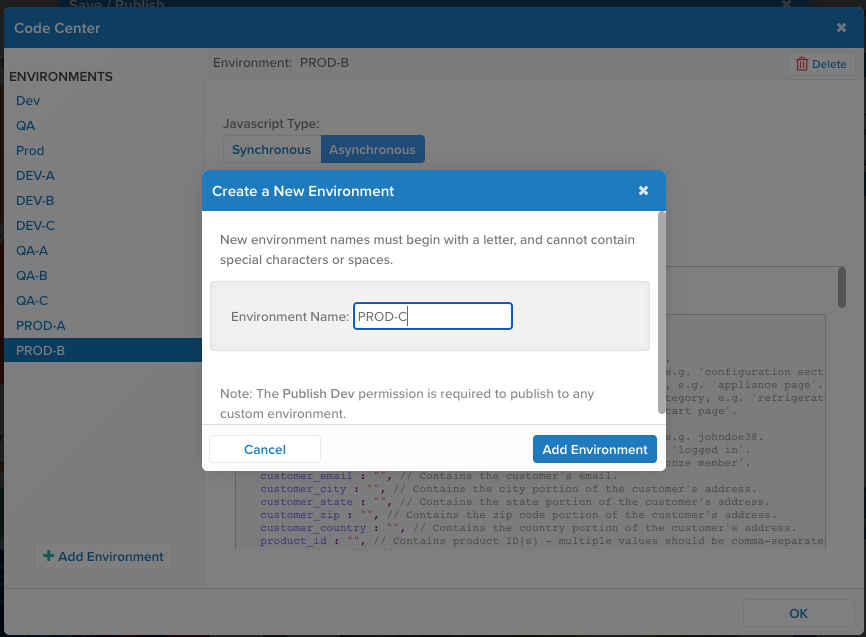
1. After you have created all of your new custom environments, the profile’s **Environments** list resembles the following: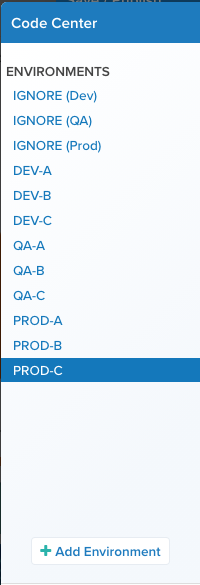
1. Click **OK**.
1. **Save/Publish** the profile on any environment to create all of the new custom environments.
For more information, see [Custom publish environments](https://docs.tealium.com/custom-publish-environments/#adding-a-custom-publish-environment).
### Step 3 - Publish to custom environments
The process of saving and publishing to profiles with SRI environments is nearly identical to that of the default publishing workflow, except that only one environment can be published at a time.
For more information, see [Custom publish environments](https://docs.tealium.com/custom-publish-environments/#publishing-to-a-custom-environment).