---
title: Version diff tool
description: The diff tool is built for version control and distro verification. It lets you compare the versions published in your profile and inspect their distro files.
url: https://docs.tealium.com/iq-tag-management/save-publish/version-diff-tool/
---
By inspecting the code changes, you can find out which Tealium iQ configurations were added, removed, or left untouched between versions.
## How it works
Select a pair of published versions to compare and run the tool on an environment (Dev, QA, Prod, or Custom). To use the Diff Tool for a version, that version must be published. The Diff Tool will not work for a version that was only saved and not published.
The Diff Tool generates an SHA256 hash for each version of the following distro files:
* `utag.js and utag.#.js`
* `utag.sync.js`
* `utag.v.js`
If the SHA256 hash of the distro file versions being compared fail to match, the Diff Tool highlights the differences in the enclosed code and displays them side by side.
You cannot use the Diff Tool on versions published before December 19, 2014.
## Using the Diff Tool
Use the following steps to interact with the Diff Tool:
1. In the sidebar, go to **Tag Management > Client-Side Versions.**
1. Click the published version you want to compare and choose one of its publish environments.
1. Click **Compare using Diff tool** in the environment you just selected.
The tool is immediately grayed out to signal that this version will be compared first.
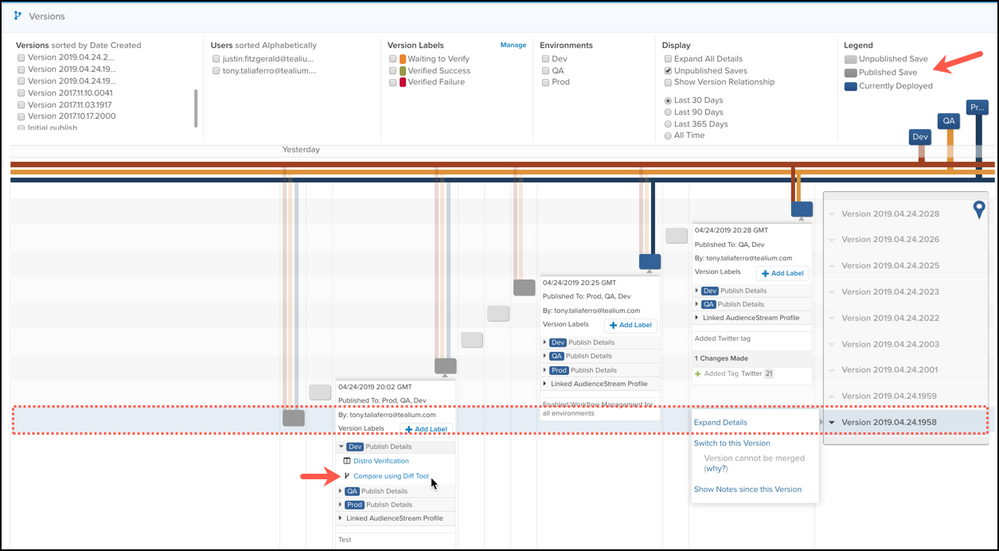
1. A yellow alert banner appears at the top of the screen that prompts you to select the second version. If you do not want to continue, click **Cancel**.
1. Select the second version and environment and click **Compare using Diff Tool** again for this version.

An informational message appears while the information is gathered.
1. After comparing each version of the distro files for code changes, the results display in the **Distro File Comparison** window.
1. View the changes, and then click **Close** to close the **Distro File Comparison** window.
## Reading the file comparison results
Use the following numbered example and descriptions that follow as a guide to learn how to read the **Distro File Comparison** results:
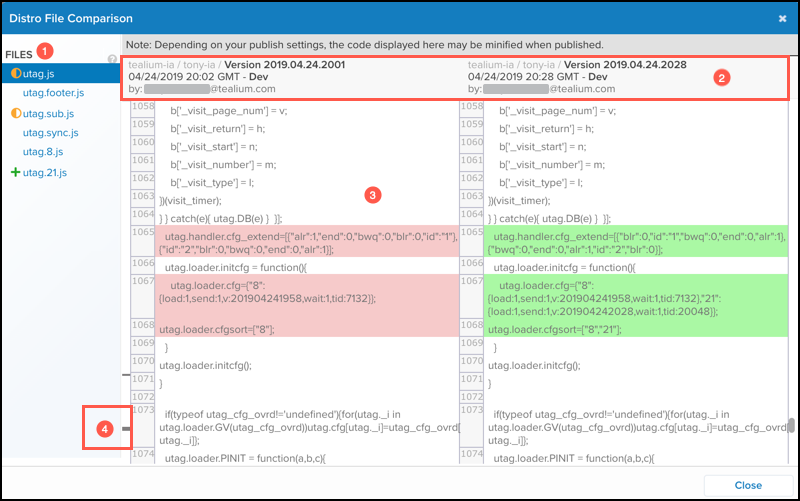
### 1. Files
* Displays the list of distro files compared by the tool.
* Clicking on a file displays the corresponding code for each version.
* The symbol next to the file indicates what is different between the two versions.
| Symbol | Description |
| ------- | ----------- |
| {**◑**} | Indicates there are changes to the code contained in the file. |
| **+** | Indicates the tag was added to the second version.|
| **–** | Indicates the tag was removed from the second version.|
If an extension is modified, the code changes are displayed in the `utag` file of the tag to which the extension is scoped
### 2. Version Details
* Displays the Tealium account and profile, version title, timestamp, and the user that published the version.
* The information is arranged in the order you select the versions: the first version selected is on the left and the second version on the right.
### 3. Code
* Displays the code within the two versions of the distro files.
* The changes to the code are highlighted in red and green:
* Red indicates the portion of the code that is absent in the second version.
* Green indicates the code that was added to the second version.
### 4. Column Indicator
* Click any column indicator to scroll to exact locations that contain code changes.
## Distro verification
The **Distro Verification** screen displays SHA256 signatures of every file generated for a version. By looking at the signatures, you can quickly compare a file in Tealium iQ with its corresponding instance on the server and spot any differences. This is especially important if you are hosting distro files in a location other than Tealium.
Use the following steps to access the Distro Verification screen:
1. Click a version and select one of its environments.
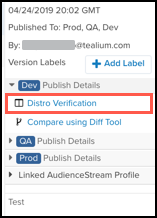
1. Click **Distro Verification**.
The **Distro Verification - SHA256 Digest Signatures** file appears.
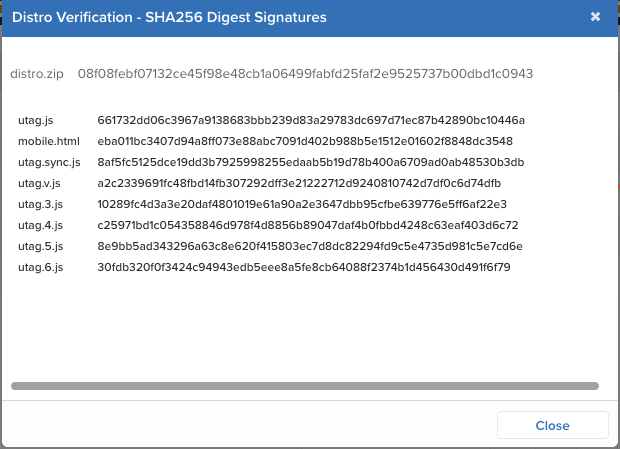
1. Click **Close** to close the window.