---
title: Version history
url: https://docs.tealium.com/iq-tag-management/save-publish/version-history/
---
On accounts with [platform permissions](https://docs.tealium.com/about-platform-permissions/) enabled, only users with the Client-Side Versions permission can access this screen. For more information, see [Permission Groups](https://docs.tealium.com/permission-groups/).
To view a history of your saves and publishes, go to **Client-Side Versions**.
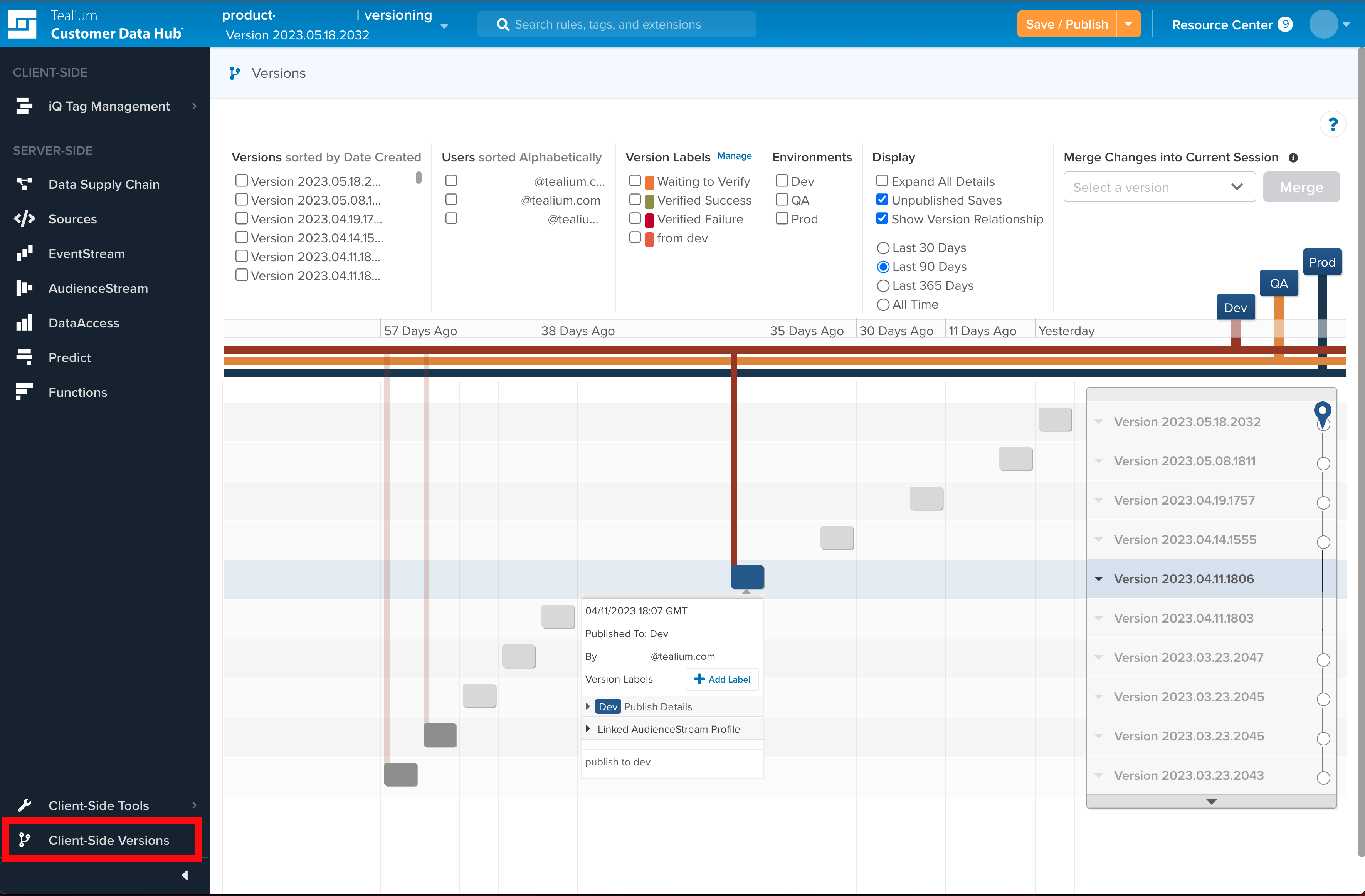
* Currently published revisions appear as blue folders.
* Previous revisions appear as gray folders.
* Versions appear on a new level.
* Revisions within a version appear on the same level.
* A blue pin icon indicates the version you are viewing.
## View filters
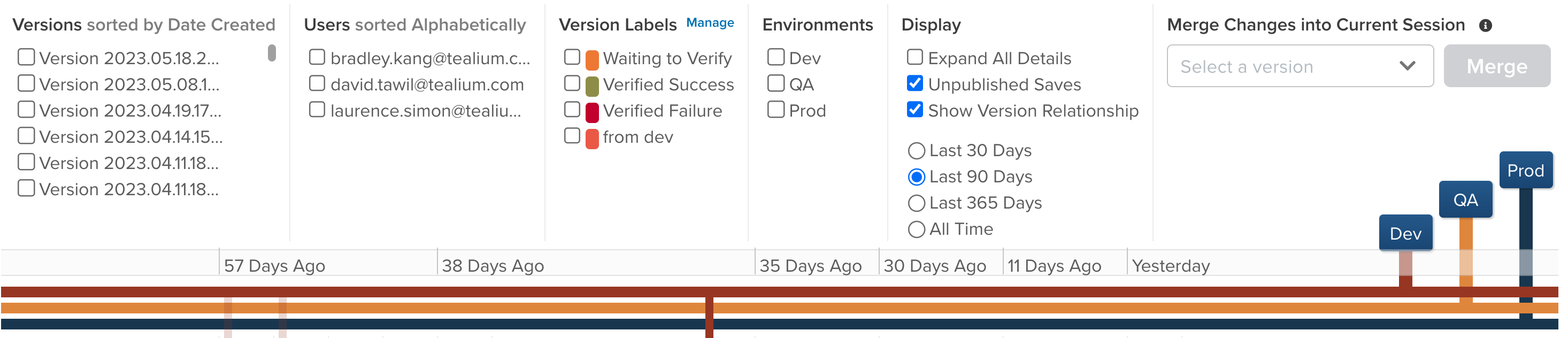
Filter versions by selecting one or more of the following criteria:
* Version title. The default title is the timestamp, and contains **(Archived)** if the version has been [archived](#archived-versions).
* Users
* [Version labels](https://docs.tealium.com/version-labels/)
* Default [publish environments](https://docs.tealium.com/about-publishing/) (**Dev**, **QA**, **Prod**, and **Custom**)
* Published/Unpublished saves
* Time range (in days)
## Version options
Click the down arrow next a version title to perform any of the following actions:
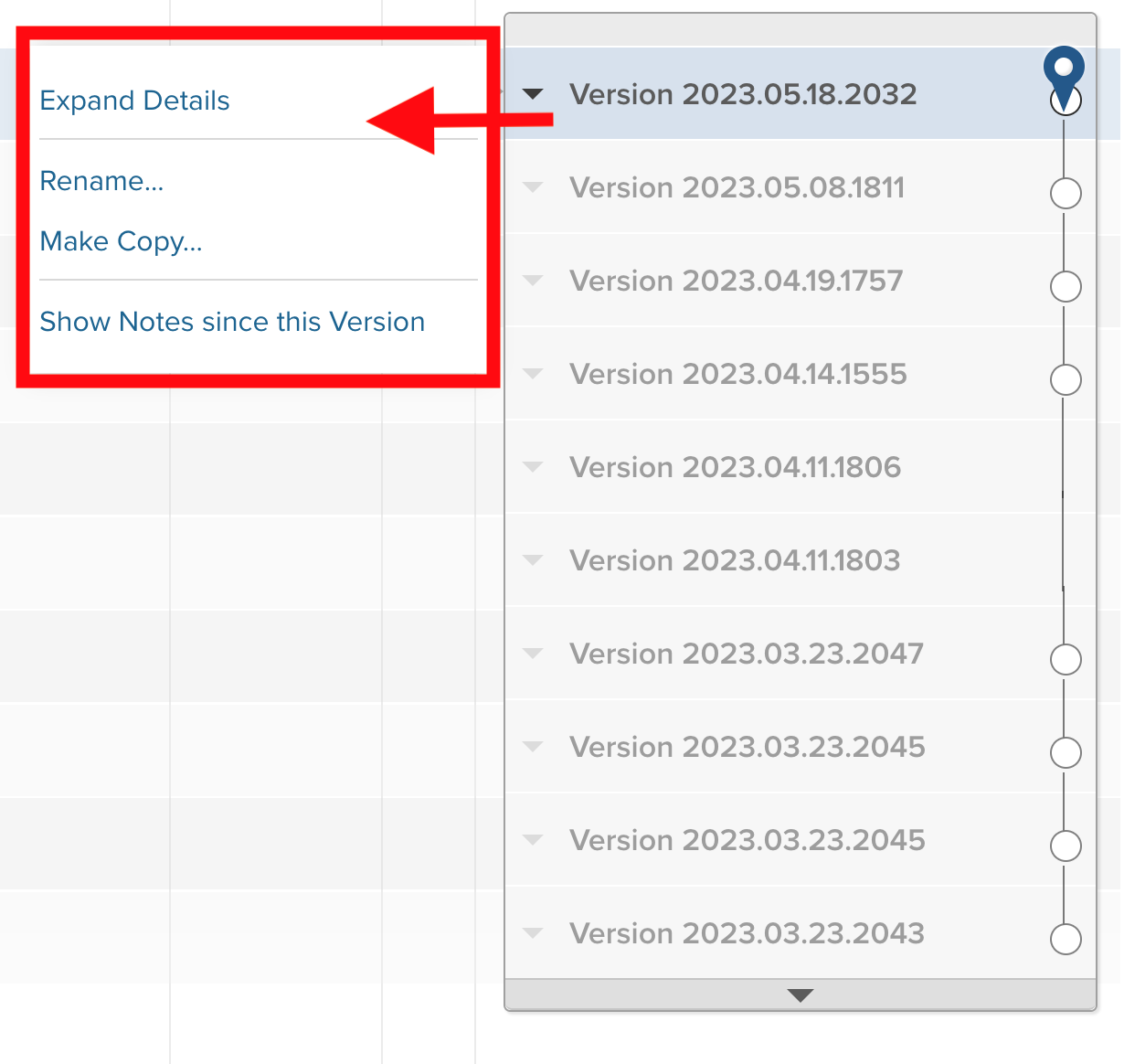
* **Switch to this Version**
Load the selected version. Switching to a different version automatically moves the pin icon next to the title of the version being viewed.
You cannot switch to an [archived version](#archived-versions).
* **Expand/Hide Details**
Display the publish timestamp, environments, and the user that published the version. Use this option to view and download the `utag` files for each environment.
* **Rename**
Rename the version to a more descriptive title.
* **Make a Copy**
Duplicate the current version. Duplicating a version saves it and adds **Duplicate of...** to the beginning of the version name.
Duplication does not automatically publish. Switch back to the saved version and perform a publish.
* **Show Notes since this Version**
Display the notes for the selected version as well as its subsequent publishes. Notes are sorted in the order of their publish and notes for saved versions are indented within their parent version.
## Merge changes into current session
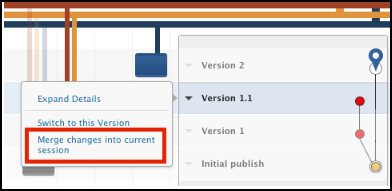
If there are changes available to merge into the current session, the **Merge Changes into Current Session** option appears in the list of version actions and above the version diagram.
* From the **Merge Changes into Current Session** drop-down list, select the version you want to [merge into this session](https://docs.tealium.com/merging-versions/). Both the incoming and current versions must originate from the same origin or ancestor.
* Enable the **Show Version Relationship** filter in the dashboard to display how each version is related to the others and which versions you can or cannot merge.
## Publish a previous version
You can switch back to a previous version of your profile and republish it to any environment. The republished version will contain the configurations or settings of the old version.
To publish a previous version:
1. Go to **Tag Management > Client-Side Versions**.
All versions appear: **Published**, **Unpublished**, and **Currently Deployed**. A blue pin icon indicates the current version. Blue buttons indicate currently deployed versions, whereas gray buttons point to older versions. 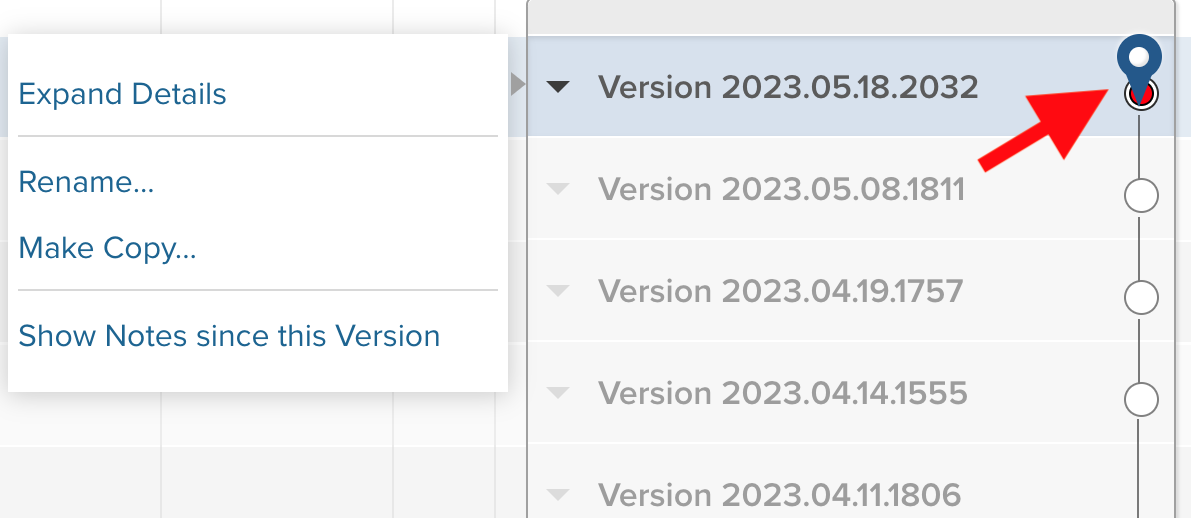
1. Click the down arrow on the previous version that you want and select **Switch to this version**.
The following alert message appears at the top of the screen:
**You are viewing an old version. Switch to the latest version: Version Name**
1. Click **Save/Publish**.
1. Select an environment in which to republish: **Dev**, **QA**, or **Prod**.
1. Add notes about the changes made to the version.
1. Click the **Publish** button to confirm.
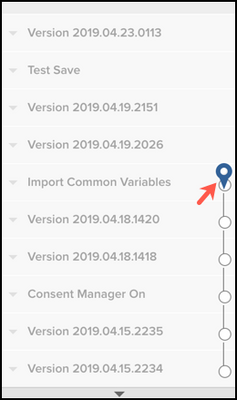
The blue pin icon moves to the version published.
## View a published utag.js file
To view a published `utag.js` file:
1. Click the down arrow next to the currently published version and select **Expand Details**.
1. Click the down arrow next to **Dev Publish Details** to expand.
1. Click **View utag.js**.
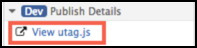
The corresponding `utag.js` file opens in a new tab.
## View tag and tag item history
You can view the change history of tags, extensions, load rules, and events separately:
* **Tags**: Click **Change History** on the [tag details page](https://docs.tealium.com/manage-tags/#view-tag-history).
* **Extensions**: Click **View Change History** on the [extension details page](https://docs.tealium.com/manage-extensions/#view-extension-change-history).
* **Load Rules**: Click **Change History** on the [load rules details page](https://docs.tealium.com/manage-load-rules/#view-load-rule-details).
* **Events**: Click **Change History** on the [event details page](https://docs.tealium.com/manage-events/#view-event-details).
## Use the diff tool
The diff tool lets you compare two published versions and review the code changes from their distro files. Code differences between versions are highlighted and presented side by side, making it a easy to distinguish the changes.
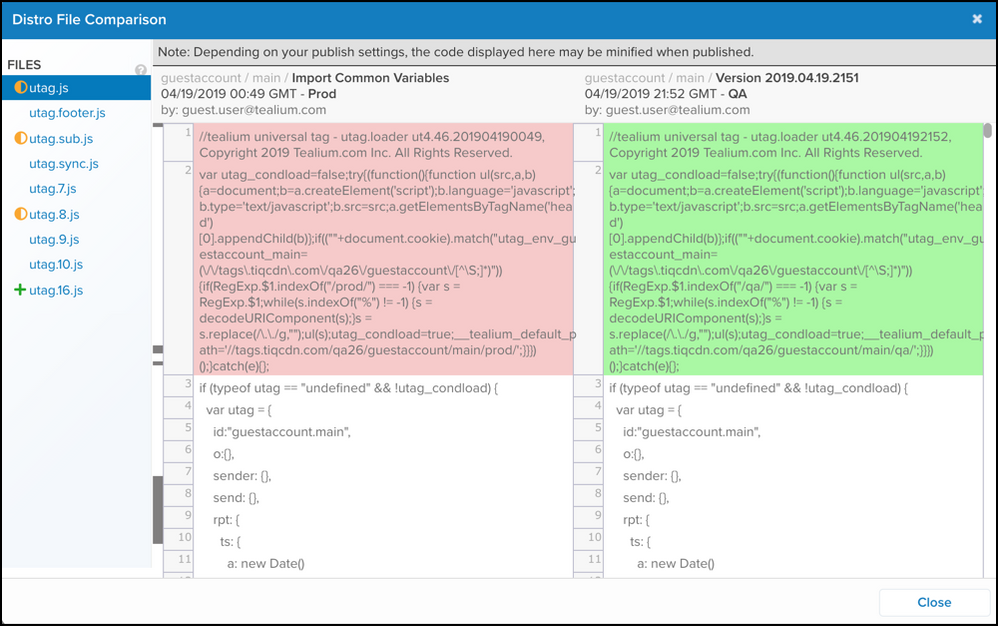
For additonal details, see the [version diff tool](https://docs.tealium.com/version-diff-tool/) article.
## Merge changes between versions
Merging changes between versions simplifies the process of bringing changes from an older version into the currently published version. You can only merge two versions if they have branched away from the same origin. To learn more, see [Merge into current session](https://docs.tealium.com/merging-versions/).
## Archived versions
Older, unused versions are archived to improve site performance. Archived versions appear in the version history with **(Archived)** in the title. Archived versions cannot be loaded. If you need to use an archived version, contact Tealium Support.