---
title: Advanced tag settings
description: The advanced settings control how the tag is loaded on the page and when it will fire.
url: https://docs.tealium.com/iq-tag-management/tags/advanced-settings/
---
It is important to have a good understanding of the [order of operations]() before adjusting these settings.
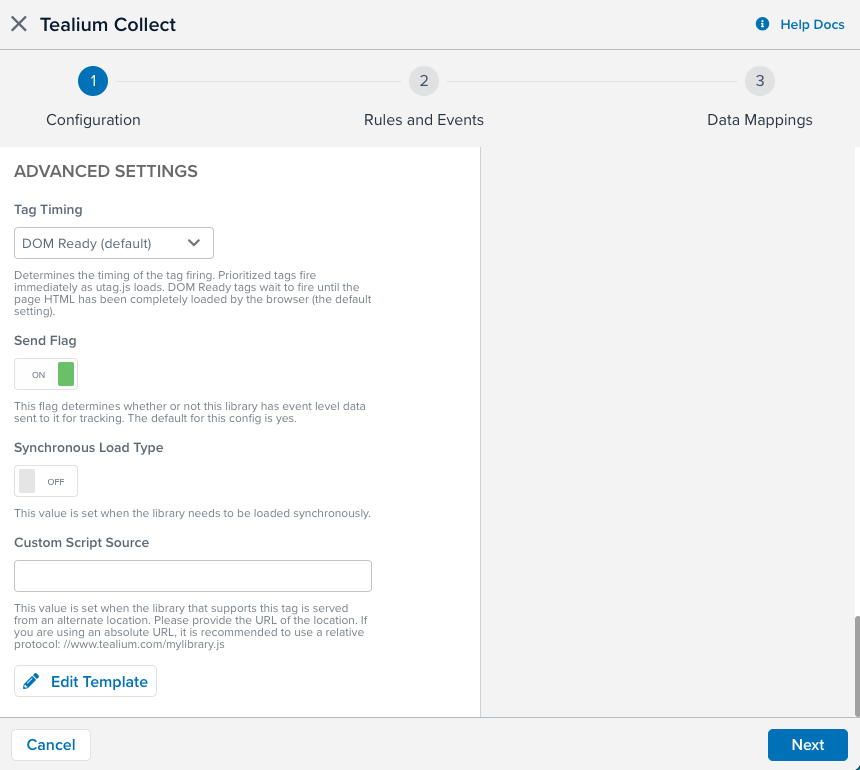
The following image shows the available **Advanced Settings**, as displayed in the interface:
## Send Flag
The **Send Flag** setting determines whether or not a tag sends out data when it loads. The default selection is **Yes**. If you select **No**, the tag loads normally but does not send data.
## Bundle Flag
The **Bundle Flag** setting determines whether or not to bundle the tag configuration file into `utag.js`. The default setting is **No**. If you set it to **Yes**, the tag code is published within `utag.js` and the corresponding `utag.#.js` file is not published.
Tags that use the **All Pages** load rule are automatically bundled when the **Bundle Tag Loading on All Pages** option is enabled in the [publish settings]().
The load order for bundled tags and those using the **All Pages** load rule is determined by the order in which they appear in the UI. Bundling affects the generated file (`utag.js`).
Additional JavaScript files requested by the vendor tag will still load separately.
Loading Google Analytics before bundling:
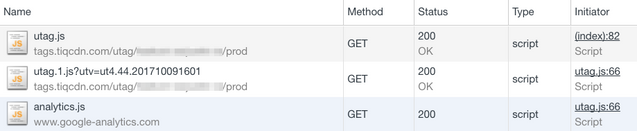
Loading Google Analytics after bundling:

## Tag Timing
The **Tag Timing** setting determines whether a tag loads when the `utag.js` file loads, or when the browser sends the DOM Ready signal. The default setting is **DOM Ready**.
Selecting **Prioritized** causes the tag to load immediately, without waiting for the DOM Ready signal. Loading a tag before the DOM is fully ready may result in required resources not being available, which can impact the tag’s performance and functionality.
## Synchronous Load
This setting determines whether the tag loads synchronously or asynchronously. If you intend to load a tag synchronously, you must include the Tealium synchronous `utag.js` file reference in the source code for the page. The default setting is **No**, which means that tag will load asynchronously. We recommend loading tags asynchronously as a best practice.
## Custom Script Source
This setting lets you support a tag by using an external JavaScript file instead of a built-in tag template. Enter the URL of the `.js` file in the **Custom Script Source** field.
Remove the `http:` or `https:` protocol from the URL and use a relative protocol. For example: `//[www.example.com/js/mylibrary.js](http://www.tealium.com/mylibrary.js)`
Supporting a tag using a custom JavaScript turns it into a blocking tag, which prevents other tags from running until this tag has finished loading. Though this tag still loads asynchronously, it does not load subsequent asynchronous scripts (for example, `utag.10.js`) until the blocking tag is complete. To load custom JavaScript for a tag without turning the tag into a blocking tag, use the Tealium Generic Tag to load it.