---
title: About persistent cookie matching
description: Persistent cookie matching works with cookie matching tags in iQ Tag Management to request a third-party vendor user identifier.
url: https://docs.tealium.com/iq-tag-management/tags/cookie-matching/
---
A cookie matching tag synchronizes visitor identifiers between Tealium and third-party vendors. It requests the vendor’s user identifier and associates it with the visitor in Tealium. The vendor then returns an anonymous identifier, which Tealium stores in a third-party cookie. This synchronization links events across domains to the same visitor, improving tracking and data enrichment.
You can use the synchronized identifiers in connector actions for targeted advertising, personalized content delivery, and other purposes.
## How it works
The third-party vendor sends an anonymous identifier back to Tealium to be associated to the visitor. That visitor data is then returned back to the website through [data layer enrichment](https://docs.tealium.com/about-data-layer-enrichment/). This process allows events across multiple domains to be associated to the same visitor.
Here's how it works:
* In iQ Tag Management, a specific vendor cookie matching tag is added. When it runs in the page, it sends a request to the vendor asking for the visitor identifier and providing a return endpoint to which it can be sent.
* The vendor then makes a request back to the Customer Data Hub with the requested identifier (cookie ID).
* In the Customer Data Hub, the cookie matching request is received and the identifiers is saved to a Tealium third-party cookie.
* In subsequent EventStream events collected, the third-party cookie values are made available as event attributes. This process continues until the cookie expires.
The Tealium Cookie Sync (TCS) cookie is valid for one (1) year, or when reaching the storage capacity of 4093 bytes.
As an example scenario, the interaction between a TiQ cookie matching tag and the vendor might translate into something like this:
* **Tealium Cookie Matching Tag:**
"Hi, I’m Tealium, can you give me the visitor ID so that I can later tell you who this person is and something about them in a way you will understand?"
* **Vendor:**
"Sure. Here you go, this is the Visitor ID."
* **Tealium Cookie Matching Tag**
"Thanks. I'll take the Visitor IDs you provided and persist them in the Customer Data Hub. As useful data emerges, I'll leverage the data to your benefit and return it to you to use as needed."
### Flow diagram
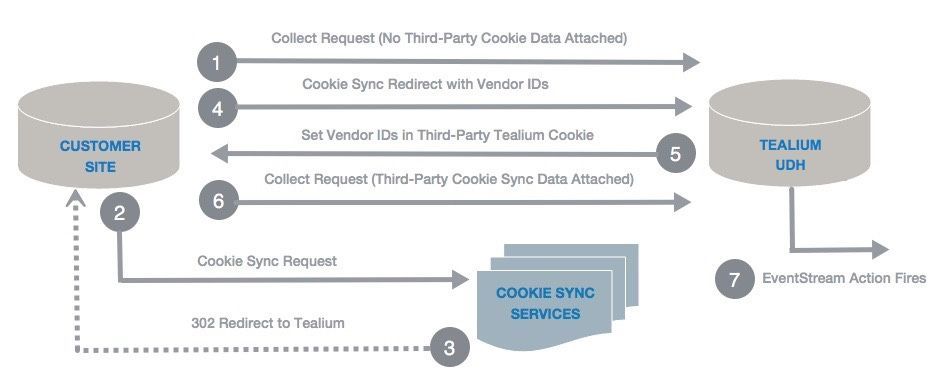
The following diagram describes the flow of data between the Tealium Customer Data Hub and the customer website.
* **Standard Event Collection**
The Tealium Collect tag fires for actions that do not need cookie sync data.__ No third-party cookie sync data is attached at this point.
* **Cookie Matching Requests**
A cookie sync request is sent from the customer site to the vendor cookie matching service.
* **Cookie Match Response**
The cookie sync services sends a "302" redirect to the customer site.
* **Customer Data Hub Saves Cookie**
The cookie sync redirect received by the customer site is forwarded to the Customer Data Hub where the matched identifier is saved in the third-party Tealium cookie.
* **Tealium Third-Party Cookie Updated**
The Customer Data Hub redirect back to the customer site sets the third-party cookie containing the synced identifier from the vendor.
* **Event Collection with Persisted Cookies**
The customer site then sends Tealium Collect tag requests that contain the persisted cookie data.__ The collect tag waits for all (or a percentage or preset delay time) cookie sync tags to complete and then fires again with third-party cookie sync data to ensure that actions that rely on visitor identifiers can fire.__ Third-party cookie sync data is attached at this point.
* **EventStream Actions**
In the final step, EventStream events now contain the persisted vendor identifiers as event attributes, which are then available to be mapped in connector actions.
## Supported marketplace tags
The following table lists the callback method and callback formatting for Tealium marketplace tags that support the persistent cookie matching service:
|Callback Method| Callback formatting| Tag Name|
|---| ---| ---|
|Calls [Visitor Data]()| Uses a callback to make the vdata call. | - [Criteo Cookie Matching Service]()
- [IBM UBX Cookie Matching Service]()
- [intelliAd Cookie Matching Service]()
- Yahoo Cookie Matching Service
- [The Trade Desk Cookie Matching Service]()
|
|Calls [Visitor Data]()| Formatted (`url+vdata+query-params`) | - [XandrCookie Matching Service](https://docs.tealium.com/xandr-cookie-matching-service-tag/)
- Google Analytics Cookie Matching Service
- Sizmek Cookie Matching Service
|
|Does not call vdata| Copies an ID from one cookie to another| - Adobe Analytics Cookie Matching Service
- [Basis Technologies Cookie Matching Service](https://docs.tealium.com/basis-technologies-cookie-matching-service-tag/)
- [DataXu Cookie Matching Service](https://docs.tealium.com/dataxu-cookie-matching-service-tag/)
- [Google Cookie Matching Service for Doubleclick](https://docs.tealium.com/google-cookie-matching-service/)
- [MediaMath Cookie Matching Service](https://docs.tealium.com/mediamath-tag-basic-configuration/)
- RadiumOne Cookie Matching Service
- Tapad Cookie Matching Service
|
## Add a cookie matching tag
Use the following steps to add a cookie matching tag:
1. Log into iQ Tag Management (TiQ).
1. In the left sidebar, go to the **Tag Management > Tags**.
1. Click **+ Add Tag**.
1. In the left panel, click **Cookie Match**.
A list of available marketplace tags supporting the cookie matching service displays.
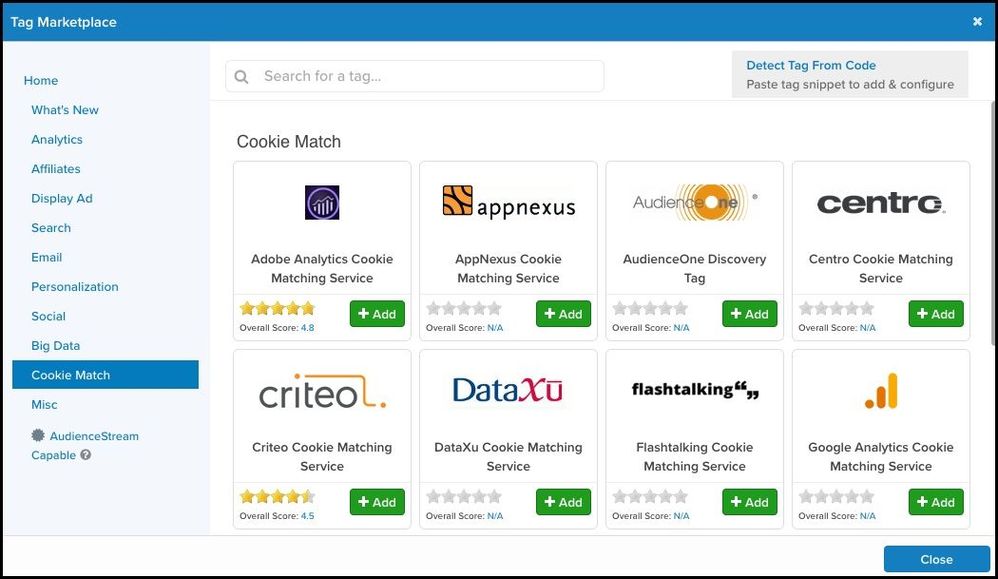
1. Click **+ Add** next to the tag you want to add.
1. Follow the onscreen instructions to configure your tag.
1. Save and publish your changes.
### How do I update my tag to get the latest functionality?
To check if your tag is up to date, click the tag and check the **Tool Tips** section in the left navigation panel. If a newer version is available, the **Tool Tips** section contains a notification with instructions to disable the current version and add the new tag from the tag marketplace.
[Learn more](https://docs.tealium.com/manage-tags/) about adding and configuring tags from the tag marketplace.