---
title: Tealium Tools Environment Switcher
description: This article describes the Environment Switcher, which is available as a Tealium Tools browser extension.
url: https://docs.tealium.com/iq-tag-management/tealium-tools/environment-switcher/
---
## How it Works
The Environment Switcher is a powerful testing tool used to change the Tealium files (`utag.js`, `utag.sync.js`) that are loaded on a page by specifying a specific environment (Dev, QA, or Prod) and/or a specific account/profile.
Use the Environment Switcher by adding the Tealium Tools extension. For more information, see [Tealium Tools Browser Extension]().
## Using the Environment Switcher
When you launch the Environment Switcher, the current account and profile detected on the page displays, along with configuration tabs that allow you to adjust the switcher according to your input.
Once you have the Environment Switcher available in Tealium Tools, use the following steps to launch it:
1. Click the **Tealium Tools** icon in the upper right of the screen.
1. Click the **Home** tab.
1. Click **Environment Switcher**.
The Environment Switcher configuration screen displays a set of configuration tabs.
### Basic Configuration
The options on the **Basic** tab allow you to load `utag.js` and `utag.sync`.js from different environments.
Use the following steps to switch environments:
1. Click the **Basic** tab.
1. Click the environment you want to switch to.
When you select a new environment, the environment detected on the page is outlined in orange and the active environment on the page (the one you switched to) is highlighted in blue.
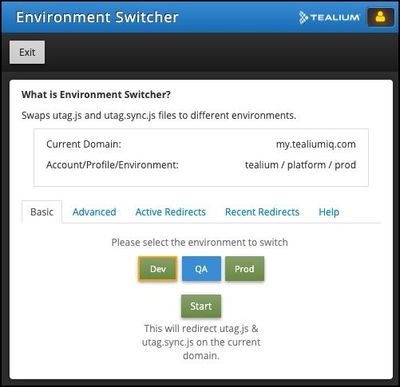
1. Click **Start** to apply your changes.
This action refreshes the current page.
### **Advanced Configuration**
The options on the **Advanced** tab provide the following features:
* Advanced redirects to load the Tealium files from a different account, profile, and environment.
This is helpful if you use [profile libraries](https://docs.tealium.com/about-profile-libraries/) or [custom publish environments](https://docs.tealium.com/custom-publish-environments/).
* URL redirects to load the Tealium files from a custom URL location.
* Separate settings for each Tealium file and your browsing session..
#### Advanced Redirects
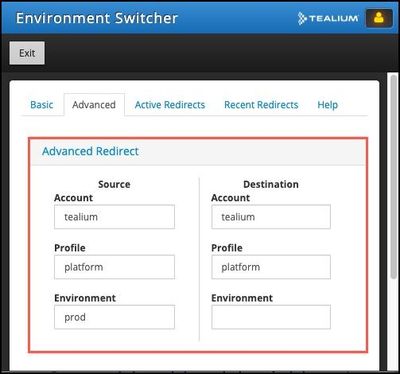
To redirect the **Account**, **Profile**, or **Environment**, click **Advanced Redirect** to expand.
Type the source name for each in the **Source** column and the destination name for each in the **Destination** column.
#### URL Redirects
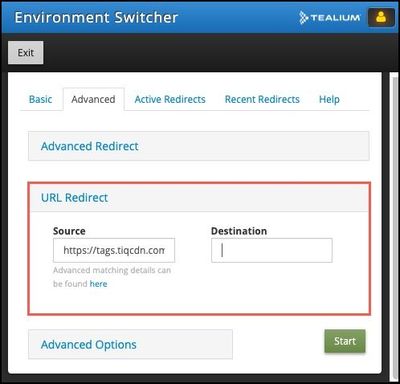
To redirect to a custom URL, click **URL Redirect** to expand.
Type the source URL in the **Source** column and the destination URL in the **Destination** column.
#### Advanced Options
Click **Advanced Options** to select or deselect how your redirects are applied.
Select or deselect one or more of the following:
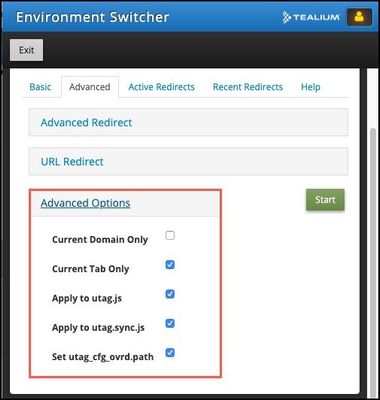
* **Current Domain Only** - only apply the redirects to the current domain. If you navigate to a different subdomain, the redirects are not applied.
* **Current Tab Only** - only apply the redirects to the current browser tab. Other browser tabs, even if viewing the same page, will not be affected.
* **Apply to utag.js** - apply the redirect to utag.js.
* **Apply to utag.sync.js** - apply the redirect to utag.sync.js.
* **Set utag_cfg_ovrd.path** - set a custom cookie path.
Click **Start** to apply all changes made.
### **Active Redirects**
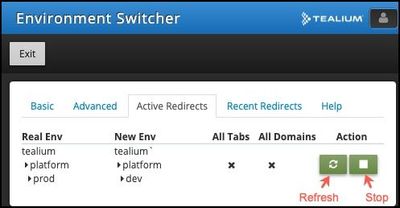
After making any changes using the Environment Switcher, the **Active Redirects** tab is the default tab that displays the next time you initiate the switcher. This tab displays environments that are currently being switched.
#### Disable an Active Redirect
To disable an active redirect, click **Stop** in the Action column. The page is automatically refreshed and the Tealium files load normally, as coded in the page.
* In subsequent visits to this tab, you can select **Refresh** or **Stop** in the Action column.
### Recent Redirects
The **Recent Redirects** tab provides a history of recently used configurations, which makes it simple to reactivate a switcher that was previously configured.
To reactivate a previously configured switcher:
1. Click the **Recent Redirects** tab.
A list of recently configured switchers displays.
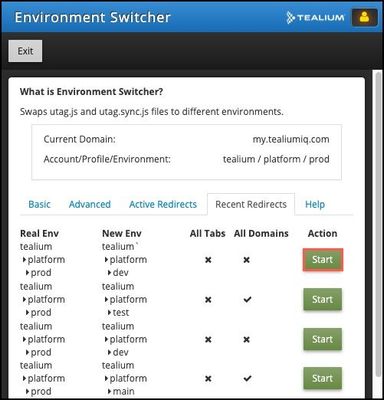
1. Click the **Start** button next to the switcher that you want to reactivate.
The page refreshes automatically and the changes are applied.
## Using the Environment Switcher with custom domains or path overrides
Use the following setup instructions to use the Environment Switcher in self-hosted domains, private cloud environments, or when overriding configuration paths.
### First-party or self-hosted domains
To use the Environment Switcher with a self-hosted or first-party domain:
1. Click the user icon in the upper-right corner of the **Tealium Tools** extension.
1. Click the **Settings** tab.
1. In the **Domain Prefix** field, enter the domain loading the `utag.js` script (for example, `tags.domain.com`).
1. Click **Update Settings**.
The **Environment Switcher** screen loads.
1. Select the environment you want to switch to and click **Start**.
The page refreshes, and a blue **Environment Switcher** bar appears at the bottom of the screen to indicate that the redirect is active.
### Private cloud environments
To use the Environment Switcher with a private cloud environment:
1. Click the user icon in the upper-right corner of the **Tealium Tools** extension.
1. Click the **Settings** tab.
1. In the **Domain Prefix** field, enter the account prefix used to load the `utag.js` script. For example, if your private cloud domain is `pc-company-my.tealiumiq.com`, the prefix is `pc-company`.
1. Click **Update Settings**.
The **Environment Switcher** screen loads.
1. Select the environment you want to switch to and click **Start**.
The page refreshes, and a blue **Environment Switcher** bar appears at the bottom of the screen to indicate that the redirect is active.
### Configuration path overrides
To use path overrides with the Environment Switcher:
1. Click the **Home** tab in the upper-right corner of the **Tealium Tools** extension.
1. Click **Environment Switcher**.
1. Click the **Advanced** tab.
1. Expand **Advanced Redirect** and enter the new environment in the **Destination** column.
1. Expand **Advanced Options**.
1. Check **Set utag_cfg_ovrd.path**.
1. Click **Start**.
The page refreshes, and a blue **Environment Switcher** bar appears at the bottom of the screen to indicate that the redirect is active.
## Troubleshooting
The **Help** tab provides troubleshooting options to force stop all active redirects or completely reset the Environment Switcher.
### **Force Stop All Active Redirects**
To force stop all active redirects:
1. Click the **Help** tab.
1. Click **Force Stop all Active Redirects**.
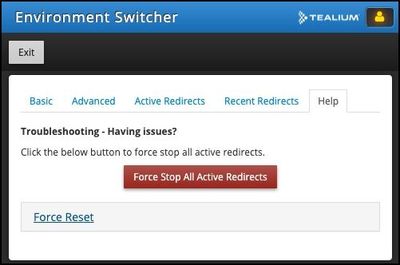
The Active Redirects tab is now empty and all active redirects are stopped.
### **Reset Environment Switcher to the Default State**
Resetting the Environment Switcher to the default state and stop all current redirects, remove all information saved in the UI setting, remove recent redirects, stop the backend service, and close the Tealium Tools window.
Use the following steps to reset the Environment Switcher:
1. Click the **Help** tab.
1. Click **Force Reset** to expand.
1. Click **Reset Environment Switcher**.
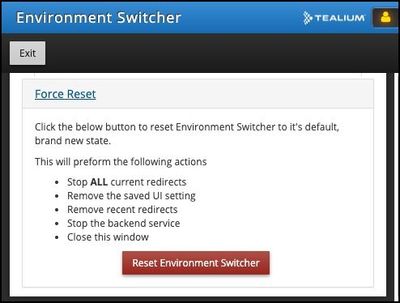
The **Active Redirects** and **Recent Redirects** tabs are now empty. All active redirects are stopped and recent redirects are purged.
## Additional Information
* **[Tealium Tools Browser Extension]()**
An overview of the Tealium Tools browser extension and how to install it.
* **[List of Custom Tealium Tools](https://support.tealiumiq.com/en/support/solutions/articles/36000363424-list-of-custom-tealium-tools)**
Detailed information about available custom tools.