---
title: Methods to switch publish environment
description: This article describes the methods available to switch the publish environment of the Universal Tag (utag.js) file loaded on your site.
url: https://docs.tealium.com/iq-tag-management/troubleshooting/switch-environoment/
---
## How it works
When you want to test changes on your site, but do not have access to edit the installed Tealium files, use a method called environment switching to load a different version of the Tealium files (`utag.js`, `utag.sync.js`) on your site. Environment switching is a safe way to test changes on your production site without publishing to the **Prod** environment.
There are 3 methods that can be used to switch environments:
* Tealium Tool: Environment Switcher
* Web Companion
* Set a Cookie
### Tealium Tool: Environment Switcher
The Environment Switcher is a Tealium Tool that runs in the Chrome browser and is the recommended method for testing different environment version of `utag.js` on your site.
Learn more about how to use the [Environment Switcher](https://docs.tealium.com/iq-tag-management/tealium-tools/environment-switcher/) to load different versions of the Tealium files.
### Web Companion
Web Companion provides a way to load the Tealium files from any of the standard environments: Dev, QA, or Prod.
This feature is disabled by default. To enable this feature, turn on [the Web Companion setting in your publish settings]().
Use the following steps to change environments using Web Companion:
1. Launch [Web Companion]().
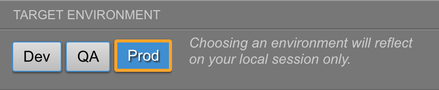
The **Target Environment** section displays the current environment in blue and the coded environment with the orange border.
For example: on your production site, it will look like this:
1. To change which environment gets loaded on the page, click **Dev** or **QA** and then click **Refresh Page**. The page will refresh with the newly-selected environment.
For example: If you click **QA**, refresh the page, and then reopen Web Companion, you will see the following:
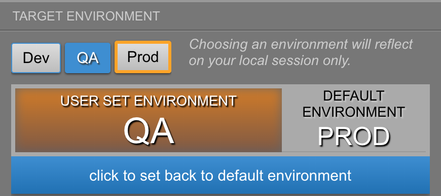
The switched environment is only valid for your local session. Your production site is not affected.
### Set a cookie
You can also change the environment by setting a cookie.
For this method to work, you must turn on [the Web Companion setting in your publish settings]().
Use the following steps to place an environment cookie:
1. Open your browser console.
1. Use the following command to place a cookie:
```
document.cookie = "utag_env_ACCOUNT_PROFILE=//tags.tiqcdn.com/utag/ACCOUNT/PROFILE/ENV/utag.js; path=/; domain=YOURSITE.com";
```
In the command line example, replace the variables as follows:
* **ACCOUNT** – Replace with your Tealium iQ account name
* **PROFILE** – Replace with your Tealium iQ profile name
* **ENV** – Replace with the environment to load (`dev`, `qa`, or a custom entry)
* **YOURSITE** – Replace with the domain name for your site
1. After creating the cookie, refresh your browser to load the new environment.