---
title: Quick Start Guide for Websites
url: https://docs.tealium.com/platforms/getting-started-web/quick-start/
---
This guide covers the installation of the Tealium tag management solution for web sites. This installation requires two components: the Universal Tag (`utag.js`) and the Universal Data Object (`utag_data`). Install both of these components on every page of your site.
## Install
### Universal Tag
The Universal Tag is a JavaScript file called `utag.js` that contains the generated code necessary to load your tag management configuration on your site.
```html
```
The file path to `utag.js` will be unique to your account. Throughout this guide, replace the placeholder values `ACCOUNT`, `PROFILE`, and `ENVIRONMENT` with your account, profile, and environment.
For example, if your account name was `your-company`, and you were using the default profile named `main`, the file path to the QA instance would be:
```
//tags.tiqcdn.com/utag/your-company/main/qa/utag.js
```
Learn more about [installing the Universal Tag (utag.js)](https://docs.tealium.com/platforms/javascript/install/#universal-tag-utag-js).
### Get the code
If you don't know your account and profile name, you can ask your Tealium administrator or get the code snippet from the platform, depending on the permission system your account uses:
#### Platform permissions
For accounts using platform permissions, go to **Tag Management > Manage Environments** to get the code snippet:
1. In the client-side admin menu, click **Manage Environments**. The **Manage Environments** dialog is displayed.
1. Click the edit icon for the environment you are using on your web site. The **Edit environment** screen is displayed.
1. In the **Code Snippet** section, click **Copy to Clipboard** to select the code snippet.
1. Replace the location in the `a=` line of the script code.
For more information, see [manage-environments](https://docs.tealium.com/manage-environments/).
#### Legacy permissions
For accounts using legacy permissions, go to **Tag Management > Code Center** to get the code snippet:
1. In the admin menu, click **Code Center**.
The **Code Center** dialog is displayed.
1. In the side panel, select the environment.
1. Select the code displayed in the text box by either of the following methods:
* Click and drag to select all the code.
* Click the **Select All** button that appears when you mouse over the code.
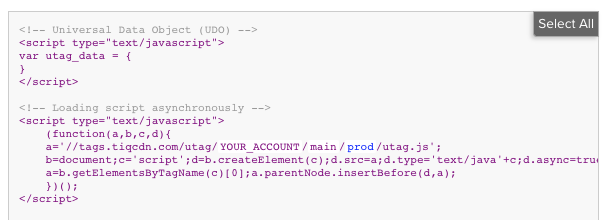
1. Copy the code.
1. Paste the code into your site authoring tool or back-end system.
For more information, see [code-center](https://docs.tealium.com/code-center/).
### Environments
There are three environments to support a proper release cycle: Dev, QA, and Prod. This lets you install the QA instance of `utag.js` in your non-production environment and the Prod instance on your live production site. With this setup you can test changes in QA before releasing them to Prod.
The environment path determines which instance of your Universal Tag to load.
* **QA**
`//tags.tiqcdn.com/utag/ACCOUNT/PROFILE/qa/utag.js`
* **Prod**
`//tags.tiqcdn.com/utag/ACCOUNT/PROFILE/prod/utag.js`
To learn more, see [manage-environments](https://docs.tealium.com/manage-environments/).
### Code Placement
Paste the Universal Tag code immediately after the opening `` tag on every page of your site. This position provides the best compatibility with the greatest number of vendors and allows third-party tracking to complete before the visitor navigates to the next page.
The following example shows the code placement:
```html
...
...
```
Learn more about the [order of operations](https://docs.tealium.com/order-of-operations/) to understand how the Universal Tag loads.
## Data Layer
The data layer is the foundation of your Tealium solution that comprises all of the variables that are collected across your site and the visitor interactions that are tracked.
The Universal Data Object (UDO) is a JavaScript object called `utag_data` in which dynamic data from your site is passed to the Tealium tag. The properties in this object are named using plain, vendor-neutral terms that are specific to your business.
You must load the data layer object on every page of your site, populate it dynamically based on the variables needed for each page type, and load it prior to the Universal Tag.
The following is an example declaration of `utag_data` that might appear on a search results page:
```html
```
Learn more:
* [Introduction to the Data Layer](https://docs.tealium.com/an-introduction-to-the-data-layer/)
* [Built-in data layer variables](https://docs.tealium.com/platforms/javascript/data-layer/)
* [Using data layer variables in iQ Tag Management](https://docs.tealium.com/data-layer-variables/)
* [About the Universal Data Object](https://docs.tealium.com/platforms/javascript/about-utag-data/)
## Track
### Events
Use the `utag.link()` function to track events such as non-page views, page interactions, and other dynamic page events. Event tracking collects information about a visitor’s interactions within a page.
Tealium provides the data layer variable [`tealium_event`](#tealium-event-variable) to name your tracked events. It is used within JavaScript event listeners to track events when a user interacts with website elements such as clicking a button.
The following example tracks when a user clicks a social share button:
```html
Share
```
Learn more about [tracking events](https://docs.tealium.com/platforms/javascript/track/#track-events).
### Views
The `utag.view()` function is triggered automatically on every page load. It tracks page views, virtual page views, Ajax page flows, and single-page applications. Calling this function triggers the corresponding page tracking functionality within your configured vendor tags.
The following is a content site example in which a visitor searched for "jeans":
```javascript
utag.view({
"tealium_event": "search",
"search_keyword": "jeans",
"search_results": "42"
});
```
The following is an ecommerce site example that tracks a step of a checkout flow:
```javascript
utag.view({
"tealium_event": "page_view",
"page_type": "checkout",
"page_name": "Checkout: Payment Method",
"cart_total_items": "2",
"cart_total_value": "125.00"
});
```
Learn more:
- [Tracking views](https://docs.tealium.com/platforms/javascript/track/#track-views)
- [Single page applications](https://docs.tealium.com/platforms/javascript/single-page-applications/)
### Tealium Event Variable
To uniquely identify each type of interaction to be tracked, use the reserved variable `tealium_event`. This variable is referenced throughout Tealium iQ to configure load rules, extensions, and data mappings. For all other event data, use variable names of your choosing.
The suggested `tealium_event` values include, but are not limited to:
| Value of `tealium_event` | Event Description |
| --- | --- |
| `page_view` | View a page |
| `search` | Search a product |
| `product_view` | View a product |
| `cart_add` | Add a product to the shopping cart |
| `purchase` | Complete a purchase |
| `user_login` | User login |
| `social_share` | Share a link on a social site |
Learn more:
* [About the `tealium_event` variable](https://docs.tealium.com/platforms/javascript/track/#tealium-event)
* [Data Layer Definition: Retail](https://docs.tealium.com/retail/)
* [Data Layer Definition: Publisher](https://docs.tealium.com/publisher/)
* [Data Layer Definition: Video Tracking](https://docs.tealium.com/basic-video-tracking/)
### Best Practices
Best practices associated with implementing and managing your data layer include:
**Variable naming conventions**
- Use lowercase, singular, underscore-separated variable names.
- Use meaningful variable names that avoid vendor specific naming.
- Prefix boolean variable names with `is_` or `has_`.
**Data values**
- Use string values for all variables.
- For boolean values, use string values `"1"` and `"0"` instead of `true` and `false`.
- For numeric values, use string values such as `"1234.56"` instead of `1234.56`.
- For arrays, use comma-separated strings such as `["prodID1", "prodID2", "prodID3"]`.
**Page type identifiers**
All pages of your site should include a variable called `page_type`. This is used to determine the type of page the user is viewing which can be useful for configuring load rules, extensions, and data mappings.
**Third-party data layer objects**
You might already have a data layer object implemented on your site, such as the W3C Data Object or your own custom object. Convert these objects to the Universal Data Object (UDO) `utag_data` using one of the available [data layer converters](https://docs.tealium.com/set-up-data-layer-converter/).
**Set `utag_data` before `utag.js`**
In the page code, the Universal Data Object must be declared before the Universal Tag. This ensures that the Universal Tag has all the data layer variables needed to evaluate load rules, extensions, and tags.
Learn more about [data layer best practices](https://docs.tealium.com/data-layer-best-practices/).
## Testing and Validation
Use the following tools to validate that your installation is working properly.
### Universal Tag Debugger
The Universal Tag Debugger (or "utag debugger") provides an easy way to validate your data layer and tracking calls in real-time as you navigate your site.
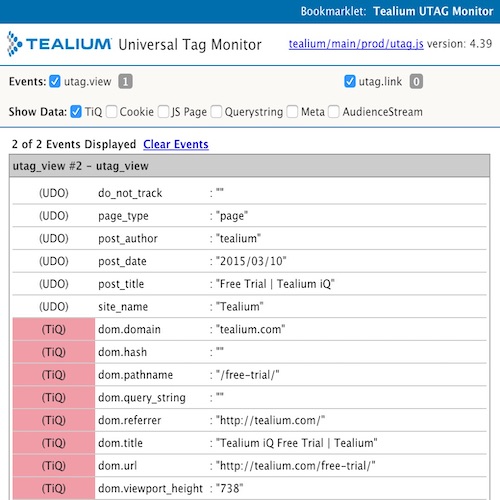
The tracking calls made by `utag.js` are displayed and updated in the tool as you navigate or trigger in-page events.
Learn more about the [Universal Tag Debugger](https://docs.tealium.com/universal-tag-debugger/).
### Web Companion
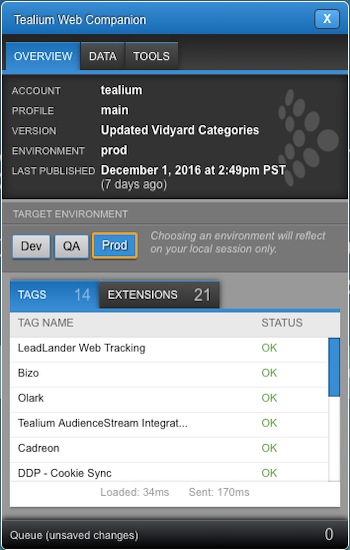
Web Companion is a browser tool that lets you check your tag configuration, inspect data on your site, and create and test new configurations quickly and easily. Launching this tool quickly verifies that the `utag.js` library is loading properly on your site.
Learn more:
- [Web Companion](https://docs.tealium.com/web-companion/)
- [Web Companion setting in your publish settings](https://docs.tealium.com/publish-configuration/)
- [Switching environments](https://docs.tealium.com/methods-to-switch-publish-environment/)
### Live Events
In Tealium EventStream, use the Live Events feature to manage and inspect incoming events in real-time. Verify that the events you send from your data source are being received.
To use Live Events you must add the Tealium Collect tag to your iQ Tag Management configuration.
Learn more:
* [Live Events and Feeds](https://docs.tealium.com/about-live-events/)
* [Data Sources for iQ Tag Management](https://docs.tealium.com/data-sources-for-iq-tag-management/)
* [Tealium Collect Tag Setup Guide](https://docs.tealium.com/tealium-collect-tag/)