---
title: Setting up Apple Configurator and Charles to Proxy an Apple TV
description: This article will guide you through the steps to proxy HTTP traffic from your Apple TV using Configurator.
url: https://docs.tealium.com/platforms/ios-swift/proxy-appletv/
---
[Configurator](https://support.apple.com/en-us/HT202577) is a tool used to add configuration profiles to Apple devices.
## Prerequisites
* Apple Configurator to set up your profile.
* Charles Proxy version 3.10 or later.
## Set up Charles Proxy
### Configuring Charles Proxy
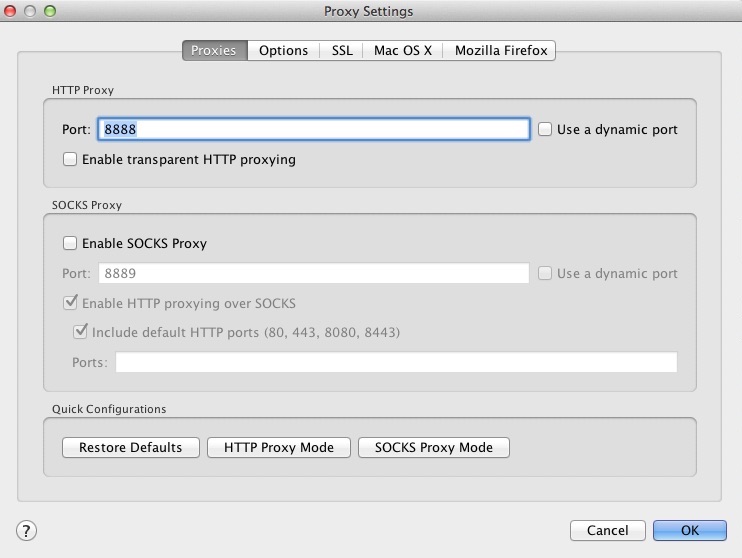
1. Navigate to the **Proxy > Proxy Settings...** menu.
2. On the **Proxies** tab in the **HTTP Proxy Port** field, enter `8888`.
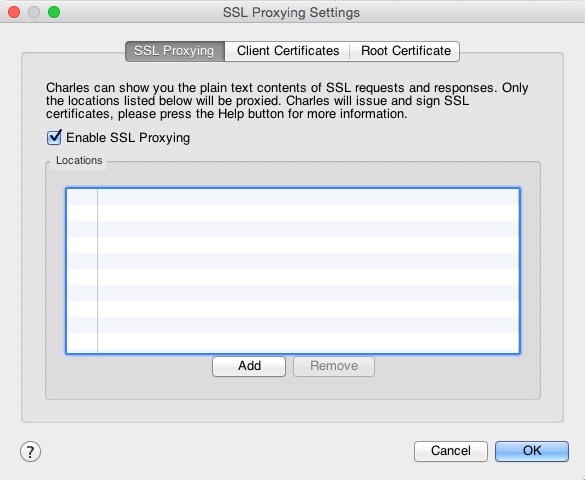
3. Navigate to the **Proxy > SSL Proxying Settings...** menu.
4. On the **SSL Proxying** tab, select the **Enable SSL Proxying** checkbox.
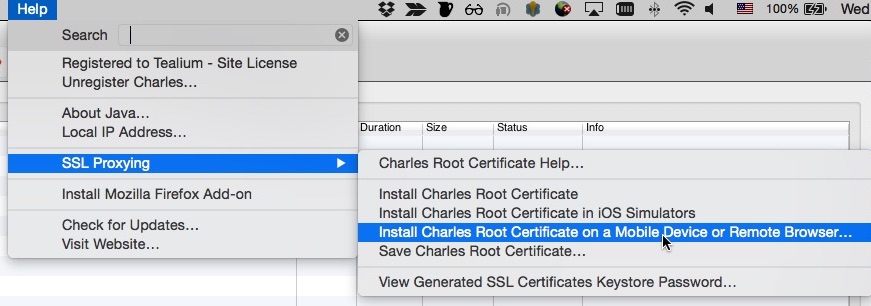
5. Navigate to **Help > SSL Proxying > Install Charles Root Certification a Mobile Device or Remote Browser...**.
The IP address listed on the dialog will be used later in the **Apple Configurator setup**.
6. Navigate to [https://charlesproxy.com/getssl](https://charlesproxy.com/getssl) to download the SSL certificate.
Note the download location of the certificate.
### Export the Charles certificate
To export the Charles certificate:
1. Open **Keychain Access**.
1. Navigate to **File > Add Keychain** and select the certificate downloaded in step 6 above.
1. Select the **Charles Proxy Custom Root Certificate** checkbox.
1. Navigate to **File > Export Items** and export the certificate as a `.cer` file to a location on your local drive, noting the location.
## Apple Configurator Setup
### Create a configuration profile using Apple Configurator
To create a configuration profile using Apple Configurator:
1. Navigate to **Open > New Profile**.
2. Enter a name and unique identifier for this profile.
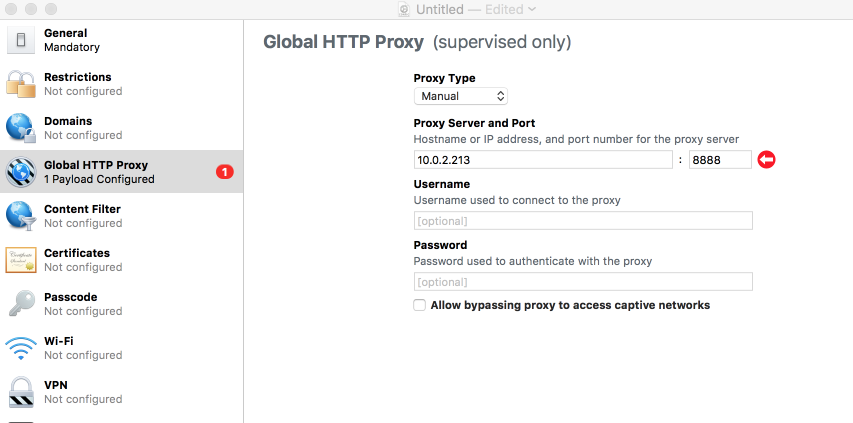
3. From the left menu, click **Global HTTP Proxy**.
4. Under **Proxy Server and Port**, enter the IP address and port from Configuring Charles Proxy step 5 above.
5. Select **Certificates** from the left menu and select the `.cer `file you previously exported through **Keychain Access**.
6. Select **File > Save** to save the profile to your Mac, noting the location of the file.
## Set up Apple TV
### Installing a configuration profile on Apple TV
1. Connect the Apple TV to your Mac with USB. The Apple TV will appear under **All Devices** in Configurator.
1. Select the Apple TV and click **Add** in the top menu.
1. Click **Profiles** and select the SSL certificate downloaded in Configuring Charles Proxy step 6 above. This will copy the configuration profile to the Apple TV.
1. Traffic from the Apple TV will now be proxied through Charles.
### Removing a configuration profile from Apple TV
After debugging, you must remove the profile from the Apple TV to stop proxying. To do so:
1. In Configurator, double click the device.
1. From the left menu, click **Profiles**.
1. Select your configuration profile and select **Edit > Delete**.