---
title: Install
description: Learn to install Tealium for JavaScript (Web).
url: https://docs.tealium.com/platforms/javascript/install/
---
## Install
### Universal Data Object (`utag_data`)
The Universal Data Object (UDO) is a JavaScript object called `utag_data` in which dynamic data from your webpage is passed to the Tealium tag. The properties in this object are named using plain, vendor neutral terms that are specific to your business.
The following is an example declaration of `utag_data`, which is done _prior_ to loading the Universal Tag `utag.js`:
```html
```
Learn more:
* [How the data layer works](https://docs.tealium.com/how-the-data-layer-works-for-websites/)
* [`utag_data`](https://docs.tealium.com/platforms/javascript/about-utag-data/)
### Universal Tag (`utag.js`)
The Universal Tag is a small piece of JavaScript code called `utag.js` that contains all of the generated code necessary to load third-party tags onto your site. It enables Tealium iQ Tag Management to fire tags by inserting the following code into the page:
```html
```
The `utag.js` file path contains the following attributes:
| Attribute | Description | Example |
| --- | --- | --- |
| `account` |Tealium account name | `companyXYZ` |
| `profile` |Tealium profile name | `main` |
| `environment` |Tealium environment name | `prod` |
For example, for the `prod` environment on the `sample` profile in the `example` account, you would replace the location in the `a=` line of the script code with the following code:
```html
//tags.tiqcdn.com/utag/example/sample/prod/utag.js
```
For more information about `utag.sync.js`, see [`utag.sync.js`](https://docs.tealium.com/utag-sync/).
### Get the code
If you don't know your account and profile name, you can ask your Tealium administrator or get the code snippet from the platform, depending on the permission system your account uses:
#### Platform permissions
For accounts using platform permissions, go to **Tag Management > Manage Environments** to get the code snippet:
1. In the client-side admin menu, click **Manage Environments**. The **Manage Environments** dialog is displayed.
1. Click the edit icon for the environment you are using on your web site.
The **Edit environment** screen is displayed.
1. In the **Code Snippet** section, click **Copy to Clipboard** to select the code snippet.
1. Replace the location in the `a=` line of the script code.
For more information, see [manage-environments](https://docs.tealium.com/manage-environments/).
#### Legacy permissions
For accounts using legacy permissions, go to **Tag Management > Code Center** to get the code snippet:
1. In the admin menu, click **Code Center**. The **Code Center** dialog is displayed.
1. In the side panel, select the environment.
1. Select the code displayed in the text box by either of the following methods:
* Click and drag to select all the code.
* Click the **Select All** button that appears when you mouse over the code.
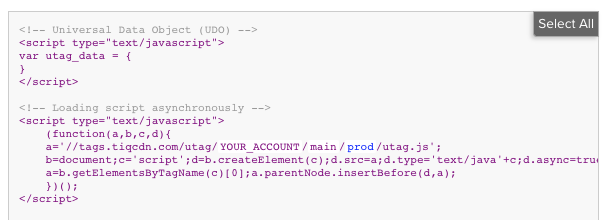
1. Copy the code.
1. Paste the code into your site authoring tool or back-end system.
For more information, see [code-center](https://docs.tealium.com/code-center/).
For more information, see
### Code Placement
Paste the Universal tag code immediately after the opening `` tag on every page of your website. This positioning provides the best compatibility with the greatest number of vendors and allows third-party tracking to complete before the visitor navigates to the next page.
The following example shows the code placement:
```html
```
Learn more about the [order of operations](https://docs.tealium.com/order-of-operations/) to understand how the Universal Tag `utag.js` loads.
## Validate Installation
Use the following tools to validate that your `utag.js` installation is working properly.
### Universal Tag (utag) Debugger
The Universal Tag Debugger (or "utag debugger") provides an easy way to validate your data layer and tracking calls in real-time as you navigate your site. It's similar to Web Companion, but is focused on the data captured by each tracking event within `utag.js`.
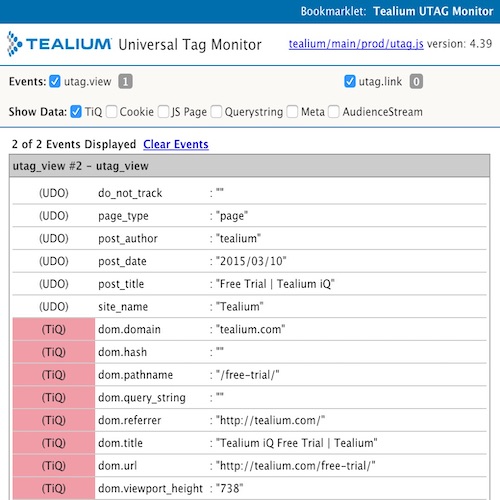
The tracking calls made by `utag.js` are displayed and updated in the tool as you navigate or trigger in-page events.
[Learn more](https://docs.tealium.com/universal-tag-debugger/) about installing and using the Universal Tag Debugger
### Web Companion
Web Companion is a browser tool that lets you check your tag configuration, inspect data on your site, and create and test new configurations quickly and easily. Launching this tool quickly verifies that the `utag.js` library is loading properly on your site.
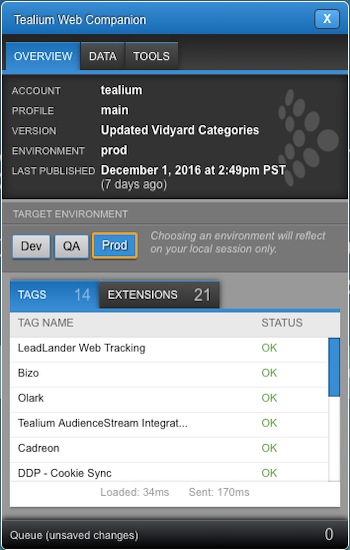
**Account Information**
The current account, profile, version, and environment that the page is running is displayed under this tab.
**Target Environment (Disabled by Default)**
The environment detected in the page code is outlined in orange. The currently viewed environment is highlighted in blue. To change the environment, click the target environment you want to load, then click **Refresh Page**.
- To enable this feature, turn on [the Web Companion setting in your publish settings](https://docs.tealium.com/publish-configuration/).
- Learn about other methods of [switching environments](https://docs.tealium.com/methods-to-switch-publish-environment/).
**Tags & Extensions Tabs**
This tab shows which Tags loaded and whether they successfully sent requests. The Extensions that are successfully completed are also displayed.
**Timers**
The load and send times of each Tealium JavaScript library are displayed at the bottom of the tab.
**Saving Changes**
Changes applied to the profile through the Web Companion are queued at the bottom of the bookmarklet and are not committed until you click the **Save...** button. If you do not want to commit a change, you may also remove that change from the queue by clicking on the **X** button next to the appropriate change.
[Learn more](https://docs.tealium.com/web-companion/) about installing and using Web Companion.