---
title: Install
description: Learn to install Tealium for Xamarin.
url: https://docs.tealium.com/platforms/xamarin/install/
---The Tealium Xamarin integration provides cross-platform interfaces and configuration classes that interface with Tealium for iOS and Tealium for Android.
For the previous version, see [Tealium for Xamarin 1.x](https://docs.tealium.com/platforms/xamarin-v1).
## Sample App
Use the sample app to familiarize yourself with our library, the tracking methods, and best practice implementation.
[Download the Xamarin sample app](https://github.com/Tealium/tealium-xamarin/tree/master/TealiumXamarinExample)
## Get the Code
### Install
Install the Tealium library for Xamarin directly from Visual Studio using the built-in NuGet package manager.
[NuGet Package: Tealium.Xamarin](https://www.nuget.org/packages/Tealium.Xamarin/)
### Available DLLs
Several [dynamic-link libraries](https://github.com/Tealium/tealium-xamarin) (DLLs) are available for the Xamarin integration:
* **Common DLL**
This DLL contains cross-platform code, interfaces, and common code to be used in all projects within your Xamarin application. Add this DLL as a reference in both the Shared Project and platform specific projects.
* `Tealium.Common.dll`
* **Abstraction DLL**
Abstraction DLLS are included to create a C# API wrapper for the native Tealium SDKs in platform specific projects. These libraries contain platform specific, concrete class implementations for the interfaces and abstract classes provided by the Tealium common library. Code all of your cross-platform logic against the common library.
* `Tealium.Droid.dll` – for Android mobile platforms
* `Tealium.iOS.dll` – for Apple mobile platforms
* **Platform DLL**
There are DLLs specific to each mobile platform which are referenced by the abstraction DLLs. The platform DLLs are binding libraries and are embedded in the native Tealium SDKs. They provide auto-generated wrapper code for interacting with the native SDKs directly.
* `Tealium.Platform.Droid.dll`
* `Tealium.Platform.iOS.dll`
Binding libraries may be used by themselves. The fact that they are automatically generated results in vastly different namespaces for each platform, which can complicate your setup. We recommend using the `Common` and platform-specific abstraction libraries instead.
Lifecycle modules are included by default. Additional DLLs are not needed.
### Android Example
The following example illustrates the Shared project and Android platform-specific project from a typical Xamarin based app:
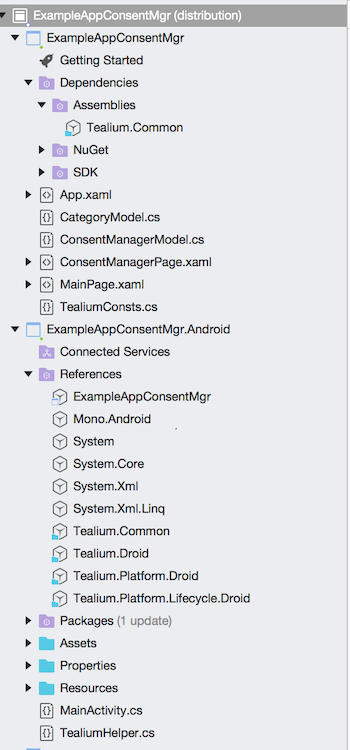
As shown in the example, the Shared Project references only the `Tealium.Common.dll` library, whereas the Android-specific project references all of the following:
* `Tealium.Common.dll`
* `Tealium.Droid.dll`
* `Tealium.Platform.Droid.dll`
## Initialize
### Instance Manager
To instantiate a class instance, first verify that your projects reference the appropriate libraries. We recommend using the `TealiumInstanceManager` classes, which provide thread-safe Tealium instance management.
```csharp
using Tealium.Droid;
//...
ITealiumInstanceManager instanceManager = new TealiumInstanceManager(new TealiumInstanceFactoryDroid());
```
```csharp
using Tealium.iOS;
//...
ITealiumInstanceManager instanceManager = new TealiumInstanceManager(new TealiumInstanceFactoryIOS());
```
### Config
After you create the `TealiumInstanceManager`, create a `TealiumConfig` object with your account details and configuration settings:
```csharp
TealiumConfig tealConfig = new TealiumConfig(
"ACCOUNT",
"PROFILE",
Tealium.Environment.Dev,
new List {
Dispatchers.Collect, Dispatchers.RemoteCommands
},
new List {
Collectors.LifeCycle, Collectors.AppData
}
);
```
See the full list of configuration parameters for [TealiumConfig](https://docs.tealium.com/platforms/xamarin/api/#object-tealiumconfig).
### Instance
After you create the `TealiumConfig` object, use the `TealiumInstanceManager` to create a Tealium instance:
```csharp
ITealium tealium = instanceManager.CreateInstance(tealConfig, (tealium) =>
{
// Callback for once the instance is ready.
// For example:
if (tealium != null)
{
// success
}
else
{
// failure
}
});
```
## Remote Commands
Use [remote commands](https://docs.tealium.com/platforms/remote-commands/how-it-works/) to trigger native code within a vendor SDK. Remote commands is supported in Xamarin with the [`IRemoteCommand`](https://docs.tealium.com/platforms/xamarin/api/#iremotecommand) interface and a built-in implementation called `DelegateRemoteCommand`.
To create a remote command that works with the Custom Command tag in Tealium iQ, pass a command ID and description with no additional parameters, then define the response handler. Access the data payload of the command in `resp.Payload`.
To create a remote command using the local file or remote URL option, add the `path` or `url` parameter respectively:
```csharp
var myCommand = new DelegateRemoteCommand("logger", "Logger command.", path: "FILENAME.json")
{
HandleResponseDelegate = (DelegateRemoteCommand cmd, IRemoteCommandResponse resp) =>
{
var payload = resp.Payload;
System.Diagnostics.Debug.WriteLine($"Command Payload: {payload}");
if (payload.GetValueForKey("frequent_visitor"))
{
// take action
}
}
};
```
For a more advanced solution implement the `IRemoteCommand` interface in your own class.
```csharp
public class MyRemoteCommand : IRemoteCommand
{
private readonly string path;
private readonly string url;
public MyRemoteCommand(string path, string url)
{
this.path = path;
this.url = url;
}
public string CommandId => "logger";
public string Description => "Logger command";
// Sets the path to a local JSON mappings file
public string Path => path;
// Sets the url to a remote JSON mappings file
public string Url => url;
public void Dispose()
{
// tidy up resources
}
public void HandleResponse(IRemoteCommandResponse response)
{
var payload = response.Payload;
System.Diagnostics.Debug.WriteLine($"Command Payload: {payload}");
if (payload.GetValueForKey("frequent_visitor"))
{
// take action
}
}
}
// Tealium iQ mapped Remote Command
var iqCommand = new MyRemoteCommand(null, null);
// Locally mapped Remote Command
var localCommand = new MyRemoteCommand("FILENAME.json", null);
// Remotely mapped Remote Command
var remoteCommand = new MyRemoteCommand(null, "https://tags.tiqcdn.com/dle/ACCOUNT/PROFILE/FILENAME.json");
```
To use remote commands, you must include [`Dispatcher.RemoteCommands`](https://docs.tealium.com/platforms/xamarin/api/#dispatchers) in the `TealiumConfig` object. Then add your remote command to the `TealiumConfig` object or by calling [`AddRemoteCommand()`](https://docs.tealium.com/platforms/xamarin/api/#addremotecommand) on the Tealium instance.
Using `TealiumConfig`:
```csharp
TealiumConfig config = new TealiumConfig(
"ACCOUNT",
"PROFILE",
Tealium.Environment.Dev,
new List {
Dispatchers.Collect, Dispatchers.RemoteCommands
},
remoteCommands: new List
{
myCommand
}
);
```
Using the Tealium instance:
```csharp
InstanceManager.CreateInstance(config, (tealium) =>
{
if (tealium != null)
{
tealium.AddRemoteCommand(myCommand);
}
});
```
## Delegate Methods
There are five delegated methods that inject code into the processing logic within the Tealium SDK:
| Delegated Method| Description|
|:----------------|:-----------|
| `DelegateDispatchValidator()` | Provides two delegate methods [`ShouldDropDispatchDelegate()`, `ShouldQueueDispatchDelegate()`] where the boolean return value determines whether or not an existing dispatch is dropped or queued. Use this if you have steps within your app where you know that the user may be offline or if you want to write your own batching logic. |
| `DispatchSentDelegateEventListener()` | Called when a dispatch has been sent.|
| `DispatchQueuedDelegateEventListener()` | Called when a dispatch has been queued.|
| `WebViewReadyDelegateEventListener()` | Called when the hidden web view is fully loaded and ready, if you are using the Tag Management module.|
| `SettingsPublishedDelegateEventListener()` | Called when there has been an updated set of publish settings retrieved|
Example use of the delegate method:
```csharp
static TealiumAdvancedConfig SetupAdvancedConfig() {
DelegateDispatchValidator validator = new DelegateDispatchValidator() {
ShouldDropDispatchDelegate = (ITealium arg1, IDispatch arg2) => {
System.Diagnostics.Debug.WriteLine("Inside ShouldDropDispatchDelegate!");
return false;
},
ShouldQueueDispatchDelegate = (ITealium arg1, IDispatch arg2, bool shouldQueue) => {
System.Diagnostics.Debug.WriteLine("Inside ShouldQueueDispatchDelegate!");
return shouldQueue;
}
};
DispatchSentDelegateEventListener sendingListener = new DispatchSentDelegateEventListener() {
DispatchSent = (tealium, dispatch) => {
System.Diagnostics.Debug.WriteLine("Inside DispatchSent!");
dispatch.PutString("KeyAddedBySendListener", "Value added by sending listener.");
}
};
DispatchQueuedDelegateEventListener queuingListener = new DispatchQueuedDelegateEventListener() {
DispatchQueued = (tealium, dispatch) => {
System.Diagnostics.Debug.WriteLine("Inside DispatchQueued!");
dispatch.PutString("KeyAddedByQueuedListener", "Value added by queuing listener.");
}
};
WebViewReadyDelegateEventListener webViewListener = new WebViewReadyDelegateEventListener() {
WebViewReady = (tealium, webView) => {
System.Diagnostics.Debug.WriteLine("Inside WebViewReady!");
}
};
SettingsPublishedDelegateEventListener settingsListener = new SettingsPublishedDelegateEventListener() {
SettingsPublished = (tealium) => {
System.Diagnostics.Debug.WriteLine("Inside SettingsPublished!");
}
};
TealiumAdvancedConfig advConfig = new TealiumAdvancedConfig(validator,
sendingListener, queuingListener, webViewListener, settingsListener);
return advConfig;
}
```
## Resources
The following resources provide links to Xamarin's extensive documentation for adding Tealium's Android and iOS libraries:
* [Xamarin: Binding a Kotlin Library](https://docs.microsoft.com/en-us/xamarin/android/platform/binding-kotlin-library/)
* [Xamarin: Binding an iOS Swift Library](https://docs.microsoft.com/en-us/xamarin/ios/platform/binding-swift/)