DoubleClick Ad Exchange Connector Setup Guide
This article describes how to set up the DoubleClick for Ad Exchange connector in your Customer Data Hub account.
Connector actions
| Action name | Visitor profile | Event data |
|---|---|---|
| Add Visitor to User-List or Segment | ✓ | ✓ |
| Remove Visitor from User-List or Segment | ✓ | ✓ |
API information
This connector uses the following vendor API:
- API Name: Google Audience Partner API DmpUserListService
- API Version: v201809
- API Endpoint:
<https://ddp.googleapis.com/> - Documentation: Authorized Buyer (formerly DoubleClick Ad Exchange) API
Configure settings
Go to the connector marketplace and add a new connector. For more information, see About connectors.
When you add this connector you are prompted to accept the vendor’s data platform policy.
After adding the connector, configure the following settings:
Client Customer ID (Required)
- Your (DoubleClick Customer) Identifier in the selected product.
Select the Target Product (Required)
- The target product, either DoubleClick AdExhchange - Buyer or DoubleClick AdExchange - Publisher.
Create a new segment
Use the following steps to create a new segment in Customer Data Platform (CDP):
- Click Create a New Segment from the top of the Actions selection drop-down screen.
- Enter the Segment Name, Segment Member Lifespan, Integration Code, and Segment Description.
If you use a DataAccess product (EventStore, AudienceStore, EventDB, or AudienceDB), the segment name must be fewer than 128 characters in length. Otherwise, DataAccess may trim the segment name and errors may occur.
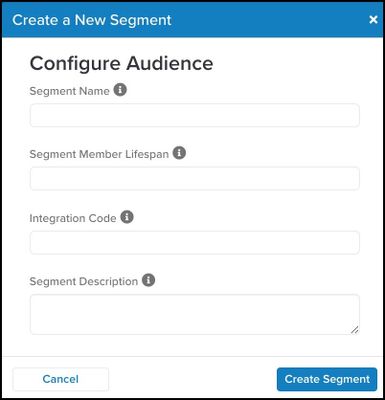
The Integration Code is an ID used by user list sellers to correlate IDs on their systems. If no ID is available, you can manually enter a random number between 1 and 1,000. Confirmation displays in the form of a check mark next to the Create Segment button to verify that the segment has been created.
Action settings - parameters and options
Click Continue to configure the connector actions. Enter a name for the action and select the action type from the list.
Action - Add Visitor to User-List or Segment
Parameters
| Parameter | * Description |
|---|---|
| Select the Target User-list/Segment |
|
| Google User ID |
|
| iOS Advertising ID |
|
| Android Advertising ID |
|
| RIDA |
|
| AFAI |
|
| MSAI |
|
| Data Source ID |
|
Action - Remove Visitor from User-List or Segment
Parameters
| Parameter | Description |
|---|---|
| Select the Target User-list/Segment |
|
| Google User ID |
|
| iOS Advertising ID |
|
| Android Advertising ID |
|
| RIDA |
|
| AFAI |
|
| MSAI |
|
| Data Source ID |
|
This page was last updated: June 17, 2021