---
title: Facebook Audiences Customer-Provided Credentials Connector Setup Guide
description: This article describes how to set up the Facebook Audiences Customer-Provided Credentials connector in your Customer Data Hub account.
url: https://docs.tealium.com/server-side-connectors/facebook-audiences-customer-provided-credentials-connector/
---
This article describes how to set up the Facebook Audiences Customer-Provided Credentials connector.
## Prerequisites
For more information about creating a Facebook app, see [Facebook: App Development](https://developers.facebook.com/docs/apps/).
Before you configure your connector, complete the following steps:
1. Agree to the [Facebook Custom Audience Terms](https://www.facebook.com/ads/manage/customaudiences/tos.php).
1. Add the following redirect URI to your Facebook account: `https://my.tealiumiq.com/oauth/facebook/callback.html`. From the Facebook App Dashboard, navigate to **Facebook Login > Settings** and enter the URI under **Valid OAuth Redirect URIs of your Facebook App**.
1. Request `ads_management` permission in your Facebook app. The `ads_management` permission allows your app to both read and manage the Ads account it owns, or has been granted access to, by the Ad account owner. For more information, see [Facebook: Permission Reference](https://developers.facebook.com/docs/facebook-login/permissions/#reference-ads_management).
To get more app resources, such as a better rate limit, request Ads Management **Standard Access**. For more information, see [Facebook: Access and Authentication](https://developers.facebook.com/docs/marketing-api/access/).
## API information
This connector uses the following vendor API:
* API Name: Facebook Graph API - Marketing API
* API Version: v25.0
* API Endpoint: `https://graph.facebook.com`
## Batch limits
This connector uses batched requests to support high-volume data transfers to the vendor. Parallel processing may result in events reaching the vendor out of sequence. Add a sequence value to events if ordering is important. For more information, see [Batched actions](https://docs.tealium.com/batched-actions/). Requests are queued until one of the following thresholds is met or the profile is published:
* Max number of requests: 10000
* Max time since oldest request: 10 minutes
* Max size of requests: 1 MB
## Configuration
Go to the Connector Marketplace and add a new connector. For general instructions on how to add a connector, see [About Connectors](https://docs.tealium.com/about-connectors/).
After adding the connector, configure the following settings:
* **App ID**: (Required) The Facebook App ID you want to connect.
* **App Secret**: (Required) The App Secret of the Facebook App you want to connect.
* **Ad Account ID**: (Required) The Facebook Ads Account ID you want to manage. For more information about your Facebook ad account ID, see [Facebook: Find your Facebook ad account ID number](https://www.facebook.com/help/1492627900875762)
This connection will generally expire within 60 days, causing unpredictable results for all Facebook Ad actions.
Reestablish the connection at any point by clicking **Establish Connection/Connected**.
Before clicking the **Establish Connection** button, ensure that you are signed into Facebook with the account that is linked with the Ad Account ID that is being used. If this is not the case issues, can arise with the token that is generated.
## Actions
| Action Name | AudienceStream | EventStream |
| --- | :---: | :---: |
| Add User to Custom Audience | ✓ | ✗ |
| Remove User from Custom Audience | ✓ | ✗ |
| Opt Out User from All Custom Audiences | ✓ | ✗ |
Enter a name for the action and select the action type.
The following section describes how to set up parameters and options for each action.
### Add User to Custom Audience
Four types of identifiers are supported: emails, phone numbers, user or app IDs, and secondary IDs. Multiple secondary identifiers are supported. If you specify a **Facebook User ID**, you must also provide a **Facebook App ID**. Only one email or phone number is supported. If multiple identifiers are specified, they are selected in the order listed above. For example, if both email and phone number are specified, the email will be chosen unless it has no value.
#### Parameters
| Parameter | Description|
| --- | --- |
|Custom Audience to Add User To| - (Required) Select your Target Custom Audience.
- Audiences created from customer files are not displayed.
- Before you can use this connector and build a custom audience in Facebook, you must agree to the [Facebook Custom Audience Terms](https://www.facebook.com/ads/manage/customaudiences/tos.php).
|
|Email Address| - Identify a user based on their email address.
|
|Phone Number| - Identify a user based on their phone number.
- Include only digits with country code, area code, and number. For example, `16505551212`.
|
|Facebook User ID| - Identify a user based on their Facebook ID.
- You must provide the "Facebook App ID" corresponding to the Facebook User ID (UID) when using this identifier type.
|
|Facebook App ID| - Required if the "Facebook User ID" is used as the user identifier.
- See "Facebook User ID".
|
|Mobile Advertiser ID| - Use this to target a user based on the app user ID, Apple's Advertising Identifier (IDFA), or Android's advertising ID.
|
|Zip Code| - Postal code.
- Exact format depends on country.
|
|City| - User City.
- Lowercase.
- No punctuation or spaces.
|
|Country| - User Country.
- 2-letter country code.
- ISO 3166-1 Alpha-2 format.
|
|US State| - User State in the United States.
- Lowercase.
- 2-character ANSI abbreviation code.
|
|First Name| - User first name.
- Lowercase.
- No punctuation or special characters.
- UTF-8 format.
|
|Last Name| - User last name.
- Lowercase.
- No punctuation or special characters.
- UTF-8 format.
|
|First Initial| - First initial of user.
- Lowercase.
- No punctuation or special characters.
- UTF-8 format.
|
|Year of Birth| - Year of birth for user.
- `YYYY` format.
- Values from `1900` to current year.
|
|Day of Birth| - Day of birth for user.
- `DD` format.
- Values from `01` to `31`.
|
|Month of Birth| - Birth month for user.
- `MM` format.
- Values from `01` to `12`.
|
|Gender| - Gender of user.
- `M` for male, `F` for female
|
|Lookalike Value| - An arbitrary, numeric value for each user set when you create a seed custom audience from CRM data.
- Facebook uses this to determine which users in audience are worth the most to you, in a quantifiable way.
|
| Custom Audience Override | (Optional) Provide a Custom Audience ID to override the value in the Required Section. This field lets you use AudienceStream variables to populate the Audience ID. |
| User Identifier Already Hashed | Check this box if the Target User Identifier is already hashed.
Facebook only accepts the SHA256 hashing method.
|
### Remove User from Custom Audience
Four types of identifiers are supported: emails, phone numbers, user or app IDs, and secondary IDs. Multiple secondary identifiers are supported. If you specify a **Facebook User ID**, you must also provide a **Facebook App ID**. Only one email or phone number is supported. If multiple identifiers are specified, they are selected in the order listed above. For example, if both email and phone number are specified, the email will be chosen unless it has no value.
#### Parameters
| Parameter | Description|
| --- | --- |
|Custom Audience to Remove User From| - (Required) Select your Target Custom Audience.
- Before you can use this connector and build a custom audience in Facebook, you must agree to the [Facebook Custom Audience Terms](https://www.facebook.com/ads/manage/customaudiences/tos.php).
|
|Email Address| - Identify a user based on their email address.
|
|Phone Number| - Identify a user based on their phone number.
- Include only digits with country code, area code, and number. For example, `16505551212`.
|
|Facebook User ID| - Identify a user based on their Facebook ID.
- You must provide the "Facebook App ID" corresponding to the Facebook User ID (UID) when using this identifier type.
|
|Facebook App ID| - Required if the "Facebook User ID" is used as the user identifier.
- See "Facebook User ID".
|
|Mobile Advertiser ID| - Use this to target a user based on the app user ID, Apple's Advertising Identifier (IDFA), or Android's advertising ID.
|
|Zip Code| - Postal code.
- Exact format depends on country.
|
|City| - User City.
- Lowercase.
- No punctuation or spaces.
|
|Country| - User Country.
- 2-letter country code.
- ISO 3166-1 Alpha-2 format.
|
|US State| - User State in the United States.
- Lowercase.
- 2-character ANSI abbreviation code.
|
|First Name| - User first name.
- Lowercase.
- No punctuation or special characters.
- UTF-8 format.
|
|Last Name| - User last name.
- Lowercase.
- No punctuation or special characters.
- UTF-8 format.
|
|First Initial| - First initial of user.
- Lowercase.
- No punctuation or special characters.
- UTF-8 format.
|
|Year of Birth| - Year of birth for user.
- `YYYY` format.
- Values from `1900` to current year.
|
|Day of Birth| - Day of birth for user.
- `DD` format.
- Values from `01` to `31`.
|
|Month of Birth| - Birth month for user.
- `MM` format.
- Values from `01` to `12`.
|
|Gender| - Gender of user.
- `M` for male, `F` for female
|
|Lookalike Value| - An arbitrary, numeric value for each user set when you create a seed custom audience from CRM data.
- Facebook uses this to determine which users in audience are worth the most to you, in a quantifiable way.
|
| Custom Audience Override | (Optional) Provide a Custom Audience ID to override the value in the Required Section. This field lets you use AudienceStream variables to populate the Audience ID. |
| User Identifier Already Hashed | Check this box if the Target User Identifier is already hashed.
Facebook only accepts the SHA256 hashing method.
|
### Opt Out User from All Custom Audiences
#### Parameters
| Parameter | Description|
| --- | --- |
Email Address| - Identify a user based on their email address.
|
|Phone Number| - Identify a user based on their phone number.
- Include only digits with country code, area code, and number. For example, `16505551212`.
|
|Facebook User ID| - Identify a user based on their Facebook ID.
- You must provide the "Facebook App ID" corresponding to the Facebook User ID (UID) when using this identifier type.
|
|Facebook App Id| - Required if the "Facebook User ID" is used as the user identifier
- See "Facebook User ID".
|
|Mobile Advertiser ID| - Use this to target a user based on the app user ID, Apple's Advertising Identifier (IDFA), or Android's advertising ID.
|
|Zip Code| - Postal code.
- Exact format depends on country.
|
|City| - User City.
- Lowercase.
- No punctuation or spaces.
|
|Country| - User Country.
- 2-letter country code.
- ISO 3166-1 Alpha-2 format.
|
|US State| - User State in the United States.
- Lowercase.
- 2-character ANSI abbreviation code.
|
|First Name| - User first name.
- Lowercase.
- No punctuation or special characters.
- UTF-8 format.
|
|Last Name| - User last name.
- Lowercase.
- No punctuation or special characters.
- UTF-8 format.
|
|First Initial| - First initial of user.
- Lowercase.
- No punctuation or special characters.
- UTF-8 format.
|
|Year of birth| - Year of birth for user.
- `YYYY` format.
- Values from `1900` to current year.
|
|Day of birth| - Day of birth for user.
- `DD` format.
- Values from `01` to `31`.
|
|Month of Birth| - Birth month for user.
- `MM` format.
- Values from `01` to `12`.
|
|Gender| - Gender of user.
- `M` for male, `F` for female
|
|Lookalike Value| - An arbitrary, numeric value for each user set when you create a seed custom audience from CRM data.
- Facebook uses this to determine which users in audience are worth the most to you, in a quantifiable way.
|
| User Identifier Already Hashed | Check this box if the Target User Identifier is already hashed.
Facebook only accepts the SHA256 hashing method.
|
## Using the Facebook Audiences Customer-Provided Credentials connector
### Create a visitor ID attribute
The Facebook Audiences Customer-Provided Credentials connector requires at least one visitor ID attribute with the ability to be passed through to Facebook Audiences.
Use the following resources to set up a Visitor ID attribute:
* [Setting up a Visitor ID attribute](https://docs.tealium.com/visitor-id-attribute/)
* [Facebook Marketing API](https://developers.facebook.com/docs/marketing-api/audiences-api)
### Define an audience
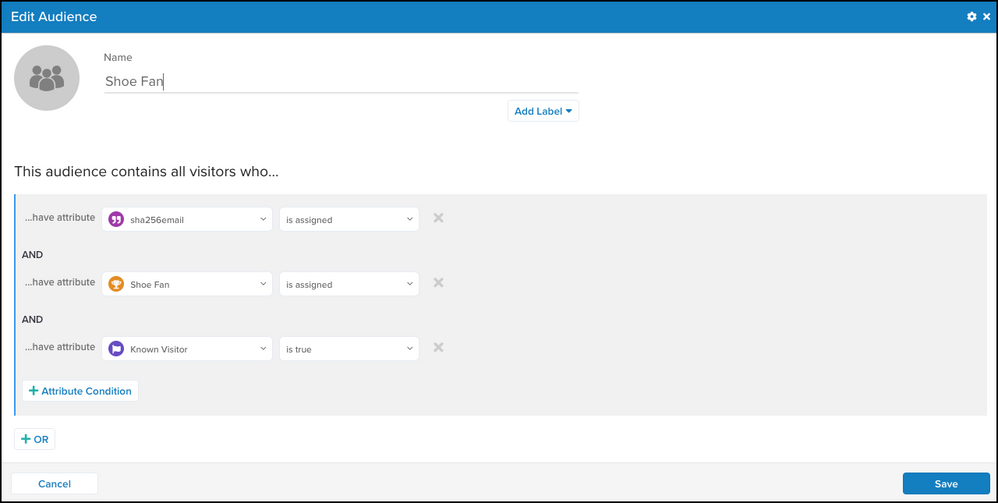
Your account may have several visitor ID attributes defined. In this case, it is important to create a visitor-scoped attribute of the boolean data type and named `Known Visitor` to check for the existence of any of the visitor IDs. Using this attribute ensures that the audience only contains visitors with an assigned visitor ID that can be passed to Facebook. You cannot target an unknown visitor.
This connector also has required ID parameters, such as email, phone, app, or user IDs. At least one of these IDs is required. Including these IDs in your audience filter helps avoid connector errors.
Use the following example to [create an audience filter](https://docs.tealium.com/manage-audiences/) of visitors that have a "Known Visitor" boolean data type set to `true`. You can add the badge and boolean attributes in advance or add them when creating the filter.
### Connect Tealium to your Facebook Audiences account
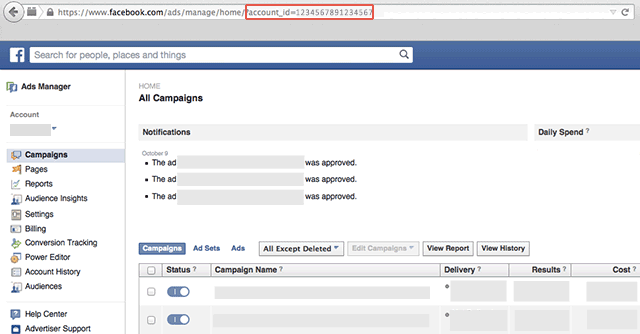
You will need the account ID to configure the connector with your Facebook Audiences account.
Use the following steps to get your Facebook Audiences account ID:
1. Log in to your Facebook Audiences account.
1. Click an ad account, campaign, ad set, or ad in [Ads Manager](https://www.facebook.com/ads/manage).
1. Copy the `account_id` parameter value from the URL in your browser then return to the connector in AudienceStream.
1. In the **Configure** window, add your title and any relevant notes and your Ad Account ID (copied from above).
1. Click **Establish Connection** to verify the connection.
### Create custom audience
Now that you are connected to your Facebook Audiences account, it's time to create a Custom Audience. You will need to create your first Custom Audience on the Facebook site to accept the terms and conditions before you are able to create a Custom Audience with the connector.
Use the following steps to create a custom audience:
1. In the connector configuration, click the **Create** tab.
1. Configure the following fields:
* **Audience Name** (Required): The name of the custom audience. Use the audience or segment name from your CRM (for example, `Qualified Leads - US - Q3 2026` or `High Value Customers - EMEA`). Meta uses this name to identify your audience segment.
* **Audience Metadata (JSON)** (Optional): A JSON object describing the audience criteria, mapped to the `description` parameter in the Meta API. Use key-value pairs with aggregated or categorical attributes. Do not include PII. For example: `{"lifecycle_stage":"churned","region":"EMEA","tier":"high_value"}`. Meta uses this metadata with Audience Labels and optimization features. Label assignment occurs in Meta Ads Manager. The value must be valid JSON for Meta to parse the metadata.
1. Click **Create**.
The `customer_file_source` parameter supports the following values:
* `USER_PROVIDED_ONLY`
* `PARTNER_PROVIDED_ONLY`
* `BOTH_USER_AND_PARTNER_PROVIDED`
On the Facebook Audiences site, you have the option to create audiences based on a customer list, website traffic, or app activity. For this example, create your audience based on a customer list.
To use your custom audience, it must contain a minimum of 20 entries. If your audience has been created successfully, a small check icon displays beside the button.
### Specify connector actions
You must now specify the actions you want the connector to take.
Use the following steps to specify actions for the connector:
1. Click the **Actions** tab.
1. Select **Add User to Custom Audience**.
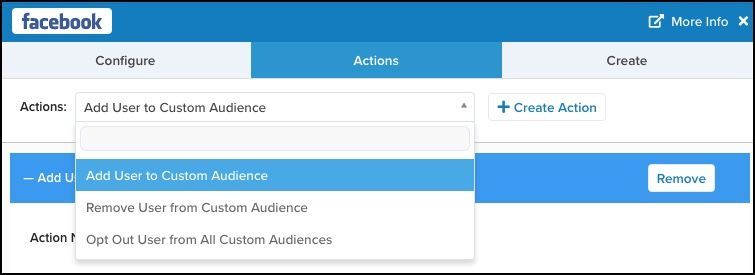
1. Click **+ Create Action**.
### Configure connector actions
Use the following steps to configure actions for the connector:
1. From the **Audience** menu, select the **Shoe-Fans** audience you created earlier.
The **Custom Audience to Add User To** menu displays audiences that exist in your Facebook Audiences account.
1. From the **Custom Audience to Add User To** drop-down list, select the audience you want to add visitors to.
1. In the **Target User Identifier** drop-down list, map the visitor email attribute to the matching visitor identifier in your Facebook Audiences account.
1. Leave the **WHEN** set to **Joined Audience**.
1. Click **Save**.
### Testing
The most effective testing method is to run a [Trace](https://docs.tealium.com/about-trace/) to ensure that your events are handled properly and to check your Facebook dashboard to verify that your Custom Audience was created and populated.
## FAQ
### Why can't I see my audiences in the AudienceStream drop-down list?
If you have more than 2,000 audiences in Facebook, they are not all selectable in the drop-down list from an AudienceStream connector.
Use the following steps in Facebook to view all audiences and select the identifier for a specific audience:
1. Log in to Facebook as the user that has access to the Facebook Audiences account.
1. Go to .
1. Find the audience you are looking for and copy the Audience ID.
If the Audience ID does not display, you can modify your table column view to include it.
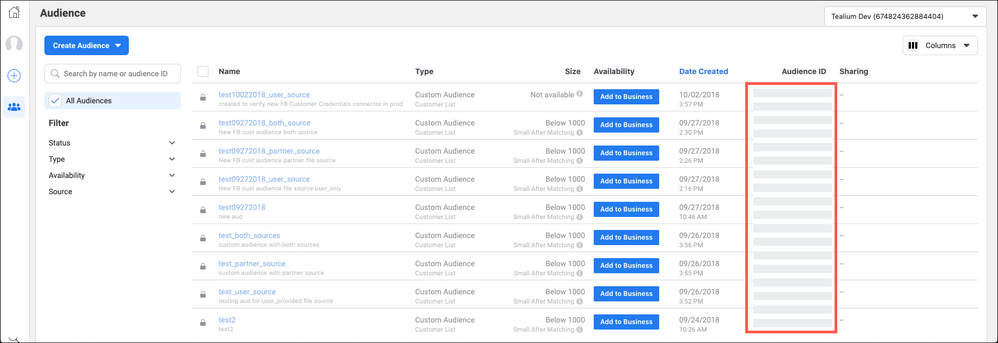
1. Return to AudienceStream and enter the Audience ID as custom value for your AudienceStream connector.