---
title: Facebook Conversions Connector Setup Guide
description: This article describes how to set up the Facebook Conversions connector in your account.
url: https://docs.tealium.com/server-side-connectors/facebook-conversions-connector/
---
## Prerequisites
If you are using the Facebook Conversions connector for web events, the client-side [Facebook Pixel tag](https://docs.tealium.com/facebook-pixel-tag/) must be running in the web browser. For more information, see the [Facebook Help Center](https://www.facebook.com/business/help/2041148702652965).
To enable the Tealium partner integration in your Facebook Ads account settings, use the following steps:
1. Log into your Facebook Ads Manager account and select **Events Manager** from the menu.
1. In the menu, select **Data Sources**, then select the Pixel and click the **Settings** tab.
1. Scroll down to the **Server-Side API** section.
1. In the **Partner Integration** section, click **Choose a Partner**.
1. Select **Authorize Tealium Connection**, and click **Continue** to enable **Tealium**.
If you do not see the option to toggle a partner integration, contact your Tealium Account Manager for support.
The Facebook Pixel tag automatically hashes user data. This functionality cannot be changed. If you are converting Facebook Pixel tag data or other data that is already hashed, enable the **User Data is already hashed** option to avoid hashing the data twice.
## API information
This connector uses the following vendor API:
* API Name: Facebook Graph API - Facebook Pixel
* API Version: v25.0
* API Endpoint: `https://graph.facebook.com`
## Configuration
Go to the Connector Marketplace and add a new connector. For general instructions on how to add a connector, see [About Connectors](https://docs.tealium.com/about-connectors/).
After adding the connector, configure the following settings:
* **Pixel / Dataset ID**
* The Facebook Pixel ID.
* For your Facebook Pixel to work properly, ensure that you have followed the steps outlined in [Prerequisites]() to enable the partner integration for your Facebook Pixel.
* For more information, see the [How to set up and install a Meta Pixel](https://www.facebook.com/business/m/pixel-set-up-step-1#step-1).
### Test connection
To test the connection to Facebook:
* If your pixel has been added to the allow list and enabled for Tealium, a **TealiumTestConnector** event is tracked on your pixel. Click **Test Connection** to send a test event named **TealiumConnectorTest**.
* Check the Facebook Events Manager Pixel Overview to confirm the event was received.
* If your test fails, double-check your configuration settings.
## Deduplication for web events
To configure this connector to deduplicate events from the [Facebook Pixel tag](https://docs.tealium.com/facebook-pixel-tag/), use the event IDs sent as event attributes with the following naming convention:
```nohl
fb_event_id_{FACEBOOK_EVENT}_{TAG_UID}
```
You can find your tag's UID in the Tealium iQ **Tags** table or the tag details screen:
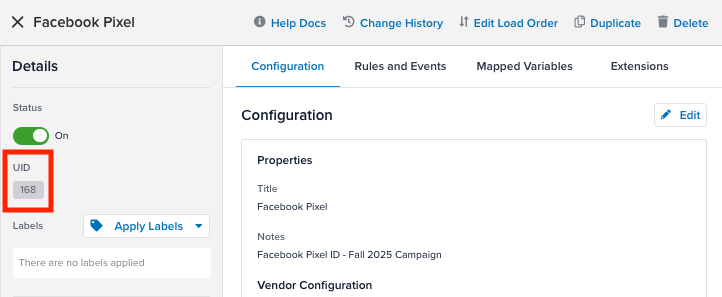
For example, a purchase event from a tag with a UID of `168` would send the following attribute value:
```json
{
"fb_event_id_Purchase_168": "028b2ade7478..."
}
```
A page view event from the same tag would send the following attribute value:
```json
{
"fb_event_id_PageView_168": "084b1cda7461..."
}
```
Use a separate action for each type of event. Map the event-specific event ID attribute to `Event ID` with the matching event name mapped to `Event Name`. For example:
| Tealium attribute | Facebook parameter |
|:-------------------------|:-------------------|
| `fb_event_id_Purchase_168` (attribute) | Event ID |
| `"Purchase"` (custom text) | Event Name |
If you're only receiving event ID attributes using the naming format `fb_event_id_{FACEBOOK_EVENT}` (without the tag UID), we recommend updating your tag. For more information, see .
### Automatic deduplication
When the **Automatic Deduplication** value is populated, the connector looks for the corresponding event ID attribute. You are no longer required to add an `Event ID` if this section is populated and you are using Tealium iQ. However, the following approach may still be needed when using EventStream without Tealium iQ.
The connector follows this order of operations:
* If **Automatic Deduplication** is populated and the value is found in the data layer, this value supersedes anything mapped in `Event ID`. For example, `fb_event_id_ViewContent_30`.
* If **Automatic Deduplication** is populated, but it cannot find the tag ID version, but it can find the legacy version (with no ID attached), that value is used. For example, `fb_event_id_ViewContent`.
* If **Automatic Deduplication** is populated, but the value isn't found, the mapped `Event ID` is used, if it is populated.
### Offline conversions
To process offline and store events through the Facebook Conversions connector, configure the connector to include the required parameters.
#### Prerequisites
* Offline events sent through the Facebook Conversions API must be associated with a dataset in Facebook Events Manager.
* For all offline and store events, advertisers must set the `action_source` parameter to `physical_store` in the event.
* Offline events must include all required event parameters. For details, see [Meta: Server Event Parameters](https://developers.facebook.com/docs/marketing-api/conversions-api/parameters/server-event).
#### Configuration steps
Use the following steps to configure the Facebook Conversions connector to send offline and store events:
1. In Facebook Events Manager, create or select an existing offline data source. For setup instructions, see [Meta: Sending Offline Events Using the Conversions API](https://developers.facebook.com/docs/marketing-api/conversions-api/offline-events/).
1. In the connector configuration, enter the **Dataset ID** associated with your offline data source. This ID is used to send events to the correct Meta dataset.
1. In the **Actions** tab, add a new action such as **Send Event**.
1. Map the **Action Source** parameter to `physical_store`.
1. Map the required parameters, and include optional parameters as needed based on your event type.
1. Send the event and verify it in Facebook Events Manager.
For more information, see [Meta: Sending Offline Events Using the Conversions API](https://developers.facebook.com/docs/marketing-api/conversions-api/offline-events/).
## Automatic mapping
The connector automatically maps the following parameters from the e-commerce extension by default:
| Tealium attribute | Facebook Parameter | Description |
| --- | --- | --- |
| `_csubtotal` | `value` | The subtotal value of the event. |
| `_ccurrency` | `currency` | The currency of the event. |
| `_cprod` | `contents[].id` | The product ID associated with the event. |
| `_csku` | `contents[].content_ids` | The SKU of the product. |
| `_cquan` | `contents[].quantity` | The quantity of the product. |
| `_corder` | `order_id` | The order ID associated with the event. |
| `_ccat` | `contents[].category` | The category of the product. |
| `_cprodname` | `contents[].content_name` | The name of the product. |
| `_cprice` | `contents[].item_price` | The price of the product. |
| Browser ID | `fbp` | The Browser ID stored in the Facebook `_fbp` cookie. |
| Click ID | `fbc` | The Facebook click ID value stored in the Facebook `_fbc` cookie. |
To prevent the connector from automatically sending these parameters to the vendor, enable **Disable Automapping** by setting it to `true`.
## Actions
| Action Name | AudienceStream | EventStream |
|:----------------|:-------------------|:----------------|
| Send Event | ✓ | ✓ |
| Send Advanced Measurement Event | ✓ | ✓ |
| Send CRM (CAPI) Event | ✓ | ✓ |
Click **Next** or click the **Actions** tab. You configure connector actions in the **Actions** tab.
This section describes how to set up parameters and options for each action.
### Send Event
#### Parameters
For **User Data** parameters, the following table notes the level of importance for some parameters. The importance level describes the parameter's influence on your event match quality. For example, **Email (em)** has an importance level of **Highest** while **Phone Number (ph)** has an importance level of **High**.
| Parameter | Description |
|:----------------|:---------------------------------------------|
| Event Source URL | The browser URL where the event happened. This parameter is required if the **Action Source** is set to `website`. - **EventStream** - If the **Action Source** is set to `website` and this field is not mapped, it is automatically mapped to the attribute Current URL in EventStream.
- **AudienceStream** - If the **Action Source** is set to `website` and this field is not mapped, it is automatically mapped to the **Last Event URL** attribute in AudienceStream.
|
| Test Event Code | Send the test ID in the `test_event_code` parameter to start seeing event activity in the Test Events window. Events sent with `test_event_code` are not dropped, instead they flow into Events Manager and are used for targeting and ads measurement purposes. |
| Data Processing Options | (Optional) Map this parameter to the value `LDU` to have Facebook process the event with Limited Data Use restrictions. Otherwise map this parameter to the value `None` to specify that the event should not be processed with Limited Data Use restrictions. For more information, see [Facebook: Data Processing Options](https://developers.facebook.com/docs/marketing-apis/data-processing-options). |
| Event Name | (Required) A Facebook pixel standard or custom event name. |
| Debugging Level | Specifies the trace level for the event. - `1` for Error
- `2` for Info
- `3` for Debug
If you use Trace to verify hashing of data, the data shown at the top of Trace, such as `user_data - EMAIL`, is the data that came into the connector, not the data sent to Facebook. The data sent to Facebook is shown in the **Request Body Section** of Trace. |
| Action Source |(Required) This field specifies where your conversions occurred. Valid action sources are: - `email`
- `website`
- `app`
- `phone_call`
- `chat`
- `physical_store`
- `system_generated`
- `other`
|
| Dataset ID Override | This string value can be used to override the value used for the initial connector configuration. If not provided, the Dataset ID from the connector configuration is used. |
| Data Processing Options Country | Map the country code associated with the user event. This parameter is required if **Data Processing Options** is mapped to `LDU`. Accepted code values: - `1` for the United States of America
- `0` to request country to be geolocated by Facebook
Geolocation also requires mapping the **Client IP Address** attribute. |
| Event ID | An ID used by Facebook to de-duplicate the same event sent from both server and browser. Verify that this value is a unique ID to one pair of events sent from browser and server. |
| Event Time | A Unix timestamp in seconds indicating when the actual event occurred. The connector converts a mapped date attribute to seconds and, if the attribute is absent, auto-populates the event time. |
| Data Processing Options State | This parameter is required if **Data Processing Options** is mapped to `LDU`. Map the state code associated with the user event. Accepted code values: - `0` — Meta-performed geolocation (requires Client IP Address)
- `1000` — California
- `1001` — Colorado
- `1002` — Connecticut
- `1003` — Florida
- `1004` — Oregon
- `1005` — Texas
- `1006` — Montana
- `1007` — Delaware
- `1008` — Nebraska
- `1009` — New Hampshire
- `1010` — New Jersey
- `1011` — Minnesota
- `1012` — Maryland
- `1013` — Rhode Island
Geolocation (`0`) requires mapping the **Client IP Address** attribute. For offline events where no Client IP Address is available, use an explicit state code (`1000`–`1013`). |
| Opt Out | A boolean indicating to not use this event for ads delivery optimization. Set this value to `true` to only use the event for attribution. |
| Zip (`zip`) | Postal zip code. This parameter accepts strings or an array of strings. For example, `90120` or `["90120", "90121"]`. **Importance: Medium** |
| FB Login ID | ID issued by Facebook when a person first logs into an instance of an app. This parameter is also known as the [App-Scoped ID](https://developers.facebook.com/docs/development/support#app-scoped-ids). Do not hash this value. |
| Partner ID | The partner's ID. This parameter can be used by third-party ID providers such as Liveramp and TradeDesk as an additional user identifier. Do not hash this value. |
| Partner Name | The partner's name. This parameter can be used by third-party ID providers such as Liveramp and TradeDesk as an additional user identifier. Do not hash this value. |
| Client User Agent (`ua`) | This parameter is required if the **Action Source** is set to website. The user agent for the browser corresponding to the event. Do not hash this value. - **EventStream** - If the **Action Source** is set to website and this field is not mapped, it is automatically mapped to the User Agent attribute in EventStream.
- **AudienceStream** - If the **Action Source** is set to website and this field is not mapped, it is automatically mapped to the visitor's last User Agent in AudienceStream.
**Importance: High** |
| Client IP Address (`ip`) | The IP address of the browser corresponding to the event. Tealium can capture the client IP address, but it is not available by default. For more information, see [Enabling IP Address Collection in Server-Side Tealium Products](https://support.tealiumiq.com/en/support/solutions/articles/36000363403-enabling-ip-address-collection-in-server-side-tealium-products). Do not hash this value. **Importance: High** |
| Phone (`ph`) | A phone number. Include only digits with country code, area code, and number. This parameter accepts strings or an array of strings. For example, `16505551212` or `["16505551212", "16505551213"]`. **Importance: High** |
| State (`st`) | US State abbreviation. This parameter accepts strings or an array of strings. For example, `ca` or `["ca", "tx"]`. **Importance: Medium** |
| Email (`em`)| Email address. This parameter accepts strings or an array of strings. For example, `user@example.com` or `["user@example.com", "user2@example.com"]`. **Importance: Highest** |
| Last Name (`ln`) | Last name in lowercase. This parameter accepts strings or an array of strings. For example, `smith` or `["smith", "jones"]`. **Importance: Medium** |
| First Name (`fn`) | First name in lowercase. This parameter accepts strings or an array of strings. For example, `joe` or `["joe", "jane"]`. **Importance: Medium** |
| Lead ID | ID associated with a lead generated by Facebook [Lead Ads](https://developers.facebook.com/docs/marketing-api/guides/lead-ads). Do not hash this value. |
| City (`ct`) | City in lowercase without spaces or punctuation. This parameter accepts strings or an array of strings. For example, `menlopark` or `["menlopark", "sandiego"]`. **Importance: Medium** |
| Country (`country`) | Two-letter country code in lowercase. This parameter accepts strings or an array of strings. For example, `us` or `["us", "ca"]`. **Importance: Medium** |
| External ID | Any unique ID from the advertiser, such as loyalty membership IDs, user IDs, and external cookie IDs. Map array type attributes to add multiple IDs. This mapping is automatically populated with the Tealium Visitor ID unless automatic mapping is disabled. |
| Browser ID (`fpb`) | The browser ID value stored in Facebook's `_fbp` cookie. This parameter is automatically mapped unless you disable automatic mapping. Do not hash this value. **Importance: High** |
| Subscription ID | The subscription ID for the user in this transaction. This is similar to the order ID for an individual product. Do not hash this value. For example, `anid1234`. |
| Gender | Lowercase single-letter value for gender. This parameter accepts strings or an array of strings. For example, `["", ""]`. Options are: - `f` for female
- `m` for male
|
| Date of Birth | Date of birth given as year, month, and day. This parameter accepts strings or an array of strings. For example, `19971226` for December 26, 1997 or `["19971226", "19971227"]`. |
| Click ID (`fbc`) | The Facebook click ID value stored in Facebook's `_fbc` cookie. This parameter is automatically mapped unless automatic mapping is disabled. Do not hash this value. Facebook recommends storing and persisting the `fbclid` cookie. **Importance: High** |
| User Data is already hashed | For web events, the Facebook Conversions connector uses the Facebook Pixel tag, which automatically hashes user data. This pixel functionality cannot be changed. Select this option to avoid hashing the data again. However, if the data is coming unhashed from other sources, such as Tealium Collect, do not select this option. |
| Currency | The currency for the value specified if applicable. Currency must be a valid ISO 4217 three-digit currency code. The connector automatically maps this parameter when it appears in the event. For example, `usd`. |
| Content Name | The name of the page or product associated with the event. The connector automatically maps this parameter when it appears in the event. For example, `lettuce`.|
| Number of Items | Use only with **InitiateCheckout** events. The number of items that a user tries to buy during checkout. For example, `4`. |
| Search String | A search query made by a user. Use only with search events. For example, **lettuce** |
| Status | Use only with **CompleteRegistration** events. The status of the registration event. For example, `registered`. |
| Order ID | The order ID for this transaction. The connector automatically maps this parameter when it appears in the event. For example, `order1234`. |
| Content Type | This value must be either `product` or `product_group`. - Set to `product` if the keys you send are in **Content IDs** or **Content Product**. **Content Product** represents products.
- Set to `product_group` if the keys you send are in **Content IDs**. **Content Product** represents product groups.
|
| Predicted Lifetime Value | The predicted lifetime value of a conversion event. For example, `432.12`. |
| Content IDs | The Content IDs associated with the event, such as product SKUs for items in an AddToCart event. For example, `['ABC123', 'XYZ789']`. If a non-array event attribute is provided, it is converted into a single-item array. If **Content Type** is `product`, this mapped value must be a non-array event attribute or single-element array. The connector automatically maps this parameter when it appears in the event. |
| Value | A numeric value associated with this event. This may be a monetary value or a value in another metric. The connector automatically maps this parameter when it appears in the event. For example, `142.54`. |
| Content Category | The category of the content associated with the event. The connector automatically maps this parameter when it appears in the event. For example, `grocery`. |
| Quantities | Product quantities. The connector automatically maps this parameter when it appears in the event. |
| Prices | Product individual prices. The connector automatically maps this parameter when it appears in the event. |
| IDs | Product IDs. The connector automatically maps this parameter when it appears in the event. |
| JSON Template Variables | Provide template variables as data input for templates. For more information, see [connector-template-variables](https://docs.tealium.com/connector-template-variables/). Name nested template variables with the dot notation. For example, `items.name`. Nested template variables are typically built from data layer list attributes. |
| JSON Templates | Provide valid JSON templates to be referenced in Custom Data section. Templates are injected by name with double curly braces into supported fields. For example, `{{SomeTemplateName}}`. For more information, see [about-connector-templates](https://docs.tealium.com/about-connector-templates/). |
| Tealium iQ Tag ID | The Facebook Pixel Tag UID. |
| Disable Automapping | Disable automatic mapping of parameters. |
| Automatic Deduplication | When you provide the Tealium iQ Tag ID, the connector automatically looks for the **Event ID** value that Tealium iQ sends. |
| Advertiser Tracking Enabled | (Required) Use this field to specify ATT permission on an iOS 14.5+ device. Set to `0` for disabled or `1` for enabled. |
| Application Tracking Enabled | (Required) This parameter enables ad tracking at the app level. Your SDK should allow an app developer to put an opt-out setting into their app. Use this field to specify the person's choice. Use `0` for disabled, `1` for enabled. |
| OS Version | (Required) OS version. For example, `13.4.1`. |
| App Package Name | The app package name. For example, `com.facebook.sdk.samples.hellofacebook`. |
| Short Version | The short version. For example, `1.0`. |
| Long Version | The long version. For example, `1.0 long`. |
| Device Model Name | The device model name. For example, `iPhone5,1`. |
| Locale | The locale. For example, `En_US`. |
| Timezone Abbreviation | The timezone abbreviation. For example, `PDT`. |
| Carrier | The carrier. For example, `AT&T`. |
| Screen Width | The screen width. For example, `320`. |
| Screen Height | The screen height. For example, `568`. |
| Screen Density | The screen density. For example, `2`. |
| CPU Cores | The CPU cores. For example, `2`. |
| Storage Size (GB) | The external storage size in GB. For example, `13`. |
| Free Storage (GB) | The free space on external storage in GB. For example, `8`. |
| Device Timezone | The device timezone. For example, `USA/New York`. |
| Campaign IDs | An encrypted string and non-user metadata appended to the outbound URL (For example, `ad_destination_url`) or deep link (for App Aggregated Event Manager) when a user clicks a link from Facebook. |
| Install Referrer | Third-party install referrer, currently available for Android only. For more information, see [Campaign Measurement](https://developers.google.com/analytics/devguides/collection/android/v4/campaigns?fbclid=IwAR0vdnDVr5OsK-VRvhw5qCOwOwVSFbs-pqgU_MIrQwdLGtZzbWIjjT2ttnA). |
| Installer Package | Used internally by the Android SDKs. |
| URL Schemes (Array) | Used internally by the iOS and Android SDKs. |
| Windows Attribution ID | Attribution token used for Windows 10. |
| Anon ID | Your install ID. This field represents unique application installation instances. |
| MADID | Your mobile advertiser ID, which is usually the advertising ID from an Android device or the Advertising Identifier (IDFA) from an Apple device. |
### Send Advanced Measurement Event
This Facebook action has limited availability. Contact your Facebook representative to request access. If this action has not been activated in your Facebook account, it returns errors such as "Application does not have the capability to make this API call." or "This pixel is not authorized to report server events."
#### Event Data
| Parameter | Description |
| --- | --- |
| Event Name | (Required) A Facebook pixel standard event name.|
| Event Time | A Unix timestamp, in seconds, indicating when the actual event occurred. The connector will convert a mapped date attribute to seconds and will auto-populate the event time if absent. |
| Event Source Url | The browser URL where the event happened. Required if **Action Source** is set to `website`. If **Action Source** is set to `website` and this field is not mapped, in EventStream it will be auto-mapped to the attribute `Current URL`. If **Action Source** is set to `website` and this field is not mapped, in AudienceStream it will be auto-mapped to the attribute `Last Event URL`. |
| Opt Out | A flag that indicates we should not use this event for ads delivery optimization. Set this to `true` to use the event for attribution only. |
| Event ID | An ID used by Facebook to de-duplicate the same event sent from both server and browser. Verify that this is an ID unique to one pair of events sent from browser and server. |
| Debugging Level | Set the `trace` level for the event. Accepted values: `1` for Error, `2` for Info, or `3` for Debug. |
| Test Event Code | Send the test ID as a `test_event_code` parameter to start seeing event activity appear in the Test Events window. Events sent with `test_event_code` are not dropped. They flow into Events Manager and are used for targeting and ads measurement purposes.|
| Pixel/Dataset ID Override | If not provided, then the Pixel ID from the connector configuration is used. |
#### User Data
All user data parameters accept strings or an array of strings. For example, `["", ""]`.
| Parameter | Description |
| --- | --- |
| Email | Unhashed lowercase or hashed SHA-256. |
| First Name | A first name in lowercase. |
| Last Name | A last name in lowercase. |
| Phone | A phone number. Digits only including country code and area code. For example, `16505554444`. |
| Gender | Single lowercase letter, `f` or `m`, if unknown, leave blank. |
| Date of Birth | A date of birth given as year, month, and day. For example, `19971226` for December 26, 1997. |
| City | A city in lower case without spaces or punctuation. For example, `menlopark`. |
| State or Province | A two-letter state code in lowercase. For example, `ca`. |
| Zip or Postal Code | A five-digit zip code. For example, `94035`. |
| Country | A two-letter country code in lowercase. For example, `us`. |
| Advanced Measurement Table | The data table for Advanced Measurement API. |
#### Custom Data
Map custom data either as plain text values or using a JSON template by referencing the template name in the format: `{{template_name}}`.
| Parameter | Description |
| --- | --- |
| Value | A numeric value associated with this event. This could be a monetary value or a value in some other metric: `142.54`. The connector automatically maps this parameter when it appears in the event.|
| Currency | The currency for the value specified, if applicable. Currency must be a valid ISO 4217 three digit currency code. For example, `usd`. The connector automatically maps this parameter when it appears in the event. |
| Content Name | The name of the page or product associated with the event. The connector automatically maps this parameter when it appears in the event. For example, `lettuce`. |
| Content Category | The category of the content associated with the event. The connector automatically maps this parameter when it appears in the event. For example, `grocery`. |
| Content IDs | - The content IDs associated with the event, such as product SKUs for items in an AddToCart event. For example, `[ABC123, XYZ789]`.
- If a non-array event attribute is provided, it will be converted into a single-item array.
- If Content Type is `product`, this mapped value must be a non-array event attribute or single-element array.
- The connector automatically maps this parameter when it appears in the event.
|
| Content Type | - Allowed values are `product` or `product_group`.
- Set to `product` if the keys you send in **Content IDs** or **Content Product** represent products.
- Set to `product_group` if the keys you send in **Content IDs** represent product groups.
|
| Order ID | The order ID for this transaction. The connector automatically maps this parameter when it appears in the event. For example, `order1234`. |
| Predicted Lifetime Value | The predicted lifetime value of a conversion event. For example, `432.12`. |
| Number of Items |Use only with `InitiateCheckout` events. The number of items that a user tries to buy during checkout. For example, `4`. |
| Search String | Use only with Search events. A search query made by a user. For example, `lettuce`. |
| Status | Use only with `CompleteRegistration` events. The status of the registration event. For example, `registered`.|
#### Contents Data
| Parameter | Description |
| --- | --- |
| IDs | Product IDs. The connector automatically maps this parameter when it appears in the event. |
| Quantities | Product quantities. The connector automatically maps this parameter when it appears in the event.|
| Prices | Product individual prices. The connector automatically maps this parameter when it appears in the event.|
#### Automatic Deduplication
| Parameter | Description |
| --- | --- |
| Tealium iQ Tag ID | When the Tealium iQ Tag UID is provided, Tealium automatically looks for your Event ID value that is sent from Tealium iQ. |
#### App Data
Required for app events.
| Parameter | Description |
| --- | --- |
| Advertiser Tracking Enabled | (Required) Use this field to specify ATT permission on an iOS 14.5+ device. Set to `0` for disabled or `1` for enabled. |
| Application Tracking Enabled | (Required) Users can enable ad tracking on an app level. Your SDK should allow an app developer to put an opt-out setting into their app. Use this field to specify the user's choice. Use `0` for disabled, `1` for enabled. |
| App Version | (Required) The Version must be `a2` for Android or `i2` for iOS. |
| App Package Name | The app package name. For example, `com.facebook.sdk.samples.hellofacebook`. |
| Short Version | The short version. For example, `1.0`. |
| Long Version | The long version. For example, `1.0 long`. |
| OS Version | (Required) OS version. For example, 13.4.1. |
| Device Model Name | The device model name. For example, `iPhone5,1`. |
| Locale | The locale. For example, `En_US`. |
| Timezone Abbreviation | The timezone abbreviation. For example, `PDT`. |
| Carrier | The carrier. For example, `AT&T`. |
| Screen Width | The screen width. For example, `320`. |
| Screen Height | The screen height. For example, `568`. |
| Screen Density | The screen density. For example, `2`. |
| CPU Cores | The CPU cores. For example, `2`. |
| Storage Size (GB) | The external storage size in GB. For example, `13`. |
| Free Storage (GB) | The free space on external storage in GB. For example, `8`. |
| Device Timezone | The device timezone. For example, `USA/New York`. |
| Campaign IDs | An encrypted string and non-user metadata appended to the outbound URL (For example, `ad_destination_url`) or deep link (for App Aggregated Event Manager) when a user clicked on a link from Facebook. |
| Install Referrer | Third-party install referrer, currently available for Android only. For more information, see [Google Analytics (Android) > Campaign Measurement](https://developers.google.com/analytics/devguides/collection/android/v4/campaigns?fbclid=IwAR0vdnDVr5OsK-VRvhw5qCOwOwVSFbs-pqgU_MIrQwdLGtZzbWIjjT2ttnA). |
| Installer Package | Used internally by the Android SDKs. |
| Url Schemes (Array) | Used internally by the iOS and Android SDKs. |
| Windows Attribution ID | Attribution token used for Windows 10. |
### Send CRM (CAPI) Event
#### Batch limits
This action uses batched requests to support high-volume data transfers to the vendor. Parallel processing may result in events reaching the vendor out of sequence. Add a sequence value to events if ordering is important. For more information, see [Batched actions](https://docs.tealium.com/batched-actions/). Requests are queued until one of the following thresholds is met or the profile is published:
* Max number of requests: 1000
* Max time since oldest request: 10 minutes
* Max size of requests: 1 MB
#### Parameters
| Parameter | Description |
| --- | --- |
| Lead ID | (Required) The Facebook-generated 15 or 16 digit `leadgen_id` from your downloaded leads. This number is obtained from the `leadgen_id` field in the lead generation webhook and included in the `user_data` parameter. |
| Event Name | (Required) Capture the lead stages you use in your CRM. The `event_name` parameter indicates a lead moving through the sales funnel in your CRM. Make sure to send all stages as they are updated, including the raw lead. |
| Event Time | A Unix timestamp in seconds indicating when the lead stage update event is updated by your CRM. The timestamp must occur after the lead generation time or the event may be discarded. If this field is not mapped, it is initialized with the current timestamp. |
| Test Event Code | Verify that your server events are received correctly by Facebook by using the **Test Events** feature in **Events Manager**. To find the tool, navigate to **Events Manager > Data Sources > Your Pixel > Test Events**. |
| Lead Event Source | The name of the CRM where the events are coming from. |
## Setup
You have several options to set up and manage the Tealium server-side API partner integration with Facebook.
* [**The Facebook Partner Integration Gallery**](https://www.facebook.com/events_manager2/partner_integrations/tealium)
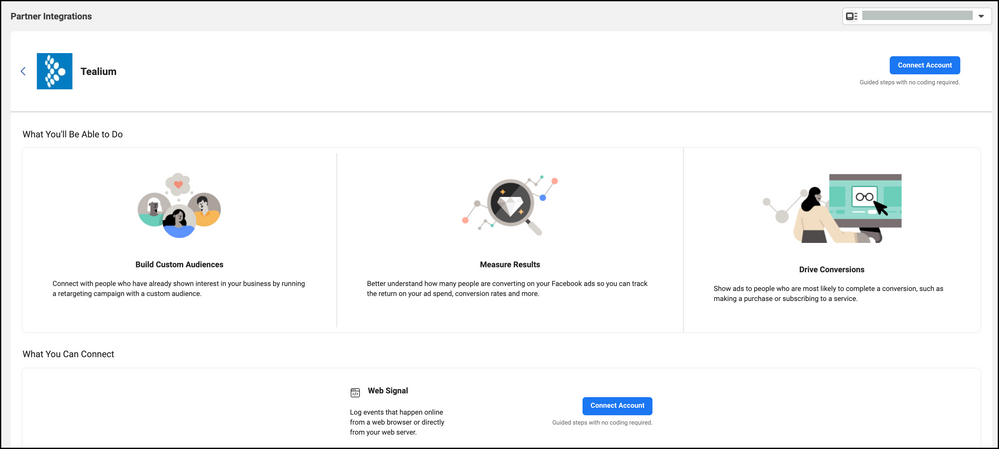
* The Pixel **Settings** tab through the **Choose Partner** button: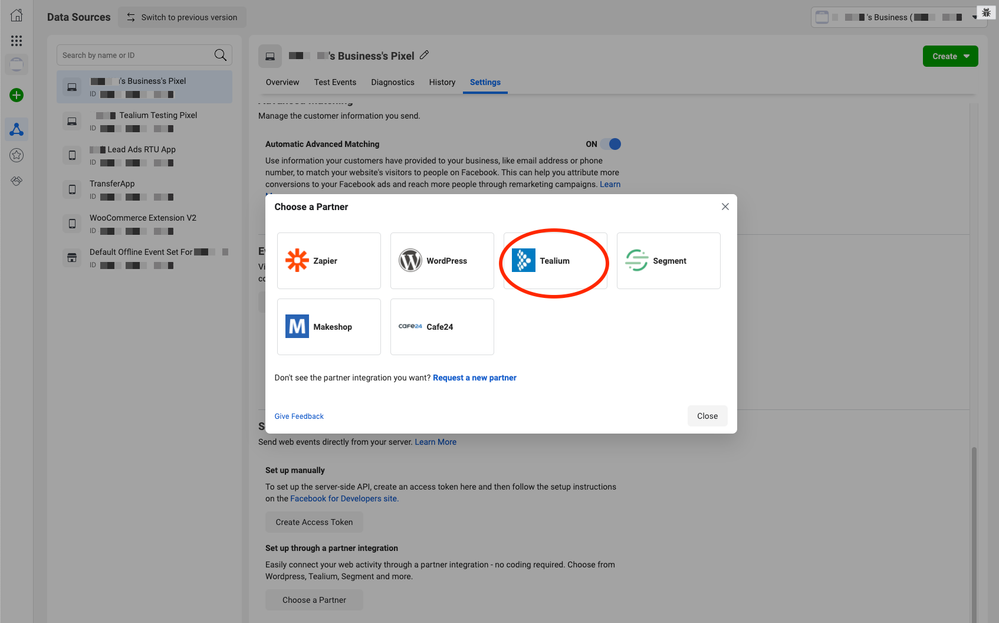
* The web signal setup flow and Server-side API guidance card: 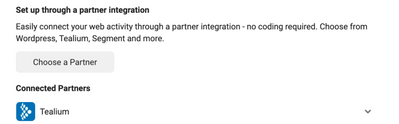
## Verify events
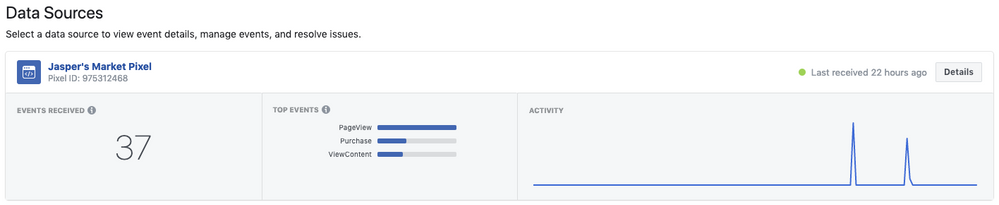
After sending your events, verify that Facebook has received them in the overview and breakdown views:
1. Go to **Business Manager** > **Pixels**.
1. Click on the pixel corresponding to the `PIXEL_ID` in your `POST` request.
### Overview tab
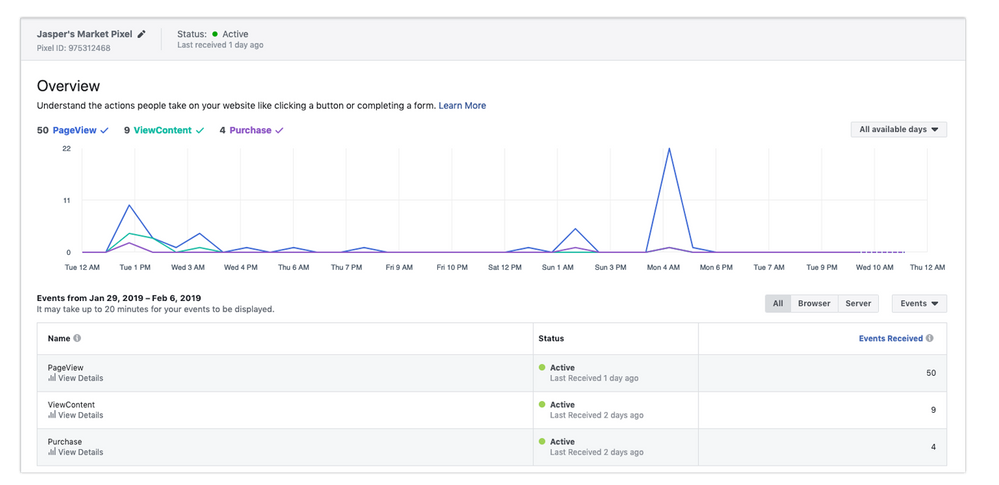
In the **Overview** tab, change the view from **All** to **Server** to see the number of events you have successfully sent.
### Breakdown tab
The **Breakdown** tab displays the breakdown of successfully sent events. Dropped events do not appear in the `Server Events Received` column.
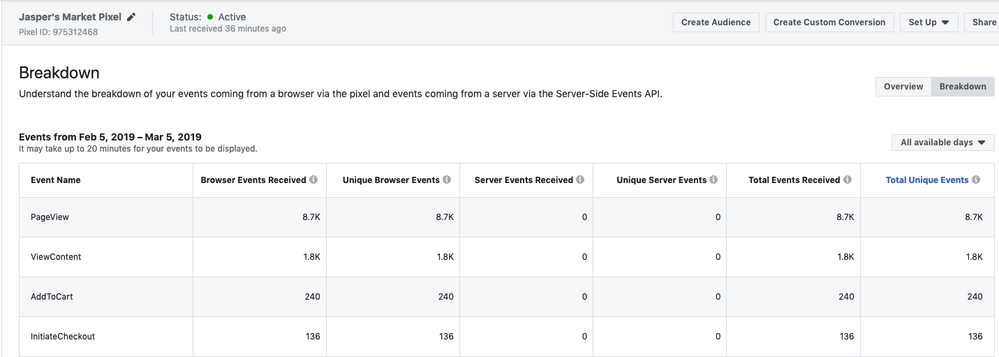
You can verify events within 20 minutes after sending them from your server.
### Validation
To validate your event structure, use Facebook's [Payload Helper](https://developers.facebook.com/docs/marketing-api/server-side-api/payload-helper) with your data parameter fields. This tool shows how to structure your event when you send it to Facebook from your server. For more information, see Facebook's [Support](https://developers.facebook.com/docs/marketing-api/server-side-api/support) page for troubleshooting issues.
For more information about the Conversions API, see Facebook's [Using the Conversions API](https://developers.facebook.com/docs/marketing-api/conversions-api/using-the-api).