---
title: Google Ad Manager 360 Connector Setup Guide
description: This article describes how to set up the Google Ad Manager 360 connector in your Customer Data Hub account.
url: https://docs.tealium.com/server-side-connectors/google-ad-manager-360-connector/
---
## Requirements
To grant Tealium access to create, list, and update Google audiences, link your account to Tealium in the Google Ad Manager interface (**Linked Accounts > Link New Account > External Data Partner > Tealium**). For more information, see [Google: Use Customer Match partners to upload data](https://support.google.com/google-ads/answer/7361372?hl=en).
Previously, this connector required that you request for Google to add your account to their allowlist. The latest version of the connector no longer has this requirement.
## Connector actions
| Action Name | AudienceStream | EventStream |
| --- | :---: | :---: |
|Add Visitor to User-List or Segment| ✓| ✓|
|Remove Visitor from User-List or Segment| ✓| ✓|
## API information
This connector uses the following vendor APIs:
* User List Operations (creation/listing)
* API Name: Google Data Manager API
* API Version: v1
* API Endpoint: `https://datamanager.googleapis.com`
* Documentation: [Google Data Manager API](https://developers.google.com/data-manager/api)
* User List Uploading
* API Name: Google Authorized Buyers
* API Version: v2
* API Endpoint: https://cm.g.doubleclick.net/upload
* Documentation: [Google Authorized Buyers API](https://developers.google.com/authorized-buyers/rtb/bulk-uploader)
## Configure settings
Navigate to the Connector Marketplace and add a new connector. For general instructions on how to add a connector, see the [About Connectors](https://docs.tealium.com/about-connectors/) article.
When you add this connector you are prompted to accept the vendor's data platform policy.
After adding the connector, configure the following settings:
* **Client Customer ID**
* Required
* Your customer identifier in the selected Product.
* **Google Network ID**
* Optional
* If you use the Google-hosted version of the Google Cookie Matching tag, enter your Google Network ID.
* If you use the Tealium-hosted version of the Google Cookie Matching tag, leave this blank.
### Create a New Segment
Use the following steps to create a new segment in AudienceStream:
1. Click **Create a New Segment** from the top of the Actions selection drop-down screen.
2. Complete the following fields:
* **Segment Name**
* **Segment Member Lifespan**
* **Integration Code**- Integration Code is an ID used by user list sellers to correlate IDs on their systems. If no ID is available, enter a random number between 1 and 1000.
* **Segment Description**.
If you use a [DataAccess](https://docs.tealium.com/about-dataaccess/) product (EventStore, AudienceStore, EventDB, or AudienceDB), the segment name must be fewer than 128 characters in length. Otherwise, DataAccess may trim the segment name and errors may occur.
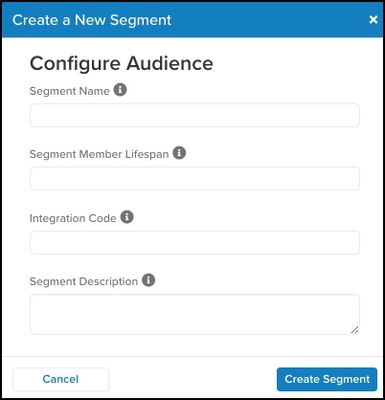
3. Click **Create Segment**.
Upon success, a check mark displays next to the **Create Segment** button.
## Action Settings - parameters and options
Click **Continue** to configure the connector actions. Enter in a name for the action and then select the action type from the drop-down menu.
The following section describes how to set up parameters and options for each action.
### Action - Add Visitor to User-List or Segment
#### Parameters
|**Parameter**| **Description** |
|---| ---|
|Select the Target User-list/Segment| (Required) The user map identifier. Specifies the user that this operation applies to. This parameter specifies the target User-list/Segment where the user will be added to. |
|User ID| - Google User ID - Returned from Google by the TiQ cookie-matching service tag
- Partner Provided ID - Sent to Google by the [Google Cookie Matching Service for Google Ad Manager and DV360](https://docs.tealium.com/google-cookie-matching-service/) tag. The default cookie match tag implementation applies the MD5 hash to the Tealium Visitor ID. If you use the default option, map this attribute to the MD5 hash option.
- iOS Advertising ID
- Android Advertising ID
- Roku ID (RIDA)
- Amazon Fire TV ID (AFAI)
- XBOX/Microsoft ID (MSAI)
|
|Data Source ID| (Optional) An ID indicating the data source that contributed this membership. The ID must be in the 1 to 1,000 range and any IDs outside of this range will result in the following error: `BAD_DATA_SOURCE_ID`. These IDs do not have any semantics for Google and are used only as labels for reporting purposes. |
##### Consent
When using the **Add Visitor to User List** action, the connector will send consent as `true`. Use audience logic to prevent non-consented visitors from being added to lists. Use the **Remove Visitor from User List** action to remove non-consented visitors from lists.
### Action - Remove Visitor from User-List or Segment
#### Parameters
|**Parameter**| **Description**|
|---| ---|
|Select the Target User-list/Segment| (Required) The user map identifier. Specifies the user that this operation applies to. This parameter specifies the target User-list/Segment from where the user will be removed. |
|User ID| - Google User ID - Returned from Google by the TiQ cookie-matching service tag
- Partner Provided ID - Sent to Google by the [Google Cookie Matching Service for Google Ad Manager and DV360](https://docs.tealium.com/google-cookie-matching-service/) tag. The default cookie match tag implementation applies the MD5 hash to the Tealium Visitor ID. If you use the default option, map this attribute to the MD5 hash option.
- iOS Advertising ID
- Android Advertising ID
- Roku ID (RIDA)
- Amazon Fire TV ID (AFAI)
- XBOX/Microsoft ID (MSAI)
|
|Data Source ID| (Optional) An ID indicating the data source that contributed this membership. The ID must be in the 1 to 1,000 range and any IDs outside of this range will result in the following error: `BAD_DATA_SOURCE_ID`. These IDs do not have any semantics for Google and are used only as labels for reporting purposes. |