---
title: LinkedIn Conversions Connector Setup Guide
description: This article describes how to set up the LinkedIn Conversions connector.
url: https://docs.tealium.com/server-side-connectors/linkedin-conversions-connector/
---
The LinkedIn Conversions API (CAPI) is a conversion tracking tool that creates a direct connection between marketing data from an advertiser's server and LinkedIn. With this integration, advertisers measure the performance of their LinkedIn marketing campaigns no matter where the conversion happens and use this data to power campaign optimization. The Conversions API strengthens performance and decreases cost per action with more complete attribution, improved reliability, and optimized delivery.
## API information
This connector uses the following vendor API:
* API Name: LinkedIn API
* API Version: 202601
* API Endpoint: `https://api.linkedin.com/rest`
* Documentation: [LinkedIn: Conversions API](https://learn.microsoft.com/en-us/linkedin/marketing/integrations/ads-reporting/conversions-api?view=li-lms-2026-01&tabs=http)
## Configuration
Go to the Connector Marketplace and add a new connector. For general instructions on how to add a connector, see [About Connectors](https://docs.tealium.com/about-connectors/).
After adding the connector, configure the following settings:
* **Ad Account**: (Required) Select an ad account ID that aligns with your sponsored account.
### Authentication
Sign in to LinkedIn to use the connector.
1. Click **Establish Connection**.
1. Sign in to your LinkedIn account.
1. Click **Allow** to authorize the connection.
## Deduplication
Deduplication works by comparing events sent from both the Insight Tag and CAPI. If both sources send the same event, the system keeps only one and discards the duplicate to ensure accurate counting. Send the same events through both sources to combine CAPI data with your [LinkedIn Insight tag](https://docs.tealium.com/linkedin-insight-tag/) for complete visibility into campaign conversions.
To configure this connector action to receive event IDs from the LinkedIn Insights tag in your iQ Tag Management account, look for event attributes using the following naming convention:
```none
linkedin_event_id_{CONVERSION_ID}_{TAG_UID}
```
Find your tag's UID in the Tealium iQ **Tags** table or the tag details screen:
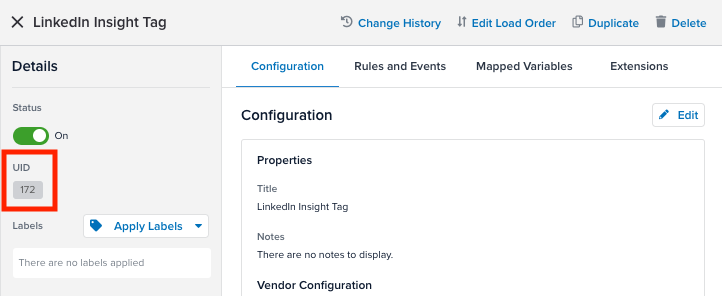
For example, an event from a tag with a UID of `172` would send the following attribute value:
```nohl
linkedin_event_id_11563522_172
```
Your **Conversion ID** can be found in your LinkedIn **Campaign Manager** account while configuring your LinkedIn Insights tag to track a specific event:
1. Go to **Analyze** > **Conversion Tracking**.
1. Select **Create Conversion** > **Conversions API or CSV**. For more information, see [LinkedIn: Conversion Tracking](https://www.linkedin.com/help/lms/answer/a420536).
1. Select the integration and enter the required **Settings** values, including the **Key Conversion Behavior** that you want to track.
1. Select **Next Step**.
1. Select any campaigns to be tracked.
1. From the left side menu, select **Analyze > Insight Tag**.
1. If you use a tag manager, click **I will use a tag manager** and copy the partner ID listed on the page. The Partner ID value is required in the Insights Tag configuration, but is not a required mapping for CAPI.
1. After all required forms are created, click **Create**.
### Automatic deduplication
When the **Automatic Deduplication** values are set, the connector looks for the corresponding variables within the UDO object. You are no longer required to add an event ID if this section is populated and you are using Tealium iQ. Enable Generate Event ID on the LinkedIn Insights tag with the tag's UID. Also, the following approach may still be needed when using EventStream without Tealium iQ.
The connector uses the following order of operations:
1. If **Automatic Deduplication** values are set, and the value is found in the data layer, (for example, `linkedin_event_id_10501014_30`) and this value supersedes any mapping for event ID.
1. If **Automatic Deduplication** values are set, but the values are not found, the mapped event ID is used, if it is set.
### Deduplication limitations
LinkedIn deduplicates conversion events tracked by both the Insight Tag (pixel) and the Conversions API (CAPI) when the same Conversion ID and Event ID are sent from both sources. The deduplication outcome depends on the combination of identifiers provided. Review your measurement goals and reporting priorities, and choose the configuration that matches your requirements:
* **Same Conversion ID and Event ID**
* LinkedIn treats the events as the same event and deduplicates them, keeping only the Insight Tag event for reporting. The CAPI event is discarded.
* Use this configuration if you want the pixel to remain your primary source of attribution and you only need CAPI as a backup signal.
* **Same Conversion ID and different Event ID**
* LinkedIn treats the events as separate conversions and counts both. This results in double counting, but allows advertisers to compare pixel versus CAPI data during testing or transition periods.
* Use this configuration for short-term validation when migrating from pixel-based tracking to CAPI.
* **Different Conversions ID (regardless of Event ID)**
* LinkedIn considers the events to represent distinct conversions, one tracked through the Insight Tag and one through CAPI. This setup avoids deduplication entirely and ensures full server-side attribution for CAPI events.
* Use this configuration if you want CAPI to serve as your primary source of truth and maintain independent attribution for server-side conversions.
Each approach carries trade-offs in accuracy, visibility, and reporting alignment. CAPI-only tracking provides the most complete implementation. Parallel tracking enables controlled testing and validation during migration. Deduplication mode minimizes double-counting but restricts server-side data visibility. Tealium supports all three methods and encourages advertisers to determine which option best reflects how they want LinkedIn to measure and attribute their conversions.
### Persist the LinkedIn Click ID
If you are using the LinkedIn Insight Tag with this connector, persist the LinkedIn Click ID as a first-party cookie.
By default, the connector reads `li_fat_id` from the querystring parameter automatically. Follow these steps only if you have disabled automapping or need to persist `li_fat_id` as a first-party cookie.
1. Create a [Persist Data Value extension](https://docs.tealium.com/persist-data-value-extension/).
1. Add the querystring parameter `li_fat_id` to your data layer.
1. Set the value of `li_fat_id` to the `li_fat_id` cookie.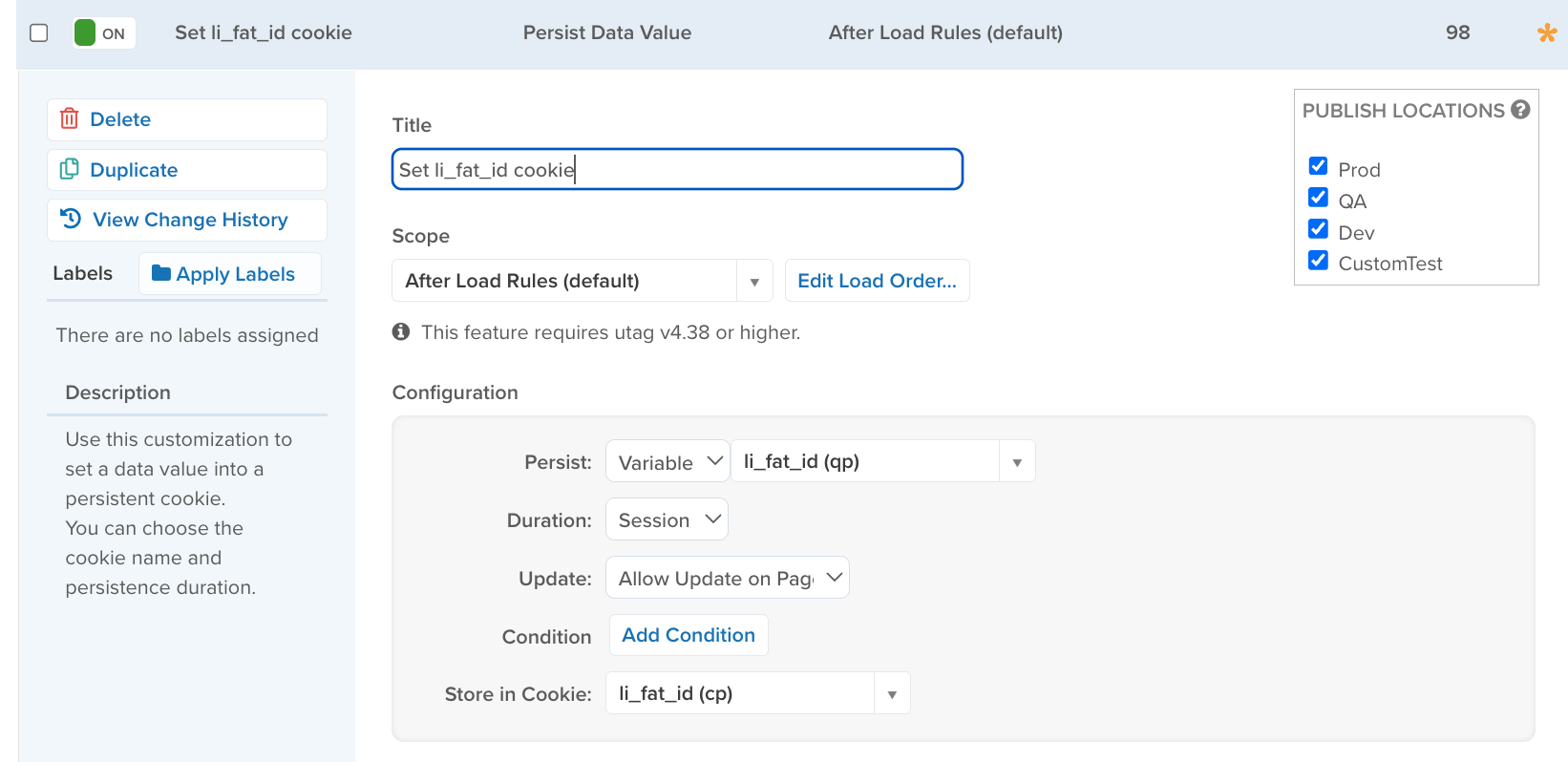
1. In EventStream, create a first party cookie attribute named `li_fat_id_cookie`.
1. In the connector, map `li_fat_id_cookie` to the LinkedIn First Party Ads Tracking UUID.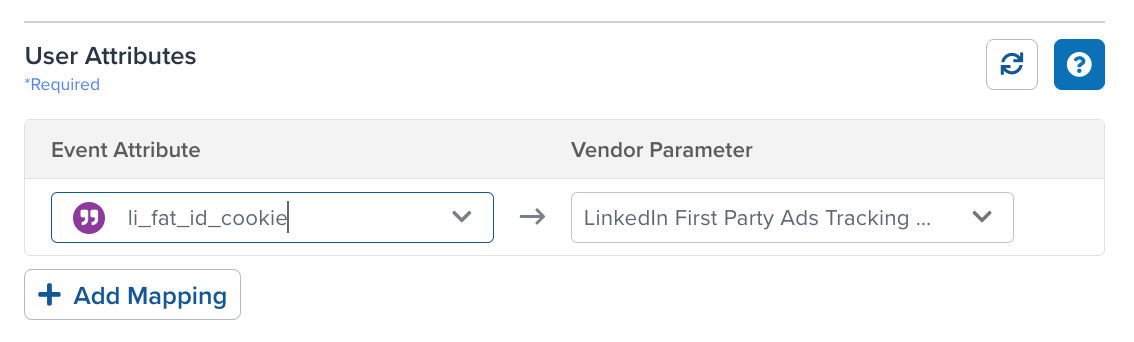
## Create a conversion
If you create a conversion in Tealium, you do not need to configure a conversion event in LinkedIn Campaign Manager. Use Tealium to create a conversion event tracked in your **Campaign Manager** interface. These values track conversion events and associate them with campaigns. The conversion events appear in the **Analyze > Conversion Tracking** section with a data source value of `Tealium` in the LinkedIn Campaign Manager platform.
| Field / parameter | Description | Type |
| --- | --- | --- |
| Account (`account`) | The Sponsored Ad Account URN that this conversion resides under. Specify this value in the URL query parameter or in the request JSON body. For example, `urn:li:sponsoredAccount:1234567`. | URN |
| Name (`name`) | Short name for this rule, shown in the UI and in reports. For example, `Summer_Sale CRM Conversions`. | String |
| Enabled (`enabled`) | Set to `true` or `false` to enable or disable this rule from matching conversions. The initial state can be either, but only enabled rules trigger conversion events. The default value is `true`. | Boolean |
| Post Click attribution window size (`postClickAttributionWindowSize`) | Conversion window timeframe (in days) of a member clicking on a LinkedIn Ad (a post-click conversion) within which conversions are attributed to a LinkedIn ad. Allowed values are `1`, `7`, `30`, or `90`. The default value is `30` | Integer |
| View Through Attribution Window Size (`viewThroughAttributionWindowSize`) | Conversion window timeframe (in days) of a member seeing a LinkedIn ad (a view-through conversion) within which conversions are attributed to a LinkedIn ad. Allowed values are `1`, `7`, `30`, `90`, or `365`. 365 is a valid option only for the following types: `Submit Application`, `Purchase`, `Add to Cart`,` Qualified Lead and Lead`. The default value is `7` | Integer |
### Attribution types
The `attributionType` parameter determines how conversion actions are counted:
| Value | Description |
| --- | --- |
| `LAST_TOUCH_BY_CAMPAIGN` | Each campaign: Conversion actions are counted once for each campaign to which they can be attributed. For a conversion associated with multiple campaigns, every campaign that has had an interaction in the conversion window gets credited. (Default) |
| `LAST_TOUCH_BY_CONVERSION` | Last campaign: Conversion actions are counted once for each conversion with at least one associated campaign. For a conversion associated with a campaign, the most recent campaign that has had an ad interaction in the conversion window gets credited. |
### Conversion types
The `type` parameter specifies the type of conversion to track for this conversion rule:
| Value | Description |
| --- | --- |
| Ad Click | The user clicked a third-party ad. |
| Ad View | The user viewed an ad. |
| Add Billing Info | The user added credit card or purchase details. |
| Add to Cart | The user added one or more things to their shopping cart. |
| Add to List | The user added a product to a wishlist. |
| Book Appointment | The user reserved an appointment. |
| Complete Signup | The user completed the registration process. |
| Contact | The user attempted to contact by filling a form. |
| Donate | The user performed a donation. |
| Download | The user downloaded a file. |
| Install | The user installed a plugin or an app. |
| Invite | The user sent or shared an invite. |
| Job Apply | The user clicked apply to a job on LinkedIn. |
| Key Page View | The user viewed an important web page or app screen. |
| Lead | The user filled out a lead generation form. |
| Login | The user logged in to the advertiser's service account. |
| Other | Something that is not listed. |
| Outbound Click | The user left the app or page by clicking a link. |
| Phone Call | The user started a call or performed a phone-call specific event or submission. |
| Purchase | The user made a purchase. |
| Qualified Lead | Identified lead as a qualified lead. |
| Rate | The user rated a service or a product. |
| Request Quote | The user requested a quote. |
| Save | Saves a form or state in the flow. |
| Schedule | Schedule a service or appointment. |
| Search | The user searched within the app. |
| Share | The user shared content. |
| Signup | The user signed up for a web site or app service. |
| Start Checkout | Begins the checkout process. |
| Start Trial | The user started a trial subscription. |
| Submit Application | The user submitted an application (same as Complete Signup). |
| Subscribe | The user subscribed to a service. |
| Talent Lead | User submitted their information as a lead on LinkedIn Talent Media's Pipeline Builder page. |
| View Content | The user viewed a section of the page or app screen (webview). |
| View Video | The user played a video. |
## Associate campaigns to conversions
Associate each conversion event with the required campaign value. A conversion event can relate to multiple LinkedIn campaigns. Tealium retrieves conversion events for use in mapped actions. Use the **Associate Campaigns to Conversions** overlay to map conversions to campaigns. After selecting your conversion and campaign values, select **Create Association** and wait for the **Success** message.
| Parameter | Description |
| --- | --- |
| Conversion | (Required) Select the conversion or provide conversion ID as a custom text. |
| Campaign | (Required) Select the campaign or provide campaign ID as a custom text.|
## Actions
| Action Name | AudienceStream | EventStream |
| --- | :---: | :---: |
| Batch Conversion Events | ✓ | ✓ |
Send contact information from the conversion to LinkedIn using connector actions.
Enter a name for the action and select the action type from the drop-down menu.
The following section describes how to set up parameters and options for each action.
### Batch Conversion Events
#### Batch limits
This action uses batched requests to support high-volume data transfers to the vendor. For more information, see [Batched Actions](https://docs.tealium.com/batched-actions/). Requests are queued until one of the following thresholds is met or the profile is published:
* Max number of requests: 1000
* Max time since oldest request: 10 minutes
* Max size of requests: 1 MB
#### Parameters
You must send at least one of the following parameters: **Email Address**, **LinkedIn First Party Ads Tracking UUID**, **Acxiom ID**, **Oracle Moat ID**, or **First Name** and **Last Name**. If you send any user information (for example: **Company**, **Title**, or **Country Code**), you must include the **First Name** and **Last Name** parameters, regardless if you provide other identity parameters.
| **Parameter** | **Description** |
| --- | --- |
| Conversion | Select the conversion rule created through the API or enter the conversion ID as custom text. |
| Email Address (already SHA256 hashed) | Provide an email address that has been already SHA256 hashed. |
| Email Address (apply SHA256 hash) | Provide a plain text email address and the connector will trim blank space, lowercase, and hash this value using SHA256 hash. |
| LinkedIn First Party Ads Tracking UUID | First Party Cookie ID. Advertisers need to enable enhanced conversion tracking from **Campaign Manager** to activate first-party cookies that append a **Click ID** parameter `li_fat_id` to the click URLs. |
| Acxiom ID | User identifier for matching with LiveRamp identity graph. |
| Oracle Moat ID | User identifier for matching with Oracle Moat Identity. |
| First Name | The first name of the contact to match the conversion. Required if **Company**, **Title**, or **Country Code** attributes are populated. |
| Last Name | The last name of the contact to match the conversion. Required if **Company**, **Title**, or **Country Code** attributes are populated. |
| Company | Represents the company of the contact to match. |
| Title | Title name of the contact to match. |
| Country Code | ISO 3166 standardized two letter country code representing the country of the contact. |
| External IDs | A list of `externalIds`. An `externalId` contains an advertiser-provided identifier representing the user who triggered the conversion event. For more information, see [LinkedIn: Custom Matching Identifiers](https://learn.microsoft.com/en-us/linkedin/marketing/conversions/custom-matching-identifiers?view=li-lms-2025-03). |
| Client IP Address (IPv4) | Client IPv4 address sent unhashed to LinkedIn. Only valid IPv4 values are sent; IPv6 and invalid values are ignored. |
| Google Advertising ID (GAID) | Google Advertising ID sourced from an explicit attribute mapping. Map a dedicated attribute (for example, `google_advertising_id` or `gaid`) that your app or mobile backend populates with the device's GAID. The value must be a UUID-format string (for example, `38400000-8cf0-11bd-b23e-10b96e40000d`). If the mapped value fails format validation or no mapping is configured, the connector omits GAID from the event. Note: `_ga` or `_gid` are not valid GAIDs. |
#### GAID sourcing
GAID is sourced only from an explicit attribute mapping. The connector does not infer GAID from any other data in the event.
To send GAID, create a dedicated attribute in your data layer (for example, `google_advertising_id` or `gaid`) and populate it from your mobile app or backend using the device's Google Advertising ID. Map that attribute to the **Google Advertising ID (GAID)** field in the connector action.
The value must match UUID format (36 characters, hex digits separated by hyphens). If the mapped value does not match this format, the connector drops GAID and sends the event without it. No error is raised and other identifiers are unaffected.
Do not map `_ga`, `_gid`, or any other Google Analytics cookie value to this field. Those values use the Google Analytics client ID format (`GA1.1.*.*`) and are not valid GAIDs.
#### Conversion Event Attributes
| **Parameter** | **Description** |
| --- | --- |
| Conversion Time | Epoch timestamp in milliseconds at which the conversion event happened. If not mapped, the connector uses the current timestamp. |
| Conversion Amount | The monetary value for this conversion. Required to send **conversionValue** object. |
| Currency Code | Currency code in ISO 4217 format. Required to send **conversionValue** object. |
| Event ID | The unique ID generated by advertisers to indicate each event. This field is used for deduplication. |
#### Automatic Deduplication
Because LinkedIn recommends using a separate conversion ID for tags and for the CAPI, deduplication uses the event ID regardless of the conversion ID. When you provide the Tealium iQ Tag ID, the connector searches for the event ID value sent from Tealium iQ. If the tag conversion ID differs from the connector conversion ID, map that ID value to the LinkedIn Insight Tag Conversion ID.
| **Parameter** | **Description** |
| --- | --- |
|Tealium iQ Tag ID| The Tealium iQ tag that provides the event ID value. |
|LinkedIn Insight Tag Conversion ID| The LinkedIn Insight Tag Conversion ID to map the tag conversion ID to. |
#### Disable Identifier Automapping
By default, the connector automatically maps Client IPv4 and LinkedIn First Party Ads Tracking UUID from the data layer. For LinkedIn First Party Ads Tracking UUID, the connector reads the `li_fat_id` querystring parameter. If you map this parameter in the action, that mapping takes precedence over the automapped value. Use the **Disable Identifier Automapping** option to turn off automapping for these identifiers.
| **Parameter** | **Description** |
| --- | --- |
| Disable Identifier Automapping | When enabled, Client IPv4 and LinkedIn First Party Ads Tracking UUID are not automapped from the data layer. |