---
title: Studio
description: Use the Studio AI chat interface to ask natural-language questions about your server-side configuration.
url: https://docs.tealium.com/server-side/ai-studio/
---
Tealium Studio is only available to select customers. If you are interested in trying this feature, [contact support](https://docs.tealium.com/support/).
## How it works
Studio is a separate AI chat interface for asking natural-language questions about your server-side configuration. It has access to your configuration but never modifies or publishes it. With the introduction of this chat interface, the standard interface is now referred to as Tealium Classic.
Use Studio for two kinds of questions:
* **General product questions**: How features work, what settings do, or how to configure something.
* **Questions about your configuration**: How components are configured, which components have dependencies, or identify gaps or conflicts in your configuration.
Studio does not have access to and will not answer questions about:
* Visitor or event data
* Credentials, authentication tokens, or other sensitive connection details
* Tag management configurations
* Data across multiple profiles or the entire account
* Changes from previously published versions
## Requirements
Studio requires the following:
* AI features enabled for the account.
* Tealium Studio enabled for your profile.
* **Viewer** access to Tealium Studio.
For instructions on enabling AI features, see [Tealium AI Features](https://docs.tealium.com/ai-features/).
## Enable Studio
An account admin must enable Studio at the account-level and profile-level before users in the account can access it.
To enable Studio:
1. In Tealium Classic, open **AI Settings**.
1. Tun on the **Tealium Studio** setting at the account level.
1. Turn on the **Tealium Studio** setting for each server-side profile where it should be available.
1. Save the settings.
1. Assign users access through platform permissions, or confirm their existing profile role if your organization uses legacy permissions.
## Assign user permissions
### Platform permissions
In platform permissions, Studio is a separate permission, assignable to a permission group.
| Access level | Description |
| ------- | ----------- |
| **No Access** | The user cannot open or use Studio for the profile. |
| **Viewer** | The user can open Studio and ask questions about the profile, but Studio has read-only access and cannot modify the profile configuration. |
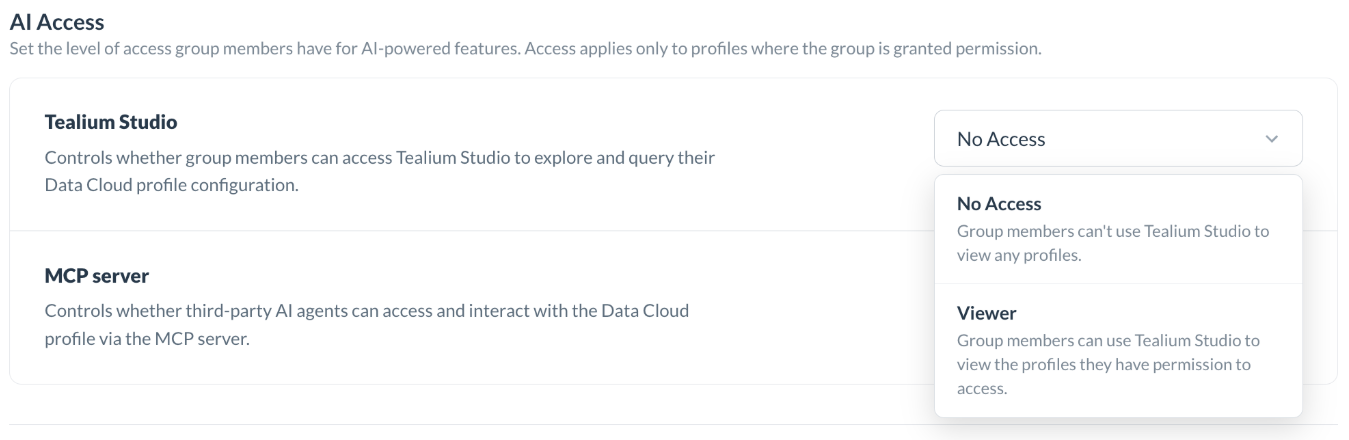
Studio requires view access to all features, so selecting **Viewer** access to Studio raises all feature-level access to read-only if it wasn't already. This applies to all profiles in the group.
Having **Viewer** access to Studio does not grant editing or publishing rights in Tealium Classic.
### Legacy permissions
If your organization uses legacy permissions, Studio access follows your existing server-side profile role.
| Server-side role | Tealium Studio access |
| ---------------- | --------------------- |
| No Access | No access |
| Reader | Viewer |
| Editor | Viewer |
| Publisher | Viewer |
Studio has read-only access to the profile even if the user's role grants a higher level of access to Tealium Classic.
## Launch Studio
Click the **Tealium Studio** icon in the top-right corner of the Tealium Classic navigation header.

Studio opens a chat session scoped to the current account and profile.
On server-side profiles, the Studio icon replaces the previous AI assistant icon. After you enable Studio, the AI assistant is no longer available on server-side profiles. The AI assistant remains available in tag management profiles.
## Ask a question
Type your question in the text input and press **Enter** or click **Send**.
Responses may include text summaries, tables, or code blocks.
If your question is ambiguous, Studio asks a follow-up before responding. You don't need to use Tealium-specific terminology. Describe what you're looking for in plain language.
### Examples
**Get a summary of what the profile does before you inspect individual components:**
```wrap
I'm new to this profile. Give me an overview of the most active connectors and the connected audiences.
```
**Trace an important event through the full pipeline from collection to activation:**
```wrap
What happens when an order_complete event is received? Which attributes are updated, and which audiences could a visitor qualify for?
```
**Review a single attribute and its downstream dependency:**
```wrap
Which audiences use the lifetime_value attribute and what are its enrichments?
```
**Confirm that your most important segment is activating the right destinations:**
```wrap
Which connector actions fire when a visitor joins the 'High Value Customers' audience?
```
**Find segments that are fully configured but never activated:**
```wrap
Are there any audiences that don't trigger any connector actions?
```
**Research unused attributes:**
```wrap
Which attributes are enriched but not referenced in any audience rules or connector mappings?
```
**Find enrichment conditions that may be spread across multiple rules and event types:**
```wrap
What are all the enrichment conditions that allow the customer_tier attribute to be set to 'Gold'?
```
## Manage your session
Each chat session covers a single profile. The header shows the active account and profile.
Studio always responds based on the most recently published version of the profile and does not include unpublished changes.
Studio does not save chat history. Closing the tab or navigating away ends the session and clears the conversation.
Sessions expire after 30 minutes of inactivity. When a session expires, Studio signs you out of both Studio and Tealium Classic.
## Usage limits
AI usage is limited across token count and request count over a rolling time frame. The limits are shared across all users in the same account, so heavy usage by one user or feature can temporarily reduce availability for everyone else in that account.
The usage limits apply to the following features:
* Studio
* Functions writer
* SQL writer
* Connector mappings
If the account reaches either limit, Studio displays a message showing when the usage will reset and disables the ability to send more requests.
## Troubleshoot errors
If Studio cannot complete a request, it displays an error message with a log ID. If the error persists, copy the log ID and provide it to [support](https://docs.tealium.com/support/).
Click **Try again** to retry the same question, or rephrase your question and submit it again.