Use AI enrichments to apply LLM-based processing to visitor and event data and route the output back into the Tealium data collection pipeline.
AI enrichments is only available to select customers. If you are interested in trying this feature, contact support.
AI enrichments apply LLM-based processing to real-time customer data inside the Tealium customer data pipeline. Configure an AI enrichment by writing AI instructions, selecting a trigger, and choosing attributes to evaluate and output event attributes. The AI enrichment evaluates that data, generates a new event containing the output data, and sends it back to the Tealium data pipeline, making it available for audiences, connectors, and downstream activation.
How it works
Each AI enrichment follows this flow:
Trigger → Evaluate attributes → Run AI instructions → Generate event (Output event attributes)
When the trigger fires, the AI enrichment evaluates the attributes to evaluate according to the AI instructions and produces output values. The AI enrichment generates a new AI enrichment event with the output event attributes and sends it back to the Tealium data collection pipeline. To complete the enrichment, configure attributes, audiences, and connectors to act on that event.
Every trigger execution generates a new event.
The AI enrichment does not modify the triggering event and does not write directly to the visitor profile.
Triggers
The trigger determines when the AI enrichment runs. Each trigger execution produces one new AI enrichment event.
The trigger types are:
- Processed visitor
The AI enrichment runs when a visitor joins or leaves a selected audience. Use this trigger to evaluate enrichments based on audience membership changes. - Processed event
The AI enrichment runs after an event feed processes an event. Use this trigger for high-signal interactions that warrant immediate evaluation.
Attributes to evaluate
Attributes to evaluate are the visitor, visit, and event attributes the AI enrichment evaluates. To optimize the enrichment, use attributes that meaningfully reflect the condition you want the AI enrichment to detect, such as engagement trends, subscription changes, support interactions, or financial signals.
Output event attributes
Output event attributes are event attributes that appear in the generated AI enrichment event. To persist an output attribute to the visitor profile, configure an enrichment rule that sets the attribute from the generated event.
AI instructions
AI instructions are the task instruction for the AI enrichment. They describe the business outcome, the behavior to evaluate, decision criteria, and how to interpret the attributes to evaluate.
Tealium automatically appends the configured attributes to evaluate to the AI instructions before sending them to the model.
The AI enrichment receives the following:
- System message: Tealium-controlled guardrails covering safety, scope, and output format.
- Custom message: Your AI instructions combined with the input data.
For the best results, include the following in your AI instructions:
- The business goal or decision to make.
- The behavior or signal to detect.
- Explicit criteria, thresholds, or permitted output categories.
- Guidance for interpreting the selected input data.
- Instructions about missing data or ambiguous scenarios.
Do not include the following in your AI instructions:
- JSON formatting instructions such as “return only JSON”.
- A manually written output schema, field list, or data types.
- Tealium identifiers or fields you did not select as attributes to evaluate.
- Assumptions about data that is not present.
- Requests for long-form content or media generation.
AI enrichment event
After processing the attributes to evaluate against the AI instructions, the AI enrichment generates a new enrichment event. This event contains tealium_event and your output event attributes and it flows back into the data collection pipeline. The tealium_event value is in the format async_processed_AI_ENRICHMENT_ID where AI_ENRICHMENT_ID is unique to each enrichment you configure. Use this value when configuring downstream components, such as enrichment rules or event feeds.
Example AI enrichment event:
{
  "tealium_event": "async_processed_00070f98-9134-4901-adeb-2d343a0f4ac",
  "your_output_attribute": "VALUE"
}
Examples
Example: Classify product review sentiment
- Trigger: Product review event
- Attributes to evaluate: Product review text (
product_review_text) - AI instructions:
Based on the product review, classify the customer's sentiment as one of: "dissatisfied", "neutral", or "satisfied". - Output event attributes:
ai_review_sentiment
Generated AI enrichment event:
{
  "tealium_event": "async_processed_00070f98-9134-4901-adeb-2d343a0f4ac",
  "ai_review_sentiment": "satisfied"
}
Example: Infer shopping intent
- Trigger: Joined “Abandoned cart” audience
- Attributes to evaluate:
cart_product_names,cart_total_value,visit_count_7d - AI instructions:
Infer the shopping mission. Set "mission" to a summary of 6 words or fewer, set "urgency" to "high", "med", or "low", and set "sensitive" to "true" if the mission implies health, pregnancy, minors, or financial distress. - Output event attributes:
shopping_mission(string),shopping_urgency(string),shopping_sensitive(boolean)
Generated AI enrichment event:
{
  "tealium_event": "async_processed_20470d98-2171-4901-dacf-6a513a0f4bd",
  "shopping_mission": "back to school, high cart value",
  "shopping_urgency": "medium",
  "shopping_sensitive": false
}
Create an AI enrichment
To create an AI enrichment, go to AI Enrichments and click New AI Enrichment.
Step 1: Select a trigger
Select Processed Visitor to run the AI enrichment based on a visitor’s status in an audience. After selecting this option, choose an audience and the specific audience trigger.
Select Processed Event to run the AI enrichment after an event feed processes an event. After selecting this option, choose an event feed from the list.
Step 2: Select attributes to evaluate and output event attributes
Attributes to evaluate
Select the attributes the AI enrichment evaluates. Choose attributes that reflect the behavior or condition described in your AI instructions. If the trigger is a processed event, only event attributes can be selected. If the trigger is a processed visitor, only visit or visitor attributes can be selected.
Output event attributes
Select the event attributes for the AI enrichment to output. Click Add Attribute and define the attribute name and type. These attributes appear in the generated AI enrichment event.
Step 3: Write AI instructions
Describe the business outcome, the behavior to evaluate, and the output values the AI enrichment should produce. For guidance on writing effective AI instructions, see AI instructions.
Step 4: Review and create
Review the AI enrichment configuration:
- AI Enrichment Instructions: Confirm the AI instructions you wrote.
- AI Enrichment Name: Enter a name for the AI enrichment.
- Status: New AI enrichments are inactive by default. Activate the AI enrichment after you create it.
- Trigger: The audience or event feed that triggers the AI enrichment.
- Attributes to evaluate: The attributes evaluated by the AI enrichment.
- Outcomes: The output event attributes set in the generated AI enrichment event.
Click Create to save the AI enrichment.
Note the generated event name. It follows the format async_processed_AI_ENRICHMENT_ID, for example async_processed_00070f98-9134-4901-adeb-2d343a0f4ac. Use this value to configure downstream components.
Configure downstream components
Creating the AI enrichment does not complete the setup. The AI enrichment generates a new AI enrichment event containing the output data, but nothing acts on that event until you configure downstream components.
Create enrichment rules
Create an enrichment rule to write the output attribute value from the generated event to a visitor attribute.
Match the enrichment condition to the event name (async_processed_AI_ENRICHMENT_ID) so that only the generated AI enrichment event triggers the rule.
In this example, the enrichment rule requires that the event comes from the AI enrichment and that visitor review sentiment is not already set:
Build audiences
Create audience rules that segment visitors based on the new AI enrichment attributes.
Configure connectors or event feeds
To act on the generated event directly, create an event feed based on the AI enrichment event name, then configure a connector action based on the feed.
To act on the enriched visitor attribute, configure a connector action based on the new audience.
Validate with Trace
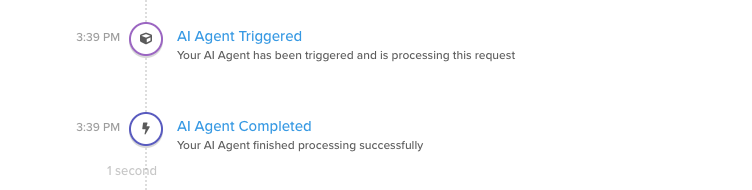
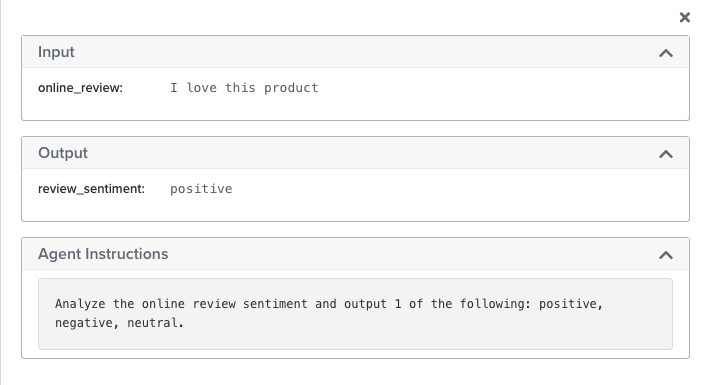
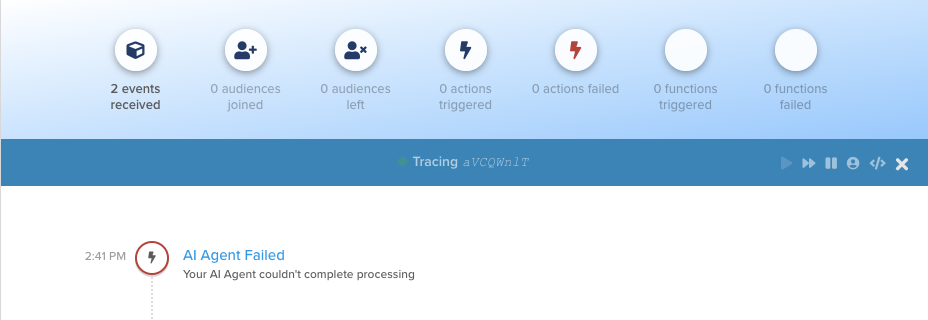
Use Trace to confirm the AI enrichment is running and producing the expected output. When an AI enrichment runs, Trace shows the following:
- Confirmation that the AI enrichment triggered.
- The attributes to evaluate, output event attributes, and AI instructions.
- A failure indicator if the AI enrichment did not complete processing.
This page was last updated: September 10, 2026