---
title: Manage visitor and visit attributes
description: This article describes how to manage visitor and visit attributes.
url: https://docs.tealium.com/server-side/attributes/manage-as-attributes/
---
Go to **Transform > Visitor/Visit Attributes** to view your visitor attributes.
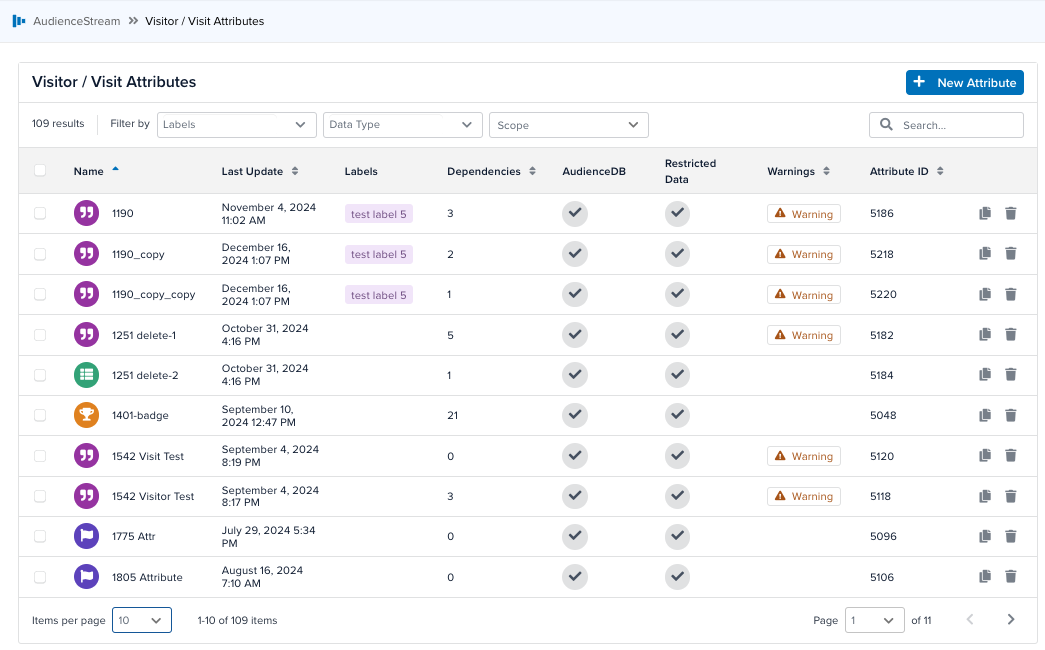
The table of attributes contains the following information:
* **Name**: The name of the attribute.
* **Last Update**: When the attribute was last updated. If the attribute has never been updated, the value in this column is blank.
* **Notes**: Any notes about the attribute.
* **Labels**: Labels assigned to the attribute.
* **Dependencies**: The number of items that depend on this attribute.
* **AudienceDB**: Whether the attribute is stored in AudienceDB.
* **Restricted Data**: Whether the attribute is marked as containing restricted data.
* **Warnings**: Any warnings about the attribute, such as an incorrect scope or a lack of enrichments for assigning a value to the attribute.
* **Attribute ID**: The attribute's ID.
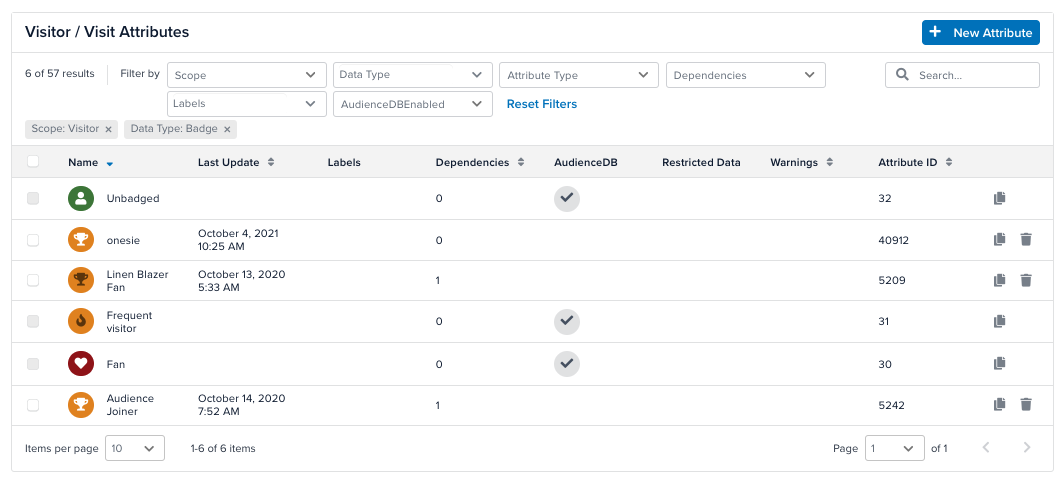
You can filter your view by clicking any of the available drop-down filters at the top of the table.
## View an attribute
Click any attribute in the table to view that attribute's details.
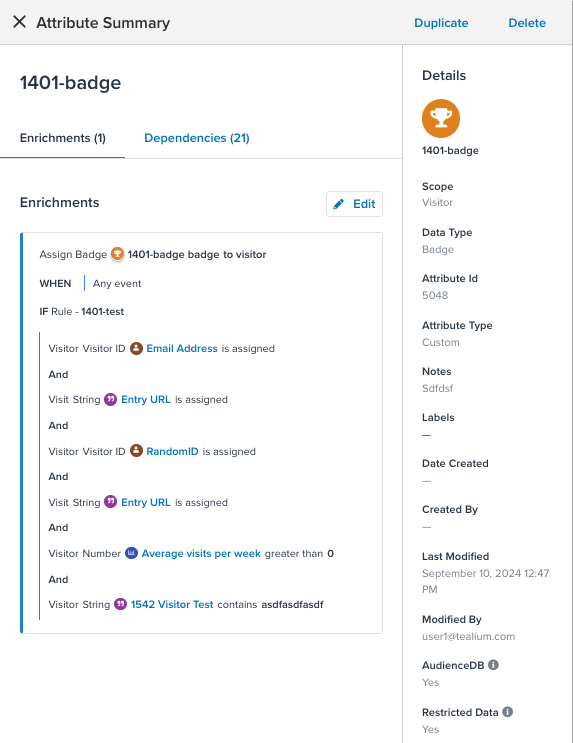
The attribute details page contains two tabs:
* **Enrichments**: Lists all the enrichments, and enrichment rules, for this attribute. Enrichments customize an attribute's value. For more about enrichments, see [about-enrichments](https://docs.tealium.com/about-enrichments/).
* **Dependencies**: Lists all items that are dependent on this attribute (for example: other attributes, audiences, segments, rules, connectors, data sources, and Predict models). You cannot delete an attribute if any dependencies exist for that attribute. To view a dependency’s details, click **Go To**.
## Create an attribute
The process of adding visit or visitor attributes is similar. The following steps show how to add a visit or visitor attribute:
1. Go to **Transform > Visitor/Visit Attributes**.
You can optionally use the filters on the left to narrow your view.
1. Click **+ Add Attribute**.
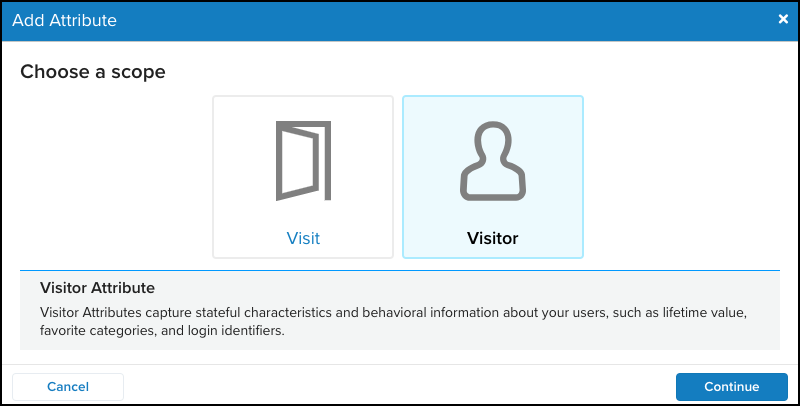
1. In the **Add Attribute** dialog, select **Visit** or **Visitor** for the attribute scope and click **Continue**.
1. Select a data type and click **Continue**. For more about data types, see [data-types](https://docs.tealium.com/data-types/).
1. (Required) In the **Title** field, enter a descriptive name. For visit and visitor attributes, you can use any ASCII character for **Title** other than double quotes.
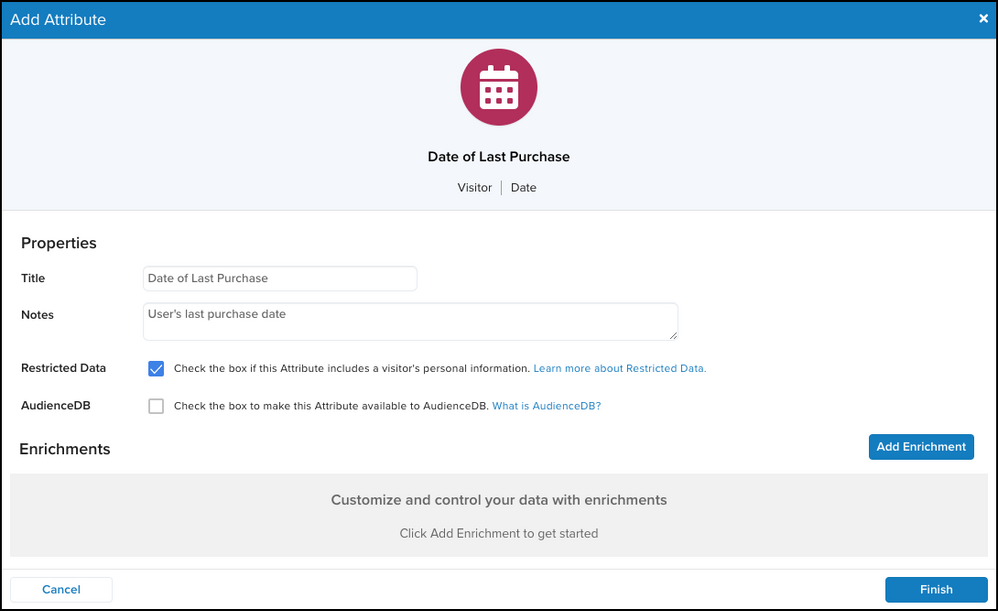
1. In the **Notes** field, enter helpful notes that describe the purpose and/or mechanics of the attribute.
1. (Optional) Select the **Restricted Data** checkbox if the visitor data includes PII data.
1. (Optional) Check the **AudienceDB** checkbox to include the attribute as a column in AudienceDB.
This step requires AudienceDB to be enabled in the profile.
1. Continue to the next section to [add an enrichment](https://docs.tealium.com/add-enrichment/) to the attribute.
## Edit an attribute
[Preloaded attributes](https://docs.tealium.com/preloaded-attributes/) cannot be modified, but you can duplicate them and modify the copy. The duplicate contains all of the enrichments and rules from the original.
Use the following steps to edit an attribute:
1. Click the attribute you want to edit and click **Edit**.
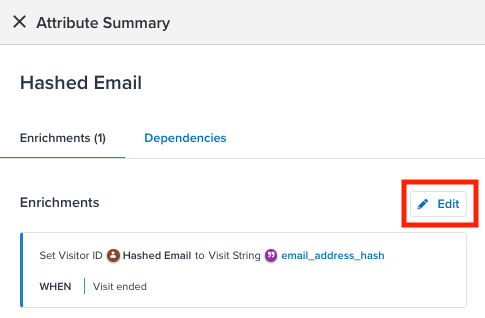
1. Make your changes and click **Save**.
1. Save and publish your profile to apply the changes.
### Bulk edit attributes
Use the following steps to edit label assignments, restricted data status, or inclusion in AudienceDB for an attribute:
1. Select the checkboxes next to the attributes you want to edit.
1. Under **Assign Labels**, or under **More actions** and **Mark as Restricted Data** and **Send to AudienceDB**, click the bulk action you want to do.
* If you select **Assign Labels**, select the labels to assign to the selected attributes, or deselect the labels to unassign from the attributes.
## Duplicate an attribute
Use the following steps to duplicate an attribute:
1. Click the attribute you want to duplicate and then click **Duplicate**.

1. Edit if needed and then click **Save**.
1. Save and publish your profile to apply the changes.
## Delete an attribute
Before deleting an attribute, review its dependencies and the potential impact across your configuration and external systems. Deleting an attribute is a permanent action that may cause data loss, integration failures, or reporting inconsistencies.
**General rules**
* You cannot delete an attribute if it is still referenced by any dependencies.
* You cannot recover deleted attributes or their data.
* You cannot delete [preloaded attributes](https://docs.tealium.com/preloaded-attributes/).
**Required steps before deleting**
1. Open the attribute details and review the **Dependencies** tab.
1. For each dependency (enrichments, rules, audiences, segments, connectors, data sources, Predict models), update or remove references to the attribute.
1. Check for any external systems that may use the attribute (CRM, marketing automation, CDW). Update or disable those references as needed.
1. Once all dependencies are cleared, return to the attribute and delete it.
### Impact by area
**Connectors**
The attribute is removed from connector data mappings. This can break integrations or cause incomplete data to be sent to external systems.
**APIs and exports**
Any API endpoints, exports, or scheduled jobs that reference the deleted attribute fail or return incomplete data. For example, the deleted attribute is no longer collected by the Moments API endpoint. However, data related to the attribute remains in Moments API engine caches until it expires (after a new visit or the 30-day retention window ends) or it is explicitly purged.
**DataAccess**
The attribute is removed from EventStore, AudienceStore, EventDB, and AudienceDB. External systems may still reference the attribute even if it appears to have no dependencies in the UI. This can lead to unexpected data loss or integration failures.
**Visitor profiles**
The attribute data is deleted from a visitor profile the next time that visitor triggers an event. Until then, the data remains in their profile.
Deleting a visitor ID attribute does not undo previous stitching for that ID. If you no longer use a visitor ID, disable its enrichments and remove any file import mappings. This keeps the ID available for lookup, but no new values are set and no new stitching with the visitor ID will happen.
**Reporting and analytics**
Historical reports for connectors, DataAccess, data collection, functions, and insights may show gaps or inconsistencies if deleted attributes were used in calculations or filters.
**Visitor Lookup and Trace**
The attribute no longer appears in visitor lookup tools or traces after the visitor's next event. You cannot view or debug historical data related to that attribute.
### Delete a single attribute
Use the following steps to delete an attribute:
1. Click the attribute you want to delete.
1. Click **Delete**.

If the attribute you attempt to delete is in use by a rule, an enrichment, or an audience, the following message is displayed:
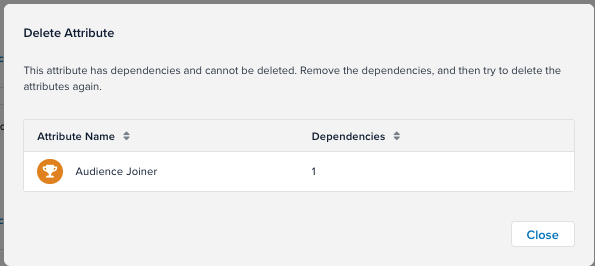
To delete the attribute, remove it from any listed dependencies (other attributes, audiences, segments, rules, connectors, data sources, and Predict models) and try again.
1. In the **Delete Attribute** dialog, click **Delete** to delete the attribute.
1. Save and publish your profile to apply the changes.
### Bulk delete attributes
Use the following steps to delete attributes:
1. Select the checkboxes next to the attributes you want to delete.
1. Click **Delete**.
If one or more attributes you attempt to delete are currently in use by a rule, an enrichment, or an audience, the following message is displayed:
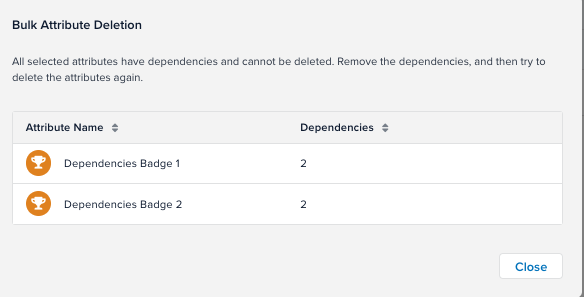
To delete attributes with dependencies, remove them from any listed dependencies and try again.
1. To delete the attributes without dependencies, click **Confirm**.
1. Save and publish your profile to apply the changes.