Discover new audience opportunities using AI-generated recommendations.
This feature is only available to select customers. If you are interested in trying this feature, contact support.
AI audience recommendations analyzes your business context and the attributes and visitor data in your profile to suggest audiences you may want to create. It applies an industry-specific knowledge base to generate each recommendation.
An audience recommendation includes suggested conditions, an explanation of why the audience was recommended, next best actions, and an estimated audience size. Create an audience from a recommendation or reject recommendations from the current results.
Attributes marked as Restricted Data are never sent to the AI.
Requirements
This feature requires the following:
- An active AudienceStream profile.
- An account admin must enable AI Recommendations at the account level and profile level in AI Settings. For more information, see Tealium AI features.
To open AI Settings, click your profile icon and select AI Settings.
When enabled, the AI Recommendations tab appears on the Audiences page (Activate > Audiences). From the tab, you can generate recommendations, review AI-suggested audiences with their conditions and reasoning, and create new audiences directly from any suggestion. The tab is empty until you generate recommendations for the first time.
Recommendation settings
Recommendation settings help the AI generate more relevant results for your profile. These settings are optional, but we recommend configuring them before generating recommendations for the first time.
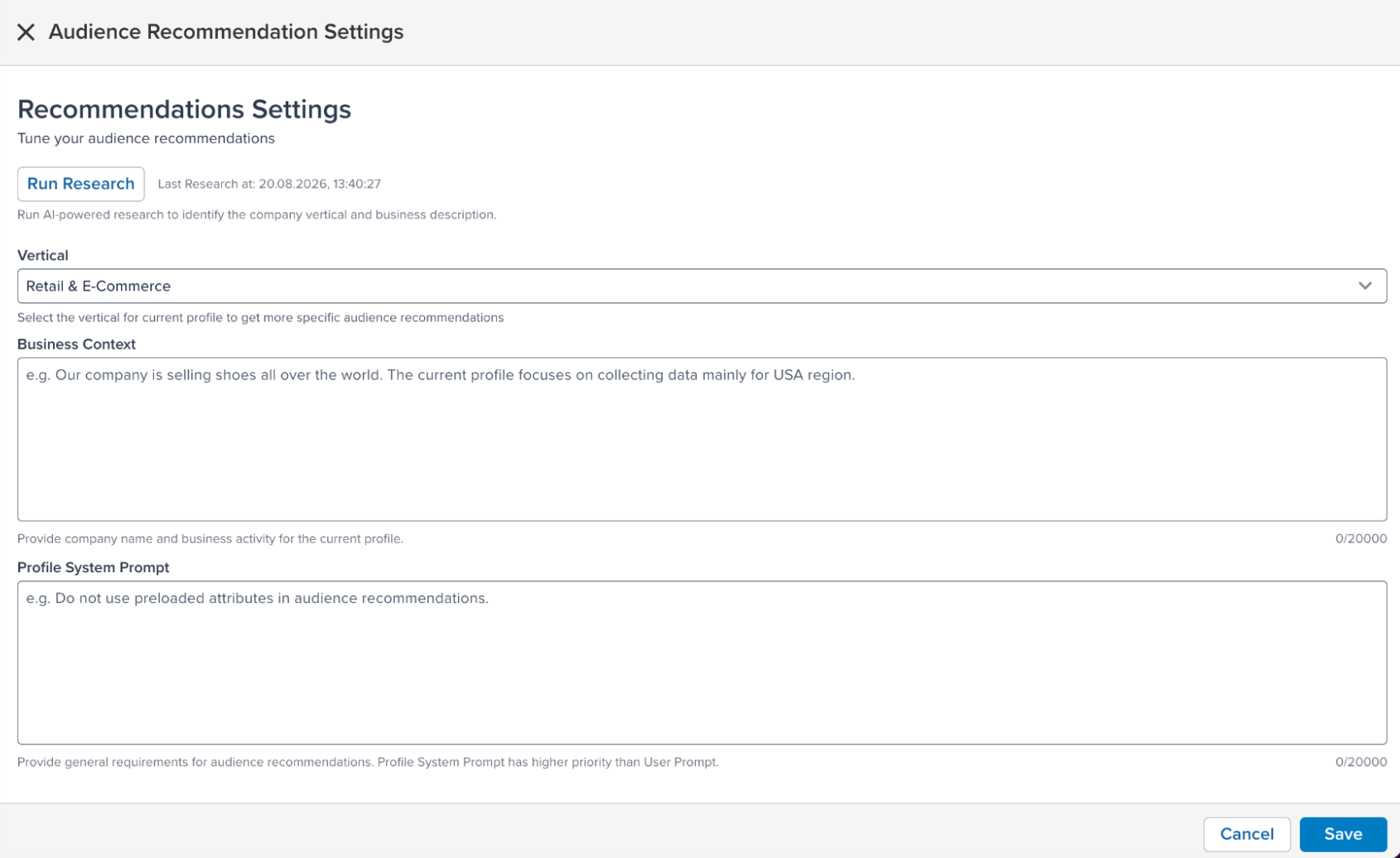
To open recommendation settings, click the settings icon on the AI Recommendations tab. The following settings are available:
- Vertical: Your company’s industry. The AI uses the vertical to apply industry-specific marketing patterns when generating recommendations. AI recommendations already support major industry verticals, and Tealium continues to add more.
- Business Context: A description of your company and what the current profile covers. Include your company name, what you sell, and which market or region the profile focuses on.
- Profile System Prompt: Standing instructions for how the AI generates recommendations for this profile. The Profile System Prompt applies to every refresh and takes priority over any per-refresh goal you set in the confirmation dialog.
Click Save to apply your changes. No publish is required.
Use the research agent
The research agent automatically populates the Vertical and Business Context fields by analyzing publicly available information about your company. The agent uses your supplied company information plus public web research to generate business context to make the audience recommendations more relevant.
To use it, click Run Research, enter your company name and website URL in the confirmation dialog, then click Run Research to confirm.
While research is in progress, the Vertical and Business Context fields are read-only. When the research completes, both fields are populated and saved automatically. You can edit either field manually after the research completes.
The timestamp of the last completed research appears next to the Run Research button.
Generate recommendations
The AI generates recommendations on demand with no scheduled refresh. Generating recommendations replaces the current list entirely. Create any audiences you want before refreshing.
- Go to Activate > Audiences and click the AI Recommendations tab.
- Click Refresh Now.
- In the confirmation dialog, optionally enter a goal for this refresh in the User Prompt field. The goal applies to this refresh only. The dialog pre-fills your previous goal when you reopen it.
- Click Run Refresh to confirm.
Generating recommendations may take a few minutes. The tab is read-only while generating. When complete, the updated list appears with the result count and a refreshed timestamp. Profiles with more attributes and visitor history produce higher-quality recommendations.
Refreshing with the same underlying profile data may produce similar results.
Refresh quotas
Each profile has a monthly refresh limit. The default is 15 refreshes per month, but the limit may vary by account.
When three or fewer refreshes remain, a warning appears in the confirmation dialog. When 0 refreshes remain, the Run Refresh button is disabled. To request additional refreshes, contact support.
Review recommendations
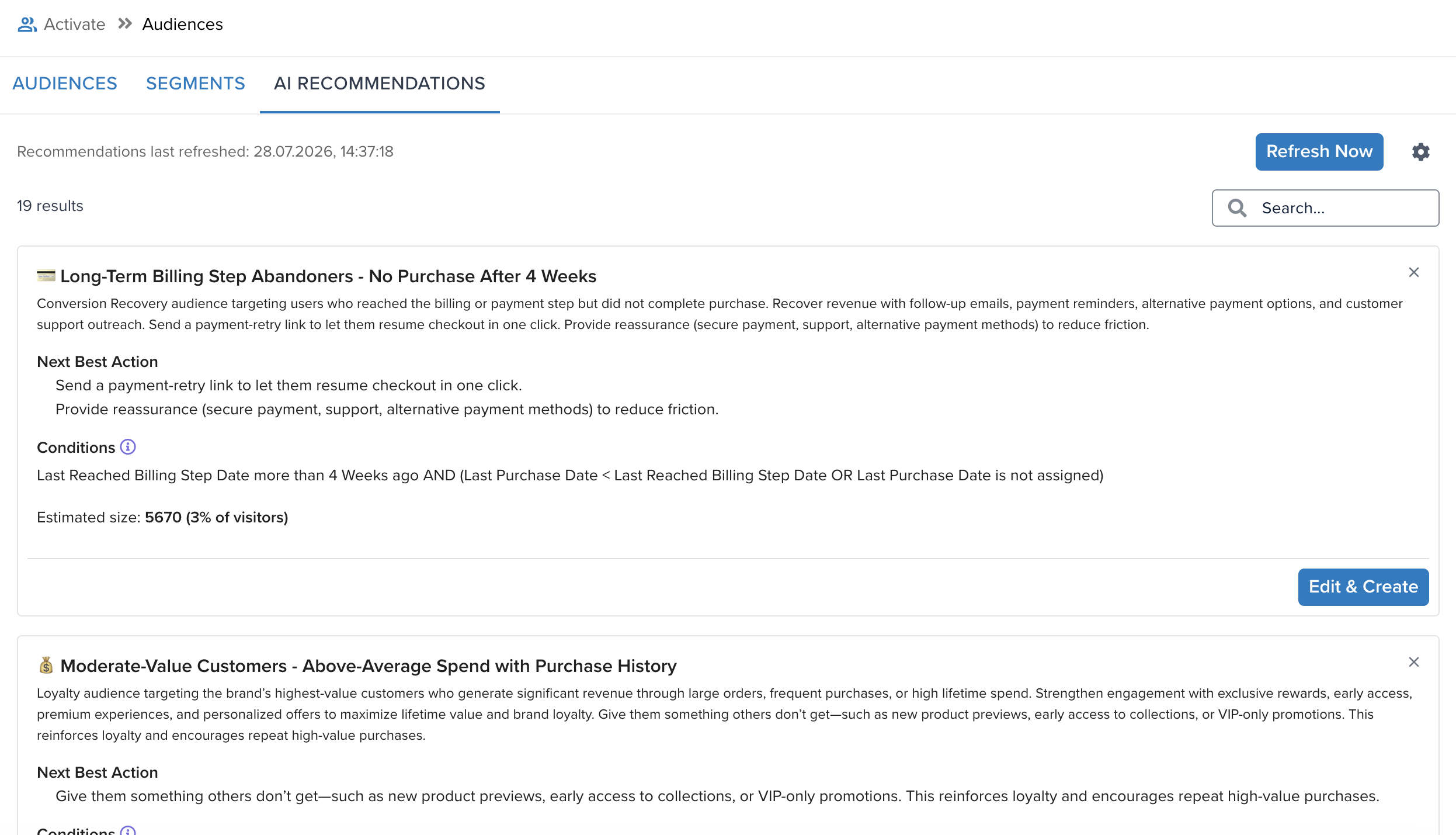
After generating recommendations, the AI Recommendations tab shows all suggested audiences for the profile. Each recommendation card includes:
- The audience name and a description of its marketing purpose
- Suggested next best actions
- The conditions that define the audience
- An estimated audience size
Click the info icon next to Conditions to see an AI-generated explanation for each attribute used. Use the search field to filter recommendations by keyword.
A warning icon appears in the tab when profile changes have been published since the last refresh, indicating that recommendations may not reflect the current profile state.
Create an audience from a recommendation
- On the AI Recommendations tab, find the recommendation you want to use.
- Click Edit & Create.
- In the New Audience slideout, review the pre-filled conditions. Modify them as needed.
- Click Done.
The new audience appears in the Audiences tab labeled AI Recommended. The recommendation is removed from the AI Recommendations tab.
Save and publish to activate the audience.
Reject a recommendation
Rejecting a recommendation removes it from the current results. If you regenerate recommendations, rejected recommendations may appear again.
- On the AI Recommendations tab, find the recommendation you want to remove.
- Click the X icon in the upper-right corner of the recommendation card.
- In the confirmation dialog, click Reject.
This page was last updated: August 26, 2026