---
title: Webhook Krux (Deprecated)
url: https://docs.tealium.com/server-side/connectors/webhook-connectors/vendor-examples/webhook-krux-deprecated/
---
The Krux Webhook is a deprecated feature and has been replaced with the [Salesforce Audience Studio Connector](https://docs.tealium.com/salesforce-audience-studio-connector/).
----
Prerequisite:
* [Webhook Send Custom Action](https://docs.tealium.com/webhook-connector/)
This article will guide you on how to send audience data to Krux using their Mobile HTTP API through an AudienceStream Webhook Connector.
## Overview
This solution combines the following components from iQ and Customer Data Hub:
* Krux tag in iQ
* Persist Data Value extension in iQ
* Visitor Attribute in Customer Data Hub
* Webhook in Customer Data Hub
## iQ Tag Management
### Add the Krux Control Tag
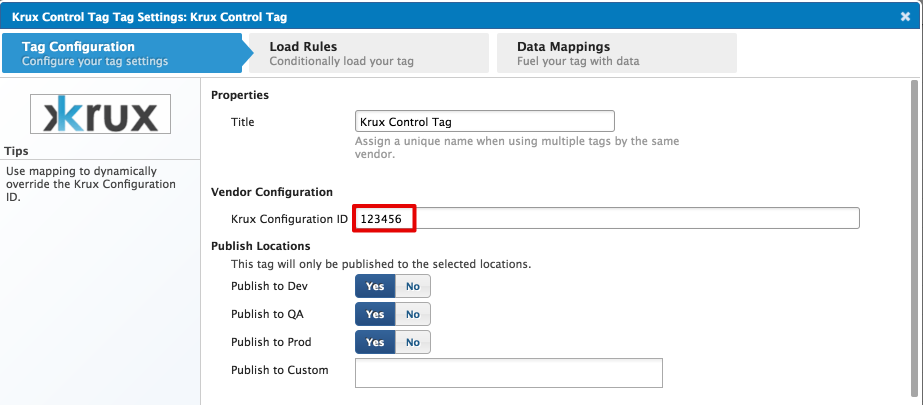
Add the Krux Control tag from the iQ Tag Management tag marketplace. Configure the tag with the Krux Configuration ID provided to you by Krux.
### Set Cookie with Krux User ID
To match the user you are sending through the Webhook connector to a Krux user, you need to extract the Krux User ID from the Krux object populated by the Krux Control Tag. The Krux object's naming convention will vary per client. The code to extract the user ID will be similar to `Krux.ns.CLIENT('get', 'user')`, where CLIENT is your specific Krux client name. You can either ask your Krux representative for the naming convention of this object or examine the object in [Chrome DevTools](https://developers.google.com/web/tools/chrome-devtools/) Console by typing `Krux.ns` and examining the resulting object.
Once you obtain your Krux client name, follow these steps to save the Krux User ID to a cookie:
1. Add two variables in Tealium iQ Tag Management [Data Layer](https://docs.tealium.com/data-layer-variables/).
* `krux_id` as type [UDO Variable](https://docs.tealium.com/data-layer-variables/)
* `utag_main_krux_id` as type [First Party Cookie](https://docs.tealium.com/data-layer-variables/)
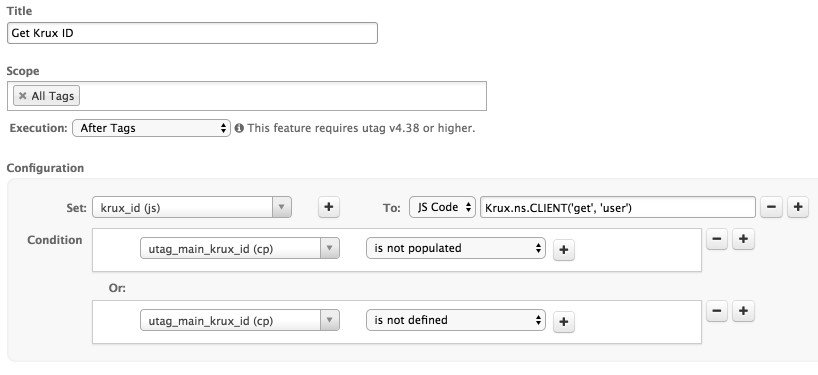
1. Add a [Set Data Values Extension](https://docs.tealium.com/set-data-values-extension/) to extract the Krux object User ID into `krux_id`. Set the **Execution** of this extension to "After Tags". This gives the Krux Control Tag a chance to create the Krux object.
Set the conditions for this extension to only set the variable if the `utag_main_krux_id` cookie has not yet been set.
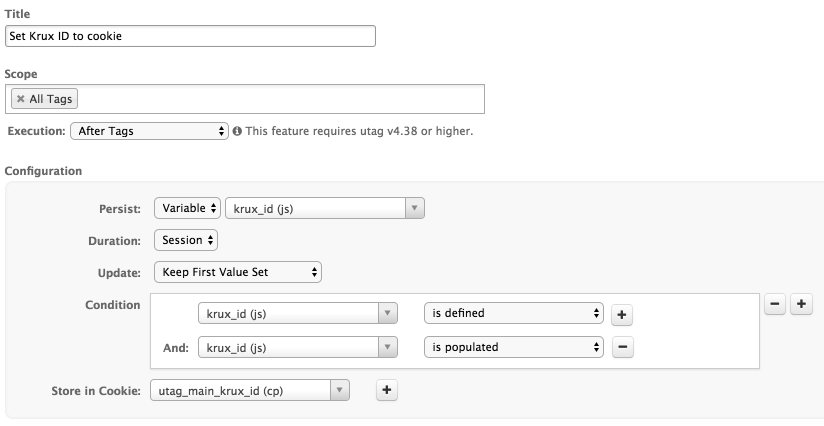
1. Add a [Persist Data Value Extension](https://docs.tealium.com/persist-data-value-extension/) to store the `krux_id` from the extension above in a cookie.
Set the conditions to only store this cookie if the `krux_id` variable is populated and keep the first value set.
## Customer Data Hub
### Set Visitor Attribute with Krux User ID
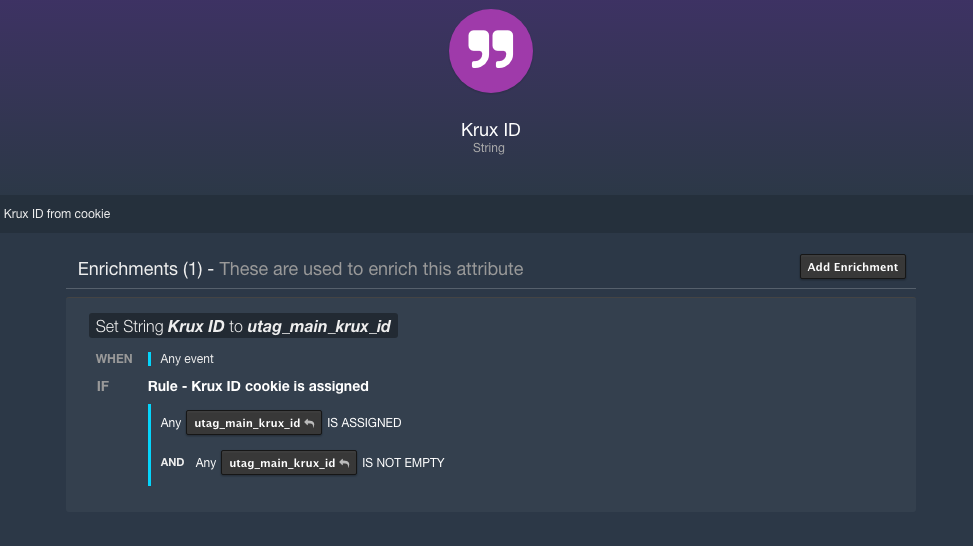
Create a Visitor-scoped String Attribute named "Krux ID". Populate this attribute from the `utag_main_krux_id` cookie.
### Add Krux HTTP API Webhook
This section will define the parameters needed to create the Krux connector using the [Webhook Send Custom Request Action]().
Vendor documentation: [Krux Mobile HTTP API](https://konsole.zendesk.com/hc/en-us/articles/219493027-Mobile-HTTP-API)
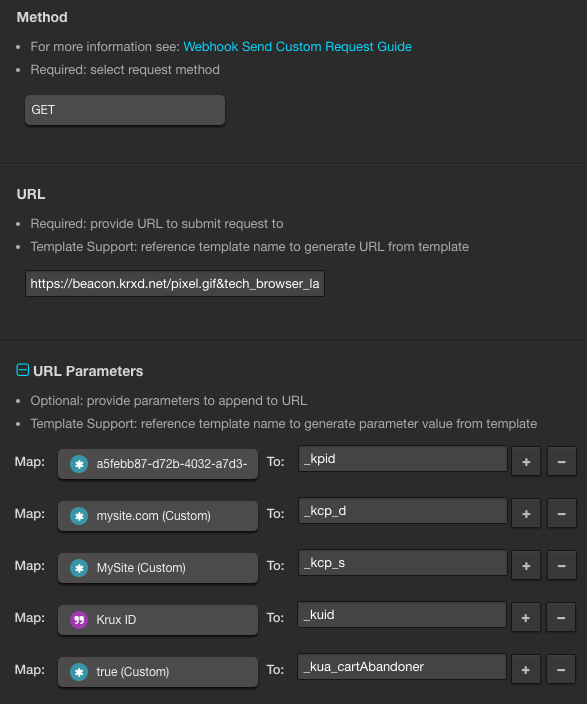
* **Method**: GET
* **URL**: `https://beacon.krxd.net/pixel.gif&tech_browser_lang=en`
* **URL Parameters**:
|Mapped Attribute| Krux Parameter| Description|
|---| ---| ---|
|<Custom Value>| _kpid| Publisher UUID (provided by Krux)|
|<Custom Value>| _kcp_d| Domain (provided by Krux)|
|<Custom Value>| _kcp_s| Site (provided by Krux)|
|Krux ID| _kuid| Krux ID Visitor Attribute|
|<Custom Value>| _kua_<krux_user attribute_name>| Custom user attribute set in Krux. For example: _kua_cartAbandoner) |