---
title: Configure AudienceDB and EventDB
description: This article describes how to configure the attributes to be stored in EventDB and AudienceDB.
url: https://docs.tealium.com/server-side/data-storage/audiencedb-eventdb/configure/
---
## Requirements
* To send data to EventDB, event feeds must be configured and EventStore must be enabled.
* To send data to AudienceDB, AudienceStore must be enabled.
To have EventDB and AudienceDB enabled for your account and profile, contact your account manager.
## How it works
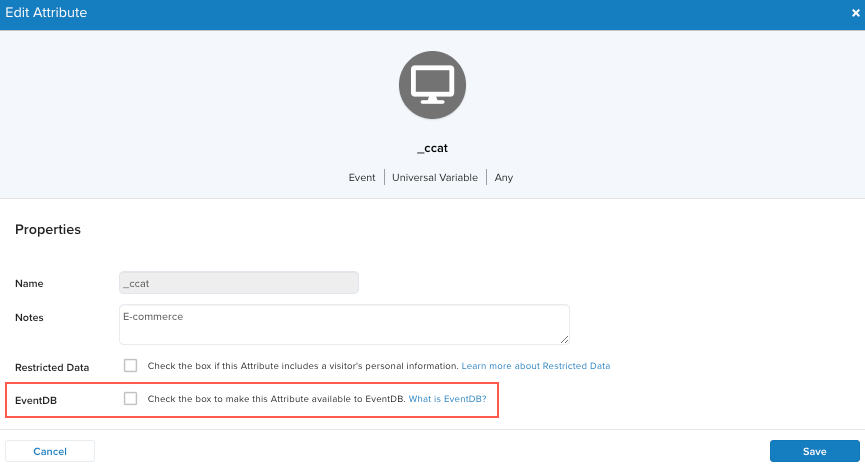
Data storage is controlled at the attribute level. When you create event, visitor, or visit attributes, there is an option you can select to send the attribute to EventDB or AudienceDB.
You can also configure the attributes sent to EventDB and AudienceDB on the **EventDB/AudienceDB** screen, shown in the following figure:
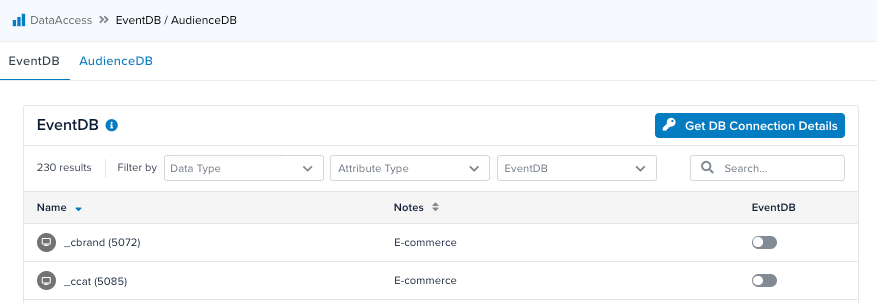
All preloaded attributes (attributes defined by Tealium and available for all accounts) are are selected for EventDB and AudienceDB by default. This behavior cannot be changed.
### Visit and visitor attributes
All audiences in your account are sent to AudienceDB by default. You can select the audiences and attributes that are sent to AudienceDB on the **AudienceDB** tab on the **EventDB/AudienceDB** screen. For more information, see [Configure AudienceDB attributes](#configure-audiencedb-attributes).
### Event attributes
DOM attributes (for example, URL, domain, referrer, and user agent) are always sent and cannot be excluded from EventDB. In addition, Tealium event attributes, such as `tealium_account`, `tealium_profile`, `tealium_event` are always sent and cannot be excluded. Other attributes can be selected, or deselected, on the **EventDB** tab on the **EventDB/AudienceDB** screen. For more information, see [Configure EventDB attributes](#configure-eventdb-attributes).
We recommend that you only enable EventDB for the specific event feeds that you need because the amount of data can become very large depending on your volume. For additional information, see [Live Events and Feeds](https://docs.tealium.com/about-event-feeds/).
#### Event data from the Tealium Collect tag
For feeds collecting data from the Tealium Collect tag, additional Boolean attributes are included for each tag that fires during an event. For example, if you have Google Analytics in your Tealium iQ Tag Management account along with the Tealium Collect tag, your event feeds include a Boolean attribute named `Google Analytics` indicating whether or not it fired for each event.
For more information on attributes, see [Using Attributes](https://docs.tealium.com/about-attributes/).
## Configure AudienceDB attributes
By default, all audiences are selected for AudienceDB. You can deselect audiences to remove them from AudienceDB. You can also select or deselect visit and visitor attributes as needed.
Use the following steps to configure the attributes and audiences that are stored in AudienceDB:
1. Go to **DataAccess** > **EventDB/AudienceDB**.
1. Click the **AudienceDB** tab.
The list of audiences and attributes available for your account is displayed.
You can filter the list of attributes by **Data Type**, **Attribute Type** (Preloaded or Custom), **AudienceDB** (Enabled or Disabled), or **Type** (Audience or Attribute).
1. Select or deselect attributes to add or remove them from AudienceDB.
Attributes marked as Restricted Data are always sent to AudienceDB. This behavior cannot be changed.
1. Save and publish.
## Configure EventDB attributes
By default, your event feeds contain all of the event attributes defined in your account.
Follow these steps to configure the attributes that are stored in EventDB:
1. Go to **DataAccess** > **EventDB/AudienceDB**.
The list of event attributes available for your account is displayed. You can filter the list of attributes by **Data Type**, **Attribute Type** (Preloaded or Custom), **EventDB** (Enabled or Disabled).
Attributes marked as Restricted Data are excluded from event feeds by default. This can be changed in the settings for each feed.
1. Select or deselect attributes to add or remove them from EventDB.
1. Save and Publish.
After you configure EventDB attributes and publish the changes, it may take up to one hour for data to begin populating your database.
## Changes to stored attributes
If you remove an attribute that was previously added for EventDB or AudienceDB storage, and publish the changes, that attribute will be removed from EventDB or AudienceDB.
If you remove an attribute, and subsequently add it again and publish the changes, data in EventDB or AudienceDB that was removed cannot be restored.