---
title: View files in AudienceStore and EventStore
description: This article provides information on how to view files in AudienceStore and EventStore.
url: https://docs.tealium.com/server-side/data-storage/audiencestore-eventstore/dataaccess-view-files/
---
## View and download files in the console
You can browse the files associated with each audience or event feed using the DataAccess Console. This is an easy way to verify that data is flowing through the system and a quick way to download a sample file to get familiar with the format.
The list of files will be empty immediately after configuring EventStore or AudienceStore. Use the following steps to access files in the DataAccess Console:
1. In the sidebar, go to **Store > EventStore** or **Store > AudienceStore.**
1. Select the number of weeks of data to display (1 to 4 weeks, the default is 1 week).
1. Select the name of an Event Feed or an AudienceStore Action.
For EventStore, the list only displays feeds that are enabled for EventStore. For AudienceStore, files can be JSON or CSV, depending on the configured action.
1. Click **Reload**.
* For EventStore, a list a files is displayed. Click a date to see file details.
* For AudienceStore, files are grouped by date (there may be multiple files for a date) and are listed from earliest creation date to latest. Click the date to see the list of files for that date.
1. To download a file, click **Download**.
The `.gzip` file is saved to your computer. Use a decompression utility to open the file and extract the content.
Files cannot be deleted from EventStore. When an event, visit, or visitor record reaches its expiration date, that record is automatically purged. Even if a visitor record is updated, the expiration date remains the same, and the record will still be purged. The expiration time is determined by the EventStore retention time. The default retention time is 390 days (13 months). For more information, see [Server-Side Account Settings]().
## Use third-party tools to view files
You can also access files using third-party tools such as an FTP client or the Amazon S3 command line interface. To allow these tools access to your files, you need the Amazon S3 access key for your S3 bucket.
### Get an Amazon S3 access key
To get the Amazon S3 access key:
1. In the sidebar, go to **Store > EventStore** or **Store > AudienceStore.**
1. Click **Get Amazon Access Key**. The following fields are displayed:
* Access Key ID
* Secret Access Key
* Path
For security purposes, the secret access key is only displayed once, so it's important to store it securely for later use.
If you lose the access key, you can generate a new one. However, generating a new key invalidates all previous connections that use the previous access key.
### FTP clients with Amazon S3 support
We recommend using a desktop application for a more convenient method of downloading a large number of files.
The following client applications can be used with Amazon S3:
* Windows: Cyberduck, CrossFTP
* Mac: Cyberduck, CrossFTP, Transmit
The primary benefit of using a GUI-based FTP client with S3 support is that you can point-and-click on individual files and folders to download from Amazon S3.
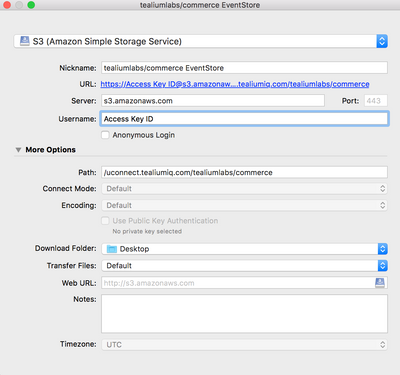
The following screen capture of Cyberduck shows how to configure the connection. Note that the configuration wizard does not have a field for the Secret Access Key. You are prompted for the Secret Access Key upon a connection attempt. The Secret Access Key is saved for future use.
## View files using the AWS command line interface
For more technical users, the AWS Command Line Interface (CLI) can be installed to give you full control over accessing your data files. The primary benefit of using a Amazon CLI is the ability to customize for your specific needs, such as syncing and automating the file retrieval from Amazon S3.
The following are a few of the uses for the Amazon CLI:
* Initial bulk download of all historical log files
* Schedule hourly incremental download to grab only the newest generated log files
* Synchronize a local folder on your desktop or server to a remote folder on S3 so that they contain exactly the same log file content
* Download files before and/or after a certain LastModified date
To install the Amazon CLI, refer to the following Amazon instructions: [Installing, updating, and uninstalling the AWS CLI](http://docs.aws.amazon.com/cli/latest/userguide/installing.html)
When you call `aws configure`, you are prompted for your Access Key and Access Key ID (you can leave Region Name and Output Format blank).
After you configure the CLI, you can make queries using the `s3` method. The `s3` method is used in the following CLI examples.
### List objects in S3
The `list-objects` method lists objects in your S3 directory. This is needed to get the key for each object to download individual files.
#### List all objects in the root folder:
```
aws s3 ls s3://dataaccess-.tealiumiq.com///
```
#### List all event feeds
```
aws s3 ls s3://dataaccess-.tealiumiq.com///events/
```
#### List all objects in a specific events folder
```
aws s3 ls s3://dataaccess-.tealiumiq.com///events//
```
#### List all audiences
```
aws s3 ls s3://dataaccess-eu-west-1.tealiumiq.com///audiences/
```
#### List all objects in a specific audiences folder
```
aws s3 ls s3://dataaccess-.tealiumiq.com////
```
#### Get a single events object
The `get-object` method downloads one specific remote key to a local location on your desktop or server.
```
aws s3 cp s3://dataaccess-.tealiumiq.com///events/{feed-id}/{filename}.gz ./
```
#### Get a single audiences object
The `get-object` method downloads one specific remote key to a local location on your desktop or server.
```
aws s3 cp s3://dataaccess-.tealiumiq.com///audiences/{action-id}/{filename}.gz ./
```
### Synchronize local and remote folders
The `sync` method takes a remote folder on Amazon S3 and synchronizes it with a local folder on your desktop or server. The following example synchronizes a specific remote EventStream or AudienceStream folder to a local folder on the desktop.
The `--dryrun` argument shows you what files would actually sync, without actually doing the download. To execute the actual download, remove the `--dryrun` argument.
```
aws s3 sync s3://uconnect.tealiumiq.com/{account}/{profile}/audiences// \
~/Desktop/temp --dryrun
```
Lastly, you can also filter the `sync` method to only download files matching a specific filter. In this example, only the files that match the wildcard filter of "\*2015.06.14\*" are downloaded.
```
aws s3 sync s3://uconnect.tealiumiq.com/{account}/{profile}/events// \
~/Desktop/temp --exclude "*" --include "*2015.06.14*" --dryrun
```