This article explains event health and its components, and how it helps you monitor and improve data quality.
How it works
Event health is a set of features that monitor the quality of incoming events in real time. It checks whether your events:
- Follow a consistent structure (such as a defined schema).
- Include the attributes you have marked as required.
- Use the same implementation across websites, apps, and other data sources.
Event health includes the following components:
- Event specifications: Event specifications define the attributes required for event types and provide code examples for your installation. After you create event specifications, they validate the data quality of your events in real time using the live events chart.
- Event feeds: Event feeds group events that match specific conditions based on their attributes. Create custom event feeds in addition to the ones that event specifications automatically generate. Send feeds to connectors or to data storage solutions such as EventDB or EventStore.
- Live events: The live events chart displays data from all data sources and all event feeds in real time. Use the Data Sources and Event Feeds filters to narrow the display to a subset of traffic. If event specifications are active, the chart displays the quality of the incoming events based on attribute validation.
These components work together to show how healthy your data layer is.
Benefits
A healthy and well-structured data layer is essential for accurate, real-time data collection and quality. Treating data as your most valuable asset ensures your business decisions are based on trusted, actionable insights. Event health helps you achieve this by providing:
- Data trust: Validated events ensure analytics and customer data are reliable.
- Faster troubleshooting: Clear error signals reduce the time needed to find and fix issues.
- Consistent data quality: Downstream systems, such as connectors and data stores, receive uniform, high-quality data.
- Confident decision-making: Reliable data supports business decisions and customer experience improvements.
- Continuous improvement: Use validation results to refine tracking code and event specifications, increasing the percentage of valid events and keeping specifications aligned with actual event tracking.
Event examples
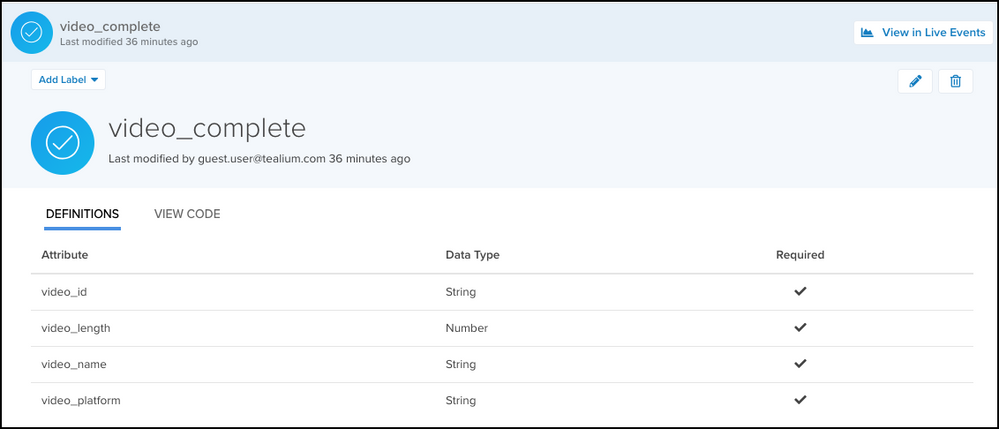
The following examples describe each validation status. They are based on the following event specification for a video_complete event:
The specification lists its tealium_event value (video_complete) and defines four required attributes: video_id, video_length, video_name, and video_platform. It also defines one optional string attribute: video_quality. Each attribute has a defined data type that incoming events must match.
Example of valid event
An event with the valid status has the following conditions:
- Has a
tealium_eventvalue that matches one of your event specifications. - Includes all required attributes with the correct data types.
- Follows the same structure across all platforms (such as web and mobile).
For example, consider the following event:
{
    "tealium_event": "video_complete",
    "video_id": "xWlEk2i9r5Q",
    "video_length": 300,
    "video_name": "How to track videos in Tealium",
    "video_platform": "YouTube",
    "video_quality": "1080p"
}
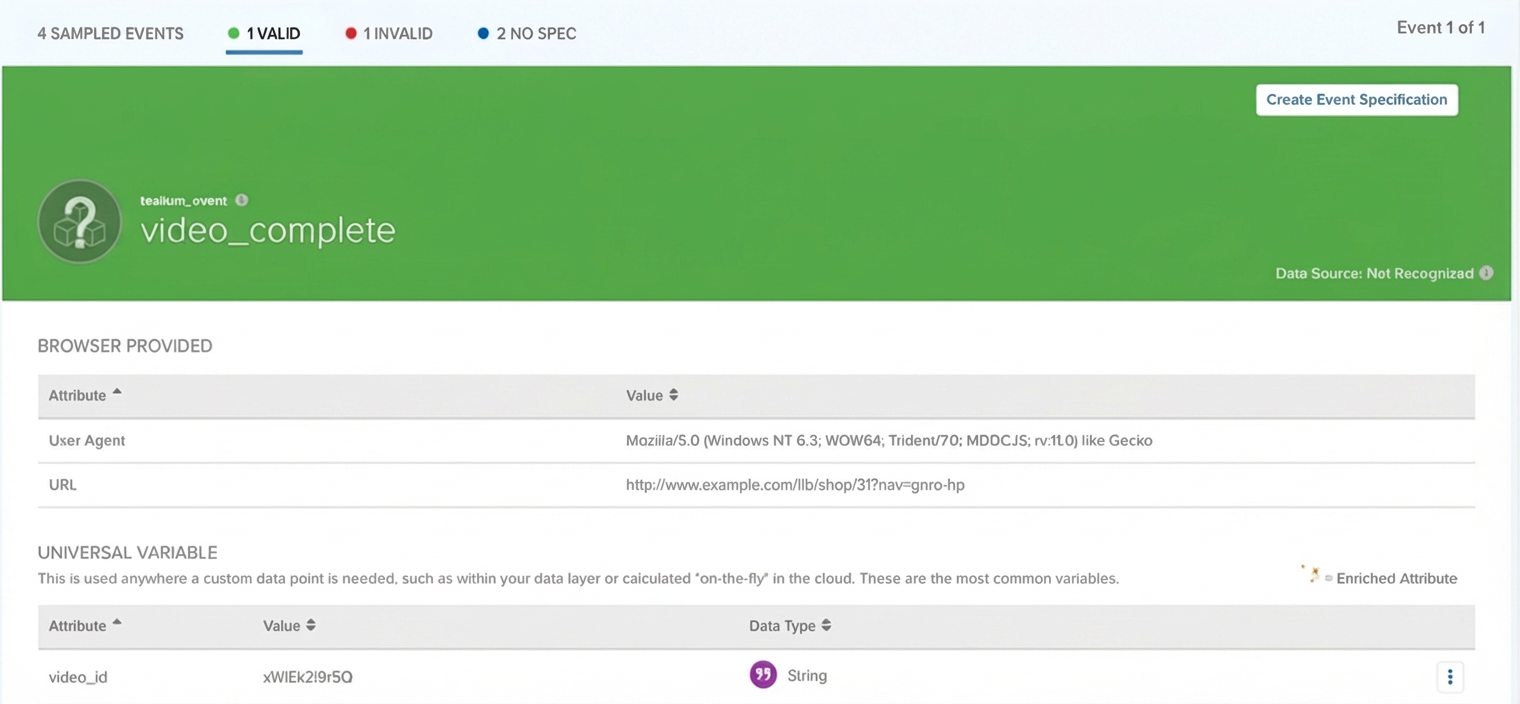
The tealium_event value is video_complete, so this event is checked against the video_complete specification. This event is marked as valid because it includes all required and optional attributes with the correct data types.
Example of invalid event
The following event is checked against the preceding video_complete specification, but one or more required attributes are missing or contain unexpected values.
{
    "tealium_event": "video_complete",
    "video_id": "xWlEk2i9r5Q",
    "video_length": "300 seconds",
    "video_platform": "YouTube"
}
This event is invalid because the video_length attribute is a string when the specification expects a number, and the required video_name attribute is missing.
The following event is also invalid. All required attributes are present and have the correct data types, but video_quality is an optional string attribute and the event sent a number:
{
    "tealium_event": "video_complete",
    "video_id": "xWlEk2i9r5Q",
    "video_length": 300,
    "video_name": "How to track videos in Tealium",
    "video_platform": "YouTube",
    "video_quality": 1080
}
Optional attributes that are present must match the data type defined in the specification. Optional attributes that are absent from the event are not evaluated.
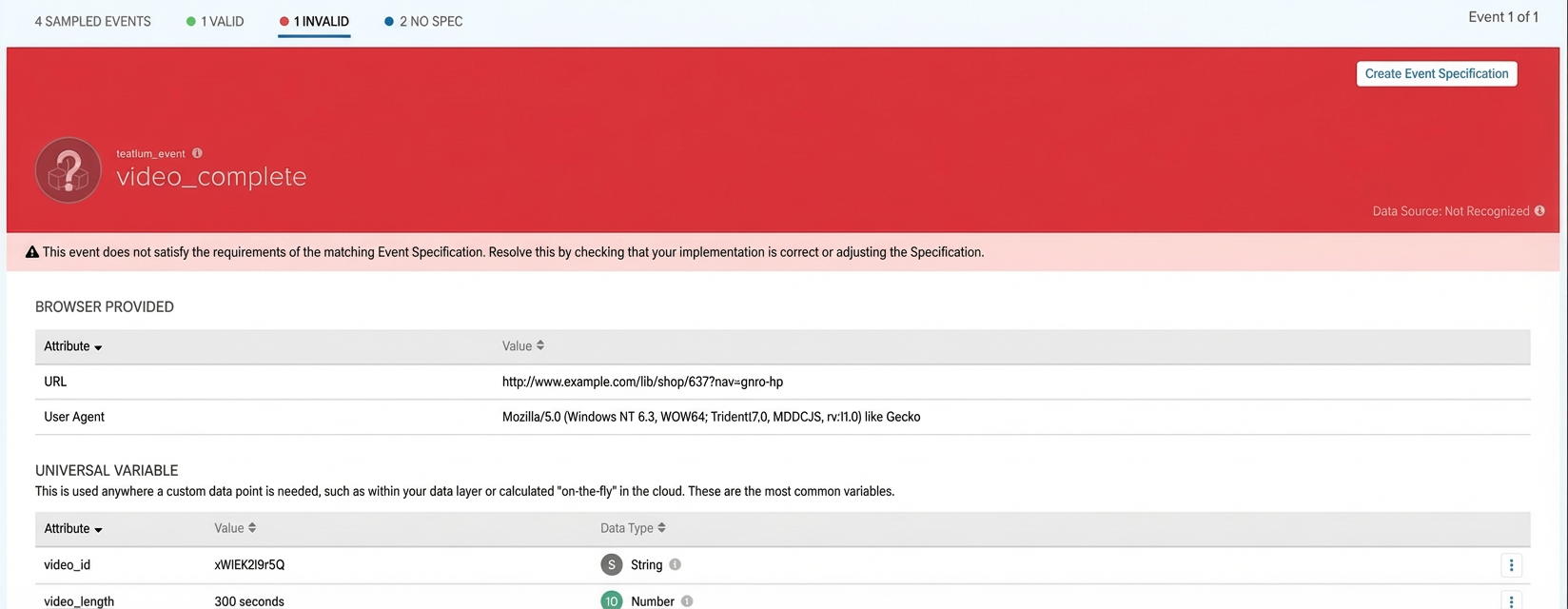
Identify errors in attributes, data types, and requirements to troubleshoot and resolve issues.
Examples of unknown events
An unknown event either has a tealium_event value that does not match any of your event specifications or is missing the tealium_event attribute.
The following event is missing a tealium_event value:
{
    "video_id": "xWlEk2i9r5Q",
    "video_length": 300,
    "video_name": "How to track videos in Tealium",
    "video_platform": "YouTube"
}
Because the event is missing the tealium_event attribute, it cannot be classified against any specification, and it is marked as unknown (No Spec).
Similarly, the following event is also marked as an unknown event because there is no event specification for video_search:
{
    "tealium_event": "video_search",
    "video_name": "How to track videos in Tealium",
    "video_platform": "YouTube"
}
Workflow
Use the following workflow to go from raw event data to monitored, validated events. The goals are to establish clear event specifications, validate live traffic against those specifications, and quickly address any data quality issues.
Step 1 - Discover events and unknown attributes
In the All Events feed on the live events chart, inspect the incoming traffic:

This view shows how your current implementation behaves in production, including attributes you may not have identified yet:

From this information, build a list of key events and their attributes to create event specifications.
For more information, see Live events.
Step 2 - Create event specifications from real-time events
From the Live Events or the Event Specifications page, create event specifications for your key events using the attributes you discovered. Start with the most important events in your customer journeys (such as sign_up, login, add_to_cart, purchase). For each attribute, set the data type and whether the attribute is required.
After you create an event specification, events with a matching tealium_event value are validated against that specification and marked as Valid, Invalid, or No Spec. Each event specification creates a corresponding event feed that you can enable for connectors, EventDB, or EventStore.
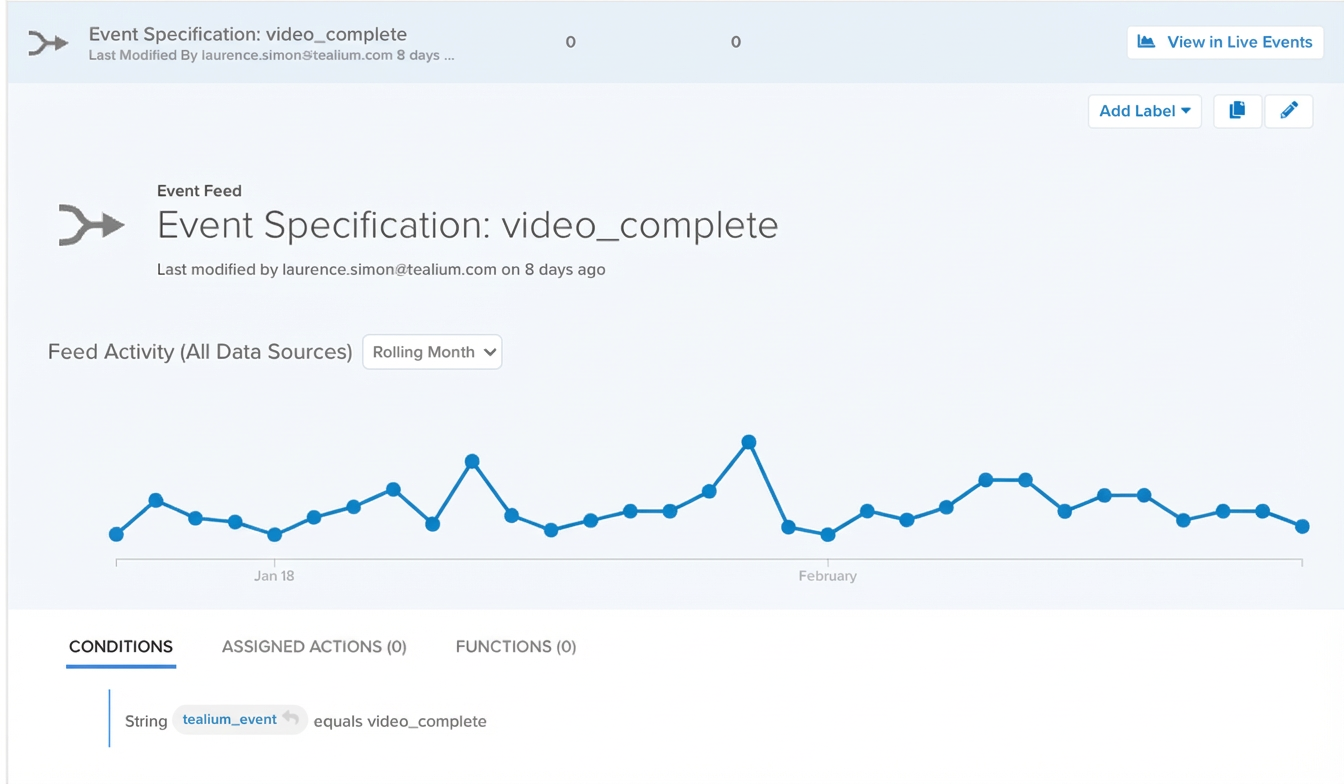
Your important events now have a documented contract that Tealium validates in real time. Matching events are available for downstream workflows through the linked feeds.
For more information, see Manage event specifications.
Step 3 - Monitor event health and triage issues
Use the live events chart and the event specification detail pages to monitor event health over time. Use Valid, Invalid, and No Spec filters to focus on specific health states. Use Data Sources and Event Feeds to narrow the chart to a subset of traffic.

Continuous monitoring helps you catch regressions quickly. For example, a new release that stops sending a required attribute or introduces a new, undefined event name.
From this view, you can see which events are healthy and which need attention, for each specification and across all traffic.
For more information, see Live events and About event specifications.
Use a trace ID to filter out all incoming events except for the ones you trigger. A trace ID is a temporary, unique identifier to insert into your event tracking code to manually test events. A trace ID is useful when validating a new or updated event specification, as you see only the events you trigger during a test.
For more information, see Use a trace ID.
Step 4 - Fix, iterate, and confirm recovery
Use the insights from monitoring to fix your data quality issues:
- For invalid events, inspect the event samples to see which attributes are missing or malformed. Required attributes that are missing or have the wrong data type, and optional attributes that are present with the wrong data type or that fail a data value rule, all produce invalid events. Update your implementation or adjust the specification as needed.
- For events with no specification, decide whether to create a specification or treat them as out-of-scope noise. Click any event in the live events chart and use it as the basis of a new event specification.
After you create or update event specifications, test the data again.
Event health improves when you use validation results to refine both your tracking code and your specifications. Over time, the percentage of valid events increases, and your specifications stay aligned with how your business tracks events.
For more information, see Live events and Manage event specifications.
Step 5 - Track success signals and coverage
Event health helps you move from detection to resolution.
In the live events chart, look for green bars (valid events), and a decreasing number of red (invalid) and blue (no-spec) segments for your key events.
On the Event Specifications overview and detail pages, monitor Total Volume, Valid Events, Invalid Events, and No Spec counts per event over your chosen time range.
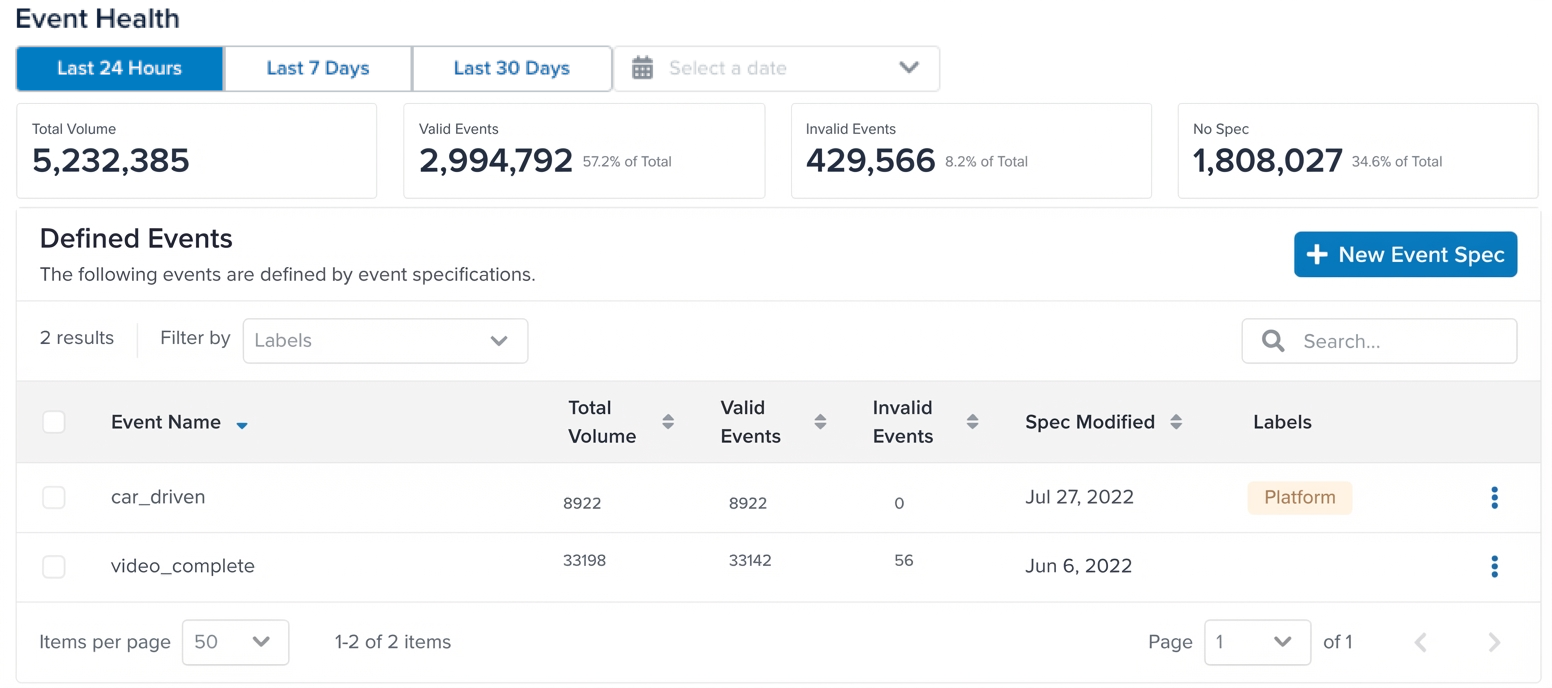
These metrics show whether your changes are improving data quality and where to focus next:
- Spikes in invalid events often indicate changes in your implementation, new attribute values, or optional attributes being sent with the wrong data type.
- Growth in events with no specification suggests new event types or missing specifications.
- Unknown attributes are flagged as having an unknown data type. Define them directly from the event details view so they can be used in event specifications and other features.
- If events are invalid because of missing or incorrect attributes, update your tracking code or tag management configuration so new events comply with the specification.
Next steps
This article explained event health and how it works. To start monitoring and improving your data quality, see the following topics:
- Manage event specifications: Create and manage event specifications to validate your events in real time.
- Event feeds: Learn about event feeds, which are automatically created from event specifications and can be sent to connectors and data storage solutions.
- Live events: Learn about the live events chart, which shows your incoming events in real time and reflects their health based on your event specifications.
This page was last updated: October 27, 2026