---
title: Event feeds
description: Event feeds are used to manage and inspect incoming data. This article shows how to manage event feeds.
url: https://docs.tealium.com/server-side/event-health/event-feeds/
---
## How it works
Event feeds are groups of events that match specific conditions based on their attributes. Feeds can be sent to connectors or a data storage solution such as EventDB or EventStore. The default event feed is named **All Events** and includes all incoming events, and it cannot be edited or deleted. However, additional feeds can be created to identify subsets of events based on their attributes.
## Create an event feed
To create an event feed:
1. Go to **Validate > Live Events**.
1. Click **+ Add Event Feed**.
The **Create Event Feed** dialog appears.
1. Set the **Title** and **Notes**.
1. (Optional) Add **Labels**.
1. Enable the feed for EventStore or EventDB.
This setting requires your account to be enabled for [DataAccess](https://docs.tealium.com/about-dataaccess/).
1. Set the conditions for the feed.
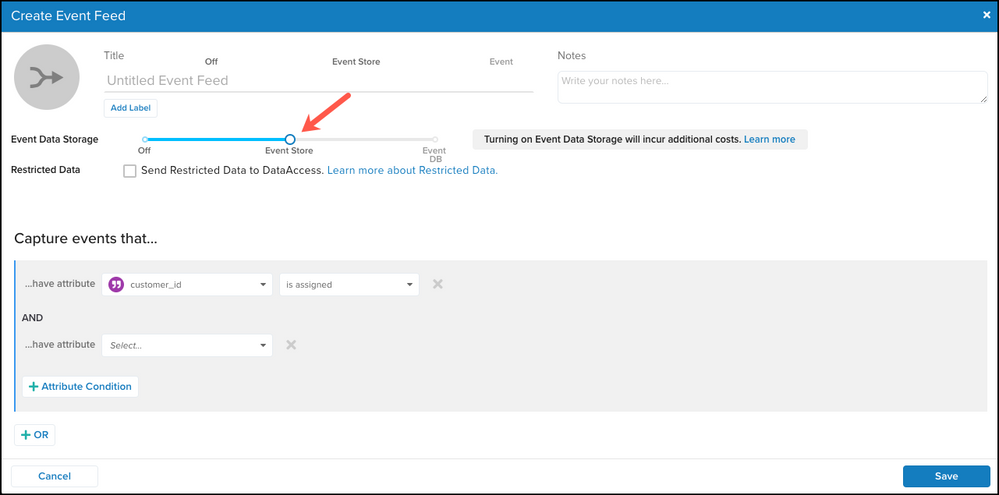
1. If you want the feed to contain restricted data, select **Send Restricted Data to DataAccess**. For more information, see [About Restricted Data](https://docs.tealium.com/about-restricted-data/)
Restricted data settings do not apply to connectors. Attributes marked as restricted data are always included, whether you are sending them through mappings or as part of the visitor profile.
1. Click **Save**.
1. Save and publish your account.
## View event feed details
By default, event feeds are listed in alphabetical order with **All Events** listed at the top. The list displays the following information:

* **Total Volume**: The total number of events detected from all data sources over the last 30 days.
* **Assigned Actions**: The number of connector actions linked to the feed.
* **EventStore**: Indicates if the feed is enabled for EventStore.
* **EventDB**: Indicates if the feed is enabled for EventDB.
From the list of event feeds, click a feed to view the details:
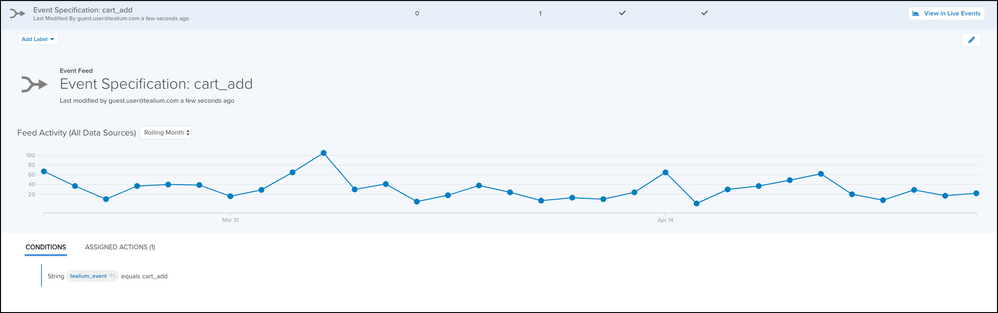
The details display the following:
* **Feed Activity Chart**: The number of events detected from all data sources over the selected time range.
* **Conditions**: The logic used to identify events in the feed.
* **Assigned Actions**: The connector actions linked to the feed.
Feeds linked to an event specification cannot be deleted and their names cannot be changed.