---
title: Test functions
description: This article provides information on testing functions and obtaining data for test payloads.
url: https://docs.tealium.com/server-side/functions/manage-functions/test-functions/
---
Use the **Test** tab in the code editor to test functions. The **Test** tab shows a sample event payload for the function, which you can modify as needed. You can get test data from your website and save it to use as a test payload. When you run a function in the **Test** tab, the test payload is sent to the function.
## Test a function
Follow these steps to test a function:
1. In the code editor, click the **Test** tab. Modify the test payload as needed.
1. To load a saved test payload, click **Load Saved Payload** and select a test payload from the list.
1. To run the function, click **Run Test**.
The execution result is shown below **Test Input**. Execution **Output** and **Test Logs** are shown below the result.
For data transformation functions, running a test also verifies that the trigger rule matches the test payload. If the rule and payload do not match, the function cannot be triggered and the following message is displayed:
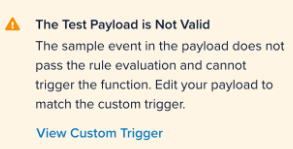
Modify the rule or the payload so that they match and run the test again.
1. To view a log, click **Test Logs**, then click a log in the list.
## Save a test payload
You can save a maximum of 10 test payloads for testing a function. For information on getting test data, see [Get Test Payload Data](#get-test-payload-data).
Follow these steps to save a test payload:
1. To save a **Test Payload** for future use, click **Save As**.
You can save a maximum of 10 test payloads.
1. Enter a name for the test payload and click **Save As**.
1. Click **Apply**.
1. Click **Save/Publish**.
## Set a saved test payload as the default
1. Click **Load Saved Payload** and select a payload.
1. Click the payload menu and select **Set Default**.
1. Click **Apply**.
1. Click **Save/Publish**.
## Delete a saved test payload
You may need to delete a test payload if you have already saved the maximum of 10 test payloads, and need to save another. Follow these steps to delete a test payload:
1. Click the payload menu and then click **Delete**.
Use caution when deleting saved test payloads. There is no confirmation dialog.
1. Click **Apply**.
1. Click **Save/Publish**.
## Get test payload data
Suggested test data is shown on the **Test** tab of the code editor, under **Test Input**. You can modify the suggested test data as needed. You can also get test data from a log file or use a function to get real data from your website.
To get data from a log file or from your website, make sure you have done the following:
* Configured Tealium IQ to collect data from a website or other source.
* Configured data sources, event feeds, and audiences.
* Verified that the event feed or audience contains the correct data to trigger the function.
### Get test data from a log file
This section provides instructions for the following steps to get test data from a log file:
* Create a function to write data to the log.
* Copy the data from the log file to the **Test** tab.
#### Create a function to write data to the log file
Follow these steps to write event and visitor data to the log file:
1. Create a new function, then delete the example code and enter the following code, which writes the event and visitor data to the console log.
```js
import { event, visitor } from "tealium";
console.log('Event object:' + JSON.stringify(event));
console.log('Visitor object:' +JSON.stringify(visitor));
```
1. Click the **Configuration** tab, and set **Status** to **ON**.
1. Click **Done**, then click **Save/Publish**.
Wait briefly for the changes to apply.
#### Copy and format log file data
1. Go to your website and do the actions required to trigger the function.
Wait 1 to 2 minutes to allow the data to be collected.
1. In the **Functions Overview**, click the function that you created to write data to the log.
1. Click the **Logs** tab, then open a log entry to see the JSON object.
1. Copy the JSON code and format it in any JSON formatting tool.
1. Click the **Test** tab, and paste the formatted JSON code into the **Test Input** editor.
1. Click **Save As**, enter a name for the test input in the pop-up, and click **Save As**.
### Get test data using trace
When testing functions with trace, function calls are limited to 15 per minute.
1. In the code editor, create any JavaScript code. For example:
`console.log("Hello World!");`
1. Click the **Configuration** tab and set the **Status** to **ON**, then click **Done**.
1. Save and publish.
1. Start the Trace tool. For more information, see [Trace](https://docs.tealium.com/about-trace/).
1. On your website, do the actions required to trigger the function.
1. In the Trace tool, click the **Action Processed** notification, then locate the event or visitor object under **payload**, and copy the object.
1. Go to the **Test** tab, delete the current code, and paste the event or visitor object into the **Test Input** editor.
1. Click **Save As**, enter a name for the test input in the dialog, and click **Save As**.
Trace can also be used if you need to test functions that have been published to your site. The trace log includes information for functions.