Set up threshold alerts to receive email notifications when a dashboard visual crosses a defined value.
Threshold alerts send an email notification to the alert creator when a dashboard visual crosses a defined value. You can create multiple alerts for the same visual.
How threshold alerts work
Alerts are available on KPI, Gauge, Table, and Pivot Table visuals.
When you create an alert, you set a condition (is above, is below, or is equal to) and a threshold value. Each time the underlying dataset refreshes, the alert evaluates the visual against your threshold. If the condition is met, an email notification is sent.
Notification frequency
The Notify me setting controls how often notifications are sent:
- As frequently as possible: Sends a notification each time the dataset refreshes and the alert condition is met.
- Daily at most: Sends at most one notification per day.
- Weekly at most: Sends at most one notification per week.
The frequency of As frequently as possible notifications depends on how often the dataset updates.
Filters and alerts
Filters applied to a visual also apply to its alerts. When you create an alert, the alert locks in the filter settings active at that time and evaluates the threshold against that filtered data.
- Fixed at creation: The alert uses the filter settings active at the exact time you create it.
- Independent of dashboard updates: Changing or removing a filter on the live dashboard does not affect the existing alert.
- Filter changes require a new alert: To use a new filter configuration, create a new alert with the updated settings.
Create an alert
- Go to Insights > Dashboards.
- Select a dashboard.
- Click the Alerts icon in the toolbar.
- Click Create alert.
- From the Visual on this sheet drop-down, select a visual. Alerts are available on KPI, Gauge, Table, and Pivot Table visuals. Visuals that do not support alerts do not appear in the list.
- Click Next.
- In the Name field, confirm or update the alert name.
- From the Condition drop-down, select a condition:
- Is above
- Is below
- Is equal to
- In the Threshold field, enter a value.
- From the Notify me drop-down, select the notification frequency. For more information, see Notification frequency.
- To receive a notification when the visual has no data, select Email me when there is no data.
- Click Save.
Manage alerts
To view and manage existing alerts:
- Go to Insights > Dashboards.
- Select a dashboard.
- Click the Alerts icon in the toolbar.
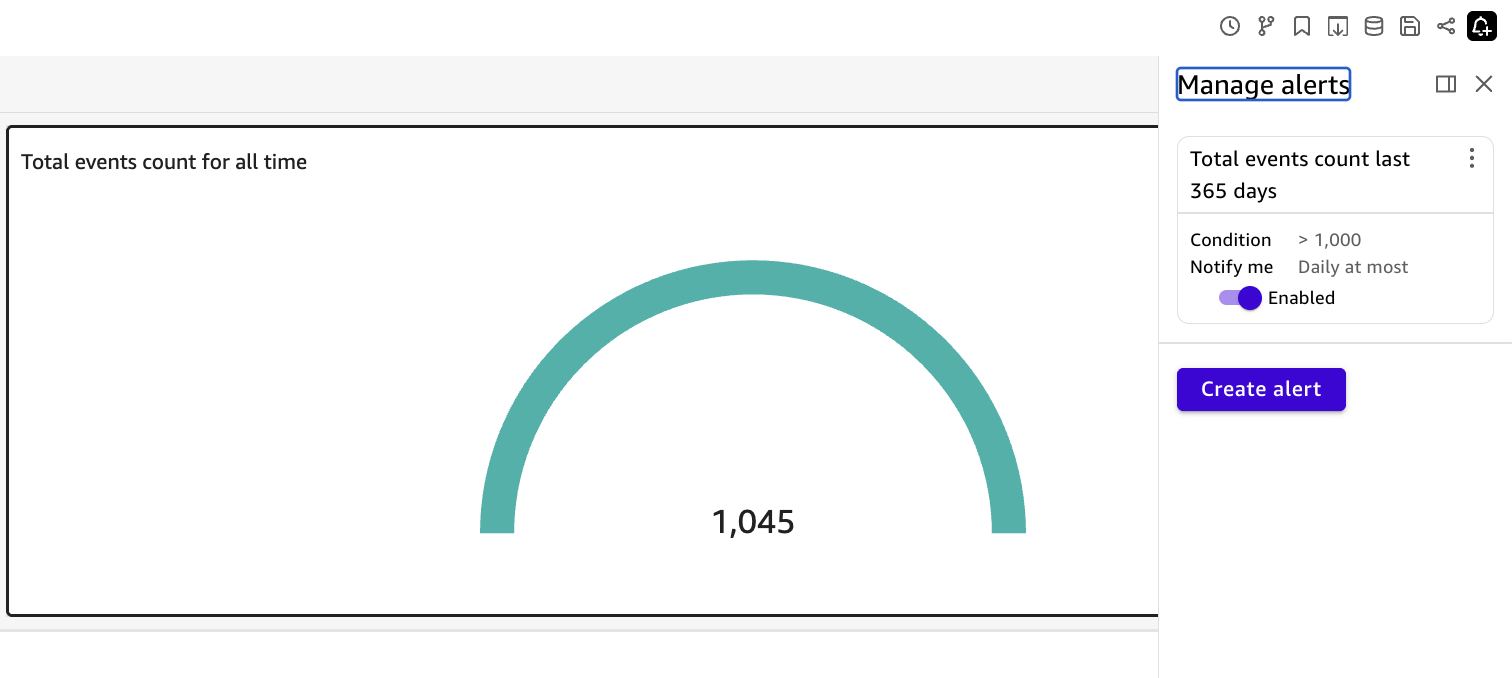
The Manage alerts panel lists your alerts. Each alert displays its condition and notification frequency, and includes a toggle to enable or disable it.
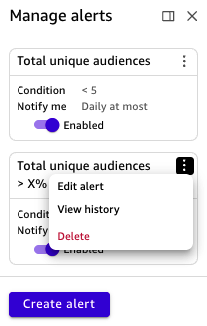
- To edit, view history, or delete an alert, click the three-dot menu for the alert and select an option.
- To create another alert, click Create alert.
Example: Set up an alert for total connector errors
The following example shows how to add a gauge visual to the connectors dashboard and configure an alert for total connector errors.
Add a gauge visual for error count
- Go to Insights > Dashboards > Analysis.
- Open Connectors Analysis.
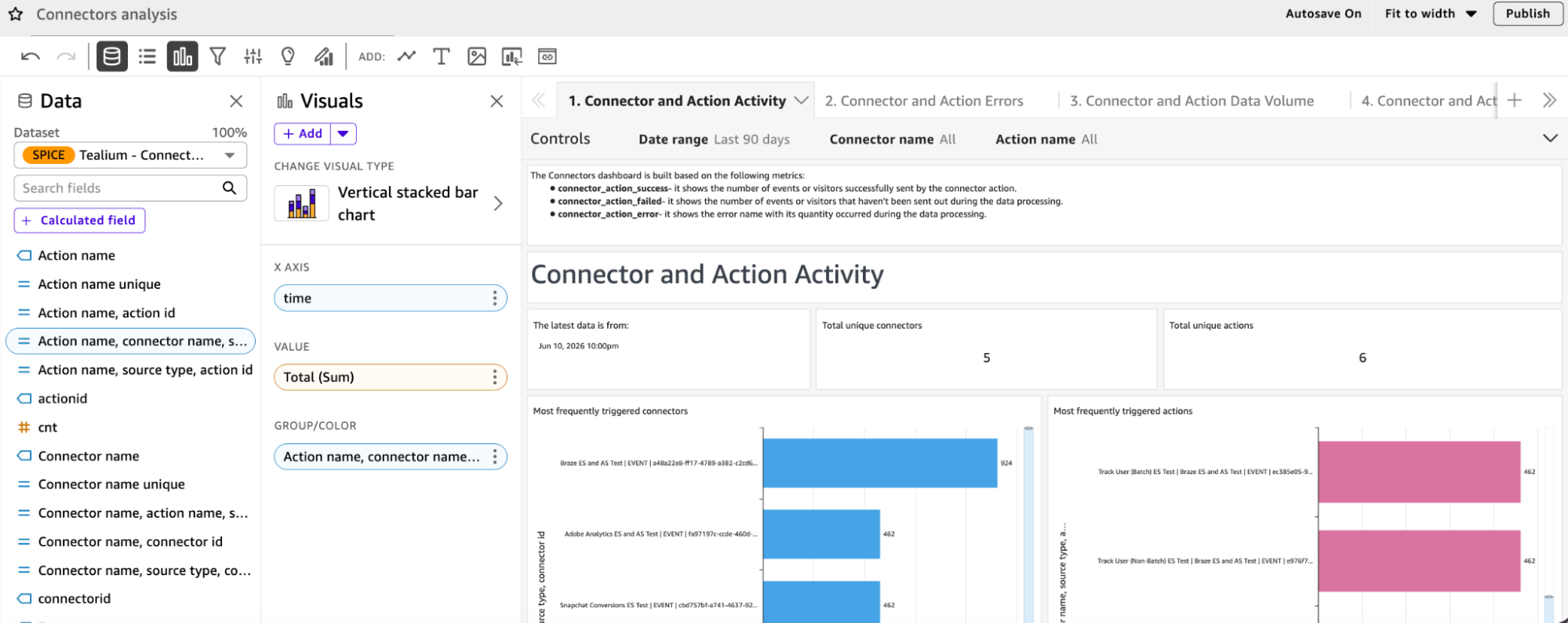
- Open the 2. Connector and Action Errors tab.
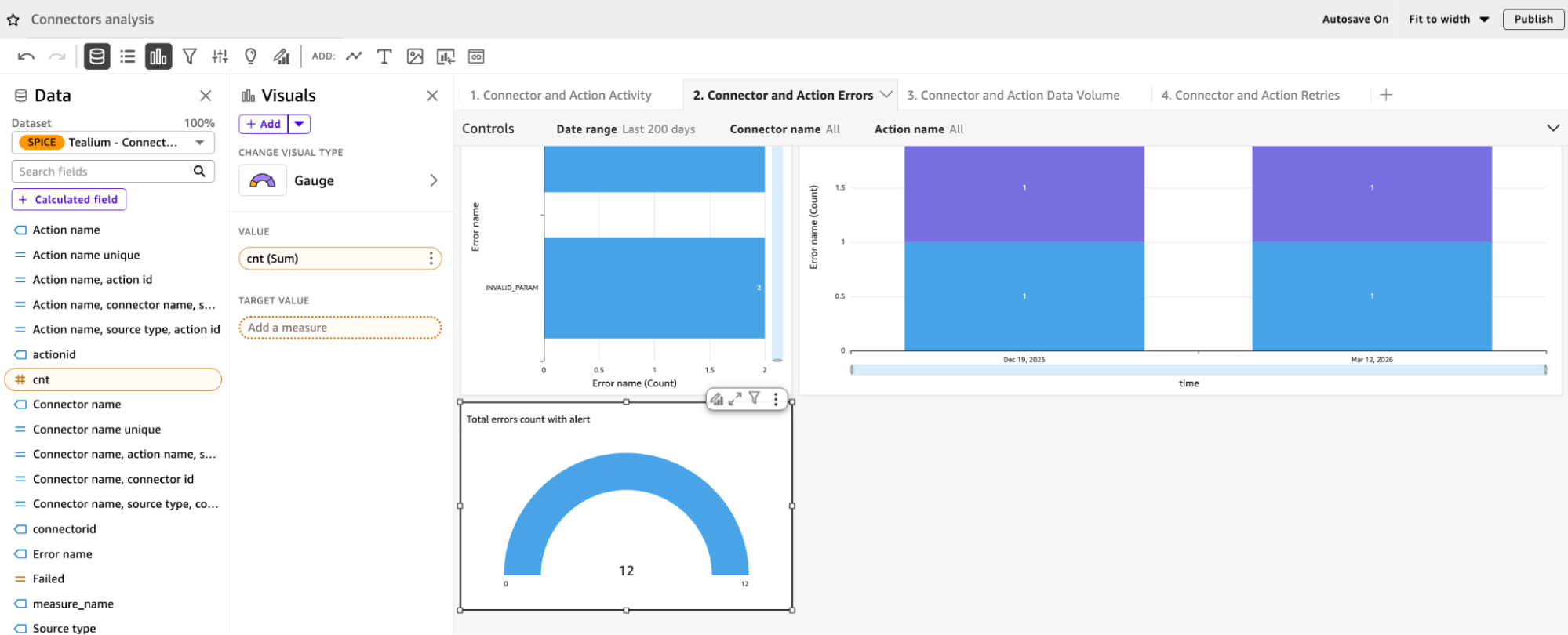
- Locate the Failed connector counts over time visual.
- Click the three-dot menu and select Duplicate visual to > This sheet to retain the existing error-counting filters.
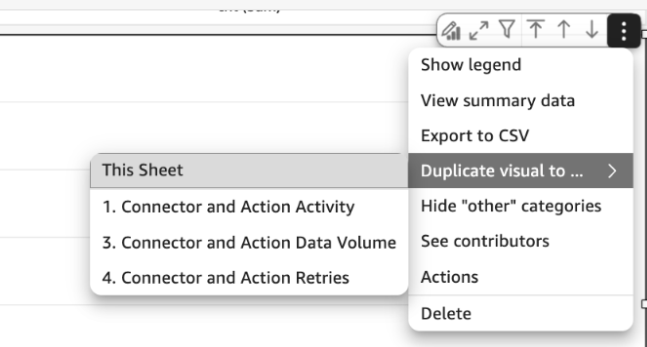
- Rename the duplicated visual to distinguish it from the original.
- Update the visual type to Gauge to display the total error count.
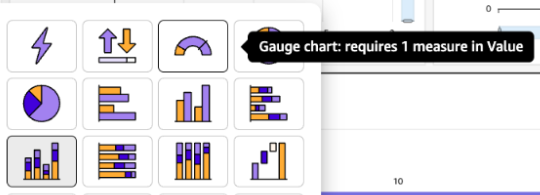
- (Optional) Resize the gauge chart by dragging the border sizing handles.
Publish and configure the alert
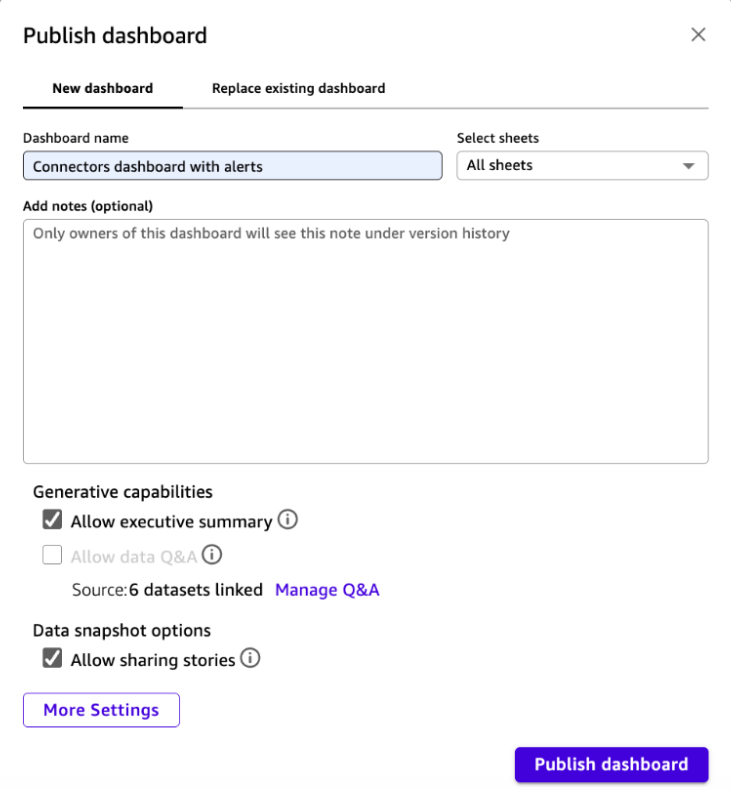
- Click Publish.
- Select the New dashboard tab.
- In the Dashboard name field, enter a name for the dashboard.
- From the Select sheets drop-down, select All sheets.
- Click Publish Dashboard.
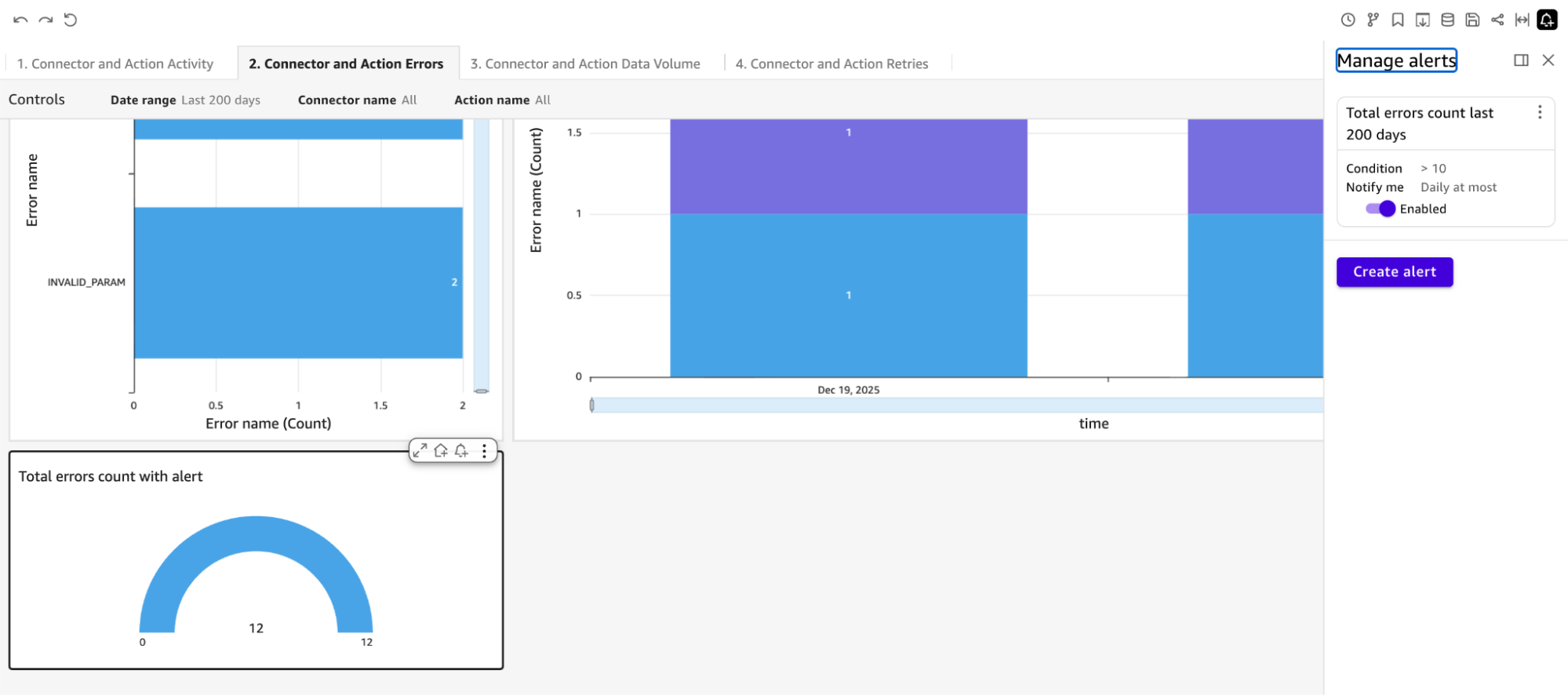
- Open the Connector and Action Errors sheet.
- Locate the gauge visual.
- Click the Alerts icon.
- Select the visual and configure the alert. For field descriptions, see Create an alert.
- Click Save.
Example: Set up an alert for total event volume
- Go to Insights > Dashboards > Dashboards.
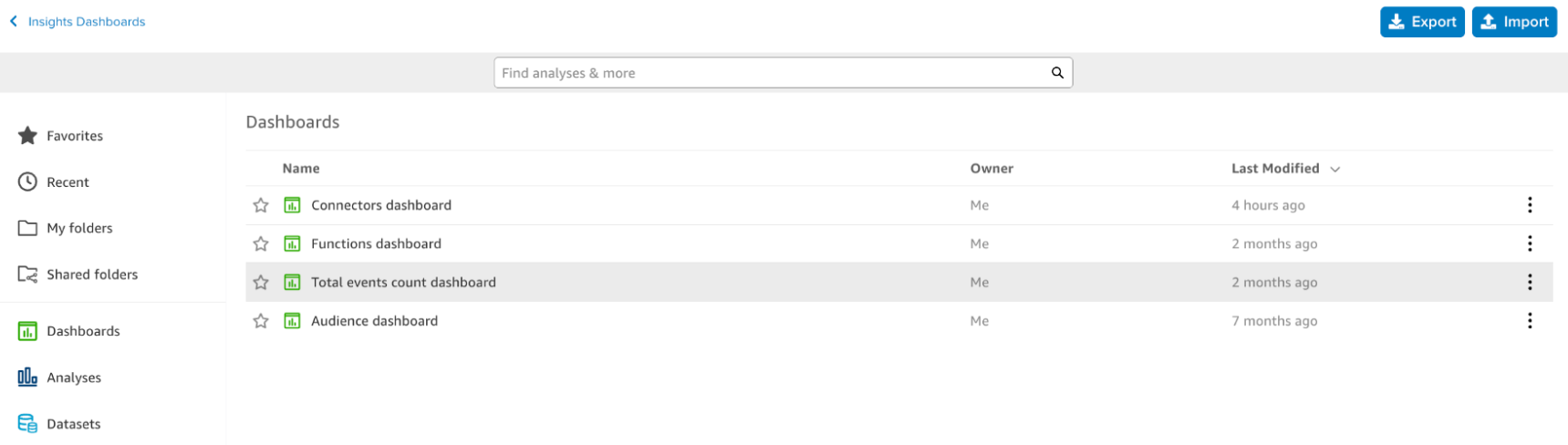
- Select the Total events count dashboard.
- Locate the Total events count for all time chart.
- Select the chart.
- Click the Alerts icon.
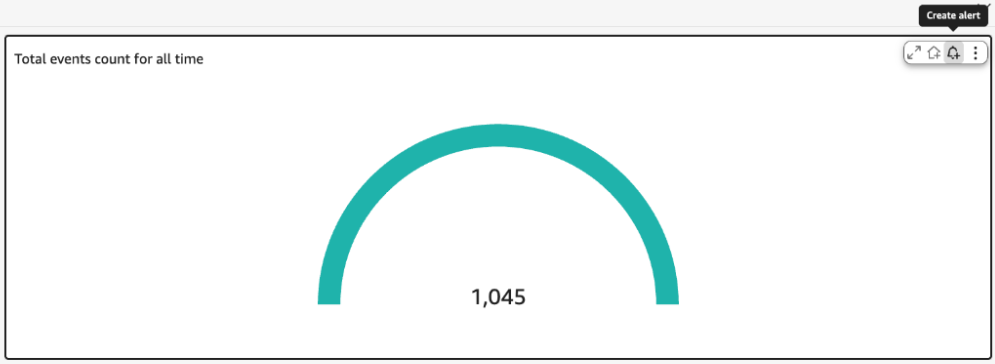
- Configure the alert. For field descriptions, see Create an alert.
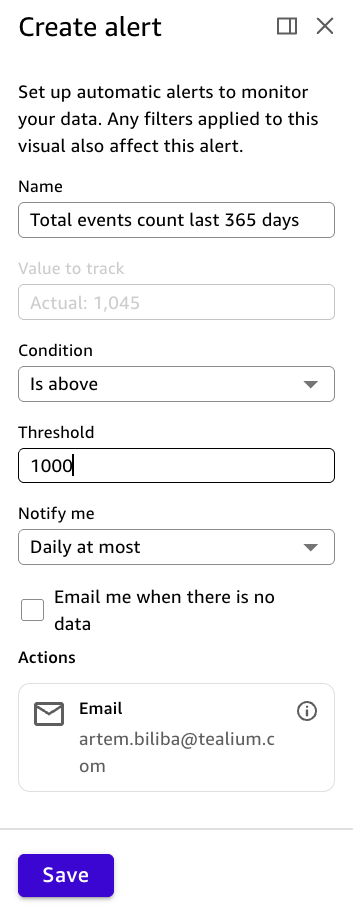
- Click Save.
Example: Add an alert with a different date range filter
Each date range filter requires its own alert because filters are locked at the time you create an alert.
Go to Insights > Dashboards > Dashboards.
Select the Total events count dashboard.
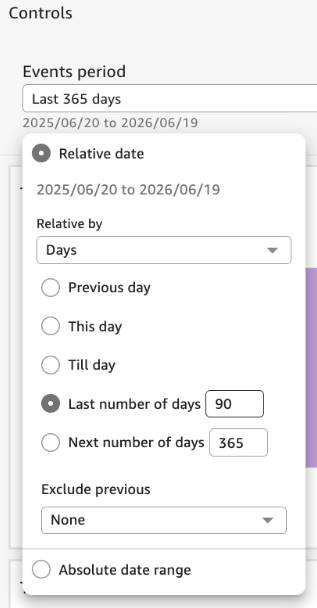
Expand the Controls panel.
Change the Date range filter value to the range you want to monitor. For example, select Last number of days and enter
90.
Select the Total events count for all time chart.
Click the Alerts icon.
Click Create alert.
In the Name field, enter a name that reflects the chart title and filter value. For example,
Total events count last 90 days.Include the filter value in the alert name. The alert name is the only record of the filter settings used to create it.
Configure the alert. For field descriptions, see Create an alert.
Click Save. The Manage alerts panel shows both alerts for the same chart, each with its own date range filter and threshold.
This page was last updated: June 23, 2026