This article describes how to start and stop a new trace or join an active trace.
Do not add Trace to bulk events.
Do not add Trace as a permanent parameter to monitor production data.
Get a Trace ID
After you save your changes and are ready to begin testing your enrichments, audiences, and actions, you need to generate a trace ID to use in the trace tool.
Use the following steps to get a trace ID:
- Go to Validate > Trace.
- Click Start.
A trace ID appears.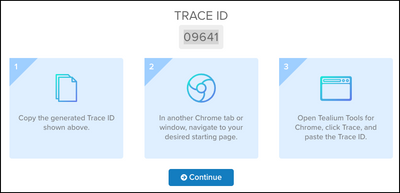
- Copy the trace ID.
The lifespan of a trace ID is 24 hours from time of issue.
Start a trace
Use the following steps to start a trace:
- Open a new Chrome browser window and navigate to the first page of the workflow to test.
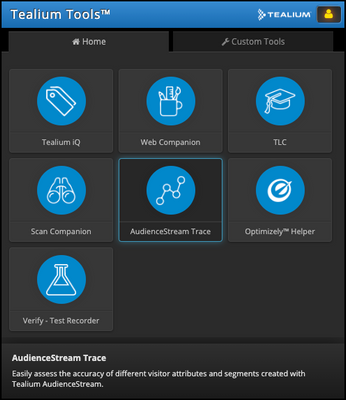
- Open the Tealium Tools browser plug-in and click AudienceStream Trace.
- Paste or enter the Trace ID.
If you are tracing a session across multiple domains, deselect Trace me as a new visitor.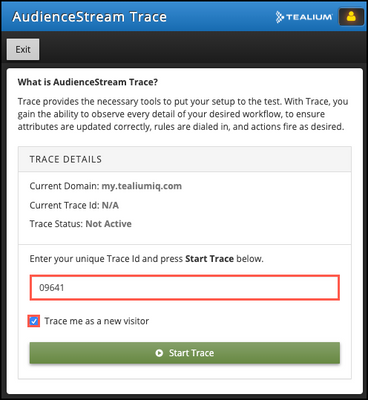
- Click Start Trace.
- Click Exit and then press the ESC key to exit the tool.
- Return to the Trace ID screen in Tealium, and click Continue.
As you navigate through your workflow in the browser window, the trace sends information to Tealium and displays a timeline of visitor activity. The trace screen provides a summary of the events, actions, and functions, as well as a detailed list of all events, actions, and functions. For example: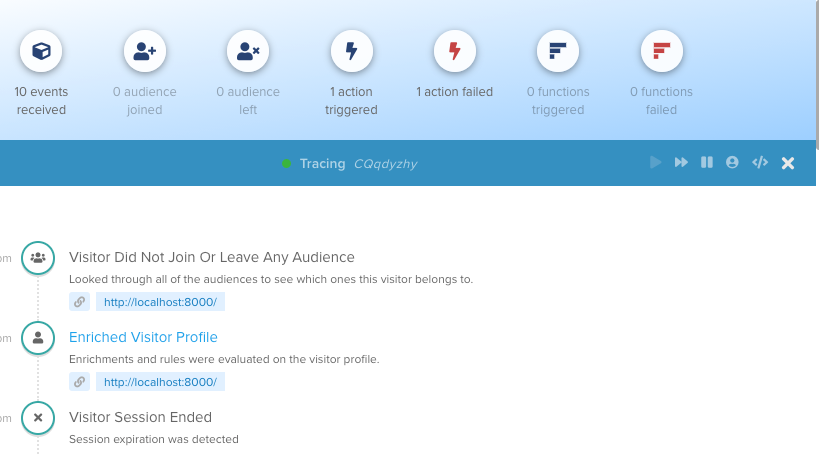
Join an active trace
Use the following steps to join a trace that is in progress:
You must exit any active traces before you can join a trace.
- Click Validate > Trace.
- Click Join.
- Enter the trace ID for an active trace.
- Click Join.
The trace log appears.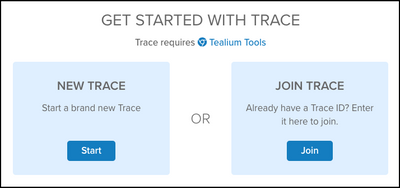
Start or join a trace with the slide-out screen
If you have closed the trace screen, click Validate > Trace and the screen slides out again. Use the trace screen to start or join a trace without leaving your current location in the product. When a trace is in progress, a blue arrow next to Validate > Trace pulses.
Stop a trace
Use the following steps to end an active trace and its associated visitor session.
- Open a new Chrome browser window and navigate to your site.
- Open the Tealium Tools browser plug-in and click AudienceStream Trace.
- Verify the Current Domain and Current Trace ID of the trace you want to stop.
- Click Stop Trace.
This page was last updated: June 9, 2026