---
title: Manage traces
description: This article describes how to start and stop a new trace or join an active trace.
url: https://docs.tealium.com/server-side/trace/manage/
---
Do not add Trace to bulk events.
Do not add Trace as a permanent parameter to monitor production data.
## Get a Trace ID
After you save your changes and are ready to begin testing your enrichments, audiences, and actions, you need to generate a trace ID to use in the trace tool.
Use the following steps to get a trace ID:
1. Go to **Validate > Trace**.
1. Click **Start**.
A trace ID appears.
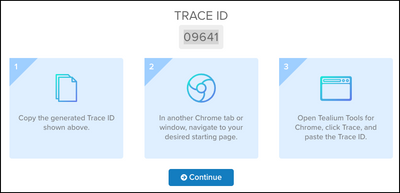
1. Copy the trace ID.
The lifespan of a trace ID is 24 hours from time of issue.
## Start a trace
Use the following steps to start a trace:
1. Open a new Chrome browser window and navigate to the first page of the workflow to test.
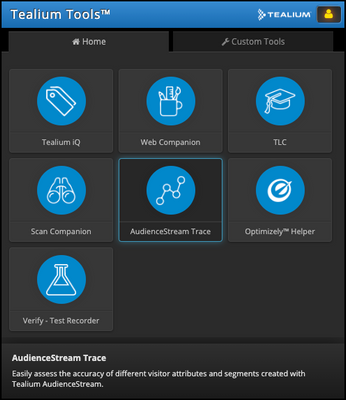
1. Open the **Tealium Tools** browser plug-in and click **AudienceStream Trace**.
1. Paste or enter the Trace ID.
If you are tracing a session across multiple domains, deselect **Trace me as a new visitor**.
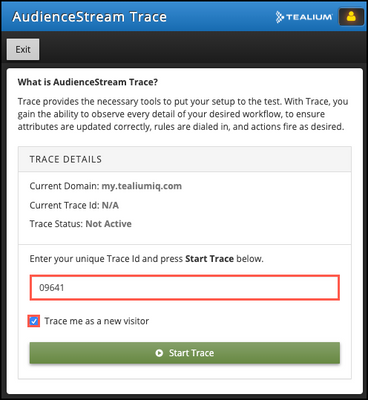
1. Click **Start Trace**.
1. Click **Exit** and then press the **ESC** key to exit the tool.
1. Return to the **Trace ID** screen in Tealium, and click **Continue**.
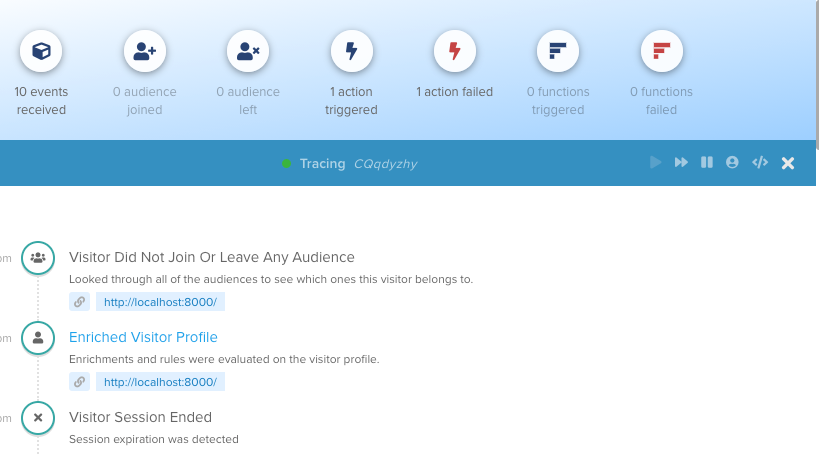
As you navigate through your workflow in the browser window, the trace sends information to Tealium and displays a timeline of visitor activity. The trace screen provides a summary of the events, actions, and functions, as well as a detailed list of all events, actions, and functions. For example:
## Join an active trace
Use the following steps to join a trace that is in progress:
You must exit any active traces before you can join a trace.
1. Click **Validate > Trace**.
1. Click **Join**.
1. Enter the trace ID for an active trace.
1. Click **Join**.
The trace log appears.
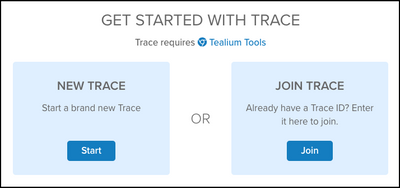
## Start or join a trace with the slide-out screen
If you have closed the trace screen, click **Validate > Trace** and the screen slides out again. Use the trace screen to start or join a trace without leaving your current location in the product. When a trace is in progress, a blue arrow next to **Validate > Trace** pulses.
## Stop a trace
Use the following steps to end an active trace and its associated visitor session.
1. Open a new Chrome browser window and navigate to your site.
1. Open the **Tealium Tools** browser plug-in and click **AudienceStream Trace**.
1. Verify the **Current Domain** and **Current Trace ID** of the trace you want to stop.
1. Click **Stop Trace.**