About audiences
This article provides information about audiences, segments, and visitor retention time.
The fill audience feature is in Early Access and is only available to select customers. If you are interested in trying this feature, contact your Tealium Support representative.
Tealium AudienceStream CDP Audiences provides a streamlined and powerful audience management experience with the following features:
- The ability to create a set of conditions to define a dynamic, real-time audience.
- The ability to connect an audience to a connector and define triggers that determine when connectors are fired.
- The ability to save frequently used audience segments (groups of conditions) and reuse them in other audiences.
How it works
An audience is a group of visitors identified by a shared set of attributes. The conditions for an audience specify the attribute values for visitors in that audience. The more conditions you add, the more specific your audience becomes. Audiences are dynamic, meaning visitors can join or leave audiences as events come in from active visitor sessions.
The Audiences page has the following tabs:
Audiences
The Audiences page displays the list of audiences in the profile.
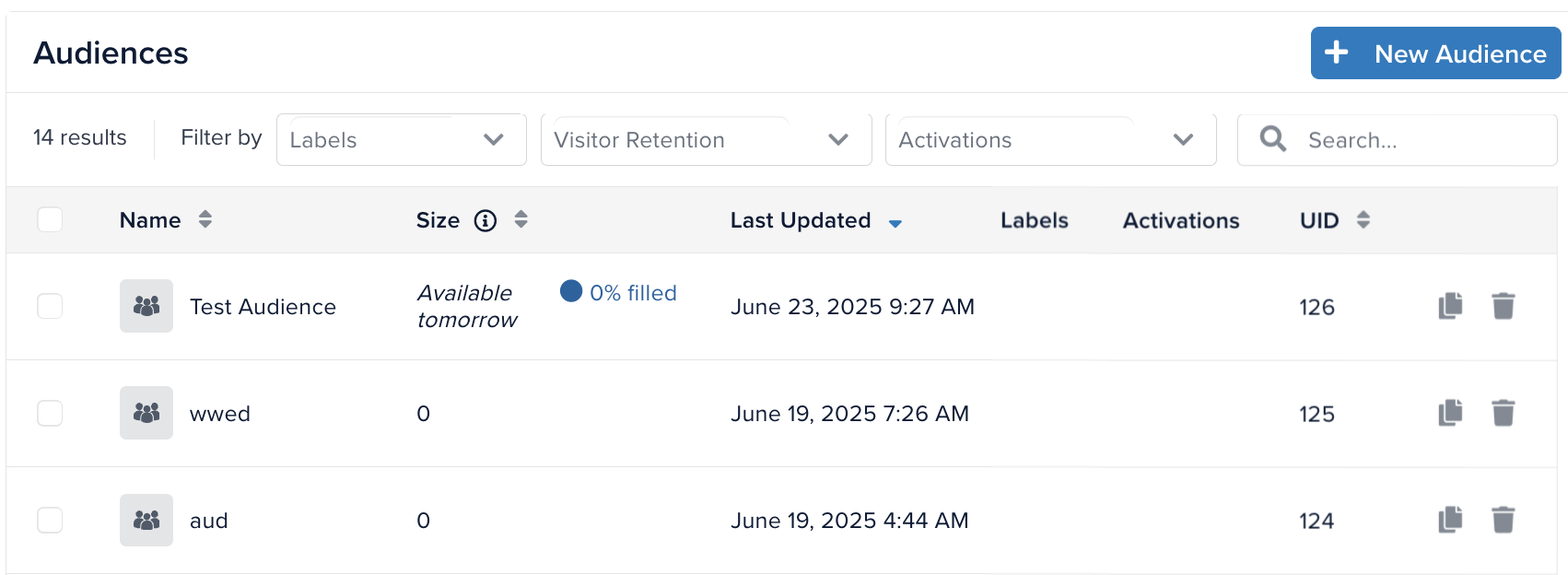
If the system is filling an audience with historical data, the table displays its progress.
Segments
The Segments page displays the list of saved segments. For more information, see Saved segments.
Audience details
When you select an audience on the Audiences page, the Audience Details page is displayed. The Audience Details page shows the following information in the side information panel:
- The audience size as of the previous full day.
- If the system is filling the audience with historical data, its progress appears below the audience size.
- Notes.
- Labels.
- The audience creation date.
- The user who created the audience.
- The last time the audience configuration was modified.
- The user who modified the audience.
- UID.
- The retention period.
- The number of activations of the audience.
The audience details also contains the following tabs:
Configuration
This page displays the audience conditions and lets you edit the conditions.
Insights
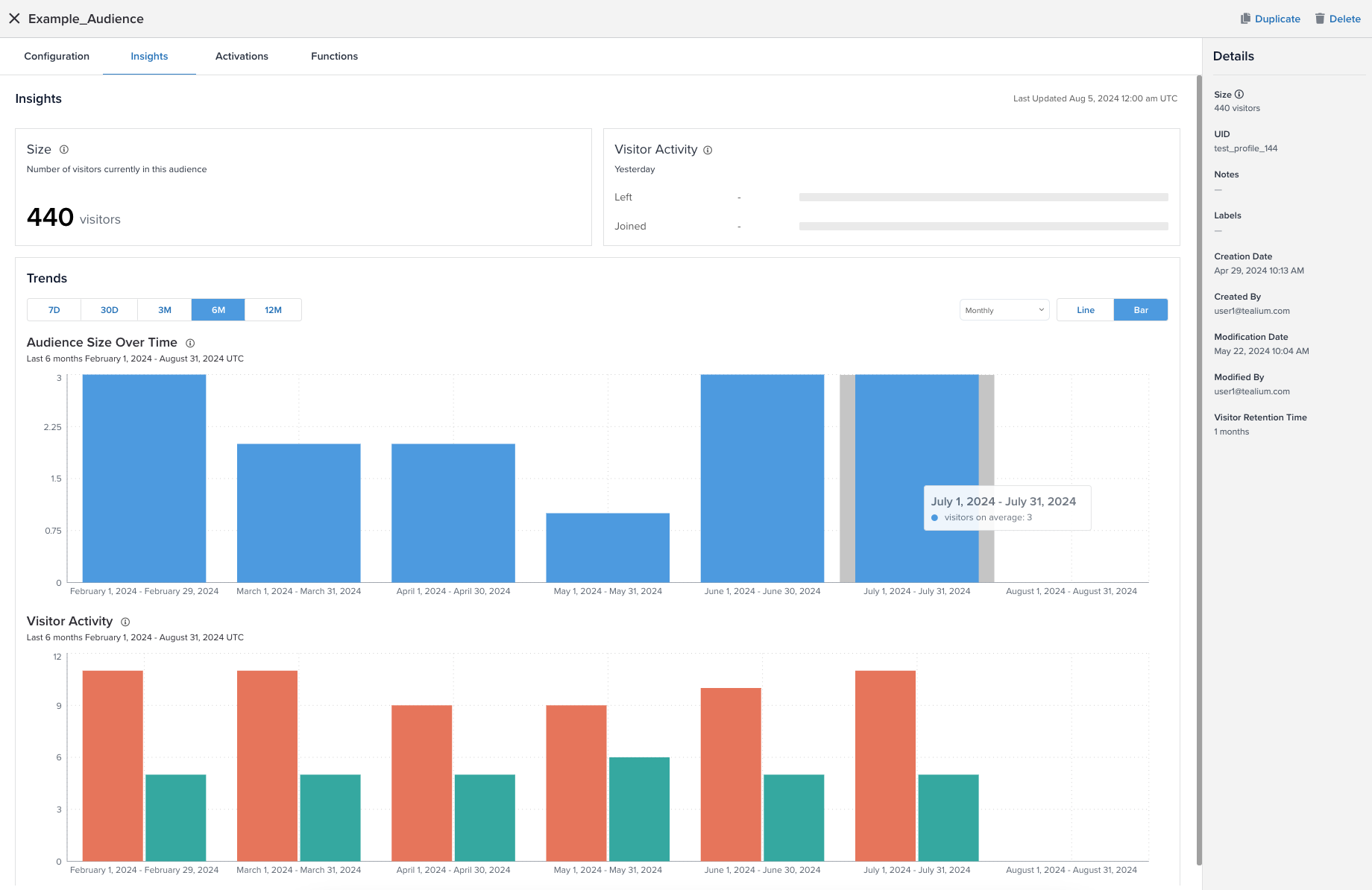
This page displays the audience size as of the previous full day, recent visitor activity, and graphs that display trends of the audience size over time and audience activity.
The Audience Size widget shows the number of visitors in the audience from the most recent full day of data.
The Visitor Activity widget shows the visitors that joined or left the audience from the most recent full day of data.
The Trends section displays the following:
- The Audience Size Over Time graph shows how the number of visitors in the audience is changing over time.
- The Visitor Activity graph shows the number of visitors that have left (orange bar) or joined (green bar) the audience per day.
The following figure shows an example of Insights graphs:
Select one of the following time periods for the graphs:
- 7D displays the data from each day for the last seven days.
- 30D displays the average visitor counts for each week in the last 30 days.
- 3M displays the average visitor counts for each week in the last three months.
- 6M displays the average visitor counts for each month in the last six months.
- 12M displays the average visitor counts for each month in the last year.
If you select week or month, you can choose whether the graph shows averages or absolute values for each group.
The graphs calculate weekly and monthly activity by the true week (Monday through Sunday) and true month (first of month to last of month). If the current week or month is not complete and you view weekly or monthly averages, the graph displays the number of days represented.
Activations
This page displays a list of activations for the audience and lets you edit, activate, or deactivate activations.
Functions
This page displays a list of the functions that are triggered by the audience.
Activity
This page displays a log of user actions on the audience, such as edits, condition changes, and fill actions.
Fill an audience
You can backfill an audience from historical data once with visitors who meet the audience conditions. This applies to both new and existing audiences. Potential Size shows the estimated number of qualified visitors in existing data:
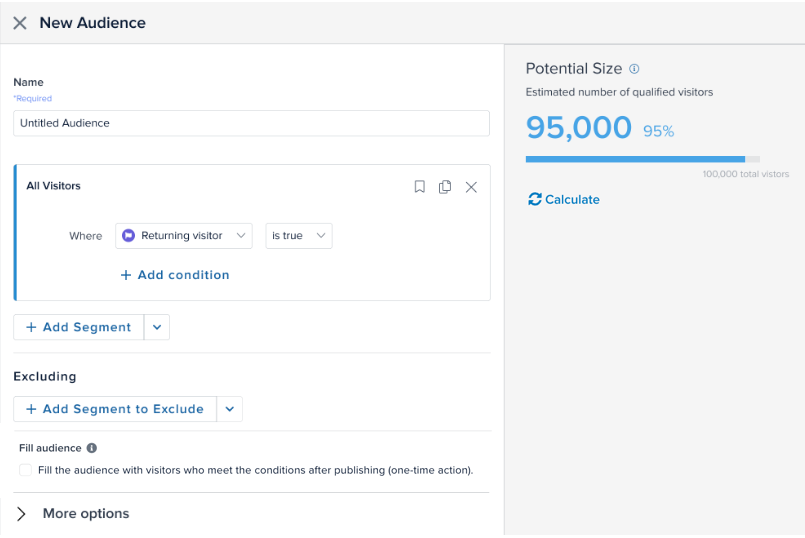
Connect the audience to at least one connector action. This ensures that as the audience is populated, matching visitors are automatically sent to the connectors. If no connector actions are configured for the audience, the backfill does not trigger any actions and you cannot perform it again.
How it works
When you select Fill Audience and then save and publish the profile, the system performs a one-time backfill that adds inactive visitors who previously met the specified conditions. This process activates the Joined Audience trigger for connectors that use the audience; it does not activate the other connector action triggers.
The Audiences table displays the progress:

Filling an audience does not generate new visits or change visitor attributes from historical data. You can fill an audience only once, so review the audience conditions carefully and ensure that you have configured at least one connector action for the audience before starting.
The filling rate is typically 200 visitor profiles per second, depending on the number of attributes and visitors who meet the conditions. Filling an audience may cause throttling on the platform due to the volume of visitor profiles being evaluated or the number of connector actions being queued for delivery. However, real-time evaluation of incoming events continues as a priority, so live campaigns and personalization are not interrupted.
Joined audience actions generated during backfilling appear in profile activity, including connector statistics and charts. To reduce throttling and analytics noise from this activity, we recommend filling an audience during off-peak traffic hours.
Audience conditions and segments
An audience is created by defining one or more conditions using visit or visitor attributes. An audience segment is a set of conditions that can be saved and used as a building block in multiple audiences.
Segments can be layered with AND or OR logic to create an audience. You can use excluding logic to remove visitors that meet the audience conditions. Visitors that meet these audience conditions are added or removed from an audience in real-time based on user-generated events.
AND logic example
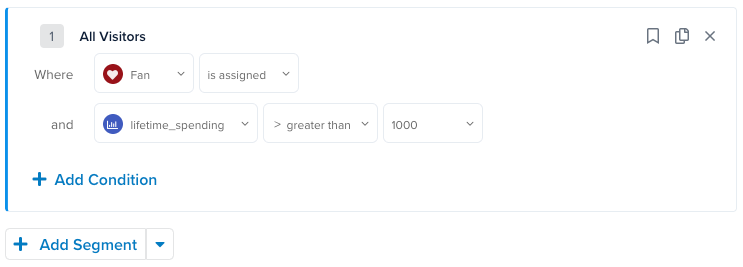
This example shows a segment for visitors who have spent over $1000 and have the Fan badge, which combines the following conditions with AND logic:
Fan badge is assignedlifetime_spending is greater than 1000
OR logic example
Additional visitors can be added to an audience by combining segments with OR logic. If two segments are combined with OR logic, visitors that match the conditions for either segment are included in the audience.
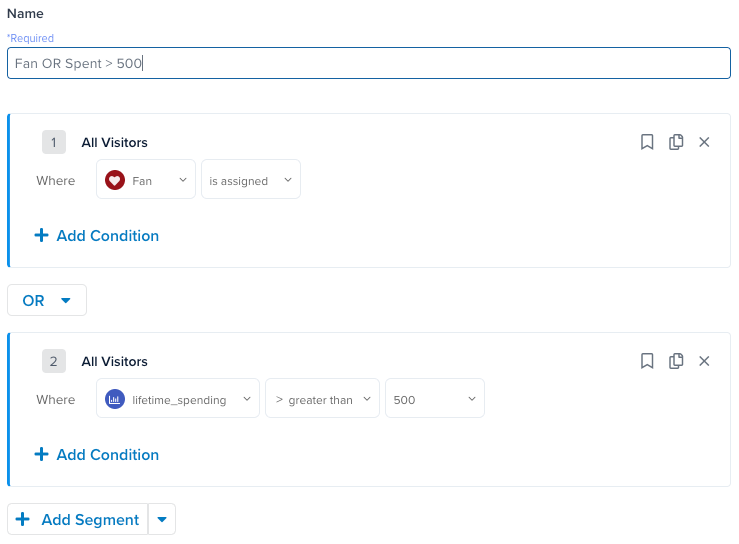
This example shows a segment for visitors with the Fan badge or visitors who have spent over $500, which combines the following conditions with OR logic:
Fan badge is assignedlifetime_spending is greater than 500
Excluding logic example
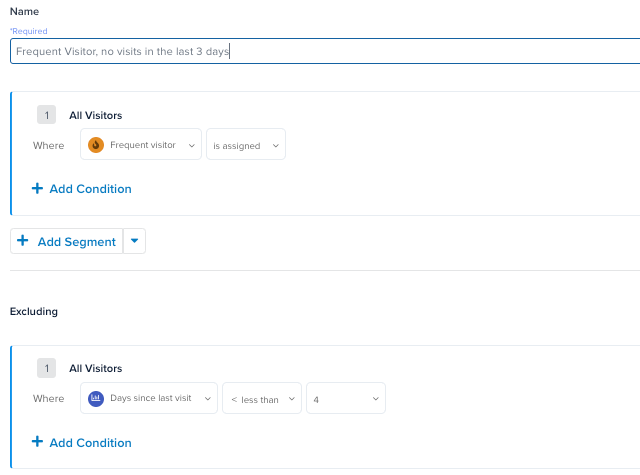
To exclude specific visitors from an audience, use excluding logic. For example, to create an audience of frequent visitors that have not visited in the last three days, you could combine the following conditions with excluding logic:
Frequent visitor is assignedDays since last visit is less than 4
Saved segments
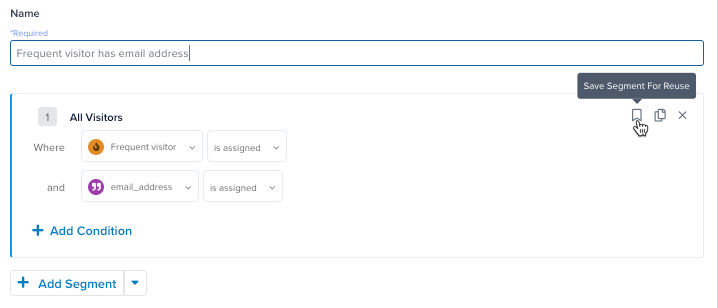
Saved segments can be used in multiple audiences, avoiding the need to create the same conditions for each audience. You can save segments while you are adding conditions to an audience, as shown in the following figure:
You can also create segments on the Segments page. After you save or create a segment, it is automatically saved. Save and publish is not required. For more information, see Manage segments.
Segments that are used in audiences cannot be edited.
Segment examples
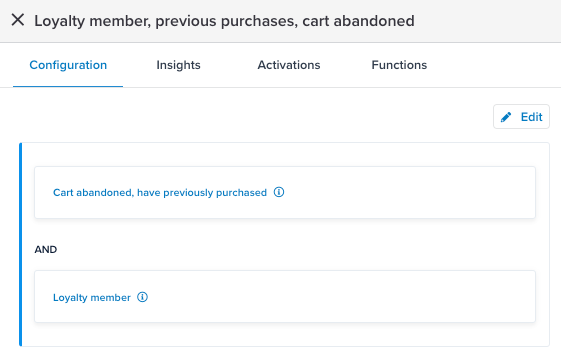
Example 1: Audience of loyalty members who have previously purchased and have abandoned their cart
In this example, two saved segments are used to create an audience of loyalty members who have previously purchased and have abandoned their cart. The loyalty members segment has the following conditions:
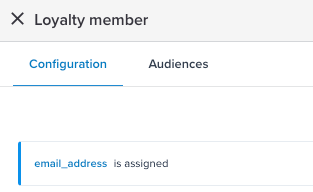
The cart abandoned and have previously purchased segment has the following conditions:
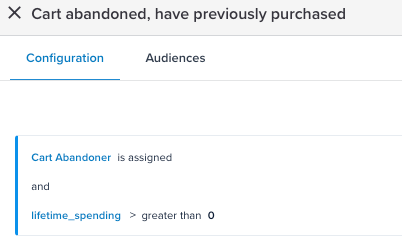
The audience of loyalty members who have previously purchased and have abandoned their cart uses these two segments, as follows:
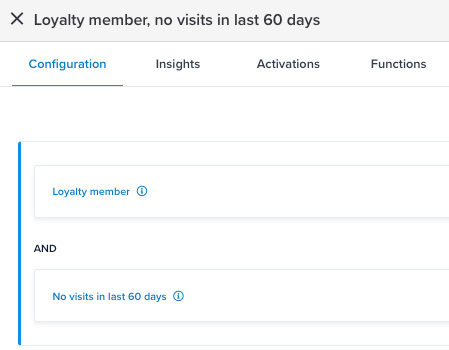
Example 2: Audience of loyalty members who have not visited in the last 60 days
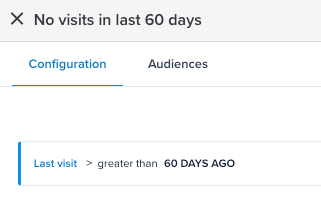
This example uses the loyalty members segment from the previous example and the following segment for visitors whose Last Visit attribute is greater than 60 days ago:
The Loyalty member, no visits in last 60 days audience uses both of these segments as follows:
Favorite segments
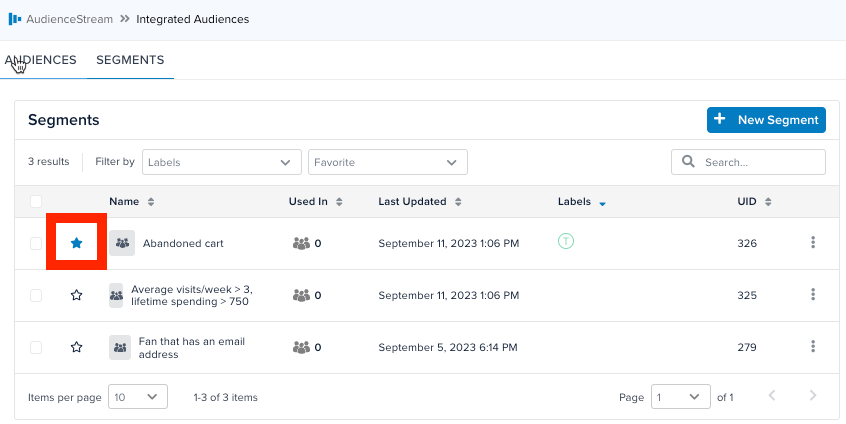
You can save segments to your favorites on the Segments page, which lets you filter on favorites for easy access to frequently used segments. For example:
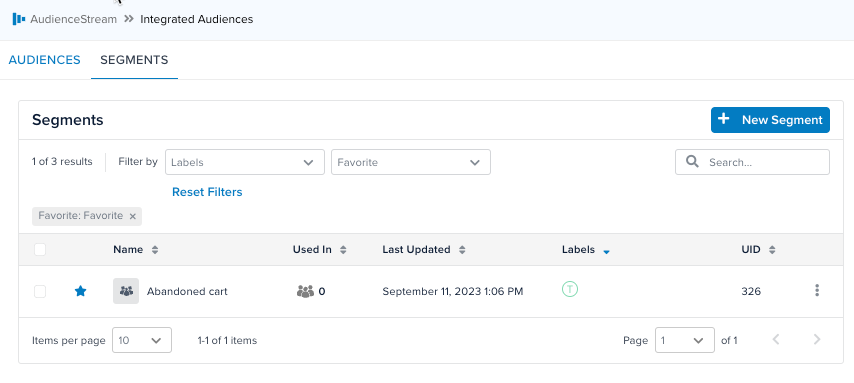
You can filter the list of segments by Favorites and only favorite segments are displayed. For example:/away
Visitor retention time
Visitor retention time refers to the length of time that AudienceStream retains visitor profiles after their last activity. Each incoming event associated with a visitor profile restarts the retention start time. If a visitor has been inactive for the length of the retention period, the profile is purged from the system.
To make changes to retention time for an audience, contact Tealium Support.
Retention time is specified in two places:
- Profile Retention Time in Server-side account settings, which is set for the account and cannot be modified.
- Audience Retention Time set for an audience. When Audience Retention Time is set for an audience, it overrides the profile retention time.
The retention time applied to a visitor is determined by one of the following:
-
Longest audience retention time
If the visitor is a member of any audience with a retention time specified, the longest retention time of the visitor’s audiences is used (even if this is shorter than the profile retention time). -
Profile retention time
If the visitor is not a member of any audiences with a retention time specified, then the profile retention time is used.
The maximum allowed profile and audience retention times are determined by your contract terms.
Example
If your account has a profile retention time of 60 days, all visitor profiles with a last event activity timestamp older than 60 days are removed from AudienceStream. This means the entire visitor profile is deleted. If that same visitor were to return and trigger event activity, a new visitor profile would be created in AudienceStream.
To store visitor profiles longer than your account/profile retention period, the visitor must be added to an audience that has a longer retention time.
The following example illustrates how visitor retention time works with audiences that have times that are longer and shorter than the profile retention time.
- Profile Retention Time: 60 days
- “Window Shopper” audience retention time: 30 days
- “VIP Purchaser (> $500)” audience retention time: 90 days
| Action | Day | Days Inactive | “Window Shopper” | “VIP Purchaser” | AudienceStream |
|---|---|---|---|---|---|
| Visits Website, browses products |
May 1 | 0 | ✓ Added | ✓ New profile | |
| N/A | May 31 | 30 | ✗ Removed | ✗ Removed | |
| Visits Website, Purchases $550 |
Aug 1 | 0 | ✓ Added | ✓ New profile | |
| N/A | Sep 30 | 60 | ✓ Retained | ✓ Retained | |
| N/A | Oct 30 | 90 | ✗ Removed | ✗ Removed |
This page was last updated: November 20, 2025