Stitching merge rules
Stitching merge rules are optional, per‑attribute rules that determine the final value of an attribute when two visitor profiles are stitched.
Requirements
- Tealium AudienceStream enabled
- Visitor stitching enabled
- Account admin permissions
How stitching merge rules work
Visitor stitching uses event replay to build a merged profile from historical events, but is subject to system limits such as the event retention period and a maximum of 1,500 events. When visitor profiles exceed these limits, older events may not be replayed during stitching, resulting in incomplete historical data for long-lived or high-volume profiles.
Stitching merge rules address such cases by augmenting the stitching process with attribute‑specific logic that doesn’t rely on event replay and produces the same durable, consistent outcome every time.
Merge rules compare the attributes from two visitor profiles to determine the final attribute value, which is applied after historical events are replayed on the merged visitor profile. This ensures that your most important attributes retain their intended value even when historical event processing cannot include all past events.
When merge rules are applied
Stitching merge rules are applied only when two visitors with prior activity are stitched. This is the scenario where event replay may discard older events and a rule is required to resolve the final attribute value.
If either visitor in the merge does not have a previous visit, then stitching merge rules are not applied because event replay of the returning visitor determines the outcome.
Identify attributes that need a merge rule
Not every attribute needs a stitching merge rule, so the first step is to determine which important attributes benefit most from a stitching merge rule. In general, stitching merge rules are used only for your most important attributes that track lifetime values and those related to data privacy and consent.
The following categories of attributes are good candidates for stitching merge rules:
- Consent status attributes
Ensure the correct consent status persists even if the deciding consent event is older than the retention window or displaced by volume. - Lifetime metrics
Maintain accurate counters, tallies, and accumulations. - CRM/file‑imported attributes
Keep authoritative values imported from systems of record (for example, CRM).
Analyze enrichments
After you identify an attribute that needs a stitching merge rule, the next step is to select the best one based on the logic of its enrichments.
Selecting the appropriate merge rule requires understanding how the attribute is set by its enrichments. Choose a merge rule that applies the same decision logic so the stitched result aligns with the enrichment intent. Using a rule that differs from the intended enrichment logic can result in inconsistent data.
For examples of stitching merge rules best suited for certain enrichments, see Definitions.
Attribute-specific merge behavior
Preloaded attributes
Preloaded attributes are system‑managed attributes that exist in all profiles where AudienceStream is enabled. When stitching merge rules are enabled, these attributes receive appropriate, replay‑consistent merge rules automatically and the selections are not editable. This maintains consistency with their built-in enrichments.
For more information, see Preloaded attributes.
Funnel
The funnel attribute type supports only one stitching merge rule: Merge funnel.
The Merge funnel rule combines the funnel steps from each visitor chronologically. If duplicate steps exist, the earlier occurring step is saved and the older one is removed.
Tally favorite
A tally favorite can only use the Recalculate (Force) rule. A tally attribute generates a favorite attribute that contains the tally key with the highest value, so it always needs to be recalculated on the merged visitor.
Tally attributes and their associated favorite attributes follow these behaviors:
- If the tally has a merge rule, the favorite attribute automatically uses the Recalculate (Force) rule so its value is recomputed on the stitched visitor after other merge rules run.
- If the tally has no merge rule, the favorite string automatically has no merge rule.
- If a merge rule is removed from the tally, the favorite attribute’s merge rule is removed automatically.
Timeline
The timeline attribute type supports only one stitching merge rule: Merge timeline.
The Merge timeline rule combines entries from each visitor in chronological order and trims the result to the newest 100 entries if the limit is exceeded.
If the timeline attribute has an enrichment that expires entries older than X days, the merge rule expires entries older than X days from the time of the merge. If multiple enrichments expire entries, the merge rule uses the lowest value of X.
Visitor ID
When stitching merge rules are enabled, the Older rule is automatically applied to each visitor ID attribute. The Older rule for visitor ID attributes cannot be changed.
Use stitching merge rules
Before you can use stitching merge rules, you must enable the feature.
To enable stitching merge rules on a profile:
- Go to Admin > Server-Side Settings.
- Click the Stitching Merge Rules toggle to the on position.
- Click Save.
- Publish the profile.
When stitching merge rules are enabled, a new setting is available in the attribute edit view. Enable the setting to apply a merge rule to the attribute, then select a merge rule from the list.

Rules available by attribute
| Rule | Badge | Boolean | Date | Number | Set of Strings | String | Tally | Arrays | Funnel | Timeline | Visitor ID |
|---|---|---|---|---|---|---|---|---|---|---|---|
| And | ✔ | ✔ | – | – | – | – | – | – | – | – | – |
| Or | ✔ | ✔ | – | – | – | – | – | – | – | – | – |
| Max | – | – | ✔ | ✔ | – | – | – | – | – | – | – |
| Min | – | – | ✔ | ✔ | – | – | – | – | – | – | – |
| Newer | ✔ | ✔ | ✔ | ✔ | ✔ | ✔ | ✔ | ✔ | – | – | - |
| Older | ✔ | ✔ | ✔ | ✔ | ✔ | ✔ | ✔ | ✔ | – | – | ✔ |
| Recalculate | ✔ | ✔ | ✔ | ✔ | ✔ | ✔ | ✔ | ✔ | – | – | – |
| Recalculate (Force) | ✔ | ✔ | ✔ | ✔ | ✔ | ✔ | ✔ | ✔ | – | – | – |
| Sum | – | – | – | ✔ | – | – | – | – | – | – | – |
| Union | – | – | – | – | ✔ | – | ✔ | ✔ | – | – | – |
| Union Sum | – | – | – | – | – | – | ✔ | – | – | – | – |
| Union Max | – | – | – | – | – | – | ✔ | – | – | – | – |
| Union Min | – | – | – | – | – | – | ✔ | – | – | – | – |
| Merge Funnel | – | – | – | – | – | – | – | – | ✔ | – | – |
| Merge Timeline | – | – | – | – | – | – | – | – | – | ✔ | – |
Definitions
And
| Rule | Description | Supported data types |
|---|---|---|
| And | (Badge) Set to Assigned only if both are Assigned.(Boolean) Set to true only if both are true. |
 Badge Badge Boolean Boolean |
Example
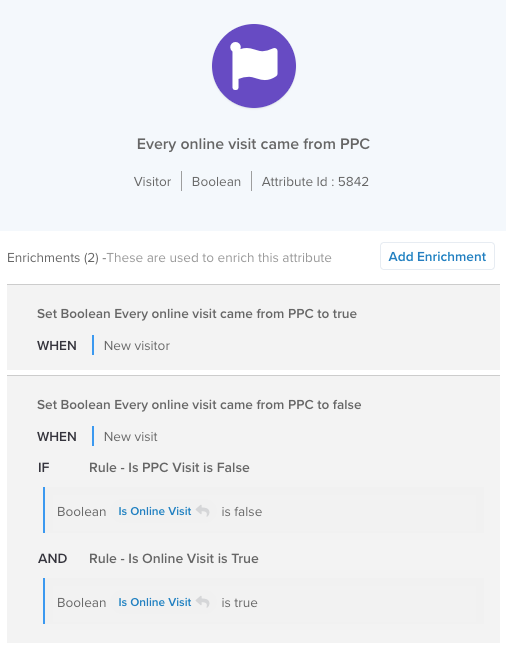
This example attribute is true for a visitor if all the visitor’s online visits came from PPC. Based on these enrichments, the merged attribute is true only if both visitors have the attribute set to true. If either visitor has the attribute set to false, it means not all the visitor’s online visits were from PPC, so the merged attribute value is false. Use the And rule to achieve the correct merged value.
Badges:
| Visitor A | Visitor B | Merged visitor with And rule |
|---|---|---|
Assigned |
Assigned |
Assigned |
Assigned |
Not Assigned |
Not Assigned |
Not Assigned |
Assigned |
Not Assigned |
Not Assigned |
Not Assigned |
Not Assigned |
Booleans:
| Visitor A | Visitor B | Merged visitor with And rule |
|---|---|---|
True |
True |
True |
True |
False |
False |
True |
(unset) | False |
False |
True |
False |
False |
False |
False |
| (unset) | True |
False |
| (unset) | (unset) | (unset) |
Or
| Rule | Description | Supported data types |
|---|---|---|
| Or | (Badge) Set to Assigned if either is Assigned.(Boolean) Set to true if either is true. |
Badge Boolean |
Example
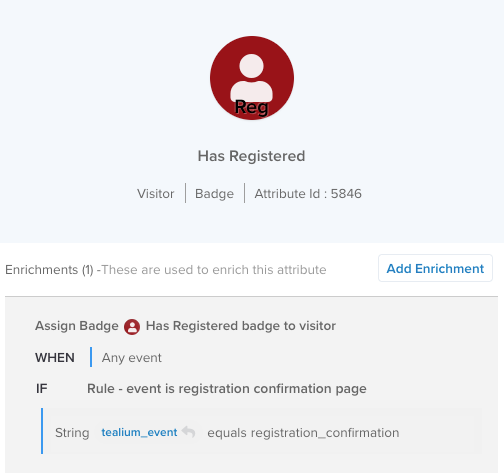
This example badge is assigned if the visitor sees a one-time event, and the badge is never unassigned.
Based on these enrichments, the merged badge is assigned if either visitor has registered, so the Or rule is the appropriate choice to determine the correct result.
Badges:
| Visitor A | Visitor B | Merged visitor with Or rule |
|---|---|---|
Assigned |
Assigned |
Assigned |
Assigned |
Not Assigned |
Assigned |
Not Assigned |
Assigned |
Assigned |
Not Assigned |
Not Assigned |
Not Assigned |
Booleans:
| Visitor A | Visitor B | Merged visitor with Or rule |
|---|---|---|
True |
True |
True |
True |
False |
True |
True |
(unset) | True |
False |
True |
True |
False |
False |
False |
| (unset) | True |
True |
| (unset) | (unset) | (unset) |
Max
| Rule | Description | Supported data types |
|---|---|---|
| Max | (Number) Keep the higher value (Date) Keep the later date. |
 Number Number Date Date |
Example
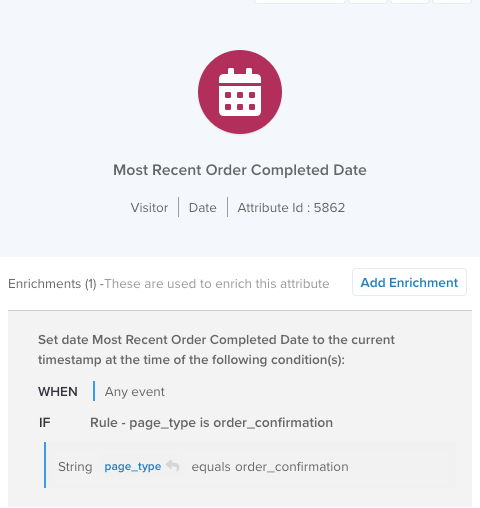
In this example, use the Max merge rule to select the more recent of the dates from the merged visitor profiles.
Since this enrichment uses the current timestamp, the Newer rule produces the same result because a newer timestamp is always a larger value than an older timestamp.
Min
| Rule | Description | Supported data types |
|---|---|---|
| Min | (Number) Keep the lower value (Date) Keep the earlier date. |
Number Date |
Example
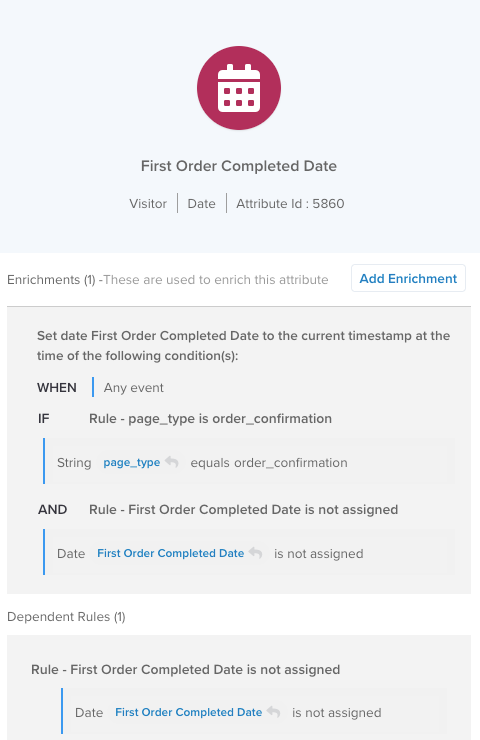
In this example, use the Min merge rule to select the earlier of the two dates from the merged visitor profiles.
Since this enrichment uses the current timestamp, the Older rule produces the same result because an older timestamp is always a lower value than a newer timestamp.
Newer
| Rule | Description | Supported data types |
|---|---|---|
| Newer | Keep the more recently updated value (including removed values) | Badge Boolean Date Number Set of strings Set of strings String String Tally Tally |
Example
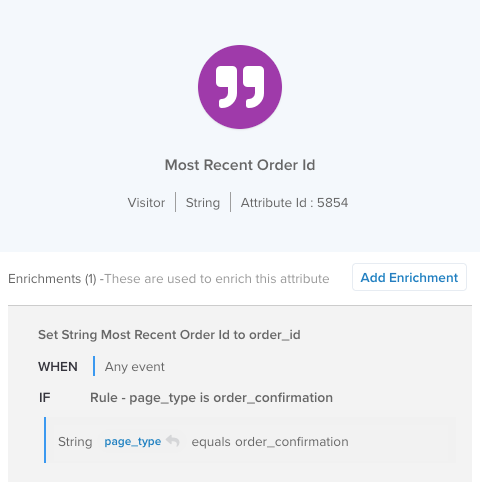
The Newer rule chooses the attribute value, including a removed value, updated most recently. This rule is best for attributes with enrichments based on incoming event attributes (as opposed to other visitor attributes).
The Newer rule is based on an internal timestamp set when an enrichment updates the value of an attribute. If the internal timestamp is not set for both attributes, the timestamps of the last visit for each visitor are used to determine which was set first.
Older
| Rule | Description | Supported data types |
|---|---|---|
| Older | Keep the earlier updated value (including removed values) | Badge Boolean Date Number Set of strings String Tally |
Example
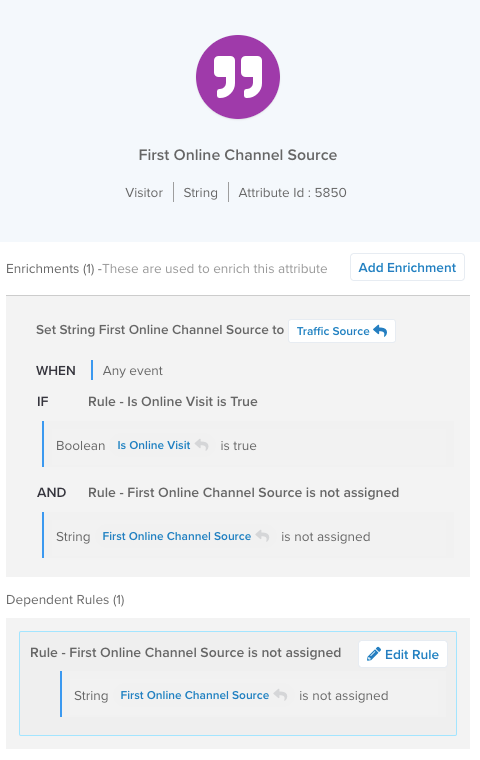
The Older rule chooses the attribute value, including a removed value, updated earlier. The Older rule is best for attributes with enrichments that only set a value if a value is not already set to ensure that only the first value for the visitor is saved.
The Older rule is based on an internal timestamp set when an enrichment updates the value of an attribute. If the internal timestamp is not set for both attributes, the timestamps of the last visit for each visitor are used to determine which was set first.
If an attribute enrichment does not use a self-referencing rule to ensure it’s only set once, then using the Older rule will not necessarily result in the earliest value set.
Recalculate
| Rule | Description | Supported data types |
|---|---|---|
| Recalculate | Discard previous values and run enrichments on the final merged profile. | Badge Boolean Date Number Set of strings String Tally Array of booleans Array of booleans Array of numbers Array of numbers Array of strings Array of strings |
The Recalculate rule discards the initial merged value of the attribute and reruns the enrichments for the attribute. Discarding the initial merged value ensures that the recalculation starts with an unset value and the value is set only based on the enrichments.
The Recalculate rule is best suited for attributes derived from other visitor or visit attributes, such as a number attribute that counts items in a set of strings. In these cases, the source attributes are resolved first, using other merge rules if configured, and the Recalculate rule then recomputes the derived value.
Rule behavior:
- If an enrichment is set to run on New Visitor, New Visit, or End of Visit, it is run in the merge rule only if the event leading to the merge also caused a New Visitor, New Visit, or End of Visit.
- Enrichment rule conditions that use event attributes are evaluated based on the event that caused the merge.
- Enrichment rule conditions with the Has Changed operator evaluate to
trueif this attribute has changed compared to either of the visitor profiles being merged.
Example
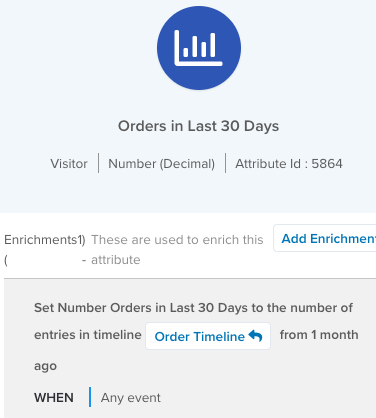
In this example, the attribute value is derived from another visitor attribute, Orders Timeline. If the Orders Timeline attribute has its own merge rule (Merge timeline), that rule runs before this number attribute is evaluated by the Recalculate rule.
Recalculate (Force)
| Rule | Description | Supported data types |
|---|---|---|
| Recalculate (Force) | Discard previous values and run enrichments on the final merged profile and force some conditions to true. |
Badge Boolean Date Number Set of strings String Tally Array of booleans Array of numbers Array of strings |
The Recalculate (Force) rule is the same as the Recalculate rule except that it forces several enrichment conditions to true. The Recalculate (Force) rule is best for attributes derived from the value of one or more other visitor or visit attributes that also use any of the New Visitor, New Visit, or End of Visit conditions.
Visitor stitching can occur at times that do not coincide with the New Visitor, New Visit, or End of Visit conditions, so this rule forces those enrichments to run to ensure the correct value is set.
Rule behavior:
- If an enrichment is set to run on New Visitor, New Visit, or End of Visit, it is forced to run in the merge rule even if the event leading to the merge did not cause a New Visitor, New Visit, or End of Visit.
- Enrichment rule conditions that use event attributes are forced to evaluate to
true. - Enrichment rule conditions with the Has Changed operator are forced to evaluate to
true.
Example
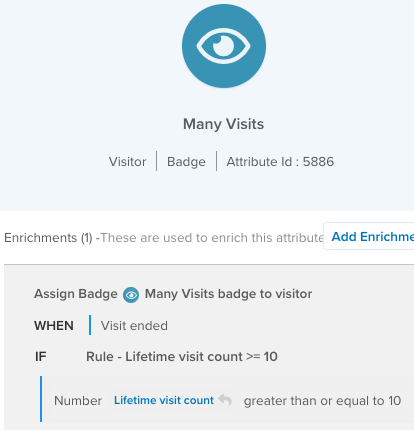
In this example, the attribute is derived from another visitor attribute, Lifetime visit count, and assigns a badge when the visitor has made 10 or more visits. However, the enrichment is set to run on Visit Ended, which might not be true when the visitor stitching occurs, so using the Recalculate (Force) rule forces the enrichment to run anyway.
If Visit Ended is not forced to evaluate to true, the badge remains unassigned until the end of the visit and the visitor might leave and then rejoin an audience based on this badge. This might be undesirable behavior if leaving or joining the audience causes connector actions to fire.
Sum
| Rule | Description | Supported data types |
|---|---|---|
| Sum | Add values from both visitors. | Number |
The Sum rule keeps the sum of the values of each number attribute. If one of the values is not set, the result is the other value that is set. If neither value is set, the merged value is also not set (as opposed to a value of 0).
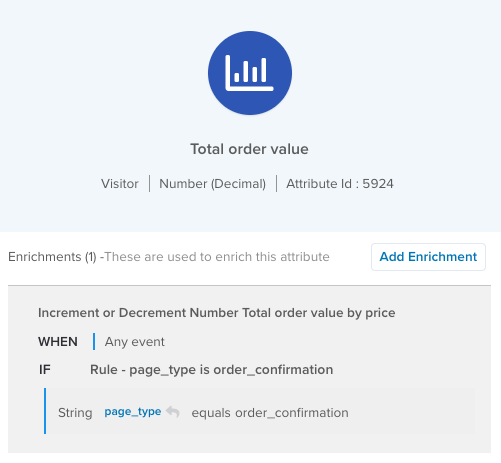
In this example, if Visitor A spent $30 and Visitor B spent $60, then the merged visitor has spent $90.
Union
| Rule | Description | Supported data types |
|---|---|---|
| Union | Combine values from both, preserving consistent order across arrays. | Set of strings Array of booleans Array of numbers Array of strings |
The Union rule combines values from both attributes, preserving consistent order across arrays. The values in a set of strings are deduplicated.
Example: Set of strings
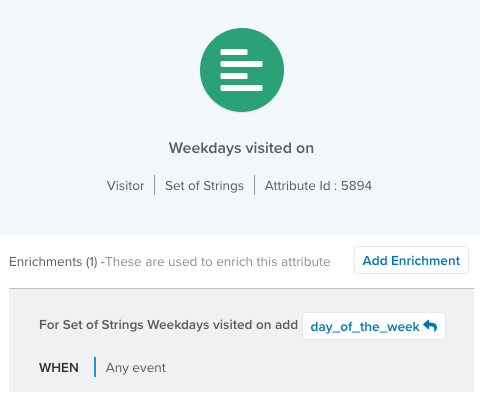
In this example, the Union rule combines the entries and removes the duplicate entry for Wednesday because entries in a set of strings must be unique.
Example of Union rule for a set of strings attribute:
Visitor-A: {
  "Days of week viewed confirmation": ["Monday", "Wednesday"]
}
Visitor-B: {
  "Days of week viewed confirmation": ["Wednesday", "Friday"]
}
Merged: {
  "Days of week viewed confirmation": ["Monday", "Wednesday", "Friday"]
}
Example: Array
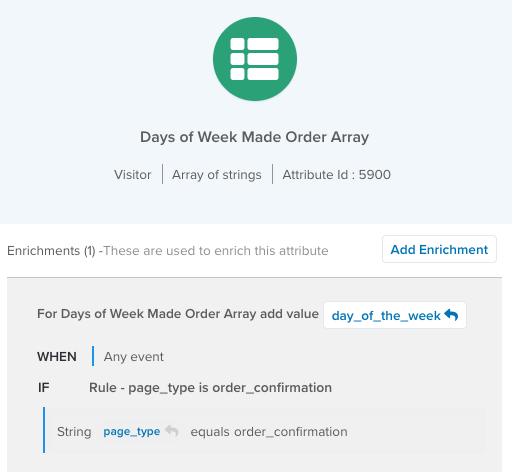
In this example, an array of strings attribute tracks the day of the week each time the visitor sees the order confirmation page. Unlike a set of strings attribute, the merged value of two arrays can contain duplicate values.
Example of a Union rule for an array of strings attribute:
Visitor-Older: {
  "Days of week viewed confirmation": ["Monday", "Wednesday", "Monday"]
}
Visitor-Active: {
  "Days of week viewed confirmation": ["Wednesday", "Friday"]
}
Merged: {
  "Days of week viewed confirmation": ["Monday", "Wednesday", "Monday", "Wednesday", "Friday"]
}
The merged attribute retains the order of the arrays from the original visitor profiles, with the older visitor entries first and the active visitor entries second.
Union Max/Min/Sum
| Rule | Description | Supported data types |
|---|---|---|
| Union Max | Merge keys and keep the higher value for matching keys. | Tally |
| Union Min | Merge keys and keep the lower value for matching keys. | Tally |
| Union Sum | Merge keys and add values for matching keys. | Tally |
The Union Max/Min/Sum rules merge tally attributes where the values of any common keys are combined based on the specific rule (Max, Min, or Sum). The merged tally retains all keys that exist in one of the original attributes.
Example: Union Sum
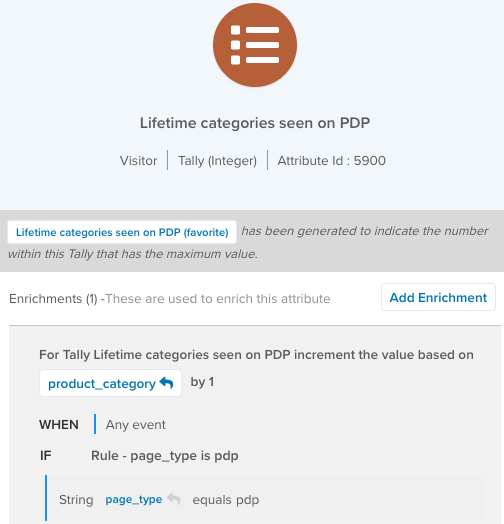
In this example, the tally counts the different product categories the visitor has seen on product details pages. Use the Union Sum rule to merge the keys and add the values for matching keys.
Visitor-A: {
  "Lifetime count of product categories": {
      "Accessories": 1,
      "Apparel": 2,
      "Books": 1
  }
}
Visitor-B: {
  "Lifetime count of product categories": {
      "Apparel": 4,
      "Books": 3,
      "Electronics": 5
  }
}
Merged: {
  "Lifetime count of product categories": {
      "Accessories": 1,
      "Apparel": 6,
      "Books": 4,
      "Electronics": 5
  }
}
**Example: Union Max
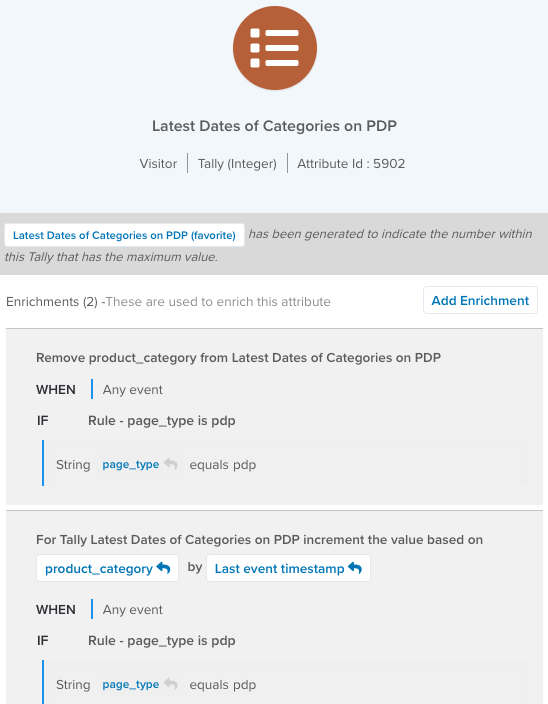
In this example, the tally stores the last date (in milliseconds since the Epoch) that a product category was seen. Use the Union Max rule to merge the keys and keep the most recent value for matching keys.
Visitor-A: {
  "Dates of last seen product categories": {
    "Accessories": 1702454863722,
    "Apparel": 1733414869787,
    "Books": 1731414884828
  }
}
Visitor-B: {
  "Dates of last seen product categories": {
    "Apparel": 1732424969356,
    "Books": 1733414883367,
    "Electronics": 1721357252812
  }
}
Merged: {
  "Dates of last seen product categories": {
    "Accessories": 1702454863722,
    "Apparel": 1733414869787,
    "Books": 1733414883367,
    "Electronics": 1721357252812
  }
}
This page was last updated: December 18, 2025