This article provides an overview of the first-party domains feature, the validation process for configured domains, and the requirements for domain certificates.
The first-party domains settings allow Tealium services to use first-party requests, which can reduce data loss caused by ad blockers and similar technology.
Contact your Tealium account manager to enable the first-party domains feature for your account.
A first-party domain is the domain that hosts the website that the user is visiting. A third-party domain is any domain that does not match the current website’s domain.
The services offered in the Tealium server-side are hosted on Tealium domains by default. For example, JavaScript files for Tealium iQ Tag Management are served from the tags.tiqcdn.com subdomain and the data collection endpoint for Tealium EventStream API Hub uses the collect.tealiumiq.com subdomain. Both of these Tealium subdomains are considered third-party domains.
First-party domains primarily support web use cases and do not support Visitor Service for Mobile. Contact your account manager to explore setting up a custom CNAME for Visitor Service for Mobile if you need first-party Visitor Service support for non-web use cases. First-party domains do not support Tealium’s Google Tag Manager or Adobe Launch integrations.
How it works
First-party domains apply to all profiles in your account. Enter a subdomain for each site managed by this account.
When you configure first-party domains for the tags.tiqcdn.com subdomain, Tealium provides a CNAME record that must be added to your DNS database. A CNAME record is an alias that maps one domain name to another. For example, for the website www.example.com, Tealium would provide a CNAME record for tags.example.com that points to the Tealium CDN to serve the files for iQ Tag Management.
For the collect.tealiumiq.com subdomain, Tealium provides A records that must be added to your DNS configuration. An A record maps a subdomain name to the IP address for the domain. Two IP addresses for A records are provided for each subdomain configured for first-party domains. These two A records are used for load balancing of DNS servers.
You will need an SSL/TLS certificate for your first-party domain to ensure that the traffic between the user’s browser and your website is encrypted. You can choose to have Tealium manage your certificates or you can manage your own certificates. A CAA record, which is a DNS record that specifies which certificate authorities (CAs) are allowed to issue certificates for your domain, is required in your DNS configuration to allow Tealium to manage your certificates.
For more information about updating your DNS configuration, see Update endpoint configurations.
When using first-party domains, ensure that you are using the latest version of the Tealium Collect tag.
Manage domain certificates
A critical part of configuring first-party domains is the management of the SSL/TLS certificates for your domain, which are public key certificates that confirm that you own the specified domains and verify the encryption of your website over HTTPS. Tealium can manage the certificates, which includes automatic renewal before the certificates expire, or you can import and manage your own certificates.
You must have access to edit your DNS entries or have access to receive email messages sent to the domain administrator.
Tealium-managed certificates
Tealium provisions and automatically renews domain certificates using Amazon Web Services (AWS). This option meets standard security and compliance requirements and reduces operational overhead.
To allow Tealium to generate your certificates, your DNS configuration must include Certificate Authority Authorization (CAA) records for at least one of the following:
amazon.comamazontrust.comawstrust.comamazonaws.com
For example, add the following CAA record to authorize Amazon to issue certificates for the example.com domain:
example.com. CAA 0 issue "amazon.com"
Self-managed certificates
You provide and manage your own domain certificates while maintaining the same level of encryption and security. This option is typically used to meet internal policies for certificate ownership, custom certificate authorities, or centralized certificate lifecycle management.
To use your own certificates, you must have access to the following SSL/TLS certificate files:
- PEM-encoded certificate
- PEM-encoded, unencrypted private key
- PEM-encoded certificate chain
The private key must match the public key in the certificate and must not be encrypted with a password.
The certificate files must meet the following requirements:
- Must be imported from the same region they are used in.
- Maximum file size is 2048 bits.
- Cannot be password protected.
- If multiple certificate files are chained, the chain file is required.
For more information about certificate requirements, see AWS: Prerequisites for importing certificates.
Ensure that you set the appropriate CAA records in DNS to allow your chosen certificate authority (CA) to issue certificates for your domain.
Renew self-managed certificates
You are responsible for renewing the certificates before they expire. When you renew a certificate, click Reimport Certificate to upload the certificate. The new certificate replaces the previous one. If the previous certificate has not expired, there should be no downtime.
If the previous certificate has expired, there may be a few hours delay while the certificate propagates to DNS servers.
Comparison of certificate management methods
| Certificate management option | Advantages | Disadvantages |
|---|---|---|
| Tealium-managed |
|
|
| Self-managed |
|
|
Limits on domains per certificate
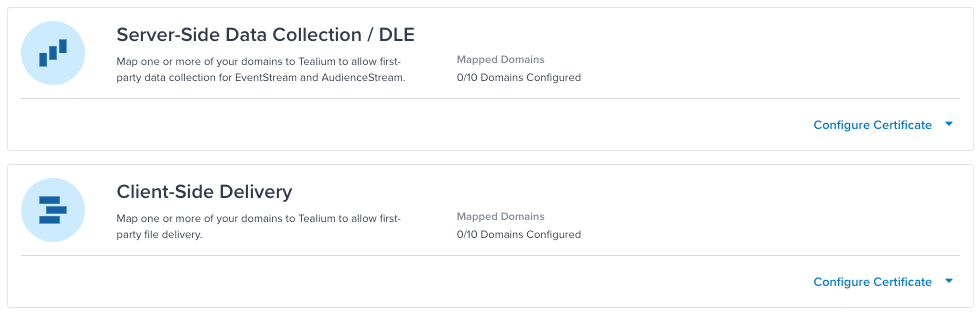
The maximum number of domains per certificate is determined when you sign up for first-party domains. The First-Party Domains Overview screen shows the number of domains that have been configured and the maximum number of domains per certificate for both Server-Side Data Collection and Client-Side Delivery. In the following example, no domains have been configured and the maximum number of domains for Server-Side Data Collection and Server-Side Delivery is 10 (0/10 Domains Configured).
First-party domains and TAPID
TAPID is an HTTP-only browser cookie. It was originally designed to facilitate cross-domain identification, and it stores the anonymous ID for Tealium AudienceStream.
When you use first-party domains, the TAPID cookie remains an HTTP-only browser cookie, but it is assigned to the first-party domain that hosts your website instead of the Tealium third-party domain. Therefore, first-party domains cause the TAPID cookie to lose its cross-domain tracking functionality.
For more information, see About TAPID cookies.
Validate domain ownership
Before Tealium can issue a certificate for your site, you must prove that you own or control all the domains in your request. You can prove ownership using either DNS validation or email validation.
If your certificate was originally set up with DNS or email validation, retries will use the same method again. If Amazon does not give any validation method data, we use DNS validation for retries.
We recommend DNS validation because it is usually a quicker process and because sometimes it can be difficult to track down who in your organization has access to the administrative emails. However, if you don’t have permission to edit your domain’s DNS database, then you must use email validation.
DNS validation
To use the DNS validation method, you must have access to edit your DNS configuration. You will need to work with your production operations team or the person responsible for your domain registration and SSL/TLS certificates.
After you have added domains, Tealium displays validation records for each domain requested, which you must add to your DNS configuration. The following example shows a validation CNAME record for one domain:
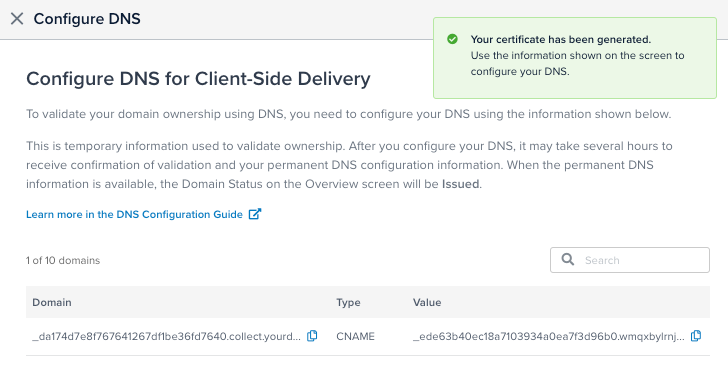
Validation can take up to 24 hours, but often happens sooner. When the validation is completed, Tealium displays permanent DNS records, which you must add to your DNS configuration, as follows:
- CNAME records are shown for Delivery subdomains.
Use these records in place of certain paths intags.tiqcdn.com. - A records are shown for Collect subdomains.
Use these records in place of certain paths incollect.tealiumiq.comand invisitor-service.tealiumiq.com(for the Collect tag use case).
We recommend using one validation method for all domains on your account. Mixing methods may cause the following error when you use the retry endpoint to retry validation:
Ambiguous validation methods on existing certificate.
If you see this error, reconfigure your first-party domains to use a single method.
Keep both the validation and permanent records in your DNS configuration. Do not delete these records. They are required for adding domains to a certificate and for auto-renewing certificates.
Email validation
To use email validation, you must be able to receive email messages at one of the contact addresses listed in the WHOIS database for each of your requested domains. The email addresses that will receive a message include the following:
administrator@your_domainhostmaster@your_domainhostmaster@your_domainpostmaster@your_domainwebmaster@your_domainadmin@your_domain
You will receive an email from Amazon Web Services (one message for each domain) containing a validation token that expires in 72 hours. If you do not receive the email or the token has expired, return to the main screen and click Resend Email. You must respond to an email message for each domain to complete the validation process.
Domain status
Domains listed in the First-Party Domains Overview screen can have one of the following statuses:
- Issued: All domains have been validated, and the certificate is not expired or nearing expiration.
- Pending validation: One or more domains have not been validated.
- Expiring soon: The certificate is nearing expiration and requires renewal (self-managed certificates only).
- Expired: The certificate has expired.
- Failed: The certificate has failed to issue. This can occur if validation has failed or if there is an issue with the uploaded certificate files. Check the error message, resolve the issue, and try again. If you are using Tealium-managed certificates, click Retry to reissue the certificate. If you are using self-managed certificates, click Provide Certificate to upload new files.
- Not configured: No domains have been configured for this side of the platform.
- Validation timed out: Domain validation has timed out.
- Revoked: The certificate has been revoked.
This page was last updated: May 13, 2026