To use the Adobe Test & Target tool in Web Companion:
Click on the Web Companion bookmarklet to open Web Companion.
Navigate to the Tools tab.
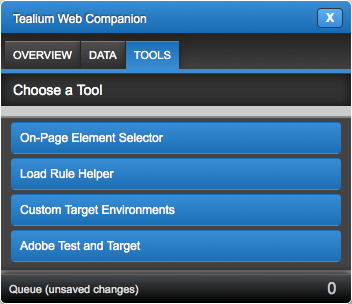
Click on the Adobe Test and Target bar.
Click Select Target. The On Page Element Selector crosshairs are displayed.
With those crosshairs, select the element you want to apply a test to.
Web Companion will populate the identifying information for the element you selected. Enter the mBox info and Static params.
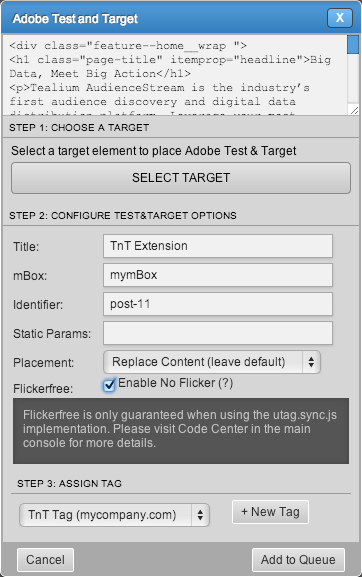
Select the placement for the modifying content. For more information on this see the Test & Target article.
Check the box next to Flicker Free to use Tealium’s Flicker Free solution. See the Flicker Free Test and Target article.
From the drop-down at the bottom of Web Companion, select the Tag you want to scope this Extension to.
Click New Tag to add a new instance of the Test and Target Tag.
Click Add to Queue.
Navigate to the Queue and click Save.
Enter your Tealium iQ login information and click Login.
By default, anything added with Web Companion is turned off in Tealium iQ. Log in to Tealium iQ and turn on the tag and/or extension you added.
Save/Publish the profile.
This page was last updated: June 10, 2026