Cooldown groups
This article describes how to use cooldown groups in frequency capping.
Cooldown groups define how frequency-capped actions interact with each other.
Actions assigned to the same cooldown group share a cooldown period. When one action in the group triggers, other actions in that group are temporarily suppressed.
Add a new cooldown group
When you create a cooldown group, it becomes available to all frequency-capped actions in your profile.
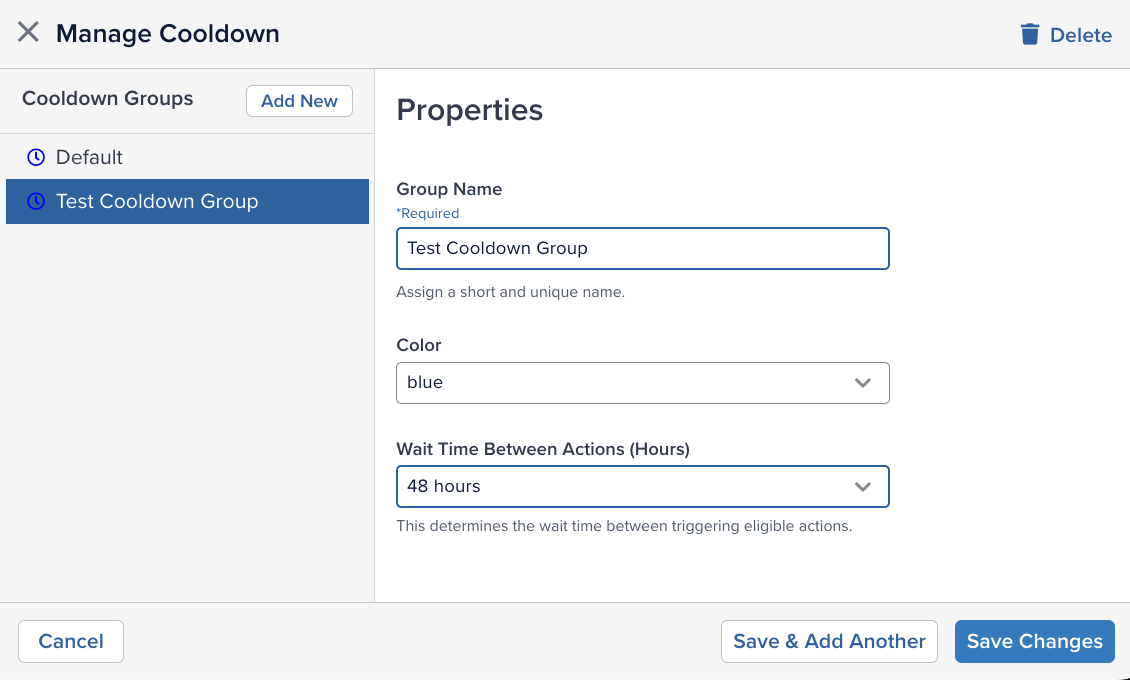
To create a cooldown group:
- In the admin menu, click Manage Cooldown.
- Click Add New.
- In the Group Name field, enter a unique name to identify this group.
- From the Color drop-down list, select a color used to identify the group.
- In Wait Time Between Actions (Hours), enter a custom value (in hours) or select 6, 12, 24, or 48 hours. This value determines how long the system waits before another action in the same group can trigger.
- Click Save Changes.
Using the default cooldown group
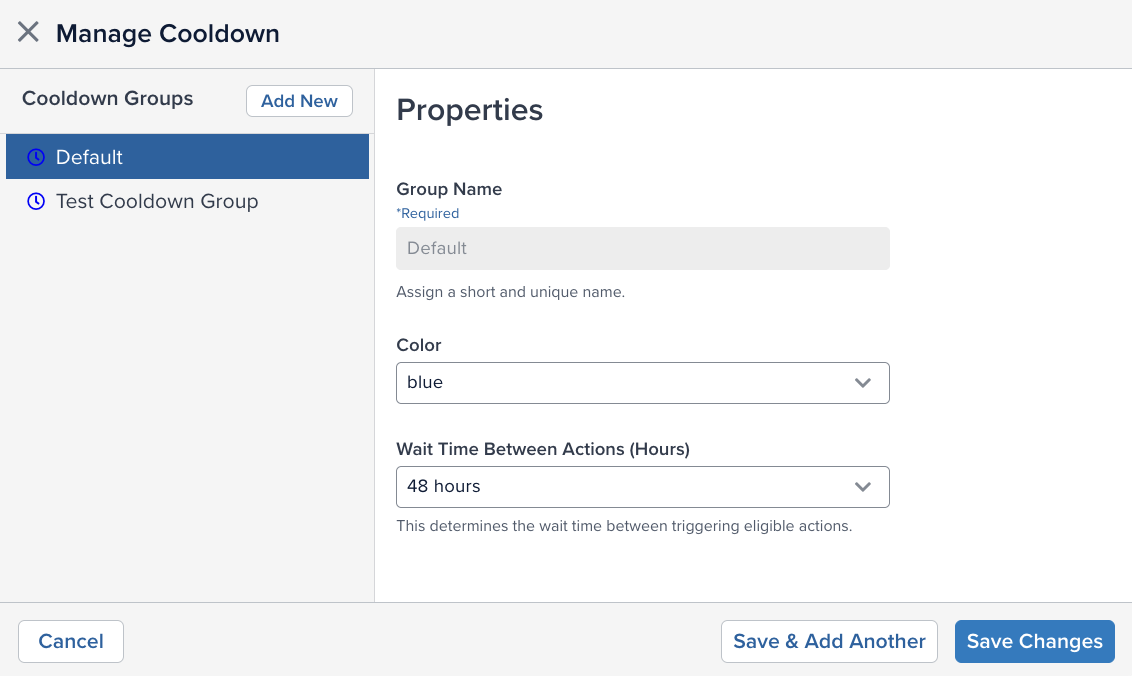
The default cooldown group applies to frequency-capped actions when no other cooldown is configured in your profile. You can modify the color and duration settings of the default group, but you cannot change its name.
Choosing cooldown groups
Use cooldown groups to define how actions should interact.
Assign actions to the same cooldown group when they need to share the same frequency limit.
For example, if several promotional campaigns should send no more than one message within 24 hours, assign those actions to the same cooldown group to enforce that limit.
When a visitor qualifies for multiple actions in that group, the system selects the highest-priority action and suppresses the others during the cooldown period.
Use different cooldown groups when actions should operate independently. Common scenarios include:
- Different communication channels, such as email, SMS, or push notifications.
- Different business purposes, such as transactional and marketing messages.
- Situations where multiple actions should be able to trigger within the same time window without competing with each other.
Apply a cooldown group to a connector action
You can apply a cooldown group to one or more frequency-capped actions in the same connector.
To apply a cooldown group to an existing action:
-
In the sidebar, go to Connectors > Overview.
-
Click a connector to expand its details.
-
Select the Actions tab and choose the action to configure. The action must use visitor data and an audience source.
-
Click the Source tab.
-
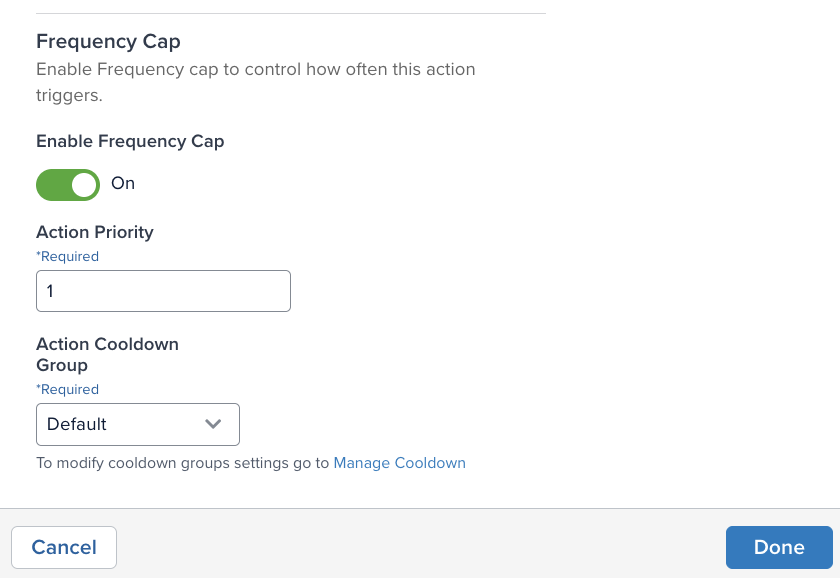
Scroll to Frequency Cap and turn it on.
-
Under Action Priority, use the up or down arrow to assign a priority number.
Do not set this value to zero or a negative number. Assign the priorities in increments of 10 instead of consecutive numbers. This makes it easier to insert a new action later without having to update the priority values for other actions.
-
Under Action Cooldown Group, select the cooldown group.
-
Click Done.
-
Save and publish your profile.
This page was last updated: March 16, 2026