About data transformation functions
This article provides an overview of data transformation functions.
Data transformation functions execute when data enters the Tealium system but before the data is processed. Transformation functions are useful for a variety of purposes, including the following:
- Flattening the event object passed to the function.
- Removing sensitive data, such as a phone number or an email address.
- Modifying variables in the event object, such as changing variables to lowercase.
- Populating variables in the event object based on other values.
- Renaming variables by assigning the value to a different variable and deleting the original variable.
File import events are not supported with data transformation functions.
Input to a data transformation function
Data transformation functions have one of the following input parameters depending on the source of the data:
event: An event data object from Tealium Collect. For more information, see Event parameter.dataRecord: A data record from a cloud data source. For more information, see Data record object.
The Tealium module exports the flatten() utility for data transformation functions, which converts a nested object into a new object with no nesting.
Custom triggers
Data transformation functions are invoked based on the custom trigger for the function. A custom trigger is a rule you create to specify when to execute a function. Custom trigger rules are similar to load rules and use boolean logic to combine conditions in a rule.
For example, in the following rule, the function is triggered when a purchase event comes from a specific data source (r2rbm8).
A condition is based on a property selector of the incoming data object, a comparison operator, and a comparison value. The selector is a JSONPath expression (see JSONPath) and can reference any property in the object.
For information on creating a data transformation function and a custom trigger, see Create a function.
An event or data record can trigger only one function. If the incoming data matches more than one trigger rule, the function with the oldest Date Modified is triggered.
For events
For events coming from Tealium Collect, custom trigger conditions can be based on any property of the event parameter, but are commonly based on the data source key, data source platform, and the tealium_event attribute.
For more information about the event parameter, see Event parameter.
For data records
For events coming from a cloud data source, custom trigger conditions can be based on any property of the dataRecord parameter, but must include a condition based on the data source key ($.dataSourceId).
For more information about the dataRecord parameter, see Data record object.
Rule limitations
- Selector and Value fields are limited to 128 characters.
- The regular expression operator is not available.
- The size of a rule is limited to 10 KB.
- The number of OR blocks is limited to 10.
- The number of conditions in an AND block is limited to 10.
Default function code
When you create a data transformation function, default code is shown in the Code tab. The default code imports the flatten library and calls transform(event), where the event parameter is a metadata object for the incoming event, then flattens the incoming event object. Change the default transform() code as needed to modify the event attributes in the event.data.udo object.
import flatten from "tealium/util/flatten";
// "transform" function lets you access event and apply changes

transform((event) => {
    // changes are applied through the mutation of the original event
    event.data.udo = flatten(event.data.udo);
    console.log(JSON.stringify(event, null, 2));
})
For examples of data transformation functions, see Example Code.
Conversion of existing functions to custom triggers
Custom triggers were introduced after the initial release of data transformation functions. For any data transformation functions that existed before custom triggers were introduced, a condition similar to the following is automatically created:
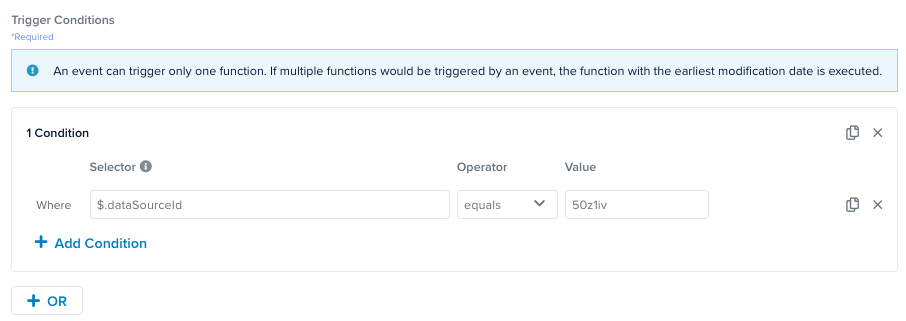
This new condition specifies the data source ID set to the ID of the data source associated with the function. The function is triggered for every event from the data source. You can edit this condition to trigger the function for more specific events.
This page was last updated: September 8, 2026